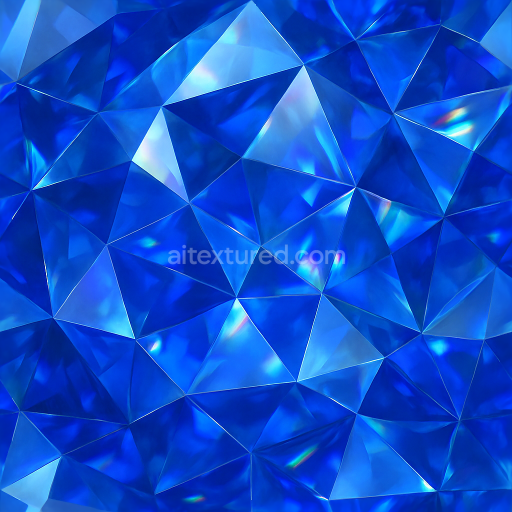
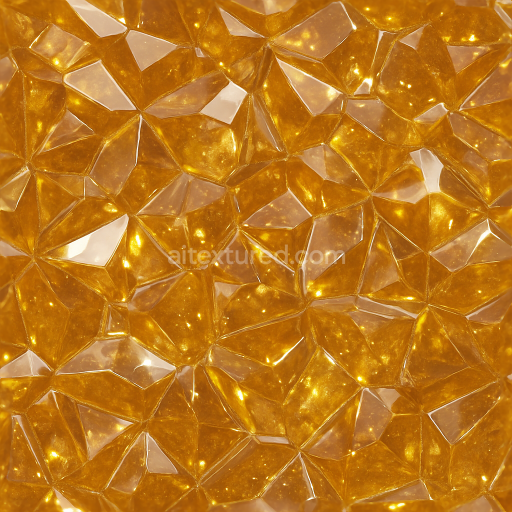
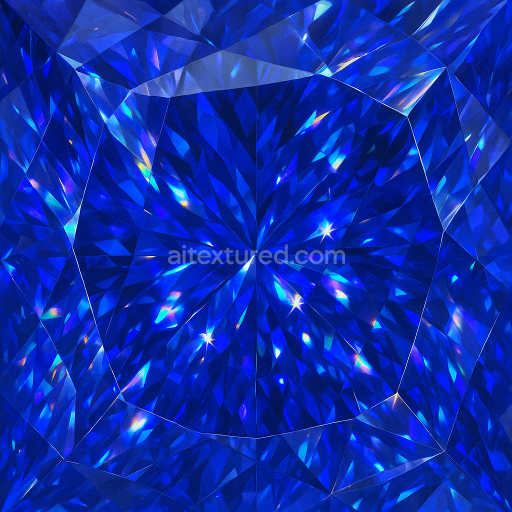
Sapphire Faceted Gem With Gemstone Facets And Light Dispersion Effects
Seamless texture (tileable) · PNG, WEBP, PBR ZIP. License: AITextured Free Commercial License (FCL) v1.1. Free personal and commercial use. Raw resale, standalone redistribution, mirroring/scraping, competing asset packs, and AI/ML training are not allowed without written permission. Attribution is not required, but appreciated..
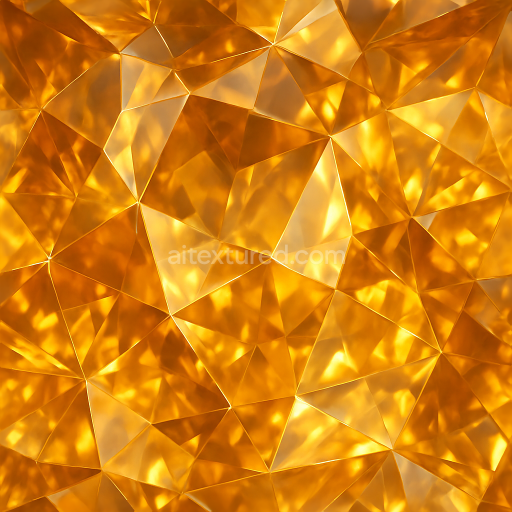
| ID | seamless-3d-texture-pbr-8k-of-polished-topaz-faceted-gemstone-with-reflective-facets-and-bright-gemstone-scintillation-effects |
|---|---|
| Category | Crystals |
| Formats | PNG, WEBP, PBR ZIP |
| Size | 1k (1024x1024px), 2k (2048x2048px), 4k (4096x4096px), 8k (8192x8192px) |
| Color | sRGB |
| Tileable | Yes |
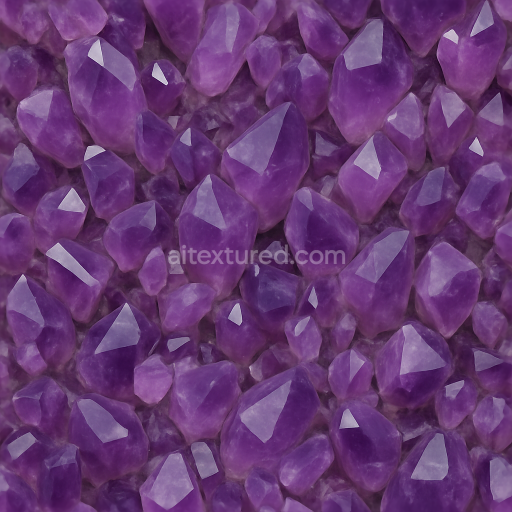
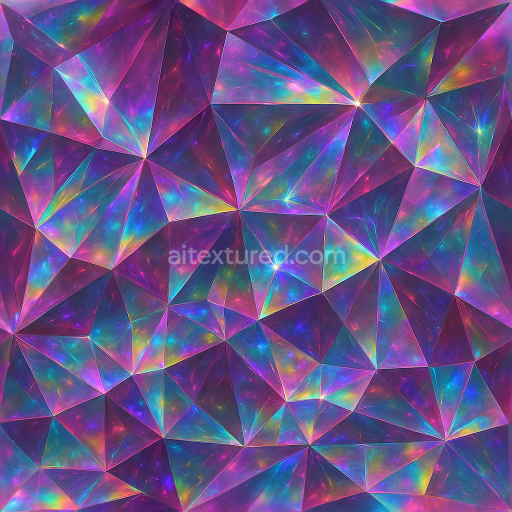
This seamless 3D PBR texture presents a polished topaz faceted gemstone rendered in ultra-high 8K resolution, capturing the intricate geometry and optical qualities characteristic of natural topaz crystals. The material composition is based on a transparent silicate substrate with a well-defined crystalline lattice structure, exhibiting sharp, faceted planes that intersect at precise angles to form the gemstone’s characteristic multifaceted form. The surface finish is highly polished, resulting in a glassy, lustrous appearance that enhances light transmission and internal reflections. This creates vivid gemstone scintillation effects, characterized by brilliant fire and sparkling highlights that dynamically shift with viewing angle and lighting conditions.
The texture’s geometric arrangement follows a complex faceted pattern typical of precision-cut gemstones, where each facet is a flat polygonal plane designed to maximize light refraction and reflection. These facets form a tessellated surface with minimal porosity, ensuring a smooth and flawless finish. The base color channel (Albedo) accurately depicts the natural golden to amber hues of topaz, with subtle gradations to simulate light diffusion within the crystal. The Normal map defines the sharp edges and subtle microfacet details, enhancing the perception of depth and the angular form of each facet. Roughness values are finely tuned to reflect the polished nature of the gemstone’s surface, maintaining low roughness for glossy reflections while allowing slight variation to simulate microscopic surface imperfections.
Metallic channel is set to neutral, reflecting the non-metallic, dielectric nature of the gemstone, while the Ambient Occlusion map accentuates the crevices between facets, adding realism by simulating self-shadowing effects. The Height or Displacement map captures the subtle depth variations of the faceted geometry, enabling enhanced parallax and relief effects in real-time engines. This texture is optimized for seamless tiling without visible repetition, making it ideal for large-scale applications or close-up renders.
Designed for compatibility with Blender, Unreal Engine, and Unity, this topaz gemstone texture supports physically-based rendering workflows and can be integrated easily into 3D scenes requiring accurate light interaction and material response. For practical usage, adjusting the UV scale can help match the gemstone size to the intended model, while fine-tuning roughness can balance between hyper-realistic gloss and slightly diffused reflections to suit different lighting environments. Additionally, blending height and normal maps can enhance surface detail without excessive geometry, optimizing performance in real-time projects.
Import the texture maps into Blender with sRGB color space for albedo/base color and Non-Color for normal, roughness, metallic, AO, height, and ORM maps. Connect normal maps through a Normal Map node, then adjust UV scale with a Mapping node so the material repeats naturally on your model.
For the full step-by-step setup, see How to Use Seamless Textures in Blender. Browse related material examples in wood, concrete, and metal.
Yes. This texture is designed as a seamless tileable PBR material, so it can repeat across large surfaces without visible borders.
You can download PNG/WEBP versions and use 1K, 2K, 4K and 8K download options when available on the page.
Yes. The download options and engine-mapped ZIP workflow are designed for Blender, Unreal Engine, Unity Standard, URP and HDRP material pipelines.
Yes. The texture is available under the AITextured free commercial license. Review the license page for redistribution and AI-training restrictions.
Build, preview, and export seamless PBR materials. Generate full map sets from a single image, inspect them in a real-time WebGL viewer, and re-package maps for Unreal, Unity, and Blender—directly in your browser.
AI text-to-texture: type a prompt and get a seamless, tileable base image ready for PBR workflows (great starting point for materials).
Create a full PBR set (Normal, Roughness, AO, Metallic, etc.) from a single image. Seamless and tiling-friendly.
Instant WebGL viewer: inspect materials on a sphere, plane, and cube. Check tiling and lighting in real time.
Re-packages maps per engine: Unreal (BaseColor + ORM), Unity (Mask/MetallicSmoothness), Blender (separate channels).
PNG ↔ JPG ↔ SVG: fast convert, SVG rasterize, embed/trace options, quality & background controls.