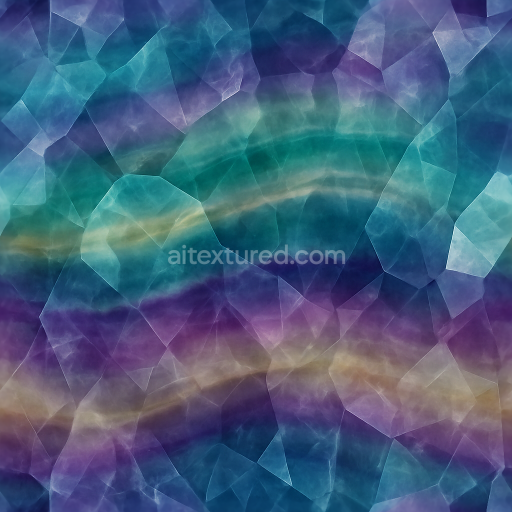
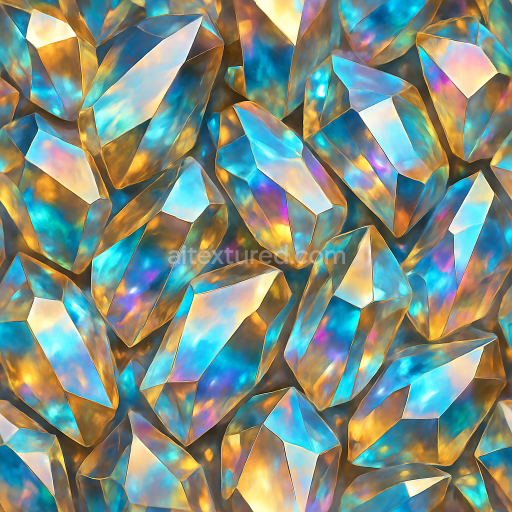
Fluorite Multicolor Crystals With Banded Crystal Zoning And Crystal Transparency Layers
Seamless texture (tileable) · PNG, WEBP, PBR ZIP.
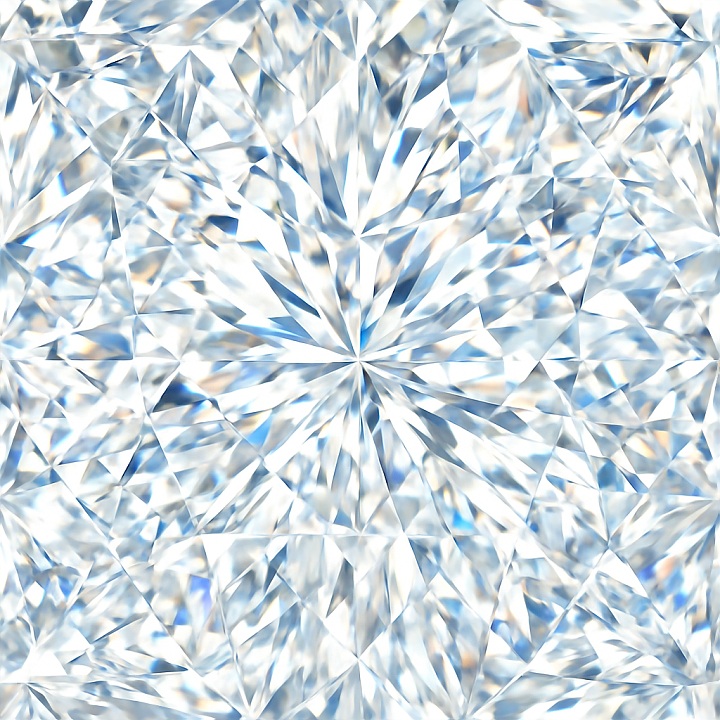
| ID | seamless-3d-texture-pbr-8k-diamond-faceted-gem-with-gemstone-facets-and-sparkle-highlights |
|---|---|
| Category | Crystals |
| Formats | PNG, WEBP, PBR ZIP |
| Size | 1k (1024x1024px), 2k (2048x2048px), 4k (4096x4096px), 8k (8192x8192px) |
| Tileable | Yes |
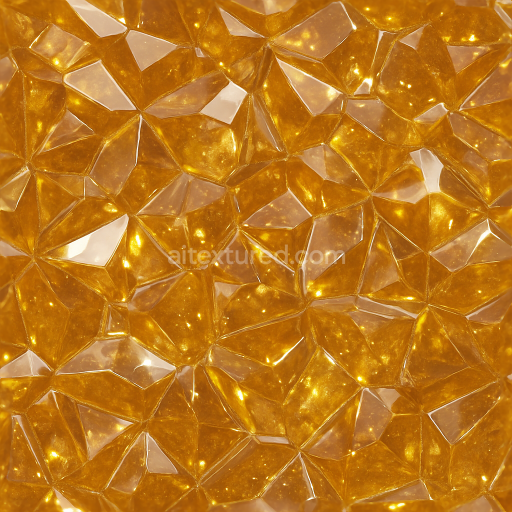
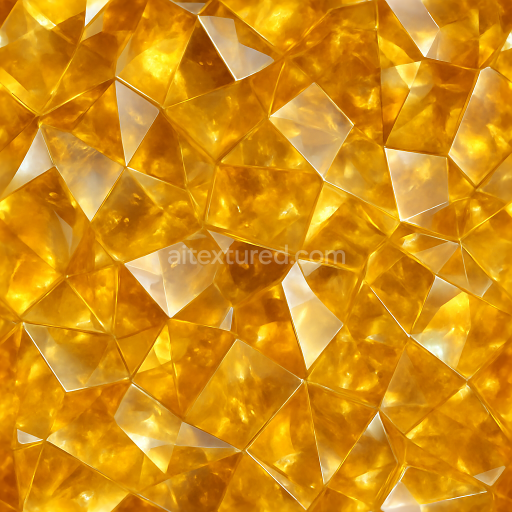
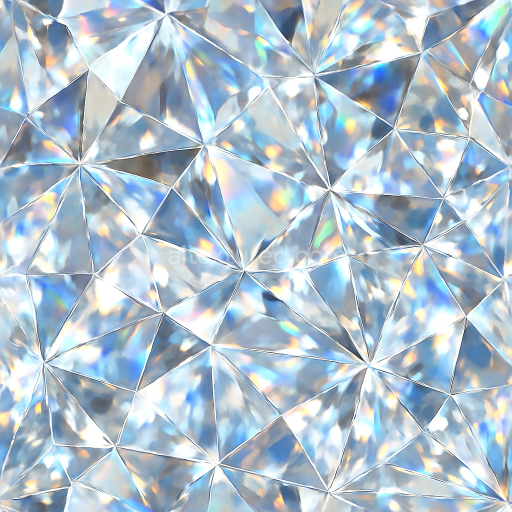
This seamless 3D texture showcases a meticulously crafted diamond faceted gem, designed to replicate the complex geometry and light interplay inherent to high-quality gemstones. The base material simulates a crystalline quartz substrate with an adamantine luster, characterized by an ultra-smooth, polished surface that enhances reflective properties. The geometric form consists of sharply defined, multi-angular facets arranged in a tessellated pattern, creating a continuous array of gemstone facets that capture and refract light with prismatic brilliance. Each facet's precision enables realistic light dispersion, producing vivid sparkle highlights that contribute to the texture’s lifelike appearance.
The composition emulates a naturally occurring diamond structure, where the substrate is a rigid, transparent crystal matrix. The texture’s physical attributes are conveyed through the PBR channels: the BaseColor (Albedo) map remains largely neutral and clear, with subtle variations to suggest internal inclusions and depth. The Normal map encodes the intricate facet geometry, providing surface detail that interacts dynamically with lighting. The Roughness map is finely tuned to reflect the polished finish, featuring low roughness values for sharp reflections interspersed with slightly higher values around micro-facets to simulate subtle surface imperfections. The Metallic channel is minimal, emphasizing the non-metallic nature of the gemstone, while Ambient Occlusion enhances the depth perception between facets. Height/Displacement maps add dimensionality, accentuating the elevated and recessed facets for enhanced parallax effects.
Rendered at an impressive 8K resolution, this texture ensures exceptional detail and clarity, suitable for high-fidelity applications in Blender, Unreal Engine, and Unity. The seamless nature of the texture allows for effortless tiling across complex 3D models without visible repetition, making it ideal for jewelry visualization, digital asset creation, and realistic gemstone surface replication. The lustrous finish and prismatic refraction effects simulated in the texture provide an authentic diamond appearance, crucial for photorealistic rendering projects requiring accurate light behavior and surface reflections.
For practical implementation, it is recommended to carefully adjust the UV scale to maintain facet proportion and prevent distortion, ensuring the gemstone’s geometric integrity. Additionally, fine-tuning the Roughness map allows customization of sparkle intensity, balancing between overly glossy and subtly diffused highlights. Incorporating the Height map alongside Normal maps can improve depth perception and parallax effects, enhancing realism during close-up renders or animations where light interaction plays a critical role.
Import the texture maps into Blender with sRGB color space for albedo/base color and Non-Color for normal, roughness, metallic, AO, height, and ORM maps. Connect normal maps through a Normal Map node, then adjust UV scale with a Mapping node so the material repeats naturally on your model.
For the full step-by-step setup, see How to Use Seamless Textures in Blender. Browse related material examples in wood, concrete, and metal.
Yes. This texture is designed as a seamless tileable PBR material, so it can repeat across large surfaces without visible borders.
Use the download controls on this page: they expose the available PNG, WEBP or engine ZIP choices and supported resolutions for this asset.
Use the engine ZIP choices to package compatible source maps for Blender, Unreal Engine or Unity, then verify the imported material in the target application.
Commercial-use permission is not verified for this record. Confirm the original source and license before production use.
Generate maps from existing images, preview materials, convert channels, and package compatible inputs for Blender, Unity, and Unreal Engine.
Choose a verified workflow for generating maps, previewing tiling, converting channels, or starting from the texture catalog.
Derive Normal, Roughness, AO, Metallic, Height and optional ORM maps from one or more source images, then review the results.
Instant WebGL viewer: inspect materials on a sphere, plane, and cube. Check tiling and lighting in real time.
Re-packages maps per engine: Unreal (BaseColor + ORM), Unity (Mask/MetallicSmoothness), Blender (separate channels).
PNG ↔ JPG ↔ SVG: fast convert, SVG rasterize, embed/trace options, quality & background controls.