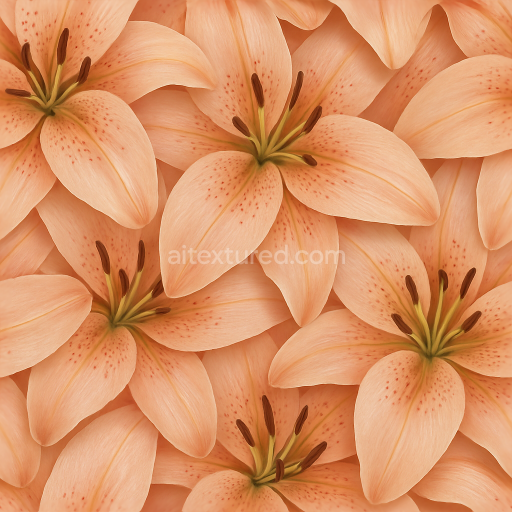
Lily Petals Flower Arrangement Flower Petals Closeup Natural Lighting
Seamless texture (tileable) · PNG, WEBP, PBR ZIP.
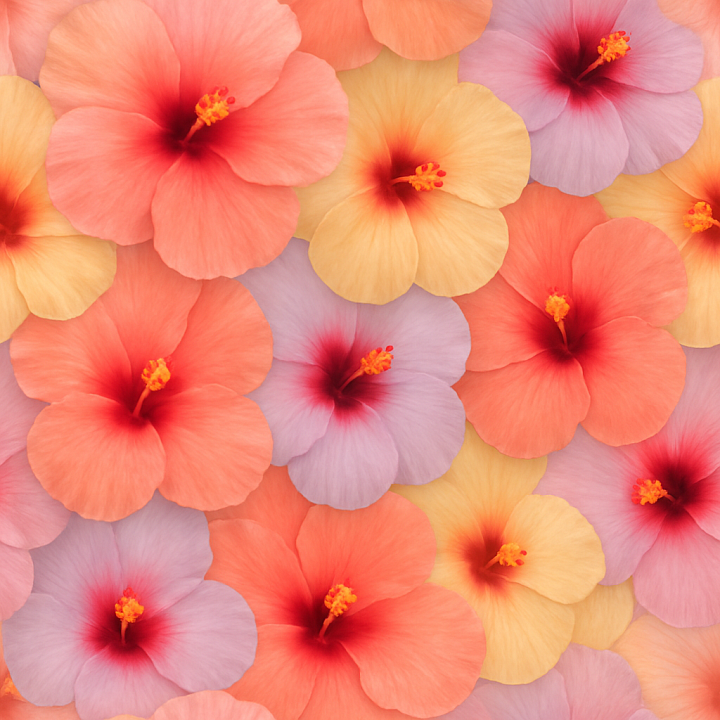
| ID | seamless-3d-texture-pbr-8k-of-tropical-hibiscus-flower-emphasizing-natural-softness-and-color-variations |
|---|---|
| Category | Flowers |
| Formats | PNG, WEBP, PBR ZIP |
| Size | 1k (1024x1024px), 2k (2048x2048px), 4k (4096x4096px), 8k (8192x8192px) |
| Tileable | Yes |
This seamless 3D PBR texture showcases the tropical hibiscus flower in stunning 8K resolution, capturing the intricate materials and form that define its natural beauty. The primary material mimics delicate plant tissue, composed of soft, thin petals with subtle translucency. The geometric form is organic and veined, with overlapping petal shapes creating a layered, tileable pattern that emphasizes natural flower gradients and gentle undulations. The base substrate represents the fibrous cellular structure of hibiscus petals, bound together by natural plant mucilage acting as a flexible adhesive. This combination results in a slightly porous surface with micro-textural irregularities that enhance realism without harsh weathering effects, preserving the flower’s fresh appearance.
The texture’s composition translates directly to the PBR workflow: the BaseColor (Albedo) channel conveys the rich and varied pigmentation of hibiscus petals, ranging from soft pastels to vibrant reds and pinks with subtle color shifts along veins and petal edges. The Normal map captures fine surface details such as veins, subtle creases, and petal curvature, providing depth and contour to the flower surface. Roughness values are finely balanced to reflect the natural satin-like softness of petals, avoiding glossy reflections while still suggesting a gentle sheen from natural moisture. The Metallic channel remains near zero, consistent with organic plant materials lacking metal content. Ambient Occlusion enhances the subtle shading where petals overlap, emphasizing depth without harsh shadows. Height and Displacement maps define the delicate elevations and depressions of the petal surfaces, enhancing parallax effects for close-up renders.
This texture is optimized for use in Blender, Unreal Engine, and Unity, ensuring compatibility with modern rendering pipelines and real-time applications. Its seamless tileability allows for flexible UV scaling, making it suitable for both detailed close-ups and larger environmental floral elements. Artists can adjust roughness to simulate different moisture levels or aging effects, and blend height or normal maps to emphasize or soften petal relief based on scene requirements. For best results, it is recommended to carefully fine-tune UV scale to maintain natural petal proportions and to experiment with roughness values to balance softness against environmental lighting conditions.
Overall, this hibiscus flower texture provides a highly detailed, physically accurate material representation that emphasizes natural softness, subtle translucency, and intricate color variations. Its high resolution and comprehensive PBR maps deliver exceptional realism for botanical assets, floral decor, and organic surface detailing in 3D projects across various platforms.
Import the texture maps into Blender with sRGB color space for albedo/base color and Non-Color for normal, roughness, metallic, AO, height, and ORM maps. Connect normal maps through a Normal Map node, then adjust UV scale with a Mapping node so the material repeats naturally on your model.
For the full step-by-step setup, see How to Use Seamless Textures in Blender. Browse related material examples in wood, concrete, and metal.
Yes. This texture is designed as a seamless tileable PBR material, so it can repeat across large surfaces without visible borders.
Use the download controls on this page: they expose the available PNG, WEBP or engine ZIP choices and supported resolutions for this asset.
Use the engine ZIP choices to package compatible source maps for Blender, Unreal Engine or Unity, then verify the imported material in the target application.
Commercial-use permission is not verified for this record. Confirm the original source and license before production use.



Generate maps from existing images, preview materials, convert channels, and package compatible inputs for Blender, Unity, and Unreal Engine.
Choose a verified workflow for generating maps, previewing tiling, converting channels, or starting from the texture catalog.
Derive Normal, Roughness, AO, Metallic, Height and optional ORM maps from one or more source images, then review the results.
Instant WebGL viewer: inspect materials on a sphere, plane, and cube. Check tiling and lighting in real time.
Re-packages maps per engine: Unreal (BaseColor + ORM), Unity (Mask/MetallicSmoothness), Blender (separate channels).
PNG ↔ JPG ↔ SVG: fast convert, SVG rasterize, embed/trace options, quality & background controls.