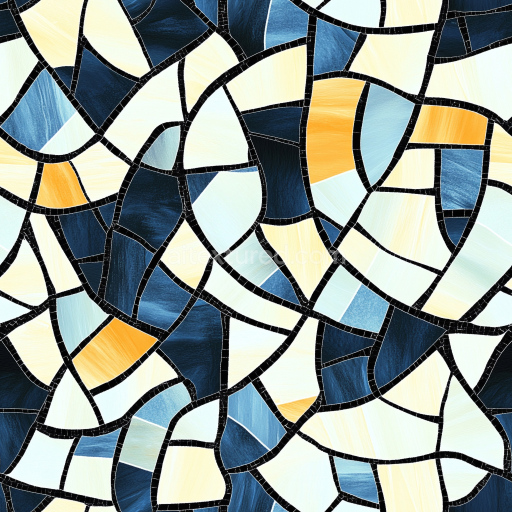
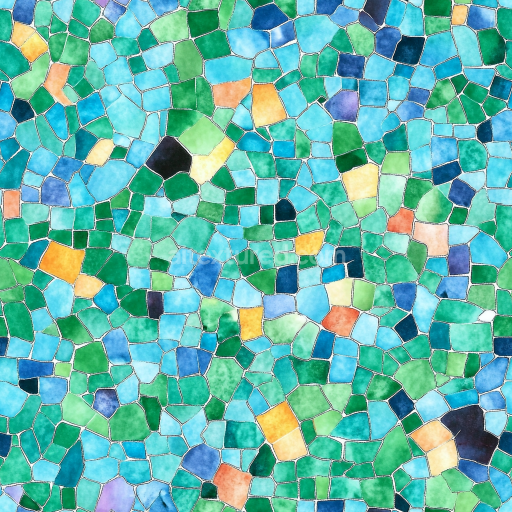
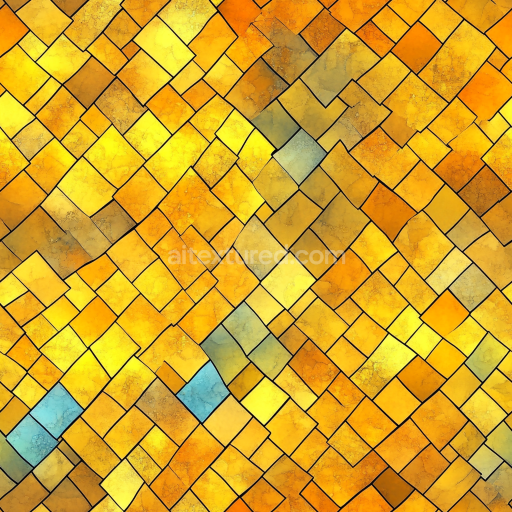
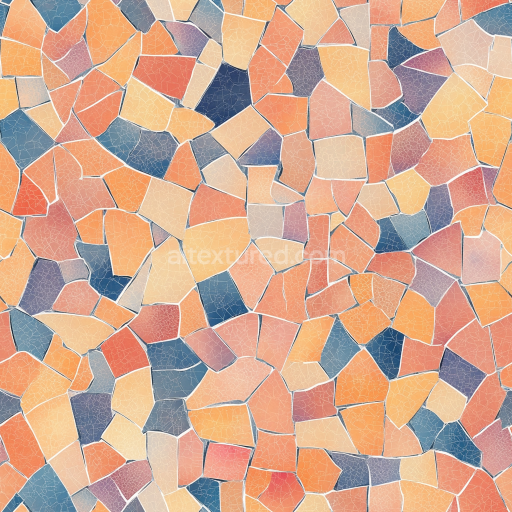
Mosaic PBR Texture Featuring Blue and Yellow Stone Tiles with Black Grout
Seamless texture (tileable) · PNG, WEBP, PBR ZIP.
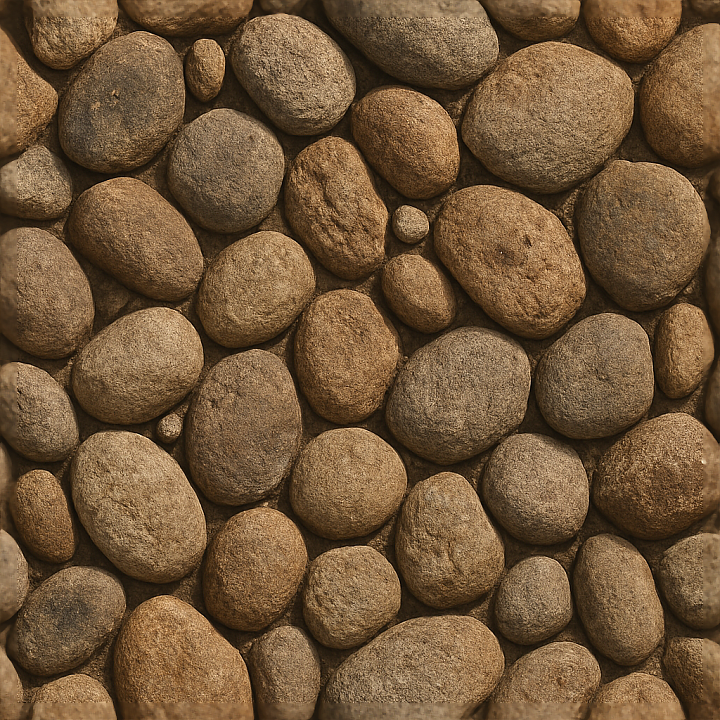
| ID | seamless-3d-texture-pbr-8k-river-stone-mosaic-tiles-with-rough-stone-texture-and-natural-earth-tones |
|---|---|
| Category | Mosaic |
| Formats | PNG, WEBP, PBR ZIP |
| Size | 1k (1024x1024px), 2k (2048x2048px), 4k (4096x4096px), 8k (8192x8192px) |
| Tileable | Yes |
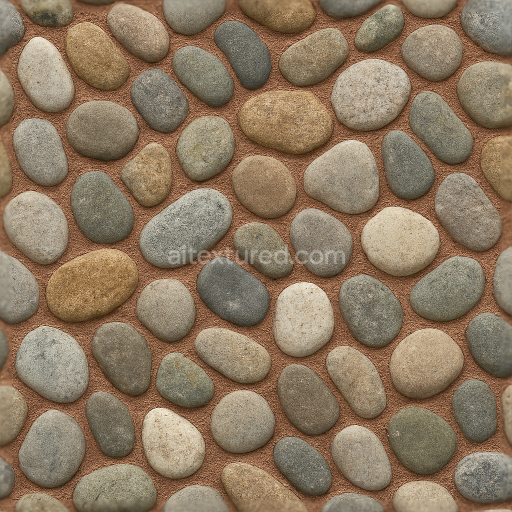
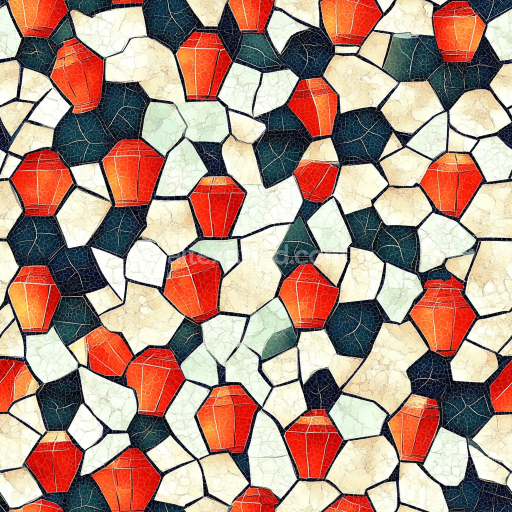
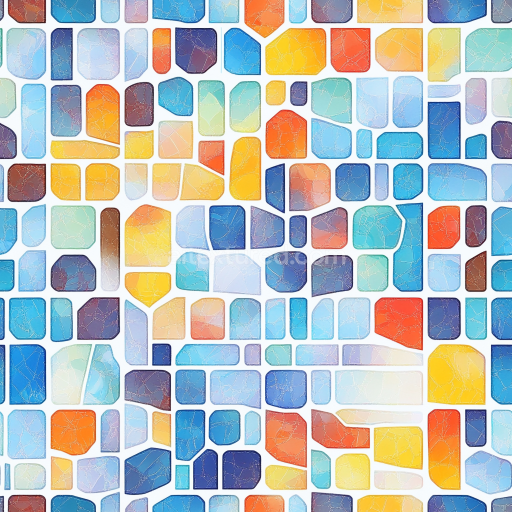
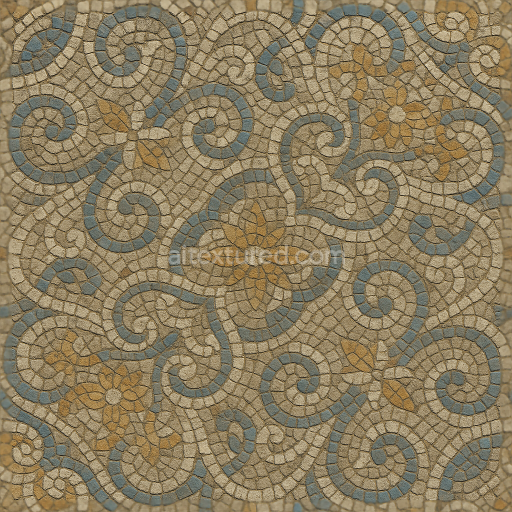
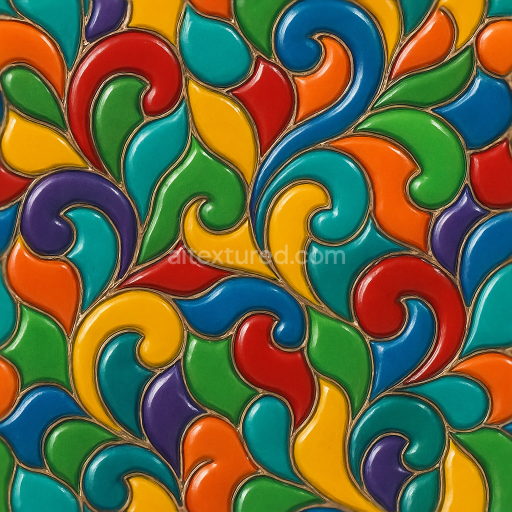
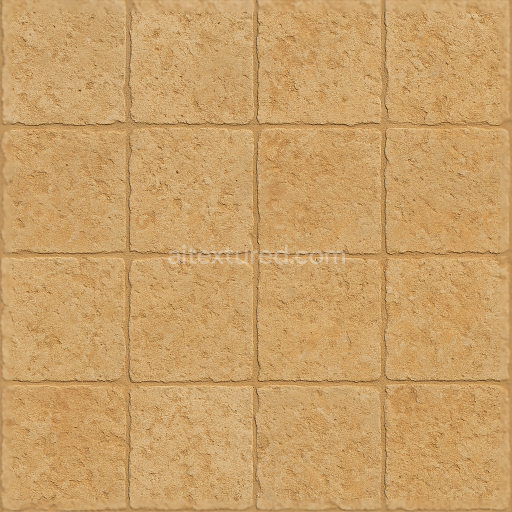
This seamless 3D texture presents a meticulously detailed mosaic composed of irregularly shaped river stone tiles, each exhibiting a distinctly rough stone surface with natural earth tones ranging from muted browns and warm ochres to subtle grays and soft tans. The base material simulates natural river stone, characterized by a coarse granular composition with visible mineral grains and small fissures that reflect years of weathering and water erosion. The stones are embedded in a minimal grout substrate that closely matches the stones’ coloration, creating an organic, interlocking pattern that enhances the authenticity of the mosaic form. The texture’s surface is matte with a lightly brushed finish, avoiding any polished or glossy appearance to maintain a raw, natural aesthetic.
From a material composition perspective, the mosaic incorporates a stone aggregate substrate bound together by a cementitious adhesive layer that is thinly applied, ensuring the stones remain the primary visual focus. The roughness and porosity of the stones are captured in high fidelity, showing fine cracks, micro-pitting, and subtle variations in surface elevation that contribute to a tactile, weathered look. Color pigments are derived from natural earth minerals, delivering a harmonious palette that replicates real river stones. These physical properties are accurately represented in the PBR workflow through multiple texture maps: the BaseColor (Albedo) captures the nuanced earth tones and natural color variation; the Normal map defines the intricate surface roughness and stone relief; the Roughness map controls the matte, non-reflective quality of the stones; the Metallic map remains near zero to reflect the non-metallic nature of stone; the Ambient Occlusion map enhances the depth in crevices and grout lines; and the Height/Displacement map provides subtle elevation changes for realistic parallax effects.
The texture is rendered at an impressive 8K resolution, ensuring exceptional detail and crispness even at close inspection, making it ideal for use in high-end 3D applications such as Blender, Unreal Engine, and Unity. This resolution supports detailed surface interaction with light, enhancing realism in both real-time and offline rendering scenarios. The seamless tiling property allows for flexible use over large surfaces without visible repetition or seams, which is particularly advantageous for architectural visualizations, game environments, or virtual sets requiring natural stone mosaics.
When integrating this texture, it is recommended to carefully adjust the UV scale to maintain the natural size of the river stones relative to the scene context, avoiding overly large or small tile appearances. Additionally, fine-tuning the roughness map can help match the intended environmental conditions—raising roughness for drier, more weathered appearances or lowering it slightly for damp, freshly washed looks. Combining the height/displacement map with normal mapping can further enhance surface detail by adding subtle depth and parallax effects, contributing to a convincing tactile illusion without excessive geometry.
Import the texture maps into Blender with sRGB color space for albedo/base color and Non-Color for normal, roughness, metallic, AO, height, and ORM maps. Connect normal maps through a Normal Map node, then adjust UV scale with a Mapping node so the material repeats naturally on your model.
For the full step-by-step setup, see How to Use Seamless Textures in Blender. Browse related material examples in wood, concrete, and metal.
Yes. This texture is designed as a seamless tileable PBR material, so it can repeat across large surfaces without visible borders.
Use the download controls on this page: they expose the available PNG, WEBP or engine ZIP choices and supported resolutions for this asset.
Use the engine ZIP choices to package compatible source maps for Blender, Unreal Engine or Unity, then verify the imported material in the target application.
Commercial-use permission is not verified for this record. Confirm the original source and license before production use.
Generate maps from existing images, preview materials, convert channels, and package compatible inputs for Blender, Unity, and Unreal Engine.
Choose a verified workflow for generating maps, previewing tiling, converting channels, or starting from the texture catalog.
Derive Normal, Roughness, AO, Metallic, Height and optional ORM maps from one or more source images, then review the results.
Instant WebGL viewer: inspect materials on a sphere, plane, and cube. Check tiling and lighting in real time.
Re-packages maps per engine: Unreal (BaseColor + ORM), Unity (Mask/MetallicSmoothness), Blender (separate channels).
PNG ↔ JPG ↔ SVG: fast convert, SVG rasterize, embed/trace options, quality & background controls.