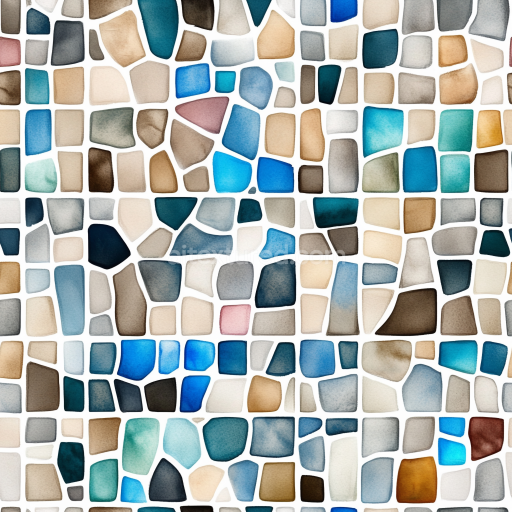
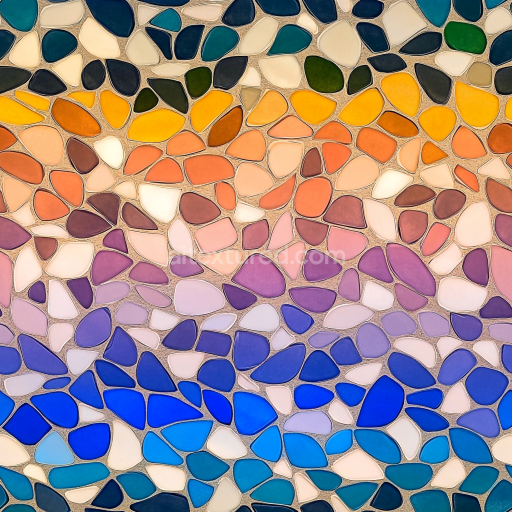
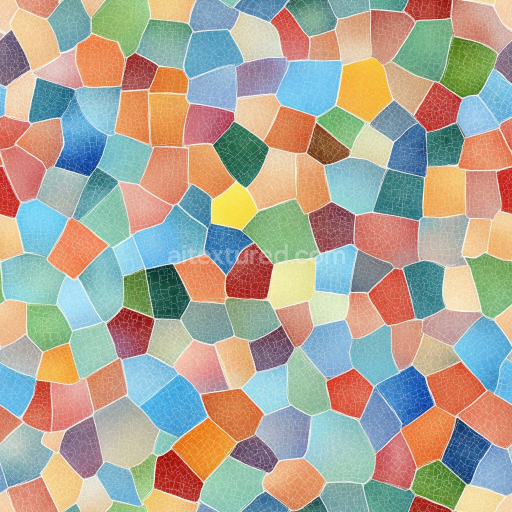
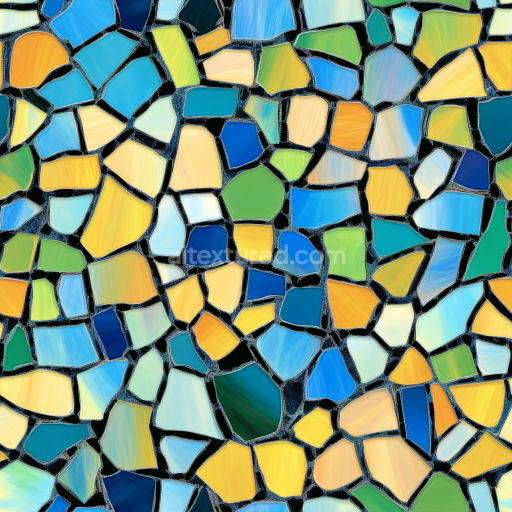
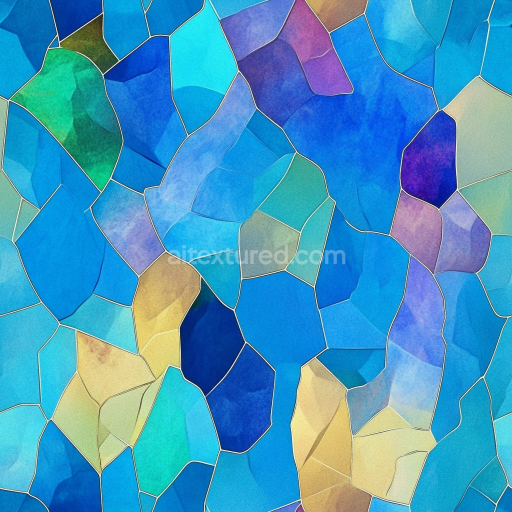
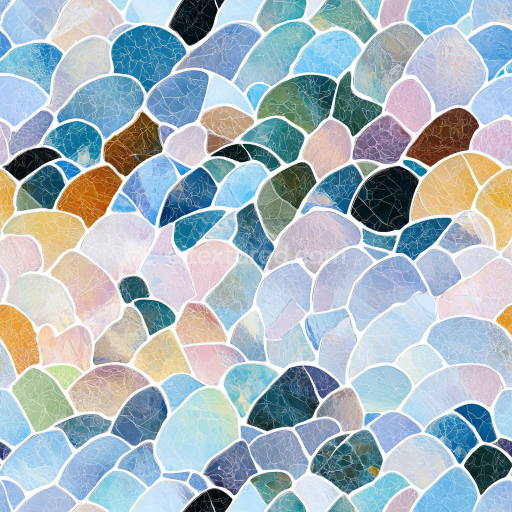
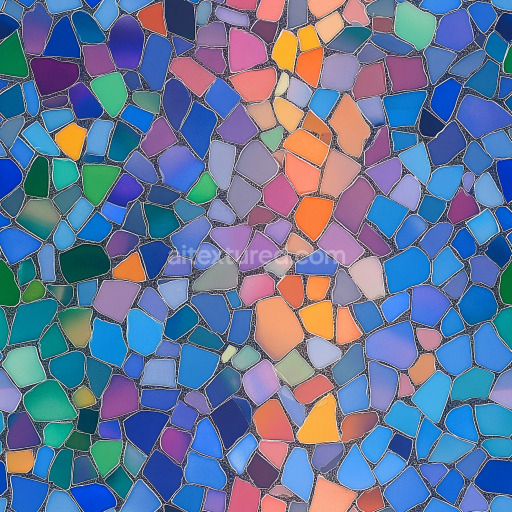
Mosaic PBR Texture Featuring Hand-Painted Watercolor Tiles in Blue and Earth Tones
Seamless texture (tileable) · PNG, WEBP, PBR ZIP.
| ID | seamless-3d-texture-pbr-8k-smalti-glass-mosaic-tiles-with-colorful-smalti-pieces-and-glossy-finish |
|---|---|
| Category | Mosaic |
| Formats | PNG, WEBP, PBR ZIP |
| Size | 1k (1024x1024px), 2k (2048x2048px), 4k (4096x4096px), 8k (8192x8192px) |
| Tileable | Yes |
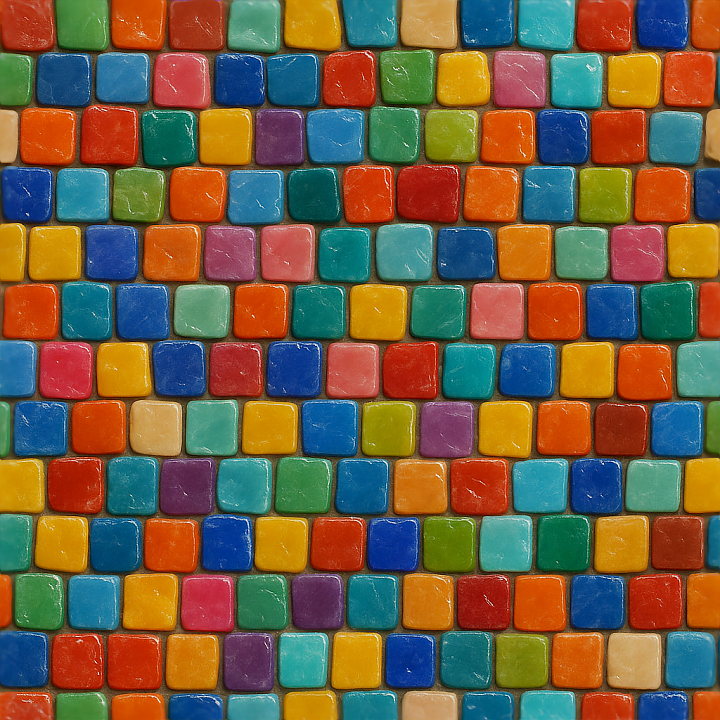
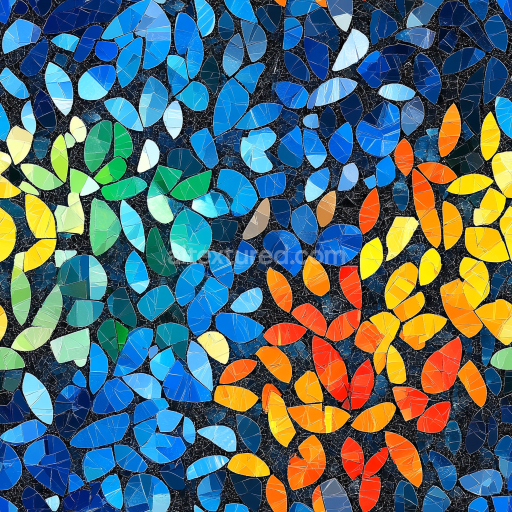
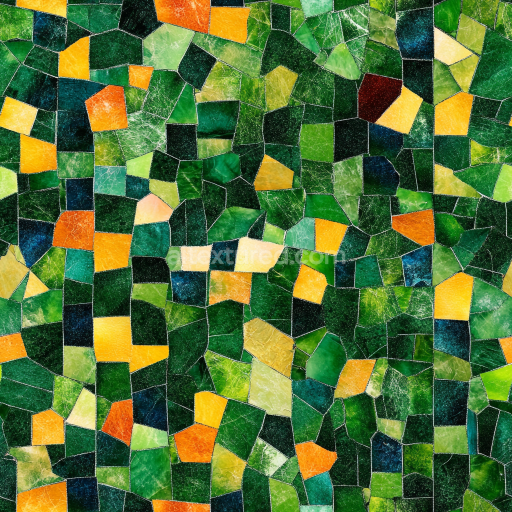
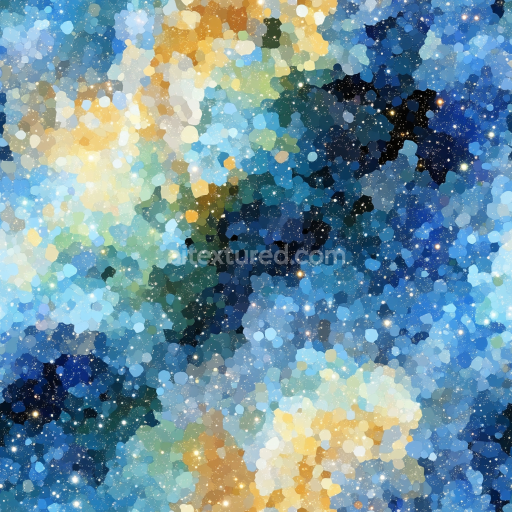
This seamless 3D texture features a meticulously crafted mosaic composed of smalti glass tiles, each tile formed from myriad colorful smalti pieces embedded within a smooth grout substrate. Smalti glass, a traditional opaque glass material known for its vibrant pigmentation and reflective qualities, serves as the primary component. The individual mosaic pieces exhibit irregular but tightly packed polygonal shapes, creating a complex tessellated pattern that mimics handcrafted artisanal mosaics. The base substrate is a fine cementitious or resin-based binder, providing structural integrity while maintaining minimal porosity to prevent moisture ingress and weathering over time. This foundation supports the smalti pieces, which are composed of finely ground silica and metal oxides, fused to achieve vivid, saturated colors ranging from deep blues and reds to bright yellows and greens.
The surface finish is highly polished and glossy, emphasizing the luminous, reflective nature of the smalti glass. This glossiness captures environmental lighting with specular highlights and subtle translucency effects, while the smalti’s slight internal grain and texture impart depth and realism. The grout lines between tiles are narrow and subdued, rendered in a soft neutral tone that contrasts gently without overpowering the colorful glass elements, enhancing the overall visual cohesion of the mosaic form. The texture’s 3D normal and height maps effectively simulate the slight elevation differences and beveled edges of each smalti piece, contributing to photorealistic shadowing and light interplay, which is essential for accurate PBR shading workflows.
In terms of PBR channels, the BaseColor (Albedo) map conveys the vivid, varied pigments of the smalti pieces and the subtle grout hues. The Normal map captures the microgeometry of tile edges and surface imperfections, lending a tactile sense of unevenness and handcrafted detail. The Roughness map is finely balanced to produce a glossy finish with moderate specular reflections, avoiding overly mirror-like reflections while maintaining glass authenticity. The Metallic channel is generally set to minimal values, as the material is non-metallic glass with some embedded mineral inclusions, while the Ambient Occlusion map enhances crevices between tiles, adding depth to the pattern. Height or Displacement maps emphasize the subtle relief of the mosaic surface, simulating the physical layering of glass pieces over grout.
Rendered at an exceptionally high 8K resolution, this texture is optimized for seamless tiling, ensuring that patterns repeat without visible seams or disruptions. It is fully compatible with major 3D software and game engines such as Blender, Unreal Engine, and Unity, supporting physically based rendering workflows for both real-time and offline applications. When using this texture, it is advisable to carefully adjust the UV scale to match the intended physical tile size in your scene to maintain realistic proportions. Additionally, fine-tuning the roughness values can help achieve desired reflectivity under different lighting conditions, while blending height and normal maps can enrich surface detail without excessive computational cost.
Import the texture maps into Blender with sRGB color space for albedo/base color and Non-Color for normal, roughness, metallic, AO, height, and ORM maps. Connect normal maps through a Normal Map node, then adjust UV scale with a Mapping node so the material repeats naturally on your model.
For the full step-by-step setup, see How to Use Seamless Textures in Blender. Browse related material examples in wood, concrete, and metal.
Yes. This texture is designed as a seamless tileable PBR material, so it can repeat across large surfaces without visible borders.
Use the download controls on this page: they expose the available PNG, WEBP or engine ZIP choices and supported resolutions for this asset.
Use the engine ZIP choices to package compatible source maps for Blender, Unreal Engine or Unity, then verify the imported material in the target application.
Commercial-use permission is not verified for this record. Confirm the original source and license before production use.
Generate maps from existing images, preview materials, convert channels, and package compatible inputs for Blender, Unity, and Unreal Engine.
Choose a verified workflow for generating maps, previewing tiling, converting channels, or starting from the texture catalog.
Derive Normal, Roughness, AO, Metallic, Height and optional ORM maps from one or more source images, then review the results.
Instant WebGL viewer: inspect materials on a sphere, plane, and cube. Check tiling and lighting in real time.
Re-packages maps per engine: Unreal (BaseColor + ORM), Unity (Mask/MetallicSmoothness), Blender (separate channels).
PNG ↔ JPG ↔ SVG: fast convert, SVG rasterize, embed/trace options, quality & background controls.