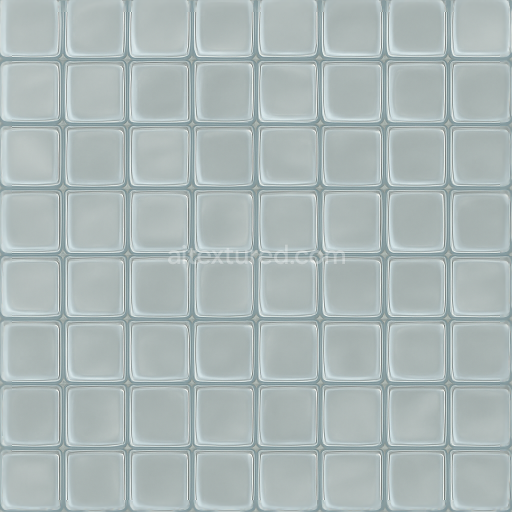
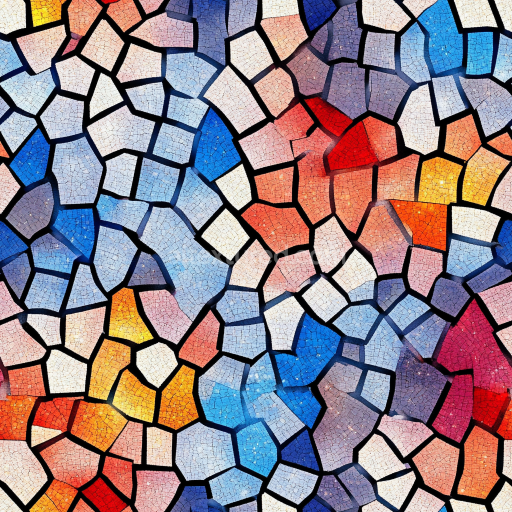
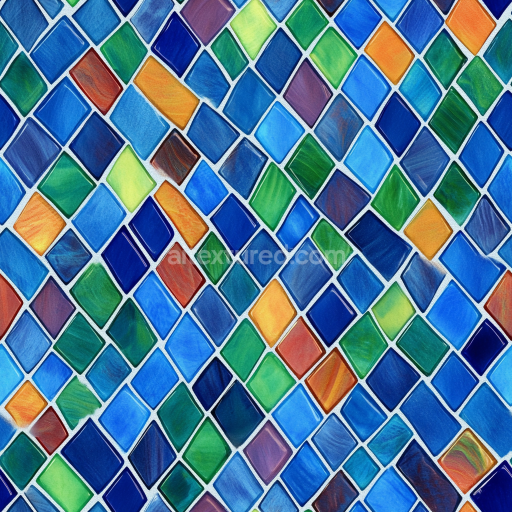
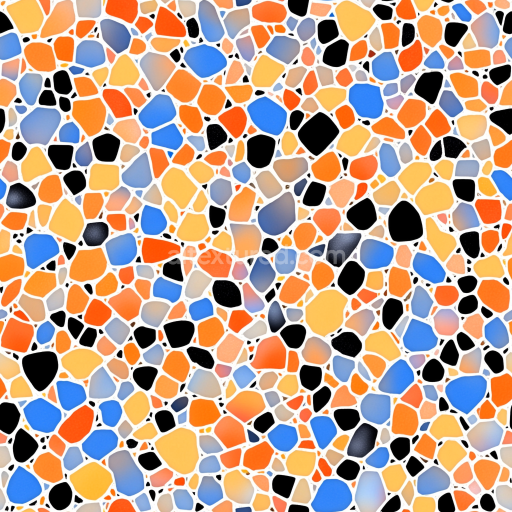
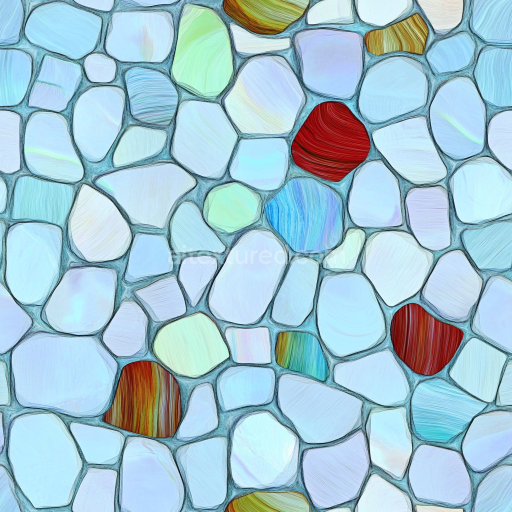
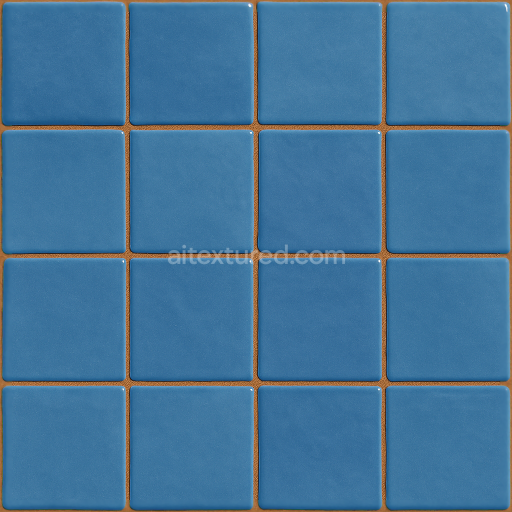
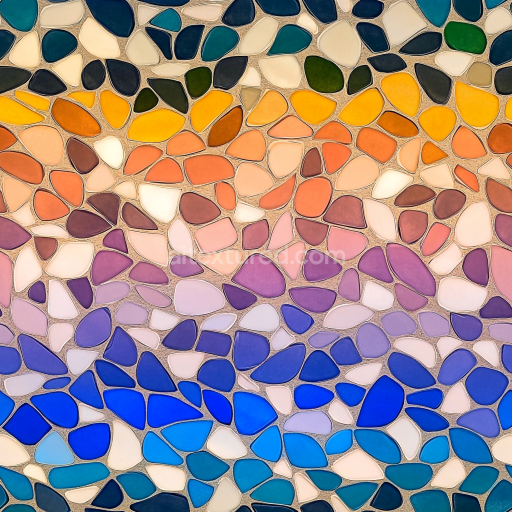
Mosaic Glass Tiles With Translucent Glass And Smooth Edges
Seamless texture (tileable) · PNG, WEBP, PBR ZIP.
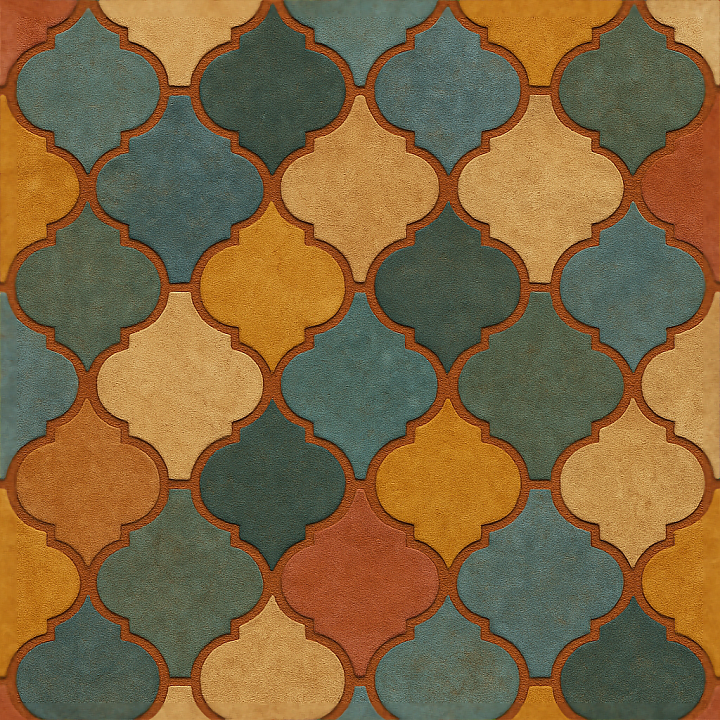
| ID | seamless-3d-texture-pbr-8k-moroccan-tiles-mosaic-with-arabesque-patterns-and-matte-finish |
|---|---|
| Category | Mosaic |
| Formats | PNG, WEBP, PBR ZIP |
| Size | 1k (1024x1024px), 2k (2048x2048px), 4k (4096x4096px), 8k (8192x8192px) |
| Tileable | Yes |
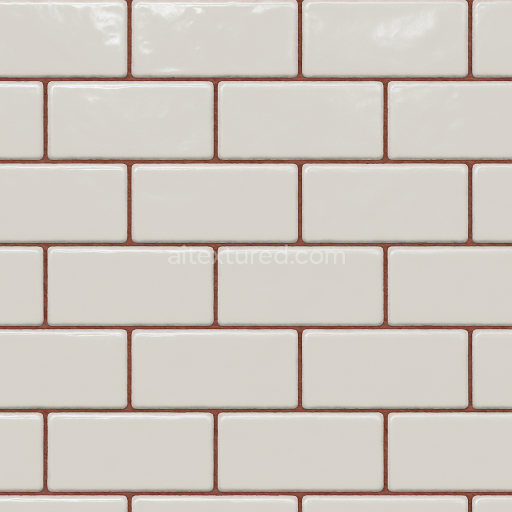
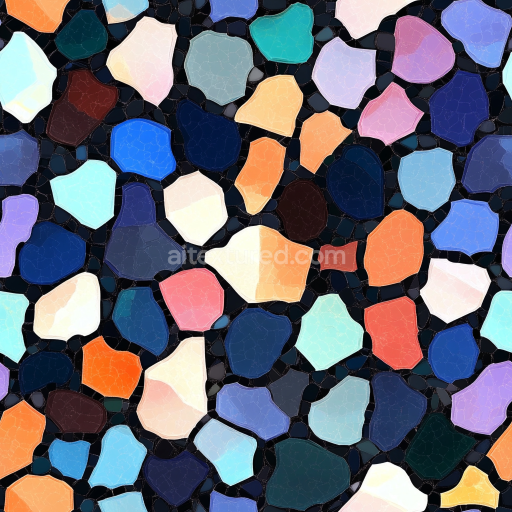
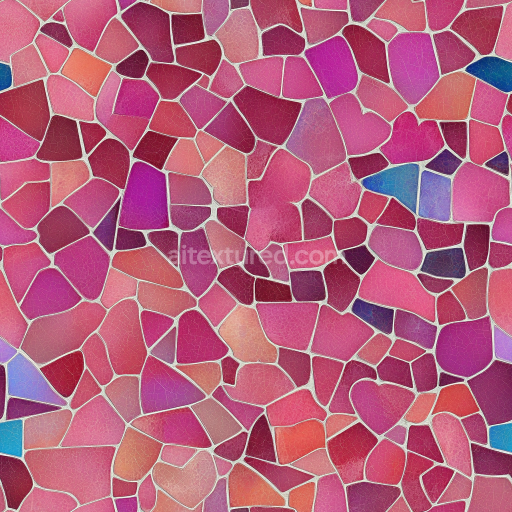
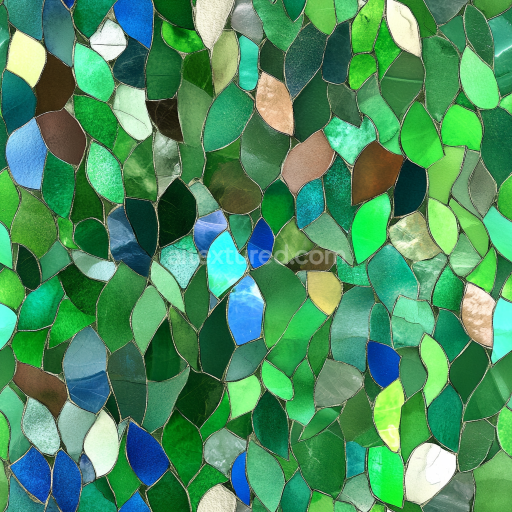
This seamless 3D texture showcases traditional Moroccan tiles arranged in a precise geometric grid, featuring classic arabesque patterns that intertwine with fluid, curvilinear forms. The tiles themselves are typically crafted from a ceramic base, composed of finely ground clay mixed with natural binders and fired to achieve durability. The surface presents a matte finish, achieved by a subtle, low-gloss glaze that diffuses light softly, enhancing the intricate details without reflective glare. Between each tile, a textured and colored grout—often cementitious—fills the joints, adding depth and authenticity by simulating natural wear and slight surface irregularities typical of handcrafted mosaics.
At the material level, the ceramic substrate forms the foundation, providing rigidity and a slightly porous texture that allows for subtle imperfections and weathering effects. Pigments embedded within the glaze contribute to the vibrant yet earthy color palette characteristic of Moroccan tilework, ranging from deep blues and terracotta reds to creamy neutrals. The grout composition, enriched with fine aggregates, exhibits a mildly rough texture that contrasts with the smoothness of the tile faces, emphasizing the mosaic's segmented structure. This interplay of materials is meticulously captured across PBR channels: the BaseColor (Albedo) delivers rich, authentic hues; the Normal map enhances the relief of both tile embossments and grout indentations; Roughness maps control the matte surface quality and grout coarseness; Metallic is minimal or null, reflecting the non-metallic ceramic nature; Ambient Occlusion enriches shadow depth in crevices; and the Height/Displacement map adds subtle elevation differences to reinforce the tactile geometry.
Rendered at an impressive 8K resolution, this texture provides exceptional detail suitable for close-up visualization and large-scale architectural projects. It is fully optimized for use in Blender, Unreal Engine, and Unity, ensuring seamless integration and realistic material response under dynamic lighting conditions. The texture’s seamless design allows for extensive tiling without visible repetition, ideal for expansive wall or floor surfaces that require consistent pattern continuity.
For optimal results, it is advisable to adjust the UV scaling to match the real-world dimensions of typical Moroccan tile installations, preserving the proportional intricacies of the arabesque motifs. Additionally, fine-tuning the roughness channel can simulate various degrees of surface wear or matte finish intensity, while blending height and normal maps enables enhanced depth perception without excessive displacement, maintaining performance balance across platforms.
Import the texture maps into Blender with sRGB color space for albedo/base color and Non-Color for normal, roughness, metallic, AO, height, and ORM maps. Connect normal maps through a Normal Map node, then adjust UV scale with a Mapping node so the material repeats naturally on your model.
For the full step-by-step setup, see How to Use Seamless Textures in Blender. Browse related material examples in wood, concrete, and metal.
Yes. This texture is designed as a seamless tileable PBR material, so it can repeat across large surfaces without visible borders.
Use the download controls on this page: they expose the available PNG, WEBP or engine ZIP choices and supported resolutions for this asset.
Use the engine ZIP choices to package compatible source maps for Blender, Unreal Engine or Unity, then verify the imported material in the target application.
Commercial-use permission is not verified for this record. Confirm the original source and license before production use.
Generate maps from existing images, preview materials, convert channels, and package compatible inputs for Blender, Unity, and Unreal Engine.
Choose a verified workflow for generating maps, previewing tiling, converting channels, or starting from the texture catalog.
Derive Normal, Roughness, AO, Metallic, Height and optional ORM maps from one or more source images, then review the results.
Instant WebGL viewer: inspect materials on a sphere, plane, and cube. Check tiling and lighting in real time.
Re-packages maps per engine: Unreal (BaseColor + ORM), Unity (Mask/MetallicSmoothness), Blender (separate channels).
PNG ↔ JPG ↔ SVG: fast convert, SVG rasterize, embed/trace options, quality & background controls.