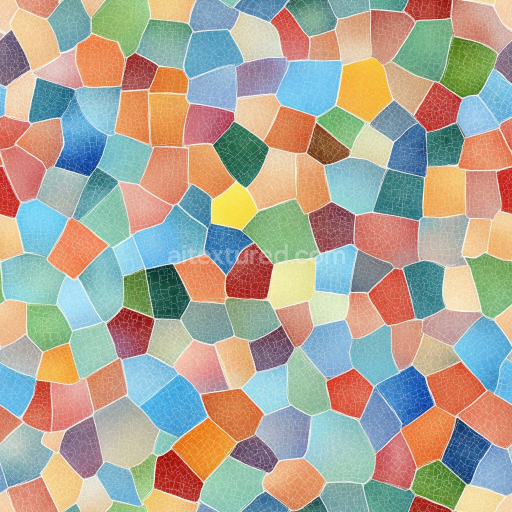
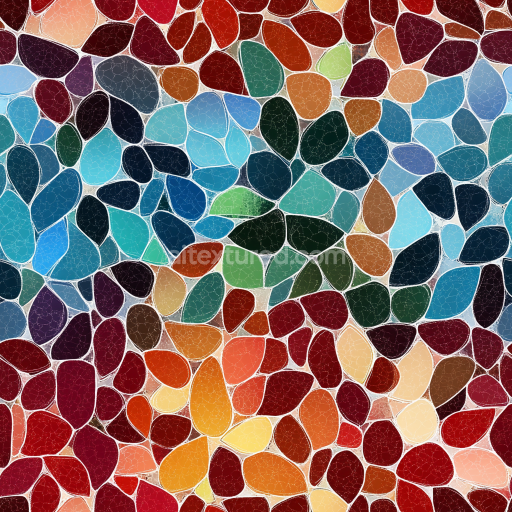
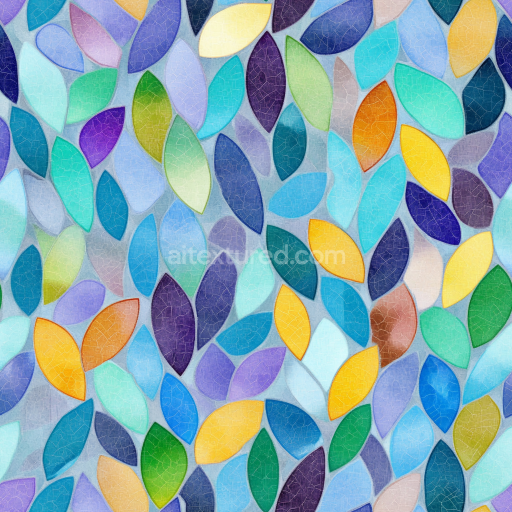
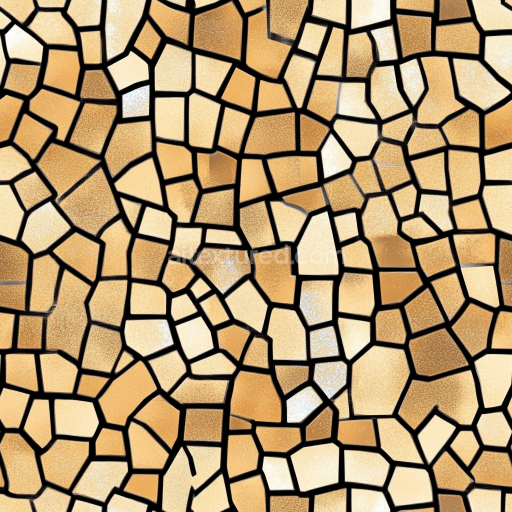
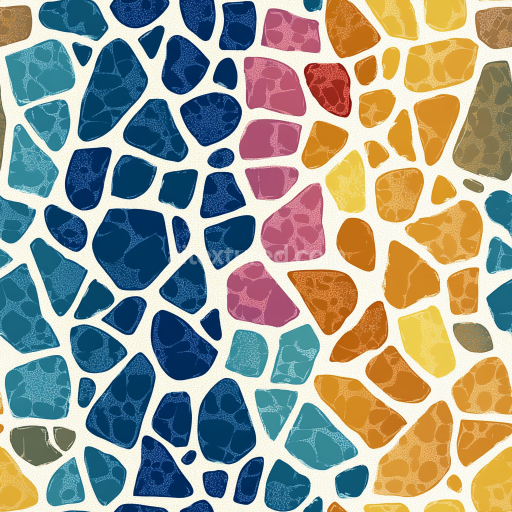
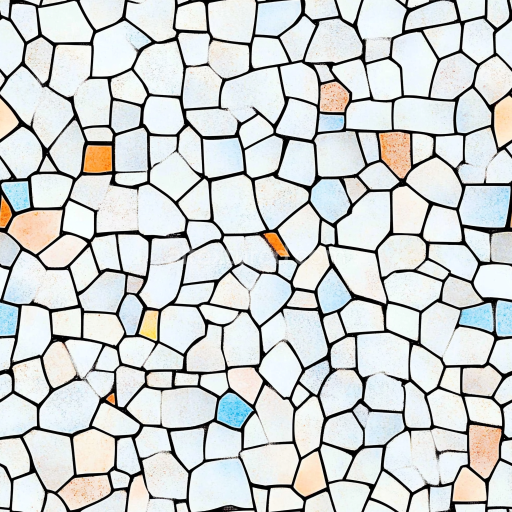
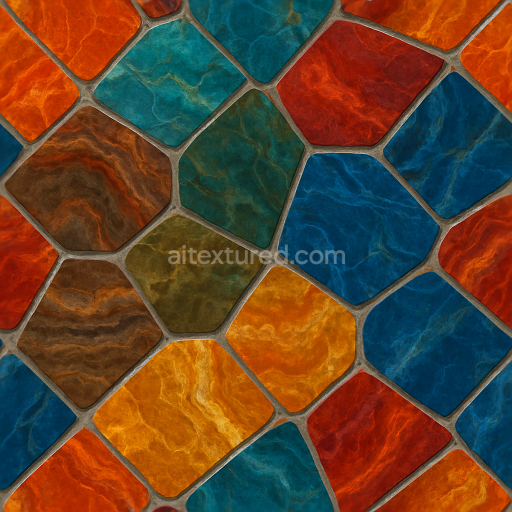
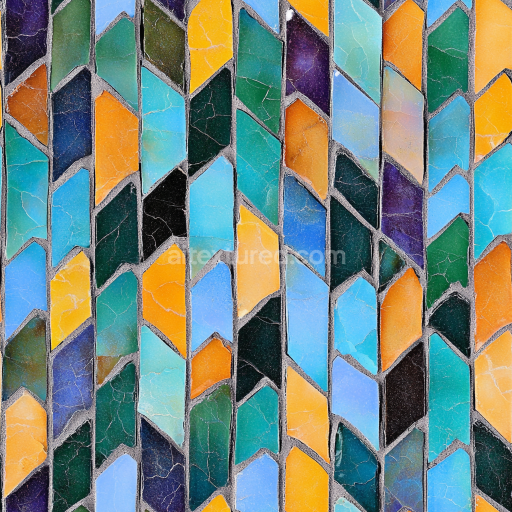
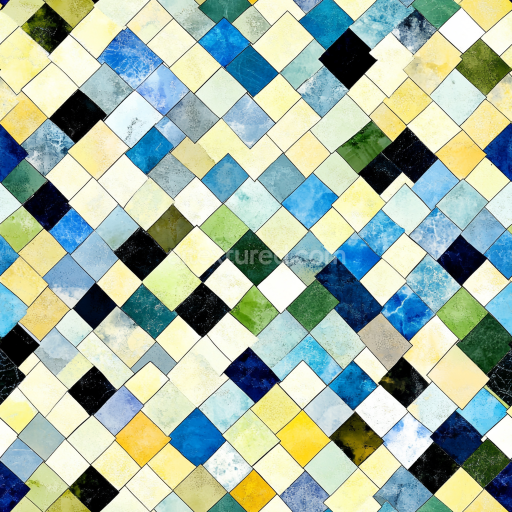
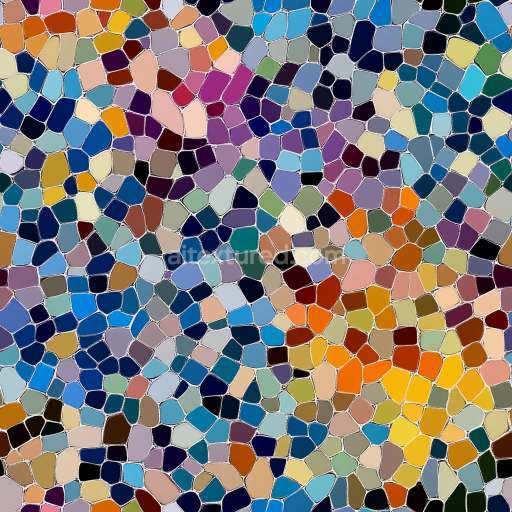
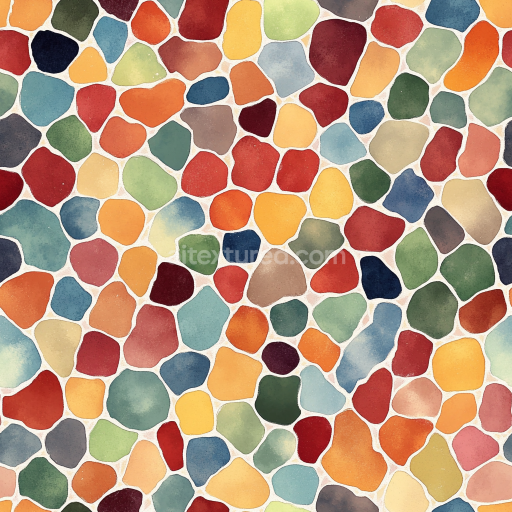
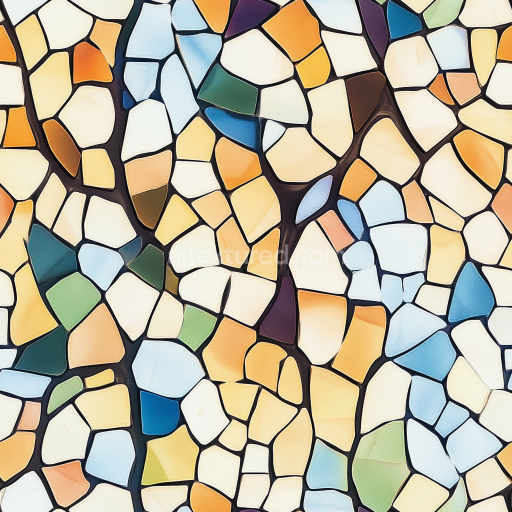
Colorful Cracked Ceramic Mosaic Seamless Texture with Irregular Tiles
Seamless texture (tileable) · PNG, WEBP, PBR ZIP.
| ID | seamless-3d-texture-pbr-8k-subway-tiles-mosaic-with-glossy-finish-and-monochrome-tiles-design |
|---|---|
| Category | Mosaic |
| Formats | PNG, WEBP, PBR ZIP |
| Size | 1k (1024x1024px), 2k (2048x2048px), 4k (4096x4096px), 8k (8192x8192px) |
| Tileable | Yes |
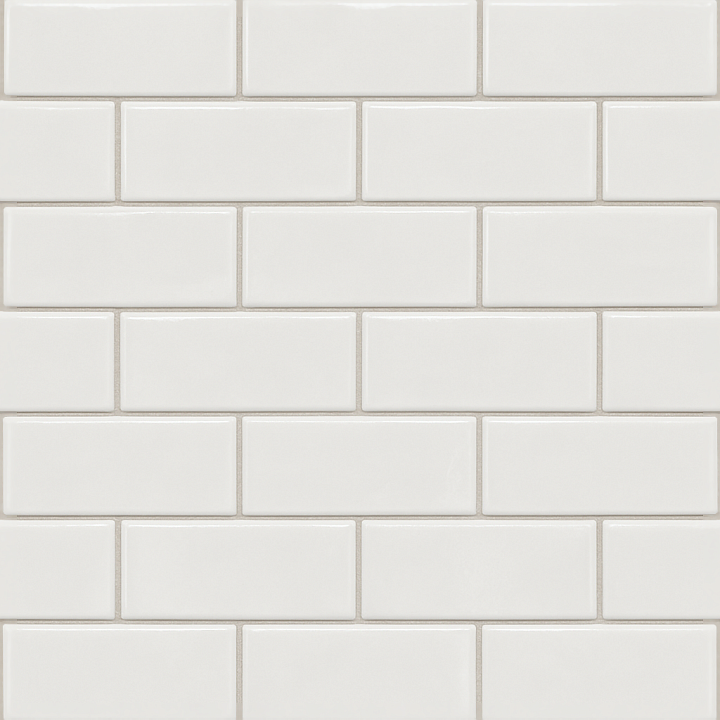
This seamless 3D texture showcases a meticulously crafted mosaic of classic subway tiles rendered in a clean monochrome palette, emphasizing minimalist design principles. The tiles are rectangular with smooth, slightly beveled edges, arranged in a traditional horizontal brick pattern that creates a balanced, repetitive form. The base material is ceramic, consisting of a dense, vitrified clay substrate that provides durability and low porosity. The ceramic body is coated with a glossy glaze, a silica-rich vitreous layer fused onto the surface during firing, which accounts for the reflective, polished finish. This glaze incorporates finely dispersed pigments to achieve the monochrome tones, ranging from deep charcoals to crisp whites, maintaining visual uniformity while showcasing subtle tonal variations inherent to ceramic materials.
From a compositional standpoint, the ceramic tiles adhere to a strict geometric form, with grout lines defined by a cementitious binder mixed with fine sand aggregates, providing a slight relief and contrast between tiles. The grout exhibits mild weathering characteristics, simulating slight wear and micro-textural variation without compromising the overall clean appearance. The texture’s surface finish is glossy and smooth, capturing realistic reflections and light diffusion, which is critical in mimicking the authentic subway tile aesthetic. This is enhanced through the PBR workflow: the BaseColor (Albedo) channel accurately reproduces the monochrome shades and subtle tint shifts, while the Normal map conveys the subtle bevels and grout depth. The Roughness map is finely tuned to reflect the high gloss of the glazed ceramic, showing low roughness values that highlight specular reflections, whereas the Metallic channel remains near zero, reflecting the non-metallic nature of the ceramic surface. Ambient Occlusion enhances shadowing around grout edges and tile edges to emphasize depth, and the Height/Displacement map adds subtle dimensionality to grout lines and tile bevels.
Rendered at an impressive 8K resolution, this texture ensures exceptional clarity, fine detail preservation, and smooth gradients, suitable for close-up renders and large-scale architectural visualizations. It is fully optimized for physically based rendering workflows in Blender, Unreal Engine, and Unity, guaranteeing consistent performance and realism across diverse platforms. The seamless tiling ensures that the mosaic pattern can be repeated indefinitely without visible seams or distortions, making it ideal for extensive wall surfaces in modern kitchens, bathrooms, or commercial interiors that require a minimalist yet sophisticated look.
For practical application, it is recommended to carefully adjust the UV scale to maintain realistic tile proportions relative to the scene, avoiding exaggerated or undersized patterns. Additionally, subtle tuning of the Roughness map can simulate varying lighting conditions or surface wear, while blending the Height and Normal maps can enhance parallax effects, adding convincing depth and tactile realism to the tile mosaic. This approach ensures the texture adapts seamlessly to different lighting environments and camera angles, maximizing its visual impact in any 3D project.
Import the texture maps into Blender with sRGB color space for albedo/base color and Non-Color for normal, roughness, metallic, AO, height, and ORM maps. Connect normal maps through a Normal Map node, then adjust UV scale with a Mapping node so the material repeats naturally on your model.
For the full step-by-step setup, see How to Use Seamless Textures in Blender. Browse related material examples in wood, concrete, and metal.
Yes. This texture is designed as a seamless tileable PBR material, so it can repeat across large surfaces without visible borders.
Use the download controls on this page: they expose the available PNG, WEBP or engine ZIP choices and supported resolutions for this asset.
Use the engine ZIP choices to package compatible source maps for Blender, Unreal Engine or Unity, then verify the imported material in the target application.
Commercial-use permission is not verified for this record. Confirm the original source and license before production use.
Generate maps from existing images, preview materials, convert channels, and package compatible inputs for Blender, Unity, and Unreal Engine.
Choose a verified workflow for generating maps, previewing tiling, converting channels, or starting from the texture catalog.
Derive Normal, Roughness, AO, Metallic, Height and optional ORM maps from one or more source images, then review the results.
Instant WebGL viewer: inspect materials on a sphere, plane, and cube. Check tiling and lighting in real time.
Re-packages maps per engine: Unreal (BaseColor + ORM), Unity (Mask/MetallicSmoothness), Blender (separate channels).
PNG ↔ JPG ↔ SVG: fast convert, SVG rasterize, embed/trace options, quality & background controls.