
Mosaic River Stones With Rough Surface And Earth Tones
Seamless texture (tileable) · PNG, WEBP, PBR ZIP.
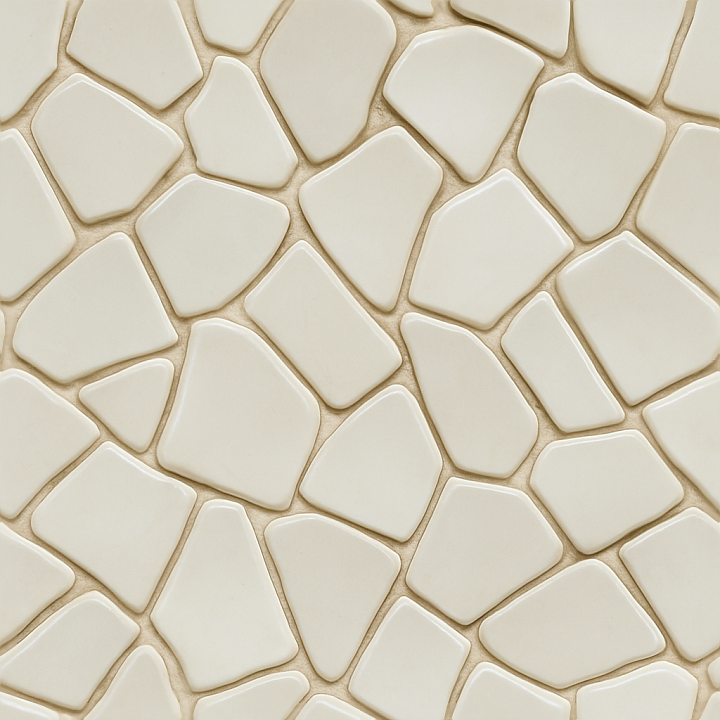
| ID | seamless-3d-texture-pbr-8k-mosaic-porcelain-shards-with-irregular-shapes-and-smooth-surface |
|---|---|
| Category | Mosaic |
| Formats | PNG, WEBP, PBR ZIP |
| Size | 1k (1024x1024px), 2k (2048x2048px), 4k (4096x4096px), 8k (8192x8192px) |
| Tileable | Yes |
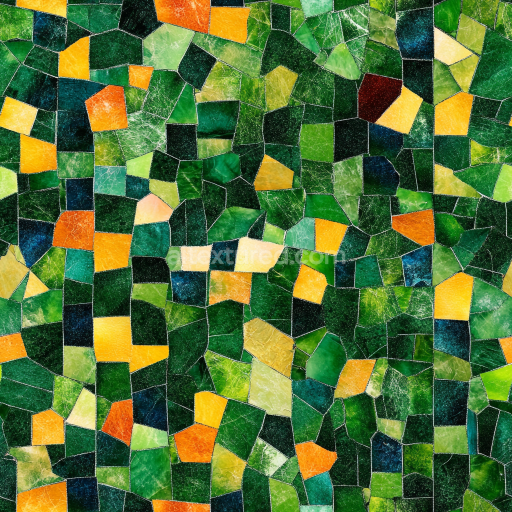
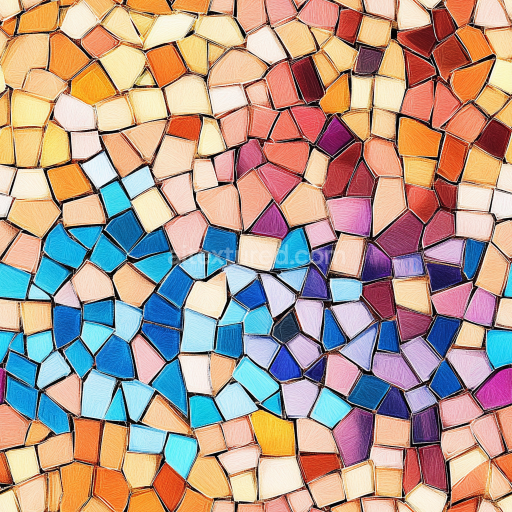
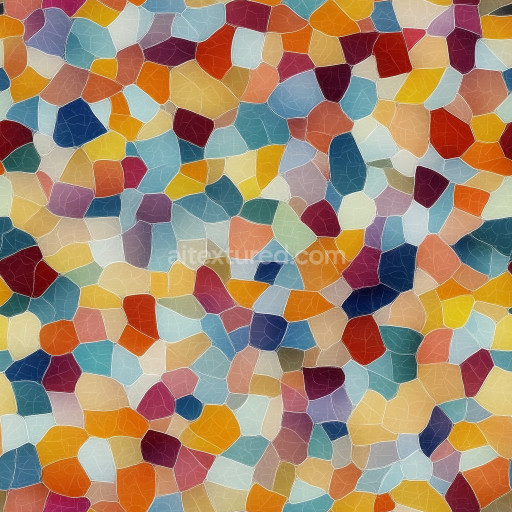
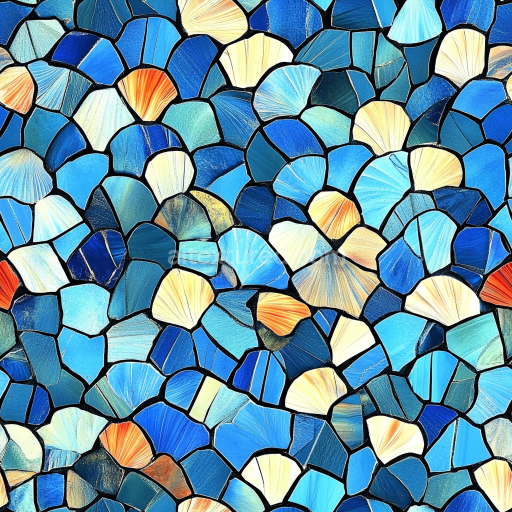
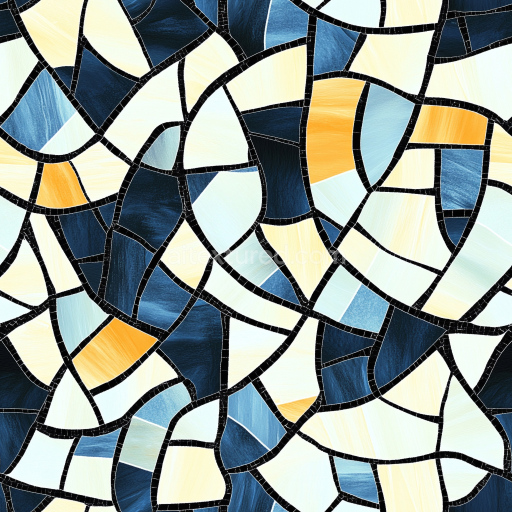
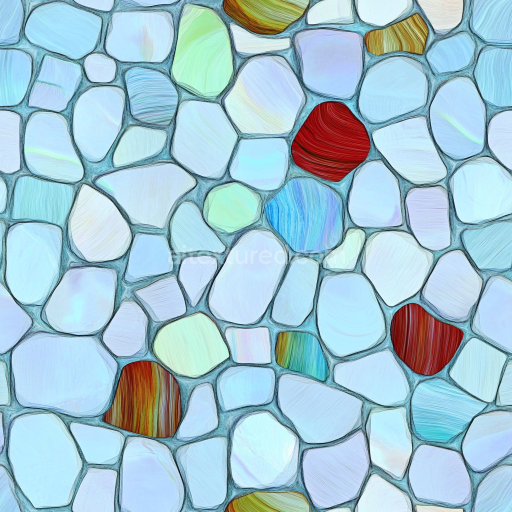
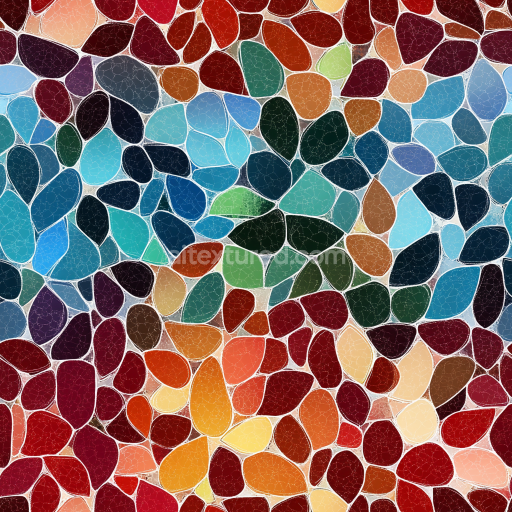
This seamless 3D texture presents a meticulously crafted mosaic composed of porcelain shards, each exhibiting irregular, organic shapes that come together to form a flat, continuous surface. The shards themselves are thin, fractured fragments of fine porcelain ceramic, known for its dense, vitrified composition and smooth, glossy finish. The base substrate beneath the shards is subtly suggested through slight displacement variations, mimicking a mortar or grout layer that binds the pieces in place. This underlying matrix is characterized by a matte, slightly porous appearance, providing contrast to the polished shards and enhancing the overall tactile realism.
From a materials perspective, the porcelain shards display a high degree of reflectivity and a smooth surface finish, indicative of a polished glaze that captures and diffuses light softly. The shards’ color palette is predominantly cool white with subtle off-white and pale cream pigments, replicating the natural variations found in vintage porcelain. The irregular edges and slight chips reveal the ceramic’s inherent brittleness and fine grain structure, with very low porosity visible on the surfaces. The grout or adhesive that binds these pieces mimics a cementitious or lime-based mortar, with muted gray tones and a slightly rougher texture, adding depth and authenticity to the mosaic’s form.
This texture is fully PBR-compliant, leveraging multiple texture maps to achieve realistic material interaction under diverse lighting conditions. The BaseColor (Albedo) map defines the nuanced color variations of the porcelain shards and grout, while the Normal map intricately captures the subtle surface undulations, including shard edges and grout recesses. The Roughness map is finely tuned to reflect the glossy, smooth nature of the porcelain glaze against the contrasting matte grout, and the Metallic channel remains at near zero, as porcelain and mortar are non-metallic by nature. Ambient Occlusion enhances shadowing in the crevices between shards, adding depth, and the Height (Displacement) map provides subtle relief to emphasize shard thickness and mortar depth, contributing to the tactile feel of the mosaic.
Rendered in an ultra-high 8K resolution, this texture is optimized for professional workflows across Blender, Unreal Engine, and Unity, ensuring crisp detail and seamless tiling without visible repetition or edge artifacts. When applying this texture, it is advisable to carefully adjust the UV scale to maintain the natural size of shards relative to the scene. Additionally, fine-tuning the Roughness parameter can help adapt the surface glossiness to different lighting scenarios, while blending the Height and Normal maps can enhance the perceived depth and complexity of the mosaic surface for more immersive visualizations or architectural renders.
Import the texture maps into Blender with sRGB color space for albedo/base color and Non-Color for normal, roughness, metallic, AO, height, and ORM maps. Connect normal maps through a Normal Map node, then adjust UV scale with a Mapping node so the material repeats naturally on your model.
For the full step-by-step setup, see How to Use Seamless Textures in Blender. Browse related material examples in wood, concrete, and metal.
Yes. This texture is designed as a seamless tileable PBR material, so it can repeat across large surfaces without visible borders.
Use the download controls on this page: they expose the available PNG, WEBP or engine ZIP choices and supported resolutions for this asset.
Use the engine ZIP choices to package compatible source maps for Blender, Unreal Engine or Unity, then verify the imported material in the target application.
Commercial-use permission is not verified for this record. Confirm the original source and license before production use.
Generate maps from existing images, preview materials, convert channels, and package compatible inputs for Blender, Unity, and Unreal Engine.
Choose a verified workflow for generating maps, previewing tiling, converting channels, or starting from the texture catalog.
Derive Normal, Roughness, AO, Metallic, Height and optional ORM maps from one or more source images, then review the results.
Instant WebGL viewer: inspect materials on a sphere, plane, and cube. Check tiling and lighting in real time.
Re-packages maps per engine: Unreal (BaseColor + ORM), Unity (Mask/MetallicSmoothness), Blender (separate channels).
PNG ↔ JPG ↔ SVG: fast convert, SVG rasterize, embed/trace options, quality & background controls.