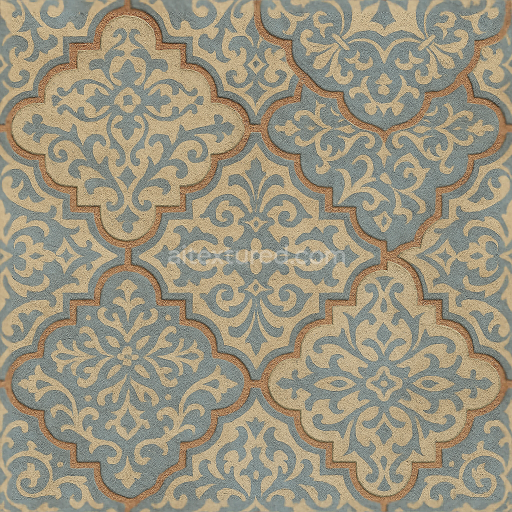
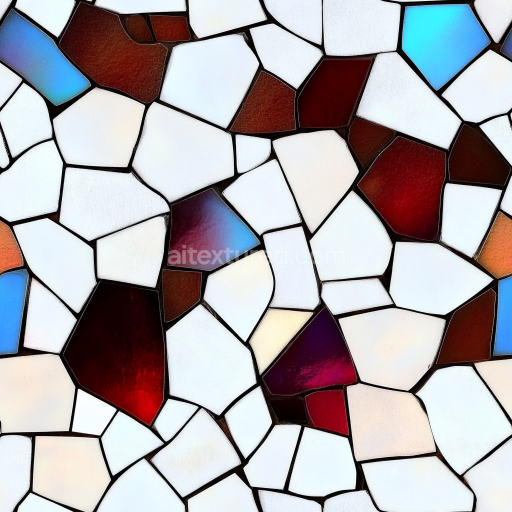
Encaustic Tiles Mosaic With Arabesque Patterns And Matte Finish
Seamless texture (tileable) · PNG, WEBP, PBR ZIP.
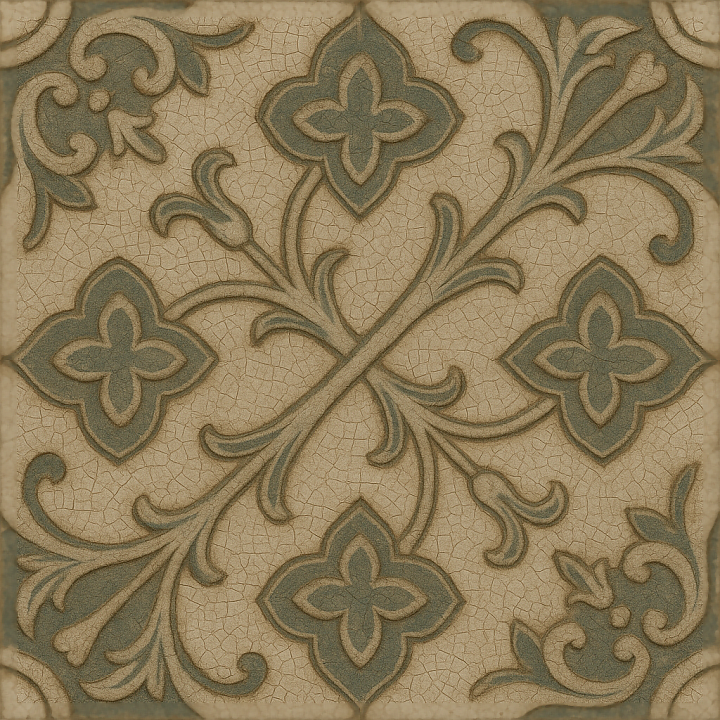
| ID | seamless-3d-texture-pbr-8k-ceramic-glaze-crackle-mosaic-with-medieval-style-and-cracked-glaze-finish |
|---|---|
| Category | Mosaic |
| Formats | PNG, WEBP, PBR ZIP |
| Size | 1k (1024x1024px), 2k (2048x2048px), 4k (4096x4096px), 8k (8192x8192px) |
| Tileable | Yes |
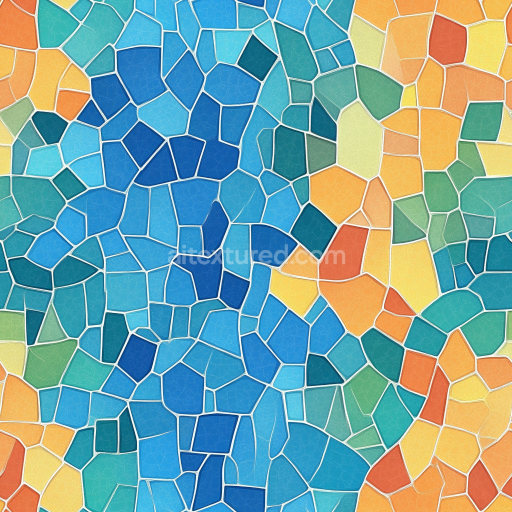
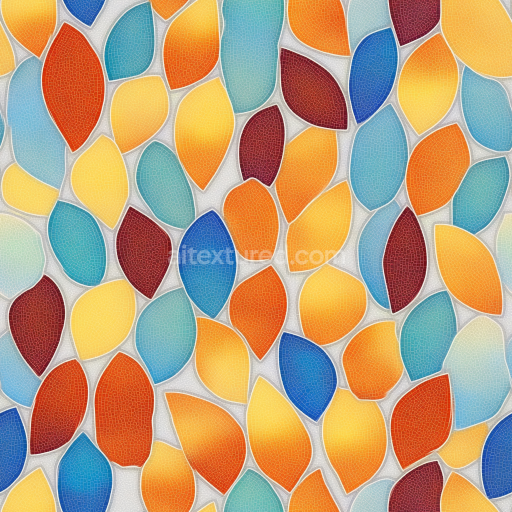
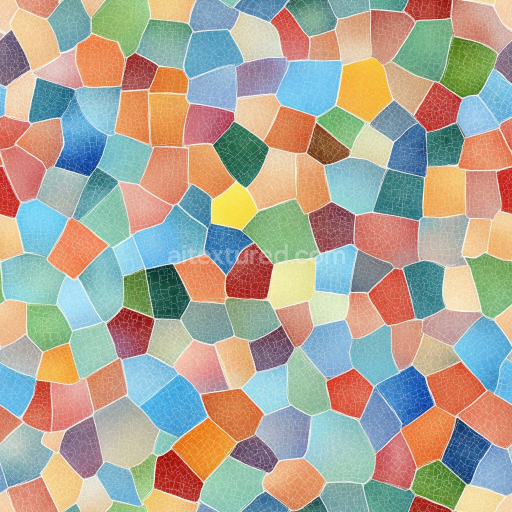
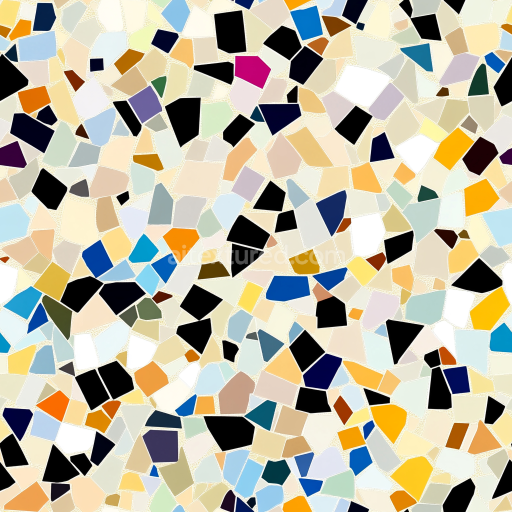
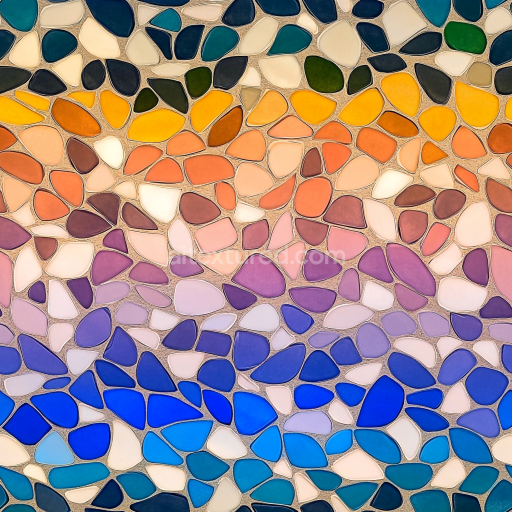
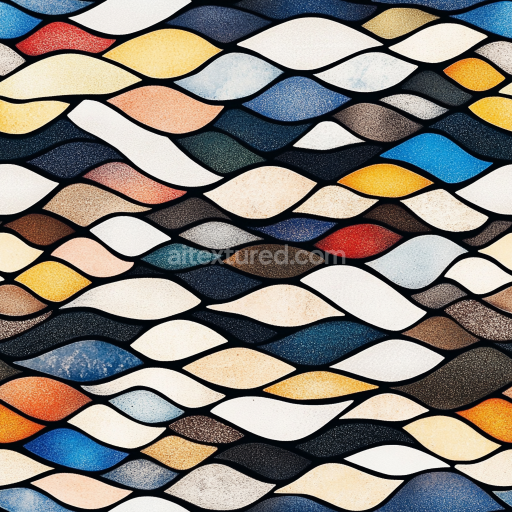
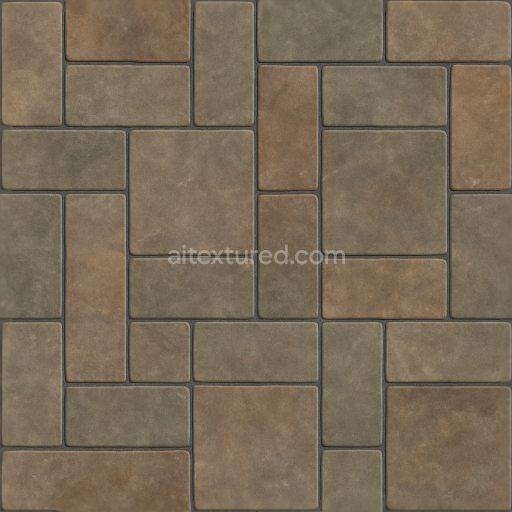
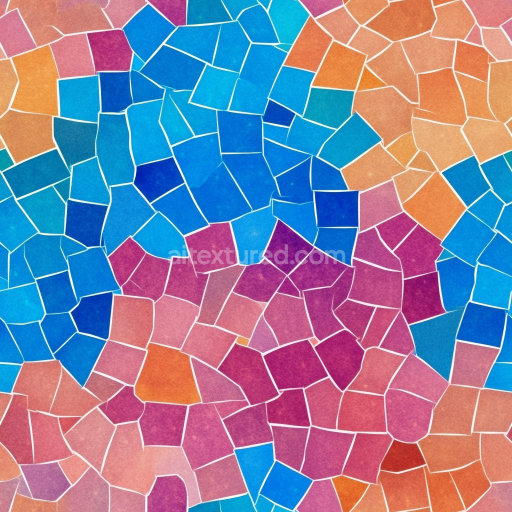
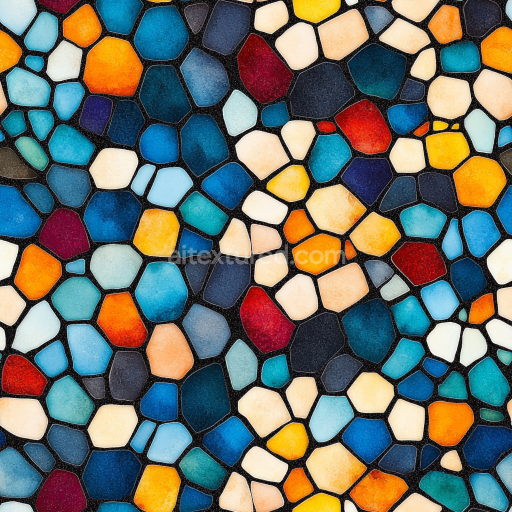
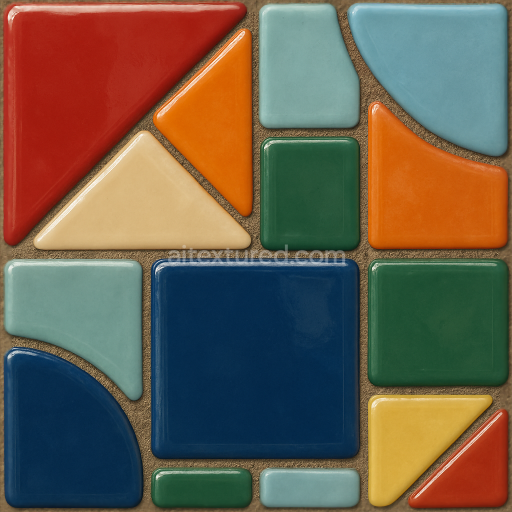
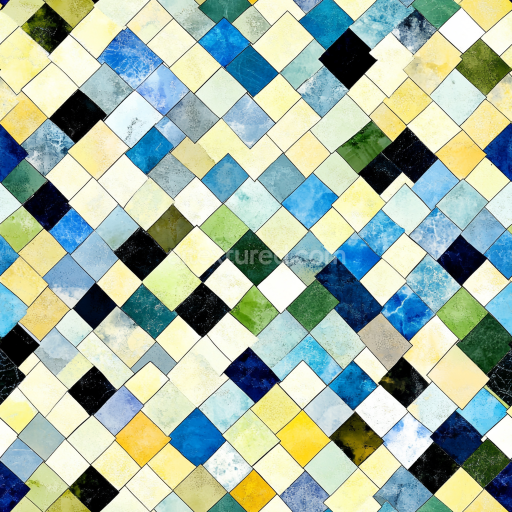
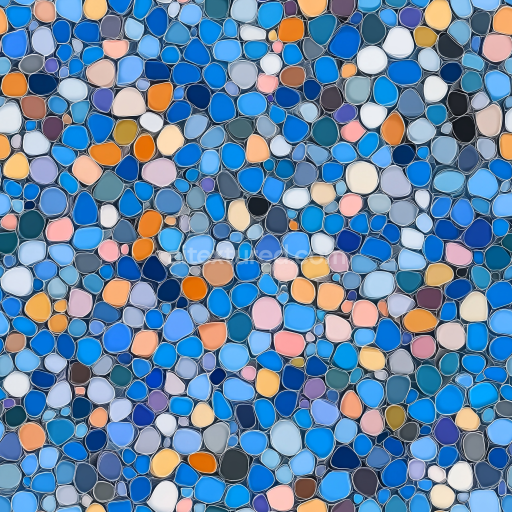
This seamless 3D texture presents a highly detailed ceramic glaze crackle mosaic inspired by medieval style decorative inlays. The geometric form is composed of small, hand-painted square tiles arranged in a tightly grouted grid pattern, each tile featuring subtle surface relief and characteristic cracked glaze finishes. The base material is a dense ceramic substrate, fired and glazed to achieve a durable yet porous surface that exhibits natural weathering and the signature crackle effect. The ceramic body provides structural integrity, while the glaze layer, composed of silica-based glass with metal oxide colorants, forms the glossy yet matte-finished topcoat. This glaze is thin and brittle enough to develop fine, irregular cracks, enhancing the aged medieval aesthetic without compromising the tile’s cohesion.
From a materials science perspective, the texture captures the interplay between the ceramic body and the glaze layer through various PBR channels. The BaseColor (Albedo) map simulates the muted earth tones and subtle color variations caused by mineral pigments and hand-painted details, while the Normal and Height maps define the shallow surface relief of the tile edges, grout recesses, and glaze crack patterns. The Roughness channel emphasizes the matte finish characteristic of aged ceramic glaze, with slight variations where the glaze is thinner or more worn. Metallicness is kept at zero, consistent with non-metallic ceramic surfaces, whereas Ambient Occlusion enhances the visual depth within grout lines and crack crevices, reinforcing the tactile quality of the relief patterns.
Rendered at 8K resolution, this PBR texture is optimized for use in Blender, Unreal Engine, and Unity workflows, providing exceptional detail suitable for close-up architectural visualizations or digital heritage restoration projects. The seamless tile arrangement allows for versatile scaling without visible repetition, making it adaptable for both large surfaces and small decorative accents. The texture’s physical accuracy and material fidelity support realistic lighting interactions, capturing the diffuse and subtle specular reflections typical of ceramic glaze under neutral illumination.
For practical application, it is advisable to carefully adjust the UV scale to maintain the proportional appearance of the grout lines and crackle pattern relative to the object’s dimensions. Additionally, fine-tuning the Roughness map can help balance the matte versus slightly glossy areas, enhancing realism in different lighting environments. When using height or parallax mapping, blending with the normal map can improve the illusion of depth in the glaze cracks and tile edges without excessive geometry, optimizing performance in real-time engines.
Import the texture maps into Blender with sRGB color space for albedo/base color and Non-Color for normal, roughness, metallic, AO, height, and ORM maps. Connect normal maps through a Normal Map node, then adjust UV scale with a Mapping node so the material repeats naturally on your model.
For the full step-by-step setup, see How to Use Seamless Textures in Blender. Browse related material examples in wood, concrete, and metal.
Yes. This texture is designed as a seamless tileable PBR material, so it can repeat across large surfaces without visible borders.
Use the download controls on this page: they expose the available PNG, WEBP or engine ZIP choices and supported resolutions for this asset.
Use the engine ZIP choices to package compatible source maps for Blender, Unreal Engine or Unity, then verify the imported material in the target application.
Commercial-use permission is not verified for this record. Confirm the original source and license before production use.
Generate maps from existing images, preview materials, convert channels, and package compatible inputs for Blender, Unity, and Unreal Engine.
Choose a verified workflow for generating maps, previewing tiling, converting channels, or starting from the texture catalog.
Derive Normal, Roughness, AO, Metallic, Height and optional ORM maps from one or more source images, then review the results.
Instant WebGL viewer: inspect materials on a sphere, plane, and cube. Check tiling and lighting in real time.
Re-packages maps per engine: Unreal (BaseColor + ORM), Unity (Mask/MetallicSmoothness), Blender (separate channels).
PNG ↔ JPG ↔ SVG: fast convert, SVG rasterize, embed/trace options, quality & background controls.