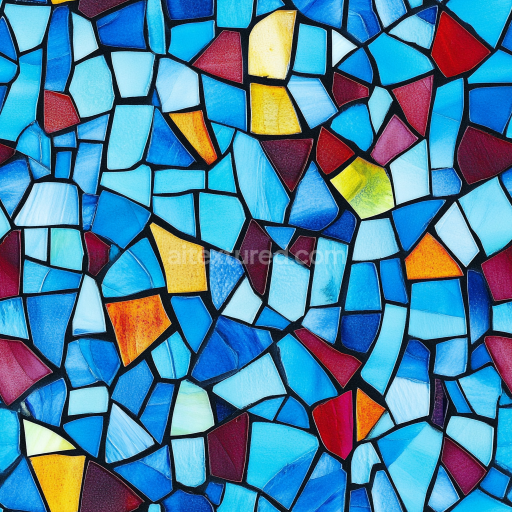
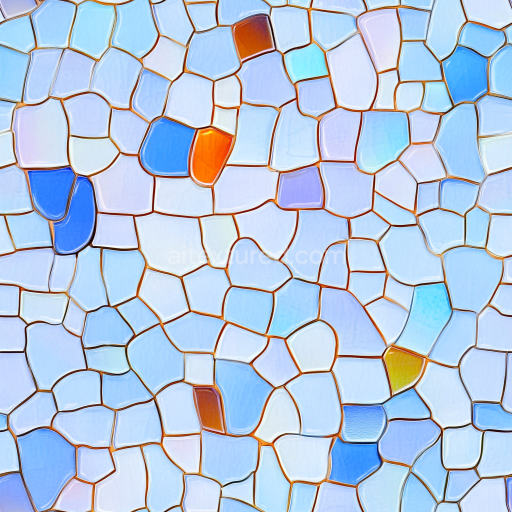
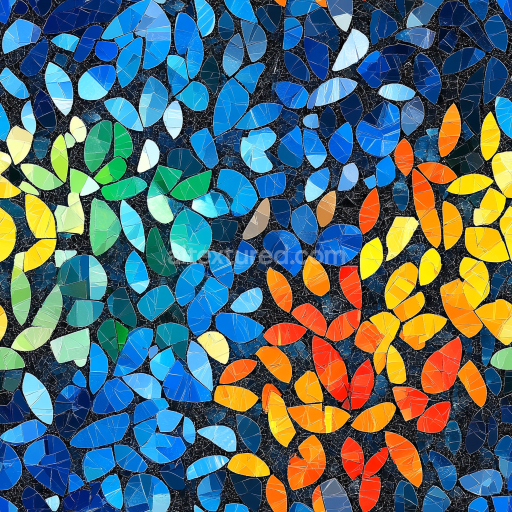
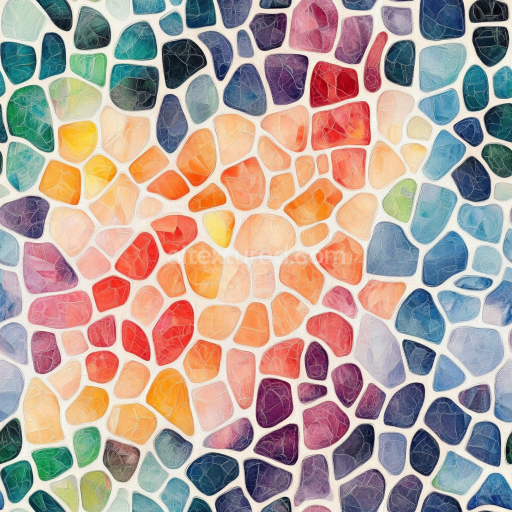
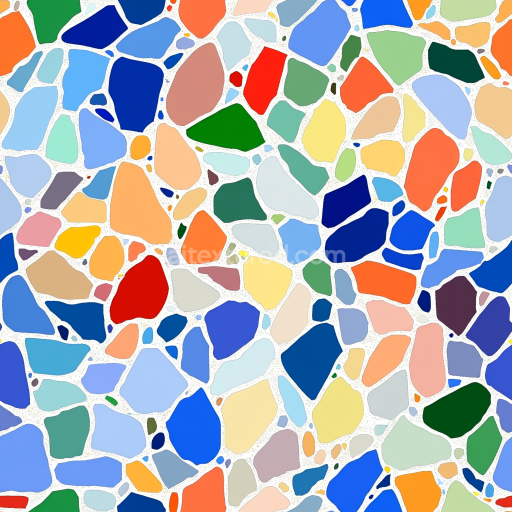
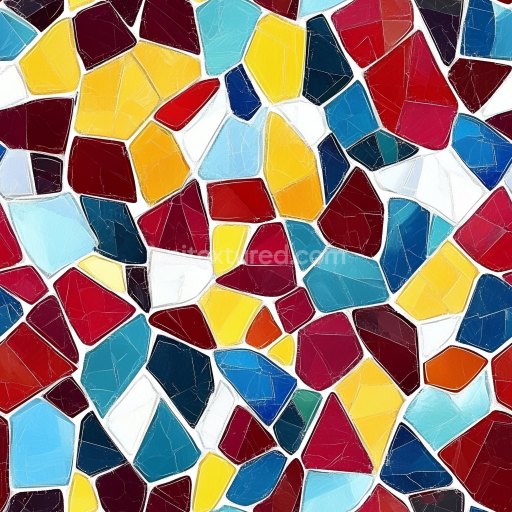
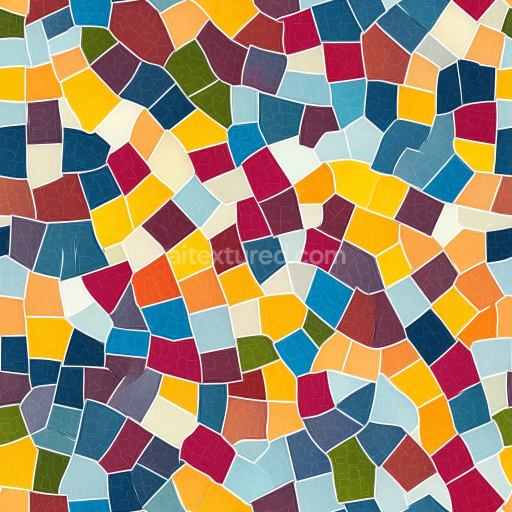
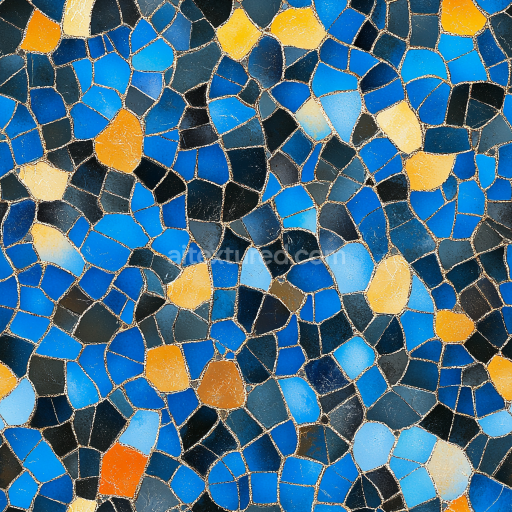
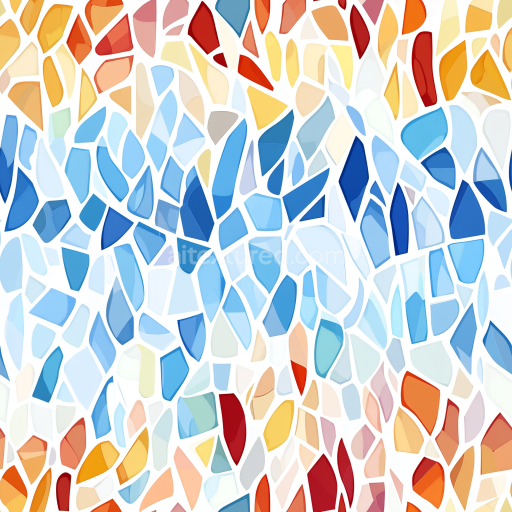
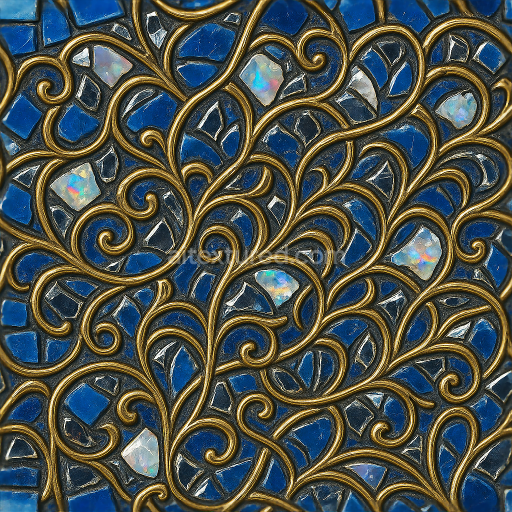
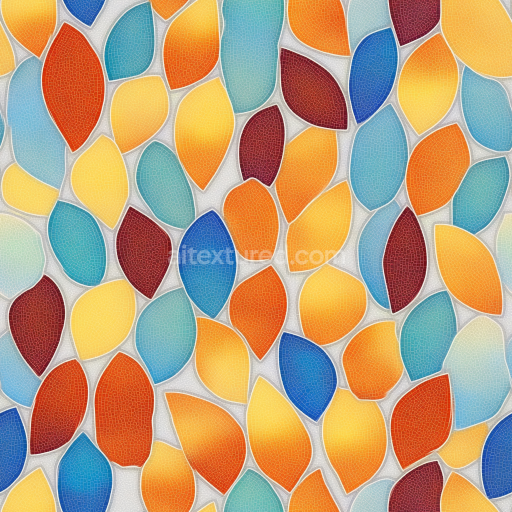
Mosaic PBR Texture Featuring Colorful Glass Shard Tiles
Seamless texture (tileable) · PNG, WEBP, PBR ZIP.
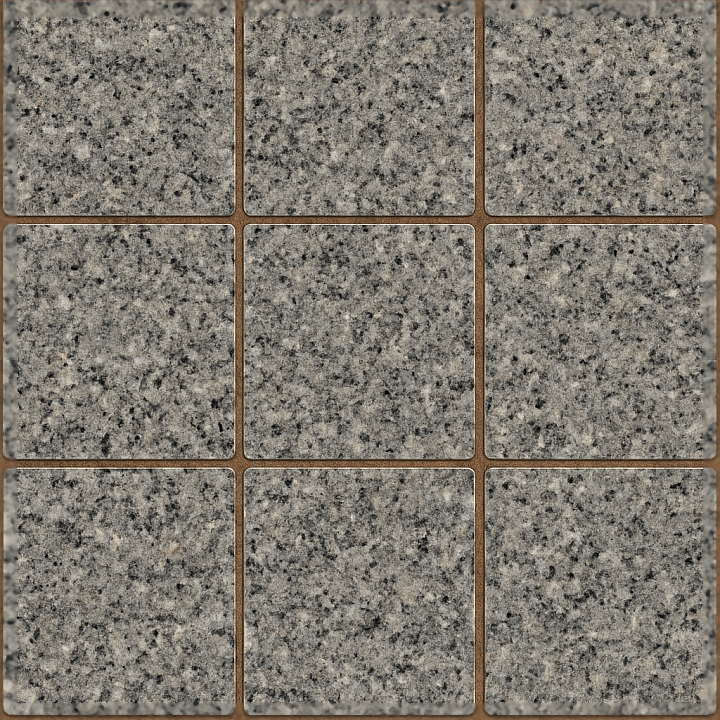
| ID | seamless-3d-texture-pbr-8k-granite-tiles-mosaic-with-natural-stone-and-polished-stone-finish |
|---|---|
| Category | Mosaic |
| Formats | PNG, WEBP, PBR ZIP |
| Size | 1k (1024x1024px), 2k (2048x2048px), 4k (4096x4096px), 8k (8192x8192px) |
| Tileable | Yes |
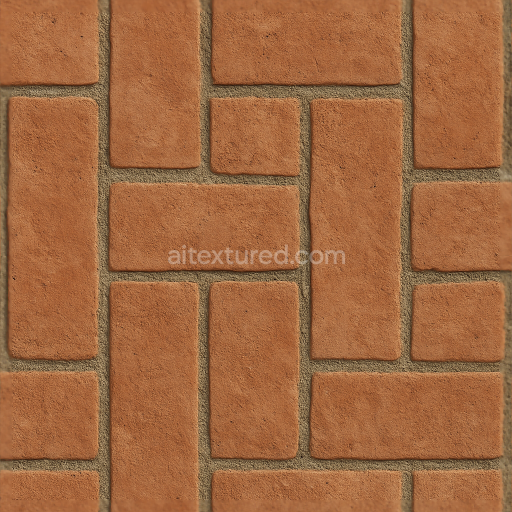
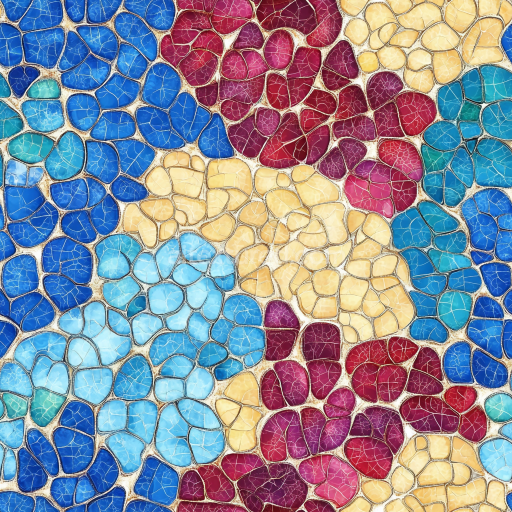
This seamless 3D PBR texture showcases a classic mosaic pattern composed of granite tiles, each cut into uniform square shapes that form a tightly aligned grid. The primary material is natural granite, known for its durable crystalline structure and fine grain composition. The tiles exhibit subtle variations in mineral inclusions and color tones, ranging from soft grays to warmer earth hues, reflecting the natural heterogeneity of granite. The substrate is a dense, igneous rock base, while the polished stone finish creates a smooth, reflective surface that accentuates the mineral veins and crystalline texture. Between the tiles, colored grout with a slightly roughened texture provides contrast and depth, enhancing the mosaic’s visual complexity and realism.
The texture’s composition involves a solid granite substrate with minimal porosity, typical of high-quality natural stone. The polished surface finish results from mechanical abrasion and polishing processes that reduce surface irregularities and produce a glossy sheen, ideal for interiors or architectural features requiring a refined aesthetic. The grout material simulates cementitious binders mixed with fine aggregates and pigments, lending a textured, slightly matte appearance that contrasts with the stone’s polished gloss. This combination emphasizes the joints and tile separation, contributing to the overall mosaic effect. The subtle weathering effects are minimal, preserving the pristine, freshly installed look of the tiles.
In terms of PBR channel mapping, the BaseColor (Albedo) map captures the natural color variations and subtle mineral patterns of the granite, as well as the distinct hue of the colored grout. The Normal map conveys the slight relief and polished facets of the stone surface, along with the textured grout lines, enhancing depth perception without excessive bumpiness. Roughness values are carefully balanced to reflect the polished stone’s smooth gloss and the grout’s matte texture, providing realistic specular highlights. The Metallic channel remains near zero, consistent with non-metallic stone materials, while the Ambient Occlusion map subtly darkens grout crevices and tile edges to simulate natural shadowing. Height or Displacement maps offer fine surface detail, enabling parallax or tessellation effects for enhanced realism in 3D engines.
Rendered at an exceptionally high 8K resolution, this texture is optimized for use in Blender, Unreal Engine, and Unity, ensuring crisp detail and seamless tiling across large surfaces. For practical application, adjusting the UV scale to align with the mosaic’s tile size within the scene is recommended to maintain proportional realism. Additionally, fine-tuning the roughness map can help achieve the desired balance between polished stone reflectivity and grout matte finish. When integrating height or parallax effects, blending the normal and height maps carefully will prevent exaggerated depth and preserve the texture’s subtle surface fidelity.
Import the texture maps into Blender with sRGB color space for albedo/base color and Non-Color for normal, roughness, metallic, AO, height, and ORM maps. Connect normal maps through a Normal Map node, then adjust UV scale with a Mapping node so the material repeats naturally on your model.
For the full step-by-step setup, see How to Use Seamless Textures in Blender. Browse related material examples in wood, concrete, and metal.
Yes. This texture is designed as a seamless tileable PBR material, so it can repeat across large surfaces without visible borders.
Use the download controls on this page: they expose the available PNG, WEBP or engine ZIP choices and supported resolutions for this asset.
Use the engine ZIP choices to package compatible source maps for Blender, Unreal Engine or Unity, then verify the imported material in the target application.
Commercial-use permission is not verified for this record. Confirm the original source and license before production use.
Generate maps from existing images, preview materials, convert channels, and package compatible inputs for Blender, Unity, and Unreal Engine.
Choose a verified workflow for generating maps, previewing tiling, converting channels, or starting from the texture catalog.
Derive Normal, Roughness, AO, Metallic, Height and optional ORM maps from one or more source images, then review the results.
Instant WebGL viewer: inspect materials on a sphere, plane, and cube. Check tiling and lighting in real time.
Re-packages maps per engine: Unreal (BaseColor + ORM), Unity (Mask/MetallicSmoothness), Blender (separate channels).
PNG ↔ JPG ↔ SVG: fast convert, SVG rasterize, embed/trace options, quality & background controls.