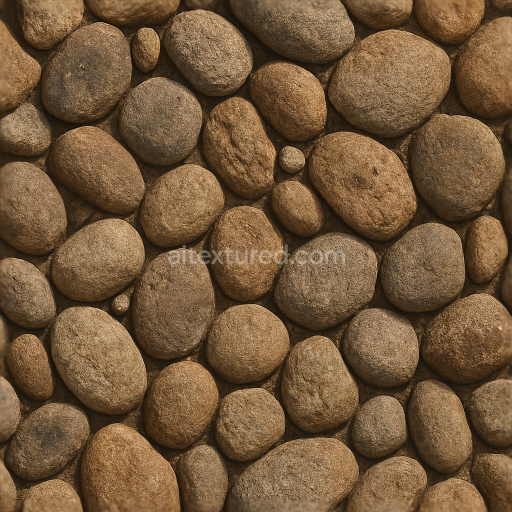
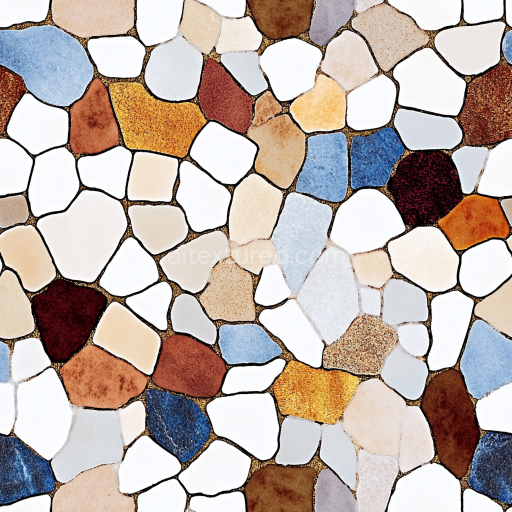
River Stone Mosaic Tiles With Rough Stone Texture And Natural Earth Tones
Seamless texture (tileable) · PNG, WEBP, PBR ZIP.
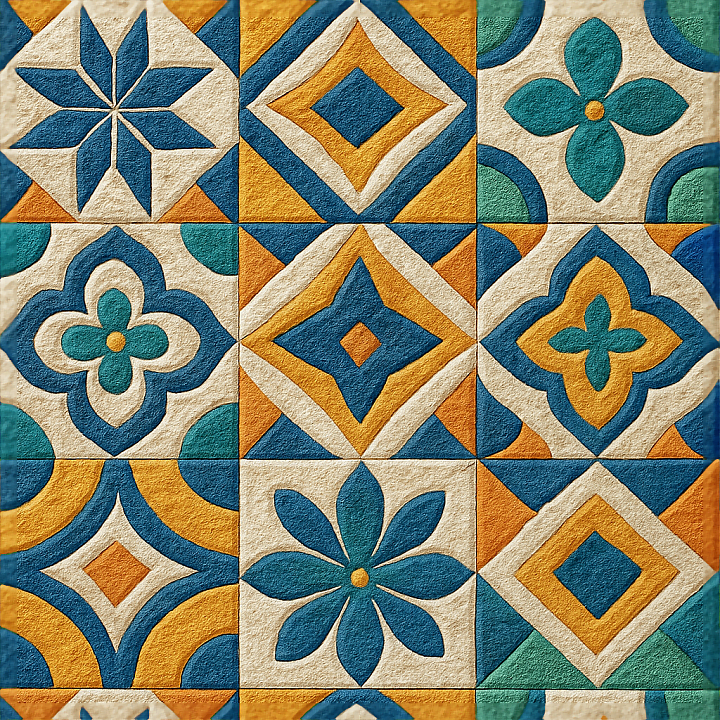
| ID | seamless-3d-texture-pbr-8k-ceramic-tiles-mosaic-with-intricate-geometric-motifs-and-vibrant-colors |
|---|---|
| Category | Mosaic |
| Formats | PNG, WEBP, PBR ZIP |
| Size | 1k (1024x1024px), 2k (2048x2048px), 4k (4096x4096px), 8k (8192x8192px) |
| Tileable | Yes |
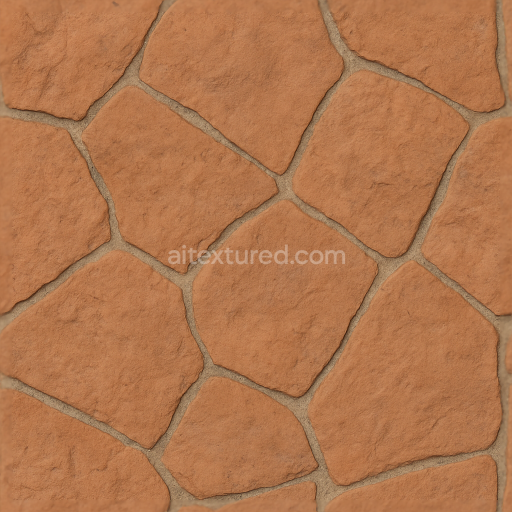
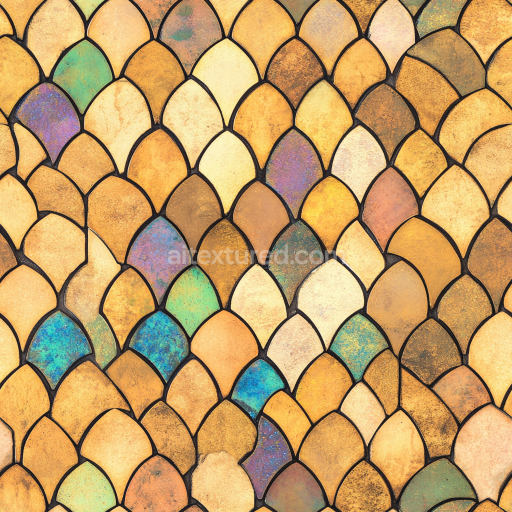
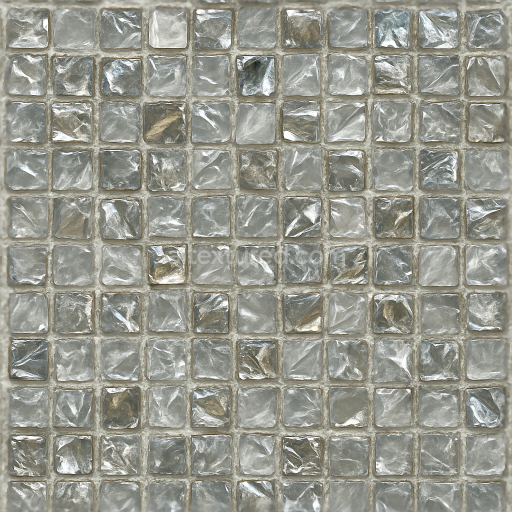
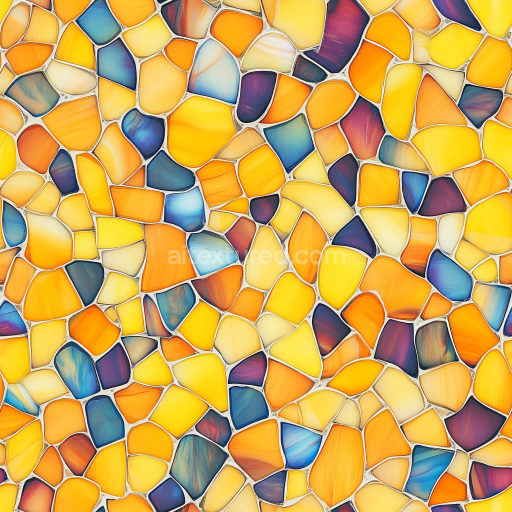
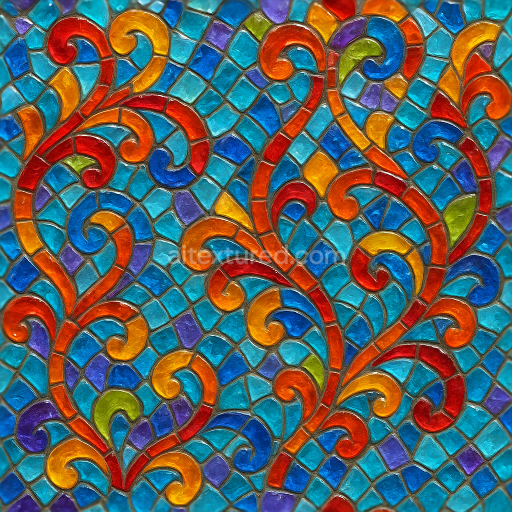
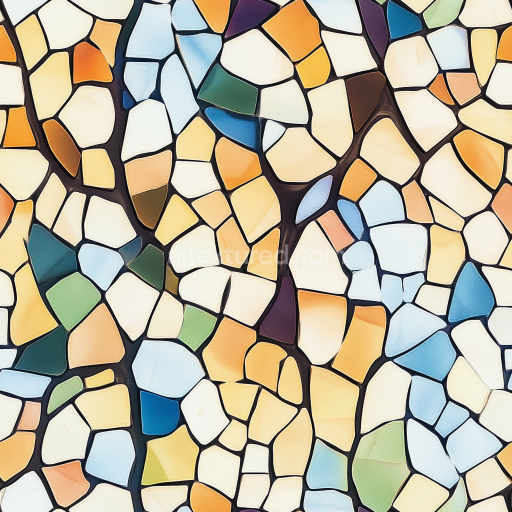
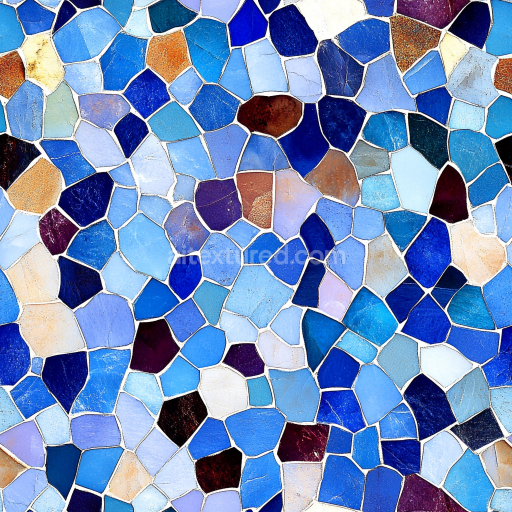
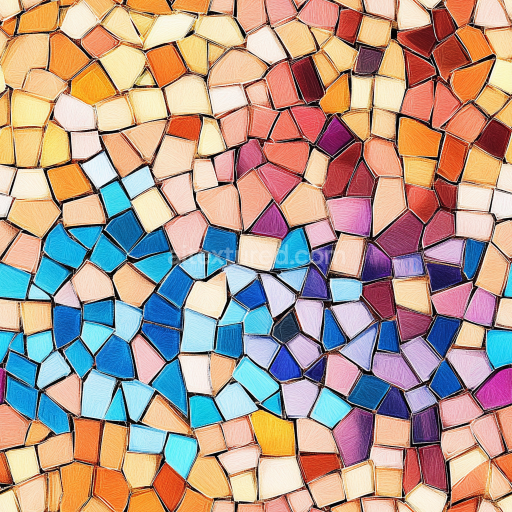
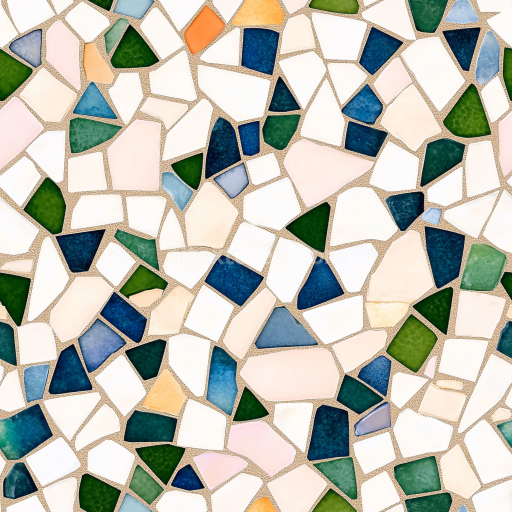
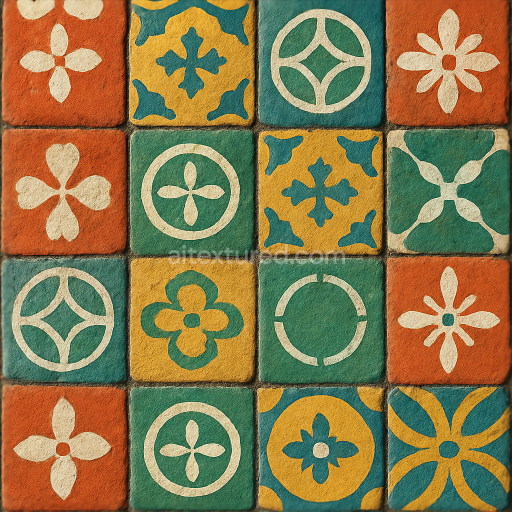
This seamless 3D texture presents a meticulously crafted ceramic tile mosaic, characterized by an intricate arrangement of geometric motifs such as interlocking hexagons and angular patterns that create a dynamic visual rhythm. The ceramic tiles themselves are composed of a dense, fired clay substrate, combined with fine mineral binders and natural aggregates that provide structural integrity and subtle textural variation. The surface finish is semi-glossy with a lightly polished glaze that enhances the vibrant pigmentation without excessive reflectivity, allowing the intricate color palette of rich blues, warm terracottas, and soft creams to stand out vividly. Fine grout lines separate each tile, simulated with a slightly porous and weathered cementitious material, adding depth and realism to the overall composition.
The texture's PBR workflow expertly maps these material characteristics across multiple channels to ensure photorealistic rendering. The BaseColor (Albedo) channel captures the complex color variations and subtle tonal shifts within each tile, while the Normal map reproduces the delicate surface undulations, slight bevels on tile edges, and the textured grout lines. The Roughness map balances the semi-gloss finish of the glazed ceramics with the matte, rough grout, providing a nuanced interplay of light reflections. Metallic values are minimal, reflecting the non-metallic ceramic composition, while the Ambient Occlusion map enhances shadowing around grout recesses and tile edges, contributing to perceived depth. Height or Displacement maps provide fine elevation details, useful for parallax effects or mesh displacement in high-fidelity renders.
Rendered at an impressive 8K resolution, this texture supports highly detailed close-ups without loss of fidelity, making it suitable for architectural visualizations, interior designs, or game environments requiring authentic tiled surfaces. It is optimized for seamless tiling, allowing for flexible and uniform coverage over large areas without visible repetition. The texture is fully compatible and ready for integration within popular 3D software such as Blender, Unreal Engine, and Unity, ensuring a smooth workflow across different platforms and rendering engines.
When applying this texture, it is recommended to carefully adjust the UV scale to maintain the mosaic’s intricate pattern integrity and avoid distortion. Additionally, fine-tuning the roughness channel can help replicate different glaze finishes—from more matte, aged ceramics to polished modern tiles—depending on the desired aesthetic. Combining the height map with normal maps can further enhance depth perception, especially in close camera views, by emphasizing the grout recess and tile relief for a more tactile surface experience.
Import the texture maps into Blender with sRGB color space for albedo/base color and Non-Color for normal, roughness, metallic, AO, height, and ORM maps. Connect normal maps through a Normal Map node, then adjust UV scale with a Mapping node so the material repeats naturally on your model.
For the full step-by-step setup, see How to Use Seamless Textures in Blender. Browse related material examples in wood, concrete, and metal.
Yes. This texture is designed as a seamless tileable PBR material, so it can repeat across large surfaces without visible borders.
Use the download controls on this page: they expose the available PNG, WEBP or engine ZIP choices and supported resolutions for this asset.
Use the engine ZIP choices to package compatible source maps for Blender, Unreal Engine or Unity, then verify the imported material in the target application.
Commercial-use permission is not verified for this record. Confirm the original source and license before production use.
Generate maps from existing images, preview materials, convert channels, and package compatible inputs for Blender, Unity, and Unreal Engine.
Choose a verified workflow for generating maps, previewing tiling, converting channels, or starting from the texture catalog.
Derive Normal, Roughness, AO, Metallic, Height and optional ORM maps from one or more source images, then review the results.
Instant WebGL viewer: inspect materials on a sphere, plane, and cube. Check tiling and lighting in real time.
Re-packages maps per engine: Unreal (BaseColor + ORM), Unity (Mask/MetallicSmoothness), Blender (separate channels).
PNG ↔ JPG ↔ SVG: fast convert, SVG rasterize, embed/trace options, quality & background controls.