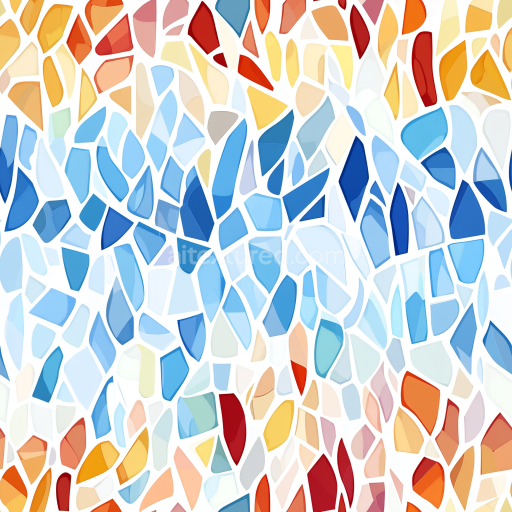
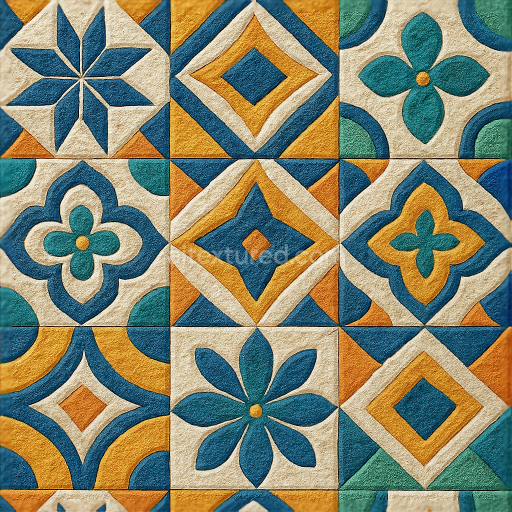
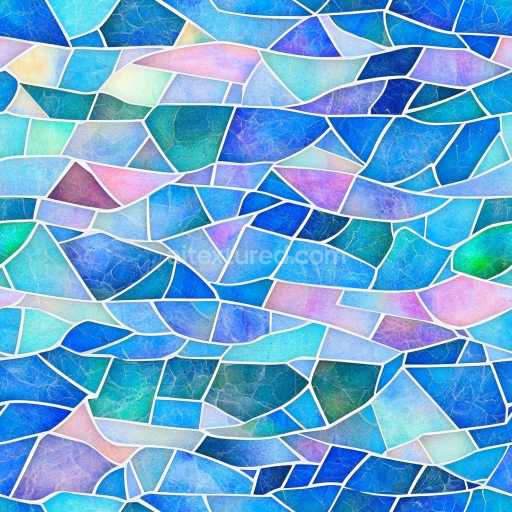
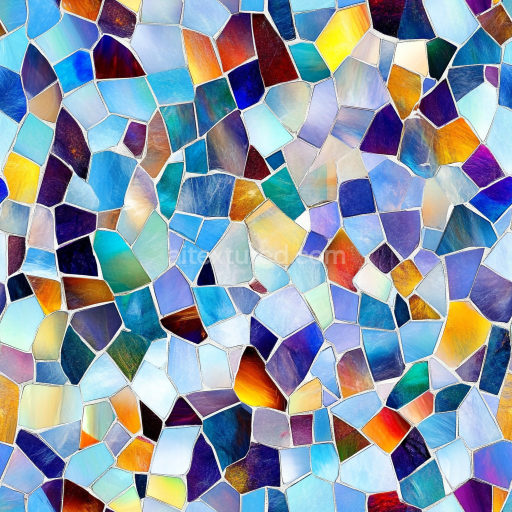
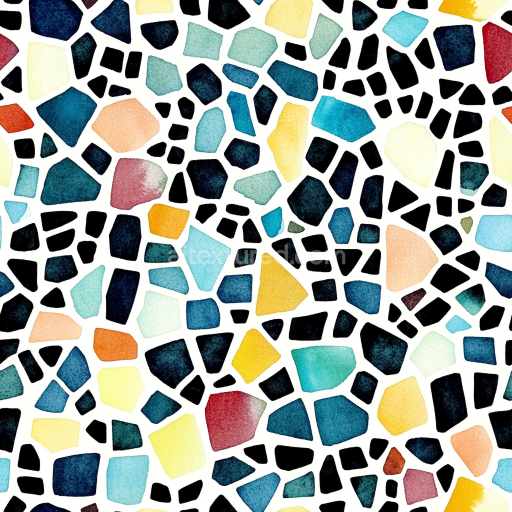
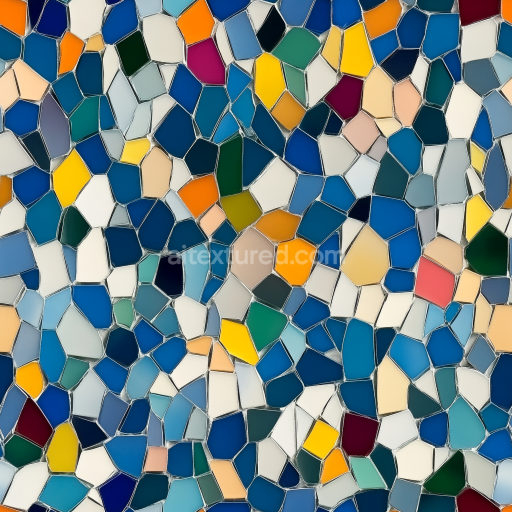
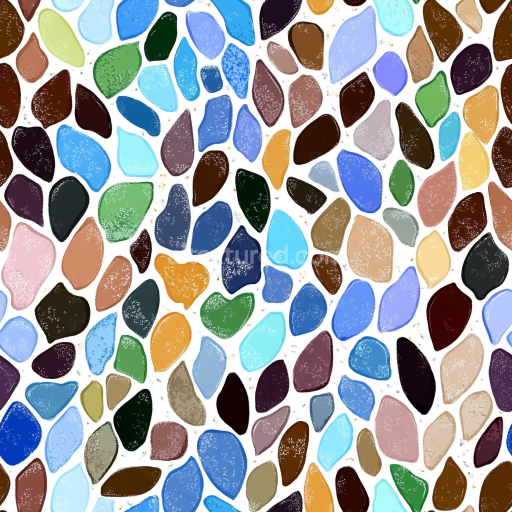
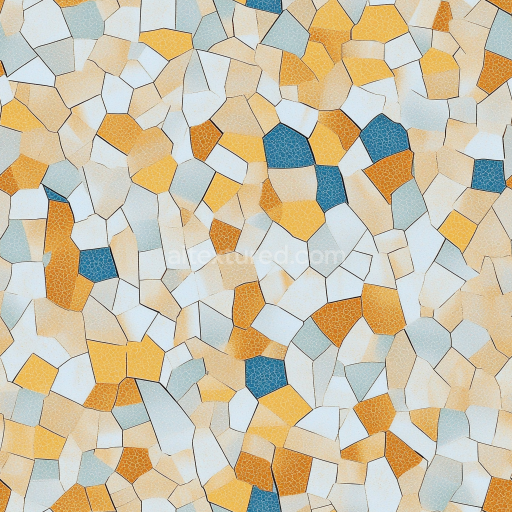
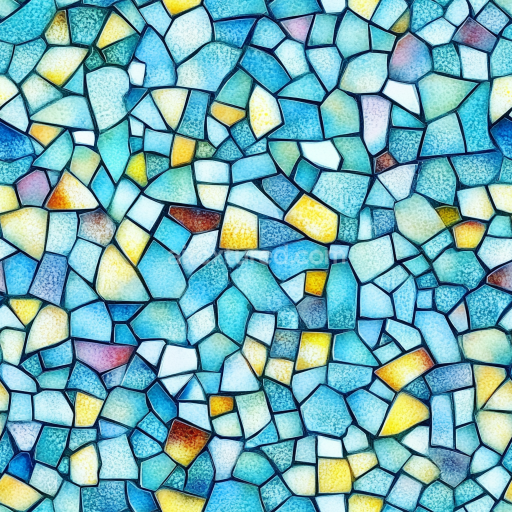
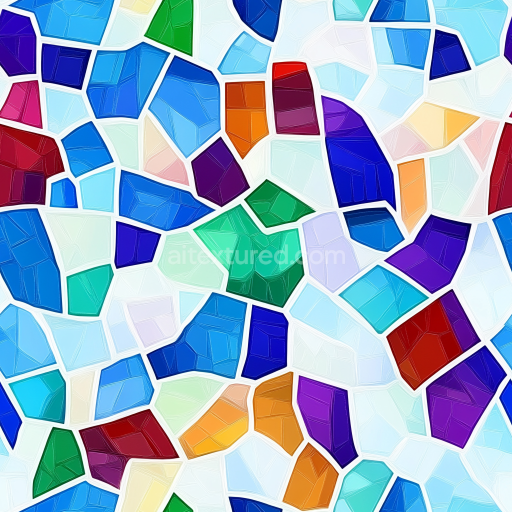
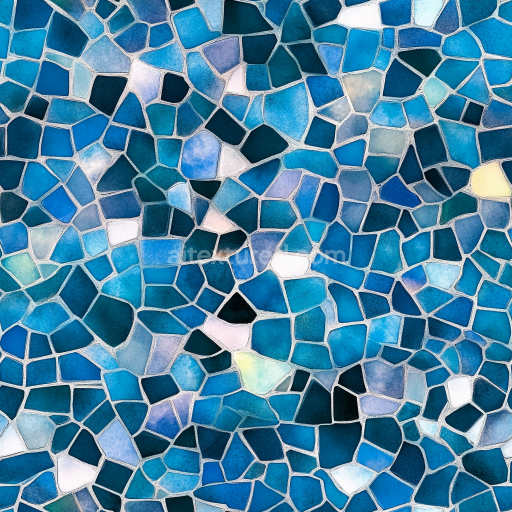
mosaic PBR texture of colorful glossy glass chips
Seamless texture (tileable) · PNG, WEBP, PBR ZIP.
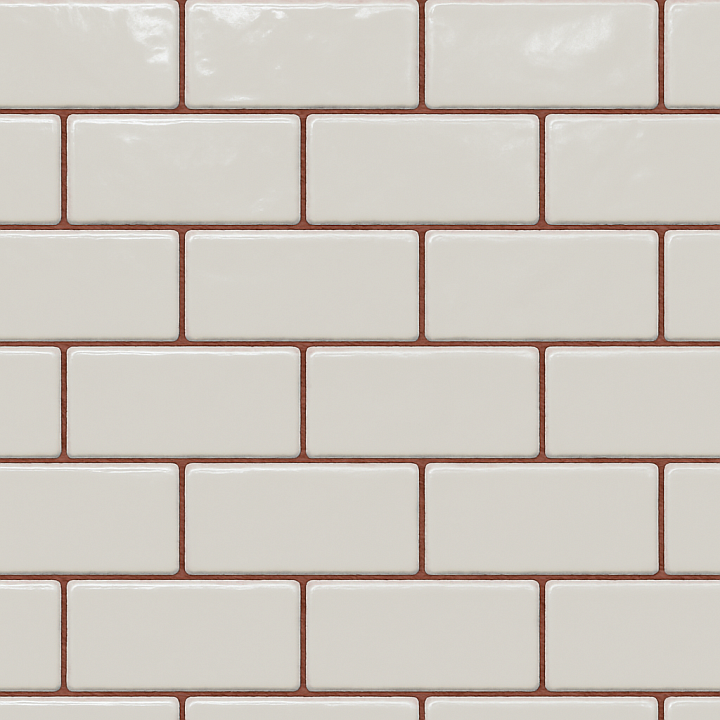
| ID | seamless-3d-texture-pbr-8k-subway-tiles-mosaic-with-glossy-finish-and-colored-grout |
|---|---|
| Category | Mosaic |
| Formats | PNG, WEBP, PBR ZIP |
| Size | 1k (1024x1024px), 2k (2048x2048px), 4k (4096x4096px), 8k (8192x8192px) |
| Tileable | Yes |
This seamless 3D texture showcases a meticulously crafted mosaic pattern composed of classic subway tiles, each tile rendered in high-resolution 8K to capture the finest details with exceptional clarity. The tiles are formed from ceramic, a durable and non-porous base material known for its strength and resistance to moisture, making it ideal for interior applications such as kitchen backsplashes and bathroom walls. The ceramic substrate is coated with a glossy finish, achieved through a polished glaze layer that enhances reflectivity and depth, emphasizing the smooth surface and sharp edges of each rectangular tile. The grout lines between tiles feature colored pigments, offering a visually striking contrast and emphasizing the grid pattern. The grout itself has a subtly textured surface, replicating a slightly roughened cementitious binder mixed with fine aggregates, which adds tactile depth and realism to the overall material composition.
The texture’s geometric form is a traditional subway tile layout, with uniform rectangular shapes laid in a staggered brick bond pattern. This arrangement creates a balanced and timeless visual rhythm. The grout lines are precisely defined with slight variations in height and surface roughness, contributing to a natural and authentic appearance. In terms of physical properties, the ceramic tiles exhibit low porosity and a hard, smooth surface, while the grout presents a matte finish with fine micro-texture, simulating the microscopic grain and fine sand particles suspended within the binder. This combination of glossy tiles and textured grout enhances light interaction, with specular highlights on tile surfaces and subtle diffuse reflections within the grout lines.
All material aspects are carefully mapped across PBR channels to maximize realism and flexibility in 3D rendering engines. The BaseColor (Albedo) map captures the pure color information of both tiles and grout, including the subtle hue variations in the colored grout. The Normal map encodes surface irregularities such as the sharp tile edges and the textured grout surface, adding depth and detail without increasing geometry complexity. Roughness values differ between materials, with low roughness for the glossy tiles to reflect light sharply, and higher roughness for the grout to diffuse reflections softly. The Metallic channel remains near zero, reflecting the non-metallic nature of ceramic and grout. Ambient Occlusion enhances shadowing in the grout recesses and tile edges, improving depth perception. Height or Displacement maps provide subtle relief details, allowing for realistic parallax effects and enhanced tactile sensation when used with compatible shaders.
This texture is optimized for seamless tiling and is fully compatible with major 3D software and game engines such as Blender, Unreal Engine, and Unity. Its 8K resolution ensures crisp rendering even in close-up views, making it suitable for architectural visualization, interior design projects, and realistic game environments. For best results, users are advised to carefully adjust the UV scale to maintain the natural size of subway tiles in the scene and fine-tune roughness values to match specific lighting conditions. Additionally, blending height maps with normal maps can enhance the perceived depth of grout lines without adding extra geometry, offering a balanced performance-to-quality ratio.
Import the texture maps into Blender with sRGB color space for albedo/base color and Non-Color for normal, roughness, metallic, AO, height, and ORM maps. Connect normal maps through a Normal Map node, then adjust UV scale with a Mapping node so the material repeats naturally on your model.
For the full step-by-step setup, see How to Use Seamless Textures in Blender. Browse related material examples in wood, concrete, and metal.
Yes. This texture is designed as a seamless tileable PBR material, so it can repeat across large surfaces without visible borders.
Use the download controls on this page: they expose the available PNG, WEBP or engine ZIP choices and supported resolutions for this asset.
Use the engine ZIP choices to package compatible source maps for Blender, Unreal Engine or Unity, then verify the imported material in the target application.
Commercial-use permission is not verified for this record. Confirm the original source and license before production use.
Generate maps from existing images, preview materials, convert channels, and package compatible inputs for Blender, Unity, and Unreal Engine.
Choose a verified workflow for generating maps, previewing tiling, converting channels, or starting from the texture catalog.
Derive Normal, Roughness, AO, Metallic, Height and optional ORM maps from one or more source images, then review the results.
Instant WebGL viewer: inspect materials on a sphere, plane, and cube. Check tiling and lighting in real time.
Re-packages maps per engine: Unreal (BaseColor + ORM), Unity (Mask/MetallicSmoothness), Blender (separate channels).
PNG ↔ JPG ↔ SVG: fast convert, SVG rasterize, embed/trace options, quality & background controls.