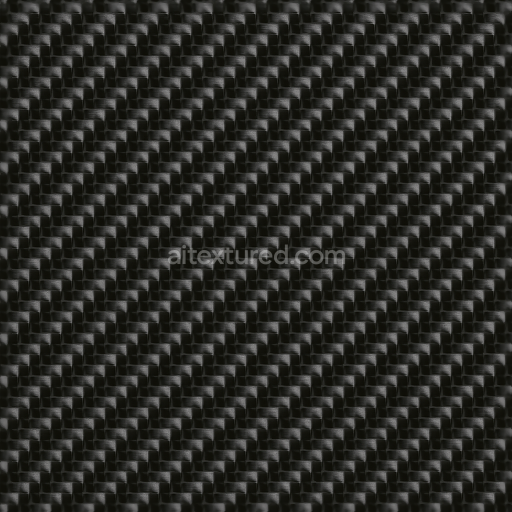
Carbon Threads With Carbon High Gloss Finish For PBR 8K Realistic Renders
Seamless texture (tileable) · PNG, WEBP, PBR ZIP.
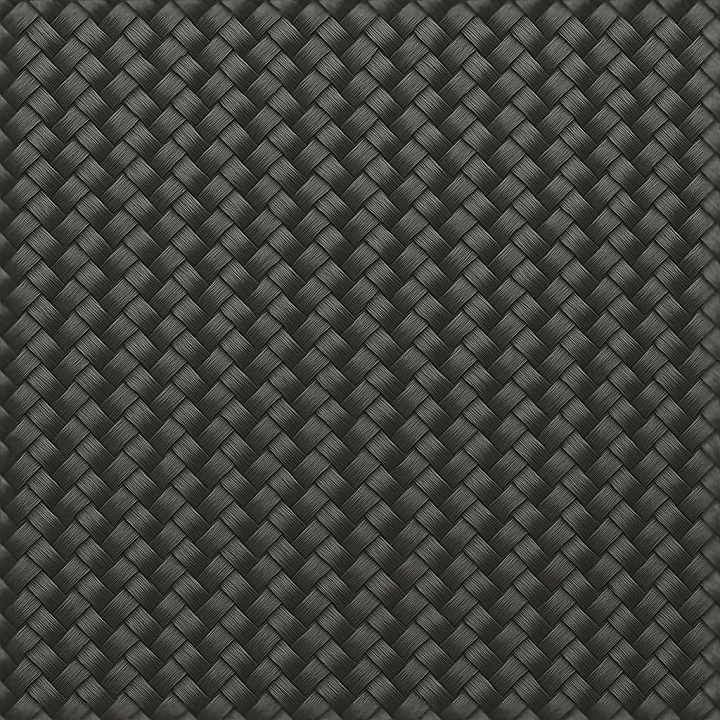
| ID | seamless-3d-pbr-texture-of-carbon-fabric-with-carbon-satin-finish-for-8k-photorealistic-renders |
|---|---|
| Category | Carbon |
| Formats | PNG, WEBP, PBR ZIP |
| Size | 1k (1024x1024px), 2k (2048x2048px), 4k (4096x4096px), 8k (8192x8192px) |
| Tileable | Yes |
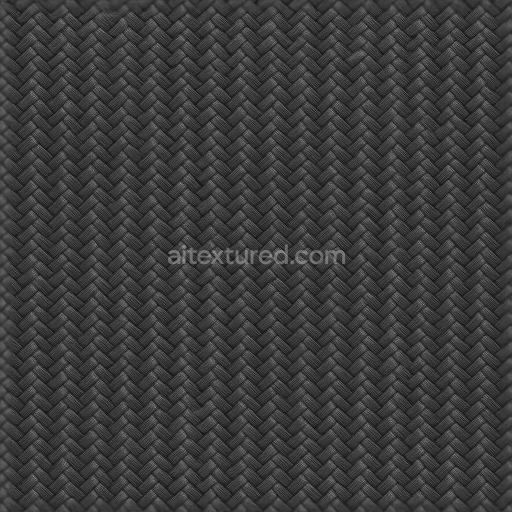
This seamless 3D PBR texture captures the intricate weave of carbon fabric with a refined carbon satin finish, designed for photorealistic 8K renders. The base material is a high-strength carbon fiber composite, composed of tightly interlaced fibers forming a balanced twill weave pattern. These fibers are embedded within a polymer resin matrix, acting as a binder that holds the fabric together while providing structural integrity. The surface exhibits a subtle satin sheen that softly reflects light, emphasizing the fabric’s depth and complexity without excessive gloss, making it ideal for modern automotive and industrial design visualizations.
The geometric form is defined by an even, repetitive woven pattern where the carbon fibers intersect at right angles, creating a distinctive checkerboard-like appearance. Each fiber strand shows fine grain and subtle variations in thickness, contributing to the realistic tactile impression. The material’s porosity is minimal due to the resin impregnation, ensuring a smooth yet textured surface that resists weathering and wear. The predominantly deep carbon black color is achieved through high-purity pigments within the resin, maintaining a consistent dark tone that enhances the composite’s signature aesthetic.
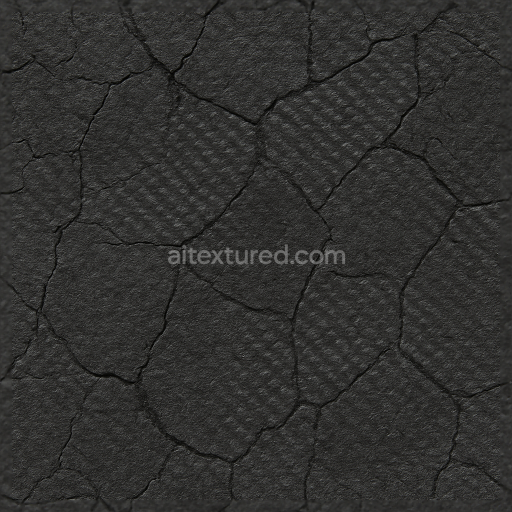
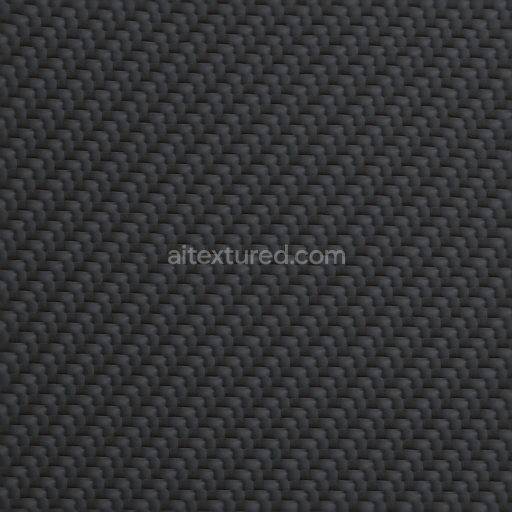
From a PBR perspective, the BaseColor map captures the rich black hues and subtle tonal shifts between fibers and resin, while the Normal map defines the fabric’s delicate weave relief, accentuating the dimensionality of individual threads. The Roughness channel balances the satin finish by providing moderate reflectivity—low enough to avoid unnatural shine but sufficient to reveal the material’s characteristic soft luster. The Metallic map remains near zero, reflecting the non-metallic nature of the polymer-bound fabric. Ambient Occlusion enhances shadowing within the weave intersections, and the Height/Displacement map subtly accentuates fiber elevations, contributing to realistic surface depth in close-up renders.
Optimized for seamless tiling at 8K resolution, this texture is fully compatible with Blender, Unreal Engine, and Unity, ensuring detailed and accurate representation in various 3D workflows. For practical use, it is recommended to fine-tune the UV scale to maintain the visible fiber pattern without distortion and to adjust roughness values slightly higher for matte applications or lower for surfaces requiring more pronounced satin highlights. Additionally, blending normal and height maps can enhance the perception of depth on curved surfaces without increasing geometry complexity.
Import the texture maps into Blender with sRGB color space for albedo/base color and Non-Color for normal, roughness, metallic, AO, height, and ORM maps. Connect normal maps through a Normal Map node, then adjust UV scale with a Mapping node so the material repeats naturally on your model.
For the full step-by-step setup, see How to Use Seamless Textures in Blender. Browse related material examples in wood, concrete, and metal.
Yes. This texture is designed as a seamless tileable PBR material, so it can repeat across large surfaces without visible borders.
Use the download controls on this page: they expose the available PNG, WEBP or engine ZIP choices and supported resolutions for this asset.
Use the engine ZIP choices to package compatible source maps for Blender, Unreal Engine or Unity, then verify the imported material in the target application.
Commercial-use permission is not verified for this record. Confirm the original source and license before production use.


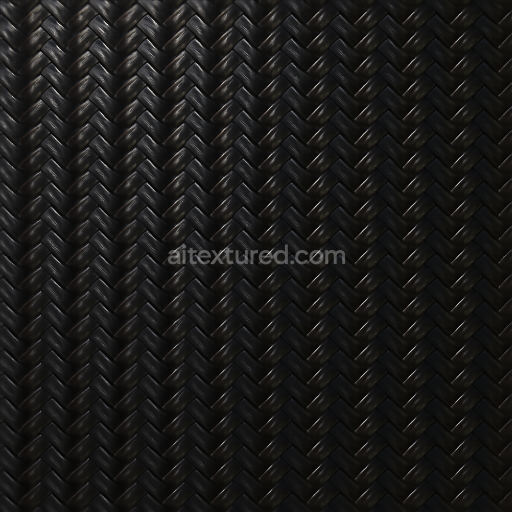
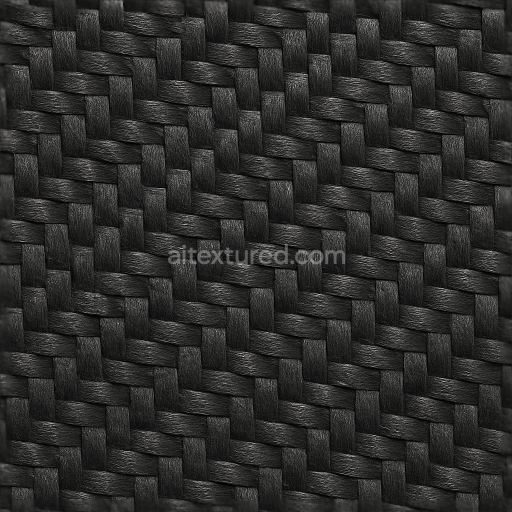


Generate maps from existing images, preview materials, convert channels, and package compatible inputs for Blender, Unity, and Unreal Engine.
Choose a verified workflow for generating maps, previewing tiling, converting channels, or starting from the texture catalog.
Derive Normal, Roughness, AO, Metallic, Height and optional ORM maps from one or more source images, then review the results.
Instant WebGL viewer: inspect materials on a sphere, plane, and cube. Check tiling and lighting in real time.
Re-packages maps per engine: Unreal (BaseColor + ORM), Unity (Mask/MetallicSmoothness), Blender (separate channels).
PNG ↔ JPG ↔ SVG: fast convert, SVG rasterize, embed/trace options, quality & background controls.