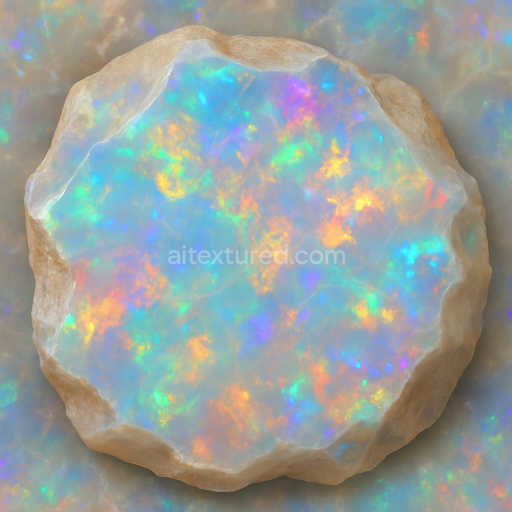
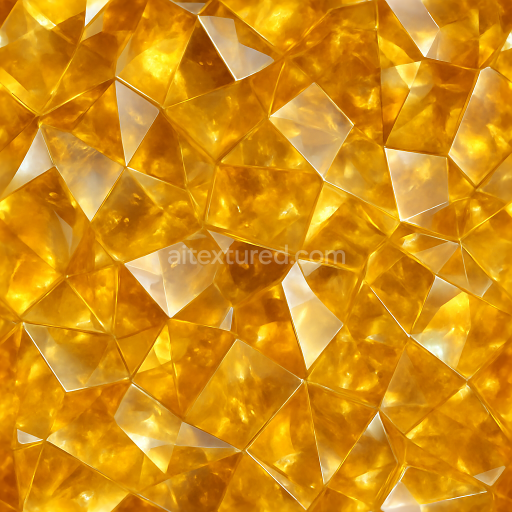
Opal Raw Crystal With Iridescent Sheen And Vitreous Luster Finishes
Seamless texture (tileable) · PNG, WEBP, PBR ZIP.
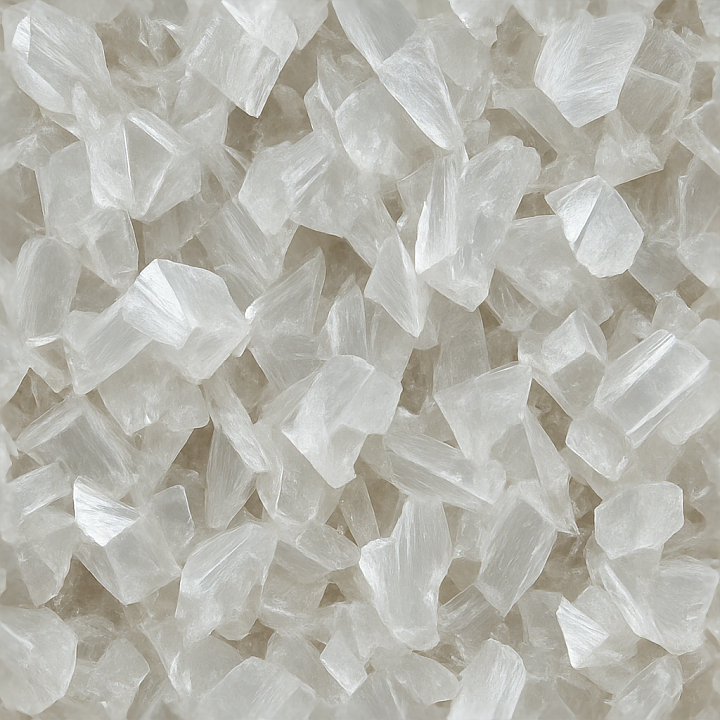
| ID | seamless-3d-texture-pbr-8k-gypsum-crystalline-formation-with-rough-crystal-surfaces-and-light-refraction-effects |
|---|---|
| Category | Crystals |
| Formats | PNG, WEBP, PBR ZIP |
| Size | 1k (1024x1024px), 2k (2048x2048px), 4k (4096x4096px), 8k (8192x8192px) |
| Tileable | Yes |
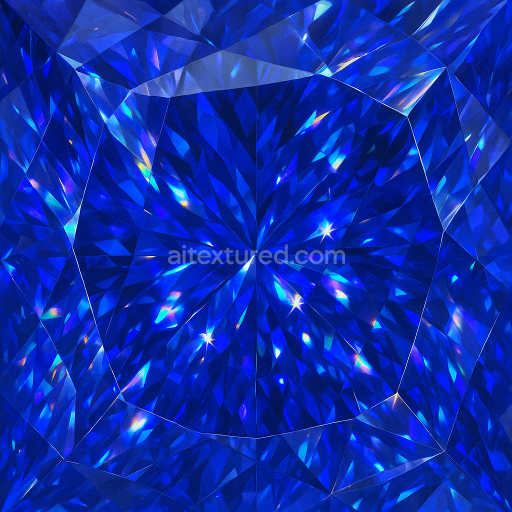
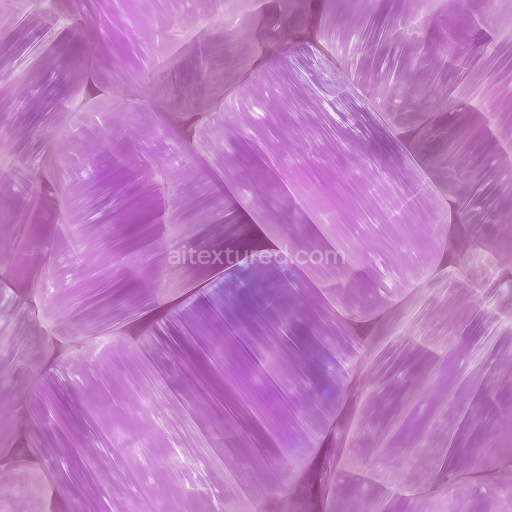
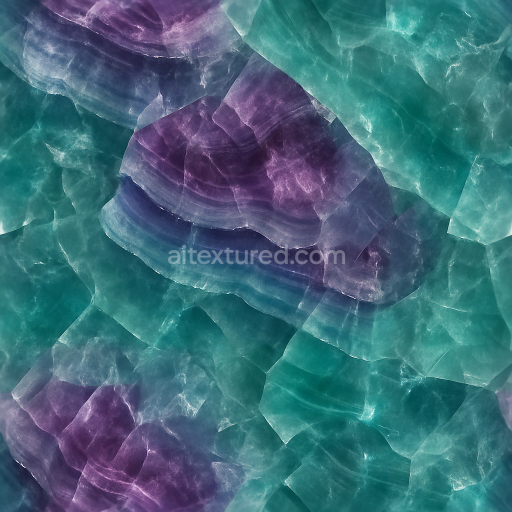
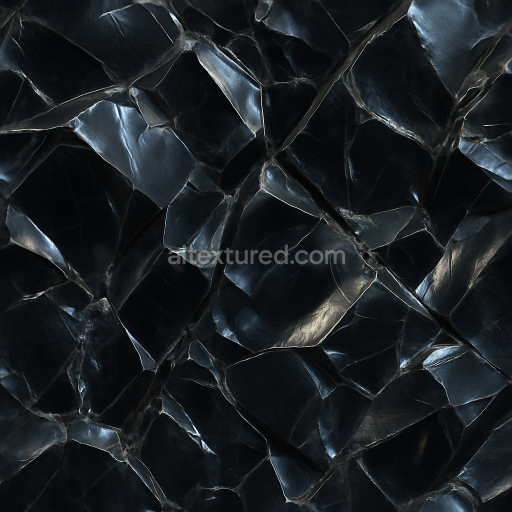
This seamless 3D texture presents an 8K photorealistic rendering of gypsum crystalline formations, characterized by their naturally rough and faceted surfaces. The material composition reflects gypsum’s typical calcium sulfate dihydrate structure, where the crystalline substrate forms interlocking angular crystals with translucent qualities. The rough crystal surfaces exhibit subtle micro-faceting, which enhances the light refraction and scattering effects, contributing to the realistic portrayal of mineral inclusions and natural fractures. These crystalline structures are arranged in a veined and clustered pattern, creating an organic yet repetitive tessellation ideal for seamless tiling on 3D models.
The texture’s base color channel (Albedo) captures the delicate off-white to pale beige hues intrinsic to gypsum, with slight variations caused by embedded impurities and mineral veining. The Normal and Height maps define the pronounced geometric relief of the crystal facets, emphasizing the jagged edges and fine granular details of the rough surfaces. Roughness values vary across the surface, with polished areas reflecting more light and rougher zones diffusing it, simulating the mineral’s semi-glossy finish. The Metallic channel remains near zero, as gypsum is non-metallic, while Ambient Occlusion enhances the depth perception within crevices and between crystal clusters, accentuating the complex geometry.
Porosity and subtle weathering effects are evident in the texture, modeled through micro-surface imperfections and slight wear on the crystal edges, suggesting natural erosion and mineral growth patterns. The surface finish balances between semi-polished crystalline facets and rough, matte inclusions, providing a versatile PBR material that reacts realistically under various lighting conditions. This texture is optimized for high-fidelity rendering in Blender, Unreal Engine, and Unity, ensuring consistent appearance across diverse workflows and real-time applications.
For practical use, it is advisable to carefully adjust the UV scale to maintain the natural grain and avoid repetition artifacts, especially when applied to large surfaces. Additionally, fine-tuning the roughness channel can enhance realism by increasing glossiness on selected crystal facets, while blending height and normal maps can improve the perception of depth without compromising performance. This approach allows for a highly detailed, physically accurate gypsum crystalline texture suitable for architectural visualization, geological models, and detailed mineral studies within 3D environments.
Import the texture maps into Blender with sRGB color space for albedo/base color and Non-Color for normal, roughness, metallic, AO, height, and ORM maps. Connect normal maps through a Normal Map node, then adjust UV scale with a Mapping node so the material repeats naturally on your model.
For the full step-by-step setup, see How to Use Seamless Textures in Blender. Browse related material examples in wood, concrete, and metal.
Yes. This texture is designed as a seamless tileable PBR material, so it can repeat across large surfaces without visible borders.
Use the download controls on this page: they expose the available PNG, WEBP or engine ZIP choices and supported resolutions for this asset.
Use the engine ZIP choices to package compatible source maps for Blender, Unreal Engine or Unity, then verify the imported material in the target application.
Commercial-use permission is not verified for this record. Confirm the original source and license before production use.
Generate maps from existing images, preview materials, convert channels, and package compatible inputs for Blender, Unity, and Unreal Engine.
Choose a verified workflow for generating maps, previewing tiling, converting channels, or starting from the texture catalog.
Derive Normal, Roughness, AO, Metallic, Height and optional ORM maps from one or more source images, then review the results.
Instant WebGL viewer: inspect materials on a sphere, plane, and cube. Check tiling and lighting in real time.
Re-packages maps per engine: Unreal (BaseColor + ORM), Unity (Mask/MetallicSmoothness), Blender (separate channels).
PNG ↔ JPG ↔ SVG: fast convert, SVG rasterize, embed/trace options, quality & background controls.