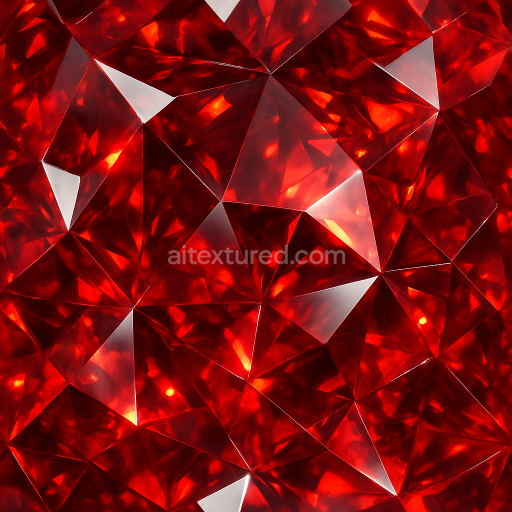
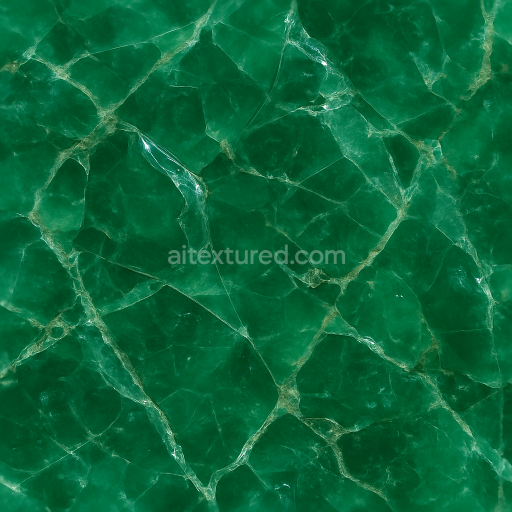
Garnet Faceted Gem With Gemstone Facets And Adamantine Luster Highlights
Seamless texture (tileable) · PNG, WEBP, PBR ZIP. License: AITextured Free Commercial License (FCL) v1.1. Free personal and commercial use. Raw resale, standalone redistribution, mirroring/scraping, competing asset packs, and AI/ML training are not allowed without written permission. Attribution is not required, but appreciated..
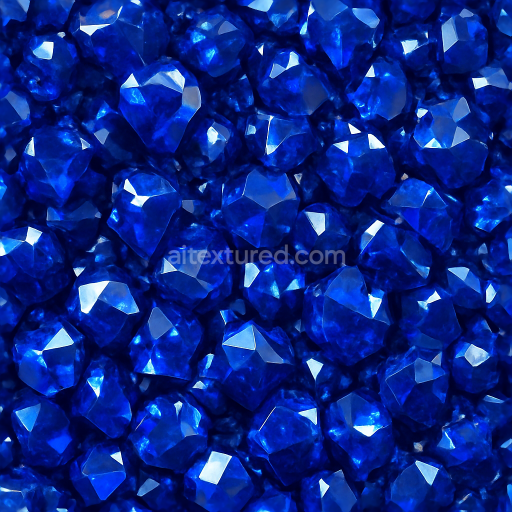
| ID | seamless-3d-texture-pbr-8k-of-deep-blue-azurite-with-crystal-clusters-and-reflective-gem-facets-showing-sparkling-shimmer |
|---|---|
| Category | Crystals |
| Formats | PNG, WEBP, PBR ZIP |
| Size | 1k (1024x1024px), 2k (2048x2048px), 4k (4096x4096px), 8k (8192x8192px) |
| Color | sRGB |
| Tileable | Yes |
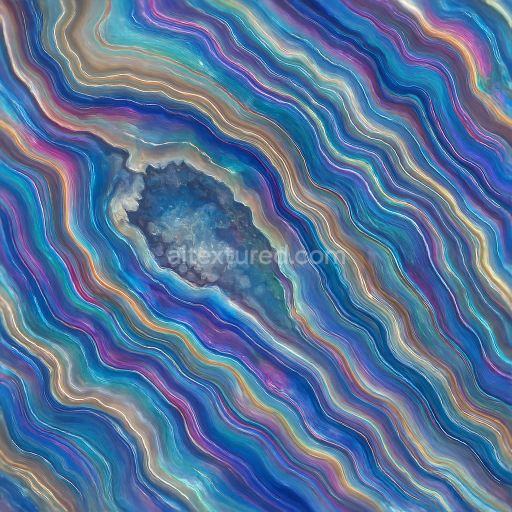
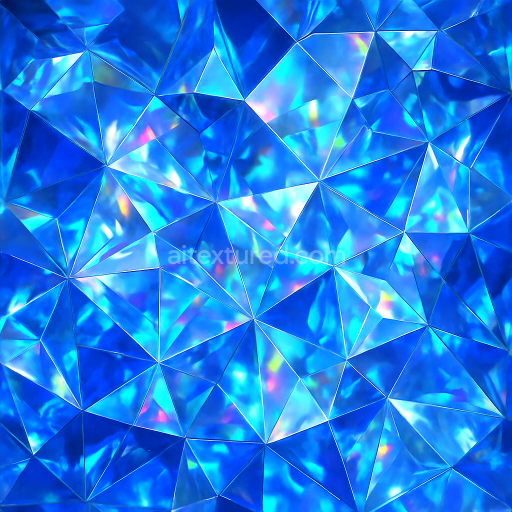
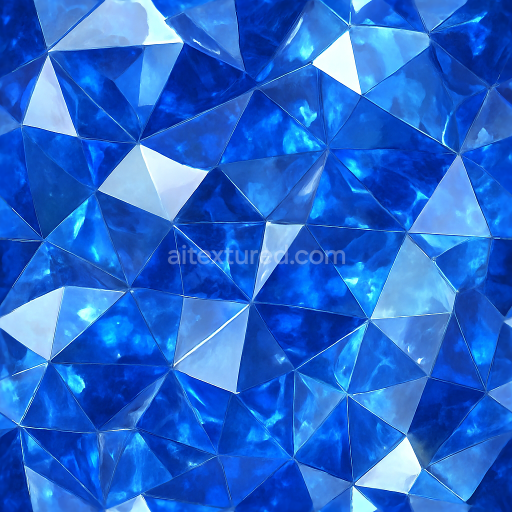
This seamless 3D PBR texture showcases the intricate natural formation of deep blue azurite crystal clusters, rendered in ultra-high 8K resolution for exceptional detail. Azurite, a copper carbonate mineral, forms rich, vibrant blue crystalline aggregates with distinctive reflective gem facets. The texture captures these clusters’ complex geometry, featuring sharp crystal edges and multifaceted surfaces that produce a sparkling shimmer under varied lighting conditions. The base material simulates the dense mineral substrate of azurite, exhibiting subtle variations in tone and translucency that contribute to the realistic portrayal of light absorption and refraction within the gemstone. The natural crystalline pattern is irregular yet cohesive, creating a visually compelling tessellation without obvious seams, ideal for continuous surface application in 3D environments.
In terms of material composition, the texture mimics azurite’s solid mineral matrix combined with crystalline growths that exhibit high gloss and reflectivity. The surface finish is predominantly polished, emphasizing the gem facets’ brilliance and scintillation, while some areas reveal faint micro-roughness that enhances tactile realism. From a PBR perspective, the BaseColor (Albedo) channel accurately reproduces the deep blue pigment variations inherent in azurite, including subtle gradients and mineral inclusions. The Normal map conveys the pronounced relief of the crystal formations, with sharp ridges and angular facets providing strong surface definition. Roughness values are carefully balanced to replicate the interplay between smooth, reflective facets and less polished, natural surfaces, while the Metallic channel remains minimal, consistent with azurite’s non-metallic nature. Ambient Occlusion adds depth to crevices between clusters, and the Height/Displacement map accentuates the three-dimensional geometry for enhanced parallax and shadowing effects.
This texture’s seamless design ensures it can be tiled indefinitely without visible repetition, making it highly suitable for large-scale 3D projects. Its high fidelity and accurate PBR channel integration guarantee compatibility and ease of use across major platforms such as Blender, Unreal Engine, and Unity. The 8K resolution preserves fine crystalline detail even at close camera distances, supporting photorealistic renderings and detailed material workflows. For practical application, it is recommended to adjust the UV scale to moderate levels to maintain the natural crystal cluster proportions without exaggeration. Additionally, fine-tuning the roughness map can help balance the overall glossiness to suit different lighting environments, while blending height and normal maps ensures smoother transitions between crystal edges and the mineral base for a cohesive appearance.
Import the texture maps into Blender with sRGB color space for albedo/base color and Non-Color for normal, roughness, metallic, AO, height, and ORM maps. Connect normal maps through a Normal Map node, then adjust UV scale with a Mapping node so the material repeats naturally on your model.
For the full step-by-step setup, see How to Use Seamless Textures in Blender. Browse related material examples in wood, concrete, and metal.
Yes. This texture is designed as a seamless tileable PBR material, so it can repeat across large surfaces without visible borders.
You can download PNG/WEBP versions and use 1K, 2K, 4K and 8K download options when available on the page.
Yes. The download options and engine-mapped ZIP workflow are designed for Blender, Unreal Engine, Unity Standard, URP and HDRP material pipelines.
Yes. The texture is available under the AITextured free commercial license. Review the license page for redistribution and AI-training restrictions.
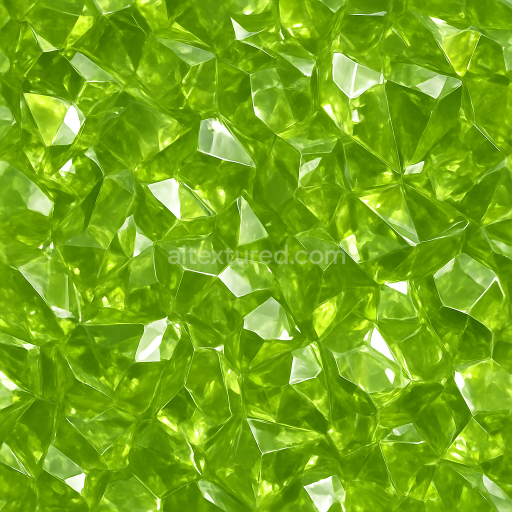
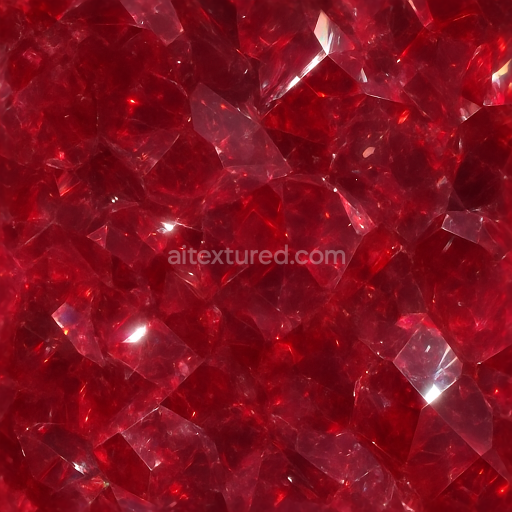
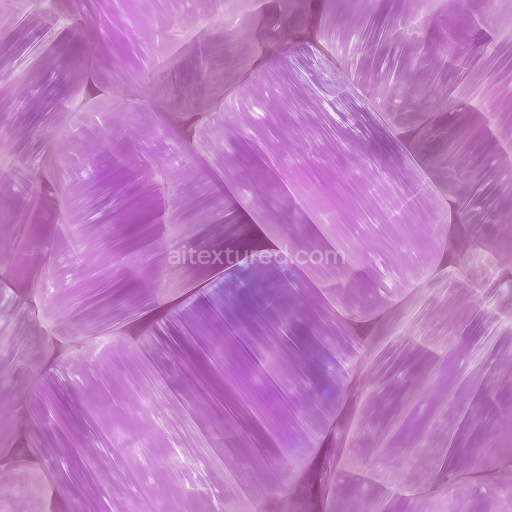
Build, preview, and export seamless PBR materials. Generate full map sets from a single image, inspect them in a real-time WebGL viewer, and re-package maps for Unreal, Unity, and Blender—directly in your browser.
AI text-to-texture: type a prompt and get a seamless, tileable base image ready for PBR workflows (great starting point for materials).
Create a full PBR set (Normal, Roughness, AO, Metallic, etc.) from a single image. Seamless and tiling-friendly.
Instant WebGL viewer: inspect materials on a sphere, plane, and cube. Check tiling and lighting in real time.
Re-packages maps per engine: Unreal (BaseColor + ORM), Unity (Mask/MetallicSmoothness), Blender (separate channels).
PNG ↔ JPG ↔ SVG: fast convert, SVG rasterize, embed/trace options, quality & background controls.