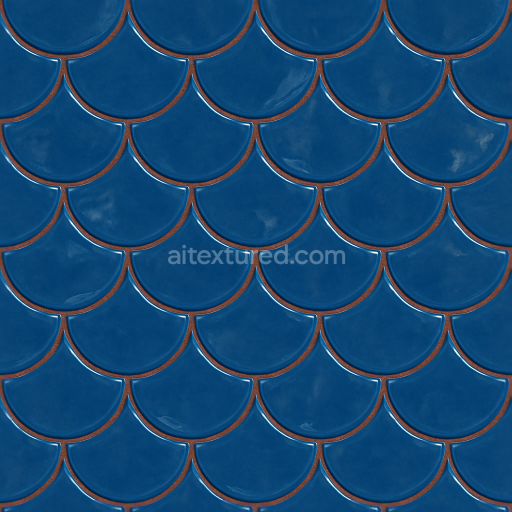
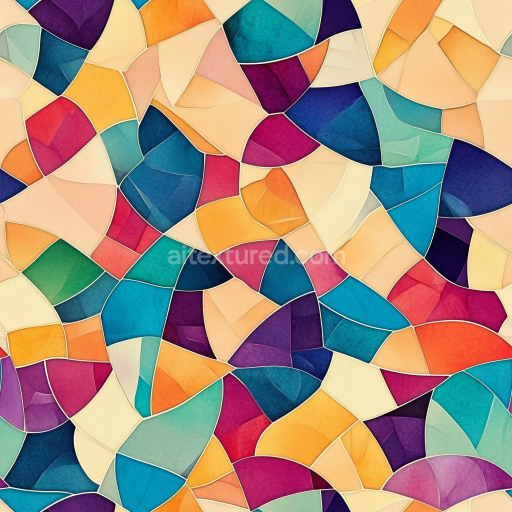
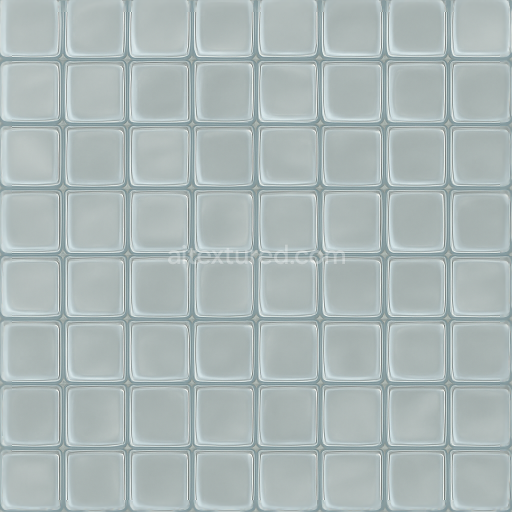
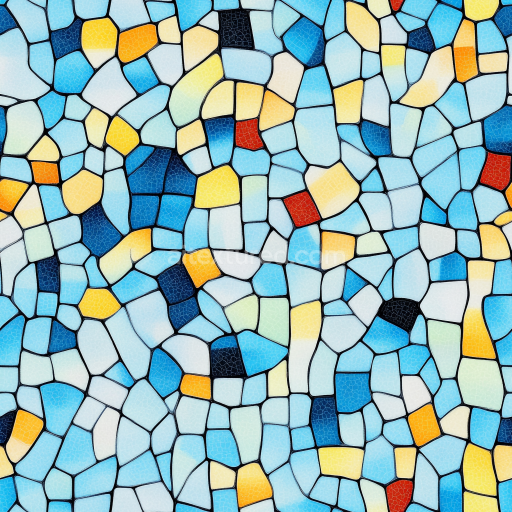
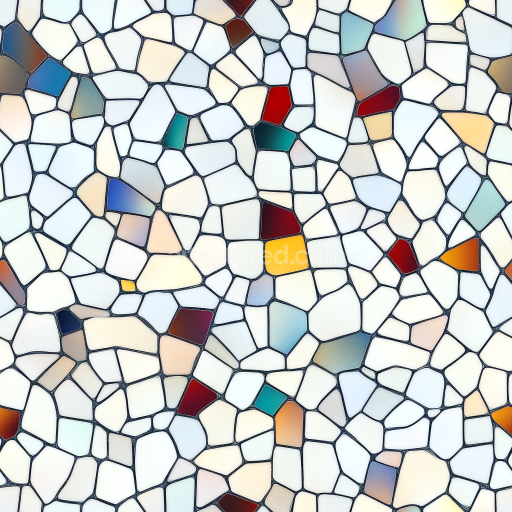
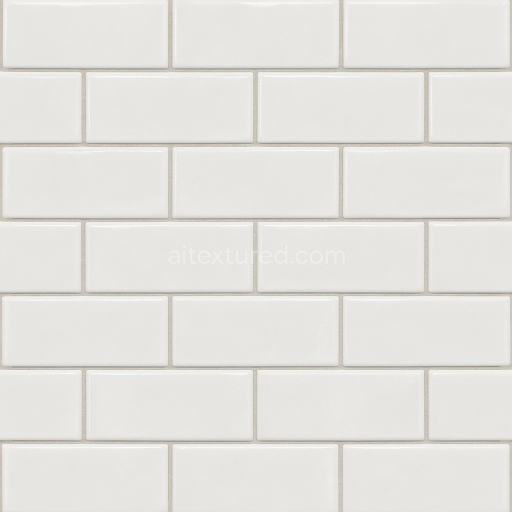
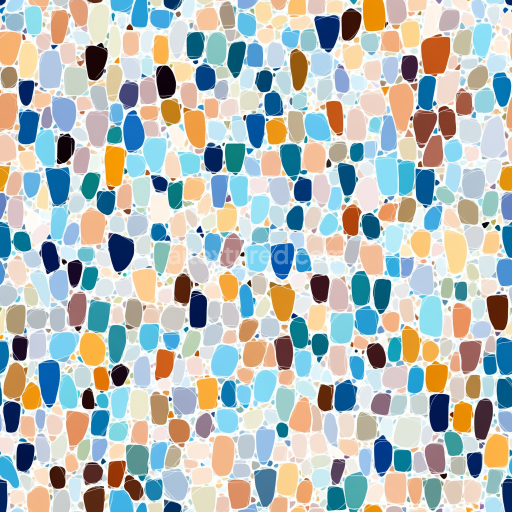
Fish Scale Tiles Mosaic With Blue Tiles And Glossy Finish
Seamless texture (tileable) · PNG, WEBP, PBR ZIP.
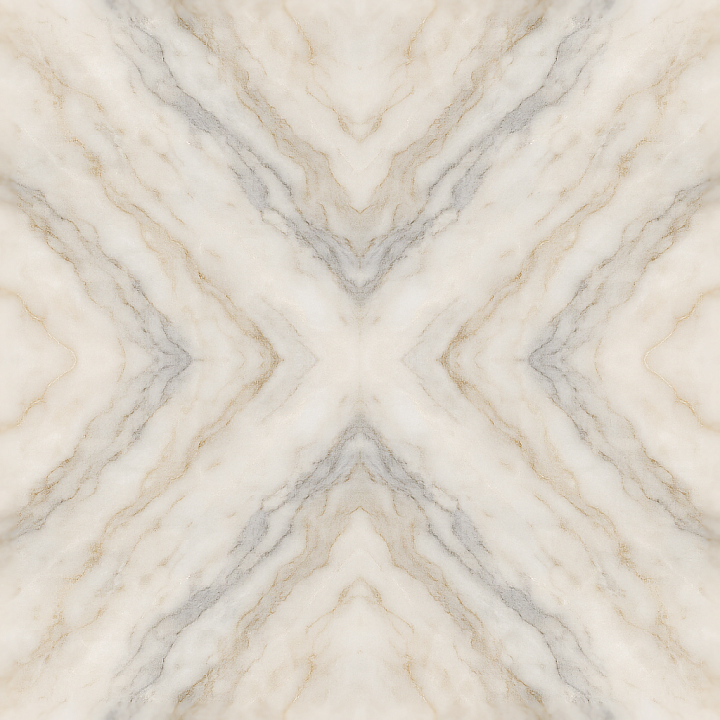
| ID | seamless-3d-texture-pbr-8k-marble-tiles-mosaic-with-polished-marble-surface-and-symmetrical-design |
|---|---|
| Category | Mosaic |
| Formats | PNG, WEBP, PBR ZIP |
| Size | 1k (1024x1024px), 2k (2048x2048px), 4k (4096x4096px), 8k (8192x8192px) |
| Tileable | Yes |
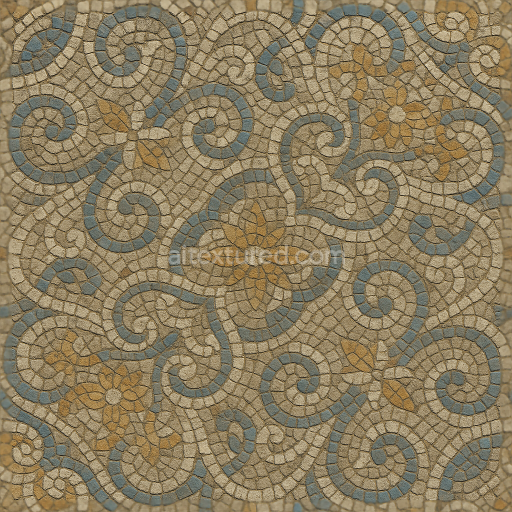
This seamless 3D texture features an intricately arranged mosaic of marble tiles, each exhibiting a polished marble surface characterized by natural stone veins and subtle color variations inherent to high-quality marble. The tiles are laid out in a precise, symmetrical geometric pattern, enhancing visual harmony and balance. The base material is natural marble, a metamorphic rock composed primarily of recrystallized carbonate minerals, typically calcite or dolomite. The polished finish highlights the stone’s smooth surface and reflective qualities, achieved by finely grinding and buffing to reduce surface roughness. The grout lines between tiles are minimal, clean, and uniform, further emphasizing the refined appearance of the marble mosaic.
From a compositional perspective, the marble tiles rest on a dense, low-porosity substrate formed by tightly interlocking calcite crystals. This natural stone base is bound by mineral intergrowths rather than synthetic adhesives, providing durability and resistance to weathering. The texture’s subtle veins and grain patterns stem from mineral impurities such as clay, silt, or iron oxides, which impart natural pigmentation and variation. The polished surface finish corresponds to a low roughness value in the PBR Roughness channel, allowing for crisp reflections and a smooth tactile impression. The BaseColor (Albedo) map captures the intricate coloration and vein distribution, while the Normal map defines the slight undulations and edges of the tiles and grout, adding depth to the otherwise flat surface. Ambient Occlusion enhances the shadowing within tile crevices, and the Height/Displacement map provides subtle relief for realistic surface topology. The Metallic channel remains at zero, consistent with the non-metallic nature of marble.
Rendered at an 8K resolution, this texture provides exceptional detail and clarity, suitable for close-up renders in Blender, Unreal Engine, and Unity. The high resolution ensures that fine details such as micro-scratches, vein transitions, and polished reflections are preserved without pixelation or blurring, vital for photorealistic architectural visualizations and luxury interior scenes. The seamless design allows for continuous tiling without visible edges or repetition artifacts, facilitating flexible UV mapping across large surfaces.
For optimal use, it is advisable to adjust the UV scale to maintain the natural proportions of the tiles relative to the 3D model, avoiding distortion of the symmetrical pattern. Additionally, fine-tuning the roughness map can help balance the polished sheen for different lighting conditions. When integrating the height or displacement maps, blending them carefully with the normal map enhances surface realism without excessive geometry displacement, ensuring efficient rendering performance across target platforms.
Import the texture maps into Blender with sRGB color space for albedo/base color and Non-Color for normal, roughness, metallic, AO, height, and ORM maps. Connect normal maps through a Normal Map node, then adjust UV scale with a Mapping node so the material repeats naturally on your model.
For the full step-by-step setup, see How to Use Seamless Textures in Blender. Browse related material examples in wood, concrete, and metal.
Yes. This texture is designed as a seamless tileable PBR material, so it can repeat across large surfaces without visible borders.
Use the download controls on this page: they expose the available PNG, WEBP or engine ZIP choices and supported resolutions for this asset.
Use the engine ZIP choices to package compatible source maps for Blender, Unreal Engine or Unity, then verify the imported material in the target application.
Commercial-use permission is not verified for this record. Confirm the original source and license before production use.
Generate maps from existing images, preview materials, convert channels, and package compatible inputs for Blender, Unity, and Unreal Engine.
Choose a verified workflow for generating maps, previewing tiling, converting channels, or starting from the texture catalog.
Derive Normal, Roughness, AO, Metallic, Height and optional ORM maps from one or more source images, then review the results.
Instant WebGL viewer: inspect materials on a sphere, plane, and cube. Check tiling and lighting in real time.
Re-packages maps per engine: Unreal (BaseColor + ORM), Unity (Mask/MetallicSmoothness), Blender (separate channels).
PNG ↔ JPG ↔ SVG: fast convert, SVG rasterize, embed/trace options, quality & background controls.