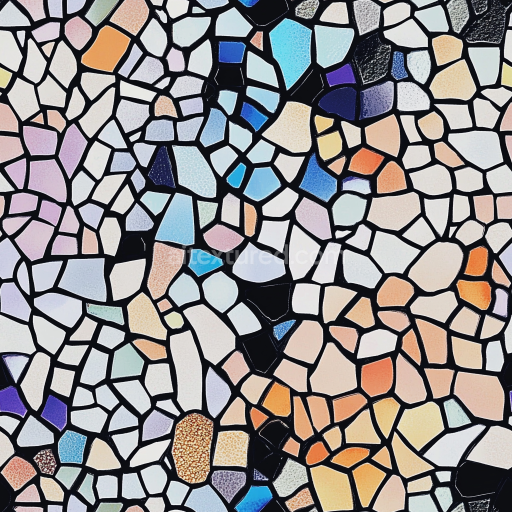
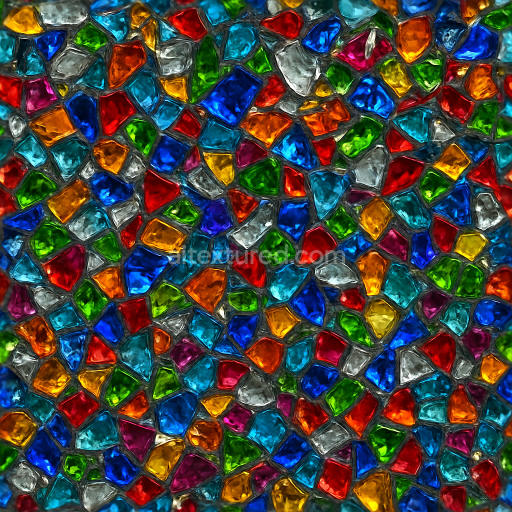
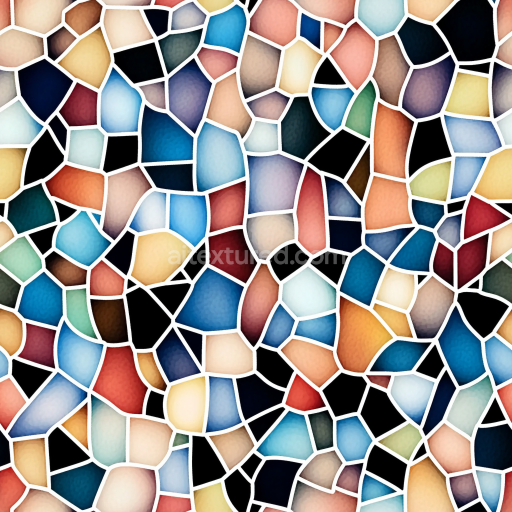
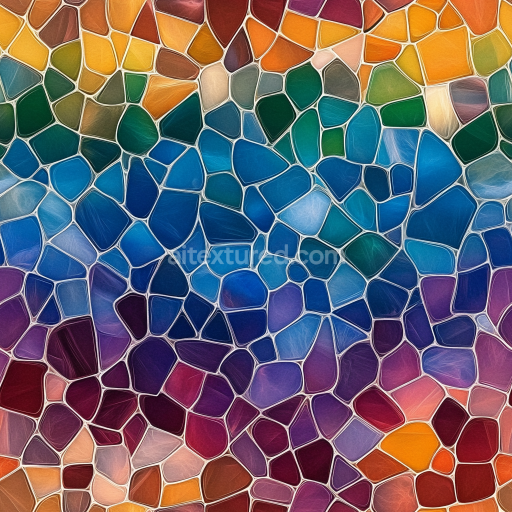
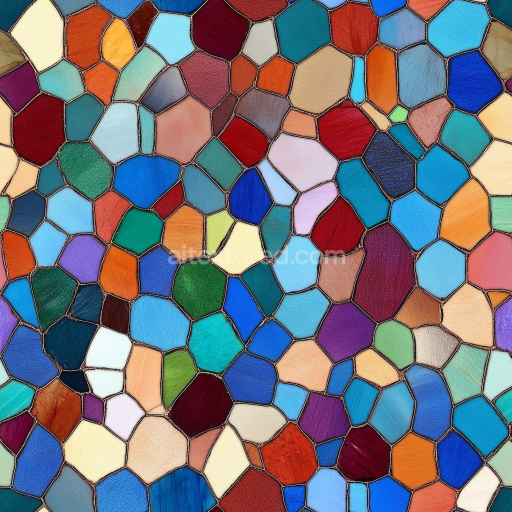
mosaic PBR texture in glossy glazed ceramic multicolor irregular chips
Seamless texture (tileable) · PNG, WEBP, PBR ZIP.
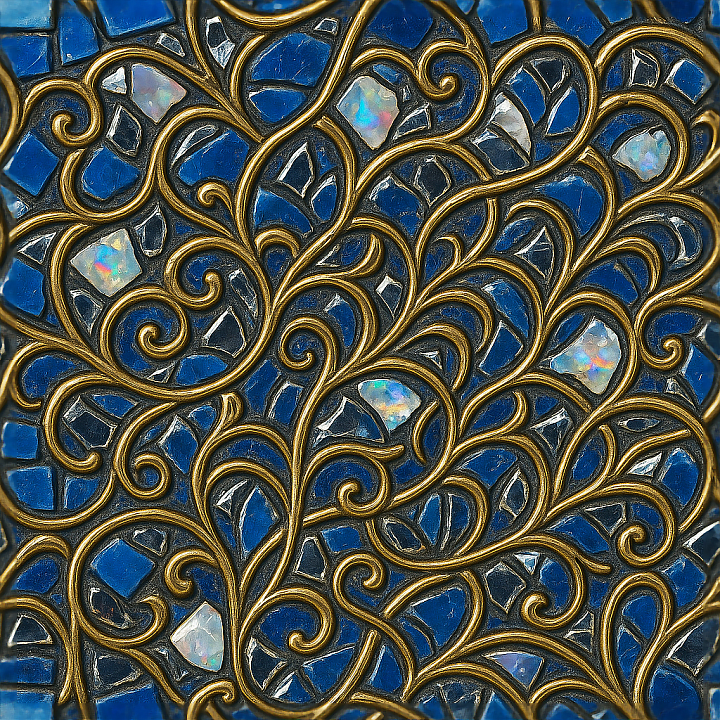
| ID | seamless-3d-texture-pbr-8k-smalti-glass-mosaic-with-opal-fragments-and-metallic-accents |
|---|---|
| Category | Mosaic |
| Formats | PNG, WEBP, PBR ZIP |
| Size | 1k (1024x1024px), 2k (2048x2048px), 4k (4096x4096px), 8k (8192x8192px) |
| Tileable | Yes |
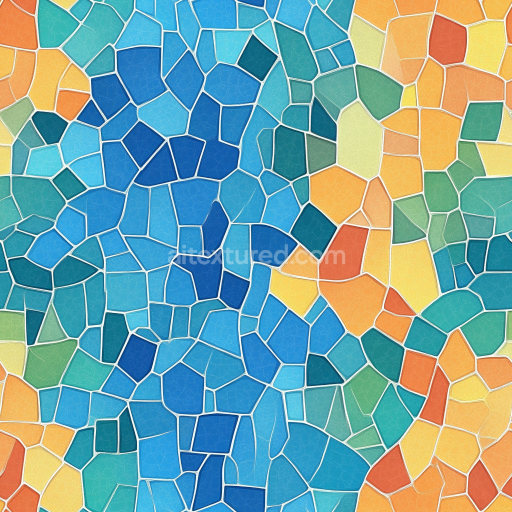
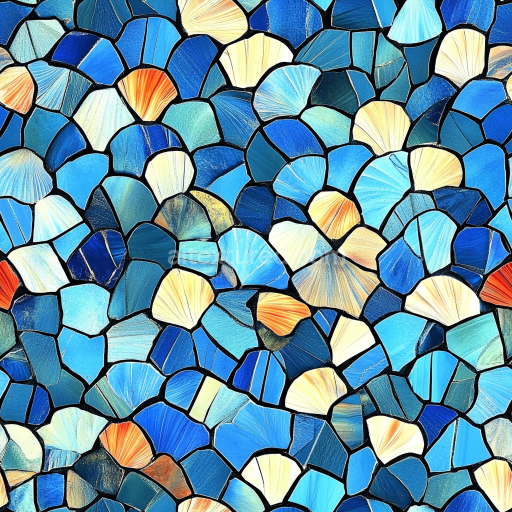
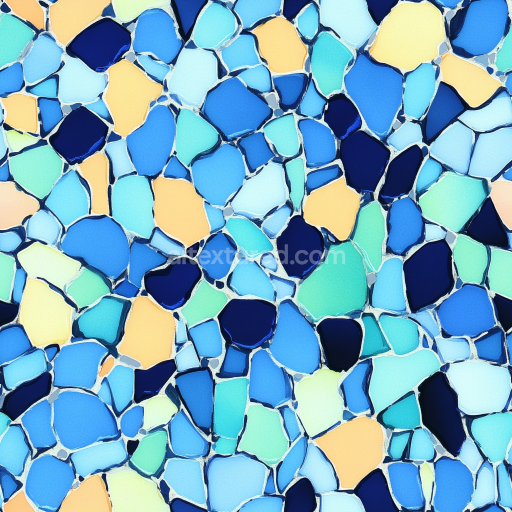
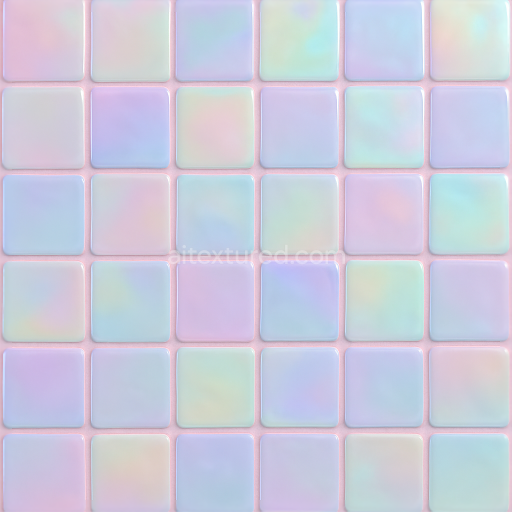
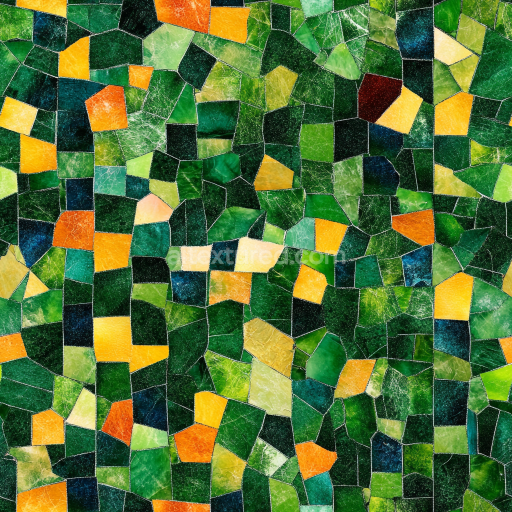
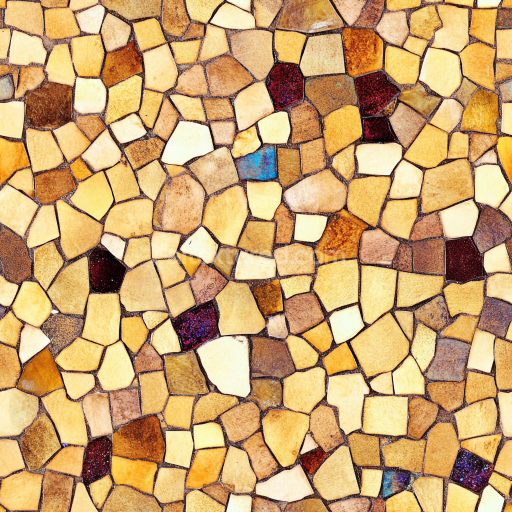
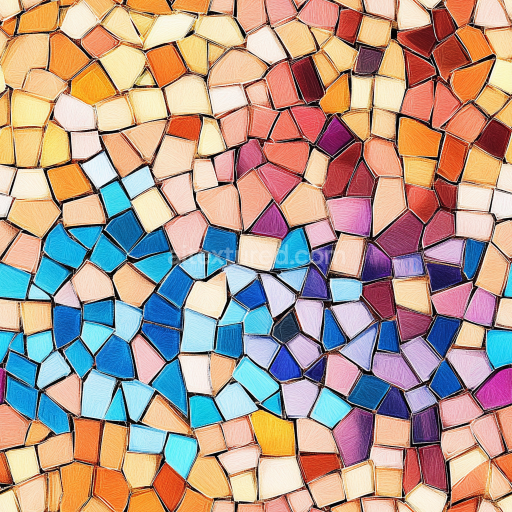
This seamless 3D PBR texture presents an exquisite mosaic pattern composed primarily of smalti glass tiles interspersed with opal fragments and subtle metallic accents. The base material consists of hand-cut smalti glass, known for its vibrant, opaque coloration and glossy, reflective surface. These glass pieces are embedded into a sturdy cementitious substrate, which serves as the binder and structural foundation, ensuring durability and slight porosity typical of traditional mosaic assemblies. The opal fragments introduce a semi-translucent quality with iridescent color shifts, while the metallic accents—likely fine leaf or foil inlays—add reflective highlights that break the uniformity of the glass and provide visual depth. The geometric layout follows a tightly arranged, irregular tessellation of small rectangular and trapezoidal shapes, creating an intricate inlay pattern that balances uniformity with organic variation.
From a materials perspective, the albedo channel captures the vivid coloration of the smalti glass in deep blues, greens, and occasional warm hues, contrasted by the soft milky opal shards and gleaming metallic surfaces. The normal map emphasizes the subtle relief between the glass tiles and the slightly recessed grout lines, enhancing the perception of depth and physical layering in the mosaic. Roughness values are finely tuned to reflect the polished glass’s glossy finish—low roughness on the smalti and opal surfaces—while the grout and substrate exhibit higher roughness to simulate matte cement texture. The metallic channel isolates the foil accents, ensuring they contribute realistic specular reflections. Ambient occlusion enhances shadowing in the grout recesses and tile edges, and height or displacement maps define the slight elevation differences between tiles and inlay materials, crucial for realistic parallax effects in real-time engines.
Rendered at an ultra-high resolution of 8K, this seamless texture ensures exceptional detail and clarity, suitable for close-up visualizations in Blender, Unreal Engine, and Unity. The texture’s tileable design allows for effortless scaling across large surfaces without visible repetition, making it ideal for premium interior applications such as feature walls, countertops, or decorative panels. The glossy finish highlights the reflective shards and intricate patterning, while the inclusion of opal fragments introduces subtle translucency and color variation that enhances photorealism under diverse lighting conditions.
For practical implementation, it is recommended to carefully adjust the UV scale to match the real-world size of small mosaic tiles, typically around 1 to 2 centimeters per tile, to maintain authenticity. Additionally, tuning the roughness map can help balance reflectivity depending on scene lighting—lower roughness for wet or polished environments, higher for matte finishes. When using the height or displacement maps, blending these with the normal map can achieve enhanced surface detail without excessive geometry, optimizing performance across different platforms.
Import the texture maps into Blender with sRGB color space for albedo/base color and Non-Color for normal, roughness, metallic, AO, height, and ORM maps. Connect normal maps through a Normal Map node, then adjust UV scale with a Mapping node so the material repeats naturally on your model.
For the full step-by-step setup, see How to Use Seamless Textures in Blender. Browse related material examples in wood, concrete, and metal.
Yes. This texture is designed as a seamless tileable PBR material, so it can repeat across large surfaces without visible borders.
Use the download controls on this page: they expose the available PNG, WEBP or engine ZIP choices and supported resolutions for this asset.
Use the engine ZIP choices to package compatible source maps for Blender, Unreal Engine or Unity, then verify the imported material in the target application.
Commercial-use permission is not verified for this record. Confirm the original source and license before production use.
Generate maps from existing images, preview materials, convert channels, and package compatible inputs for Blender, Unity, and Unreal Engine.
Choose a verified workflow for generating maps, previewing tiling, converting channels, or starting from the texture catalog.
Derive Normal, Roughness, AO, Metallic, Height and optional ORM maps from one or more source images, then review the results.
Instant WebGL viewer: inspect materials on a sphere, plane, and cube. Check tiling and lighting in real time.
Re-packages maps per engine: Unreal (BaseColor + ORM), Unity (Mask/MetallicSmoothness), Blender (separate channels).
PNG ↔ JPG ↔ SVG: fast convert, SVG rasterize, embed/trace options, quality & background controls.