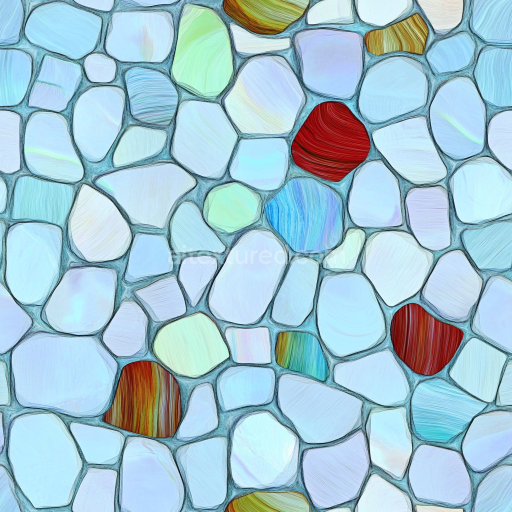
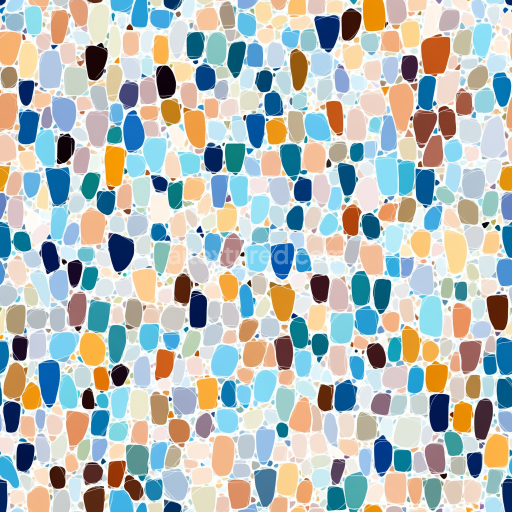
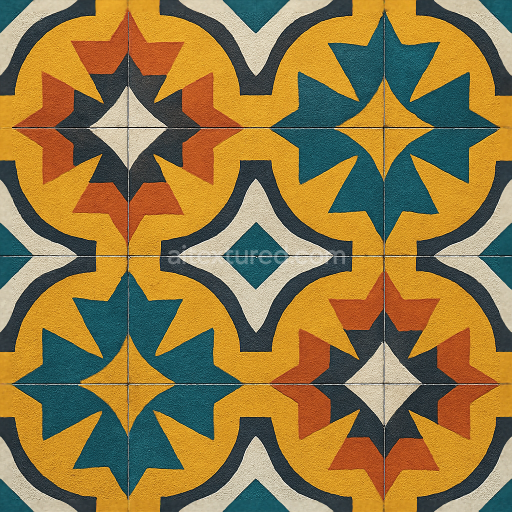
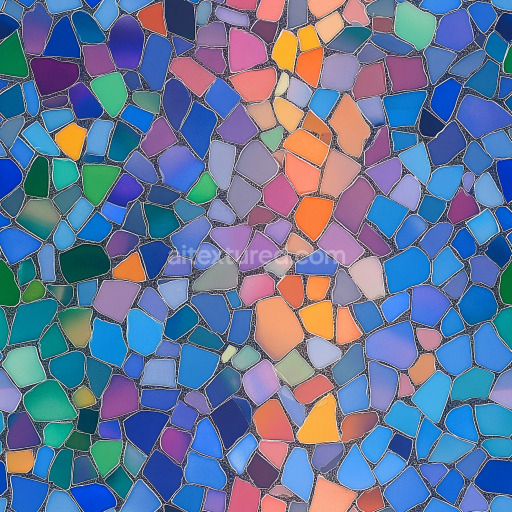
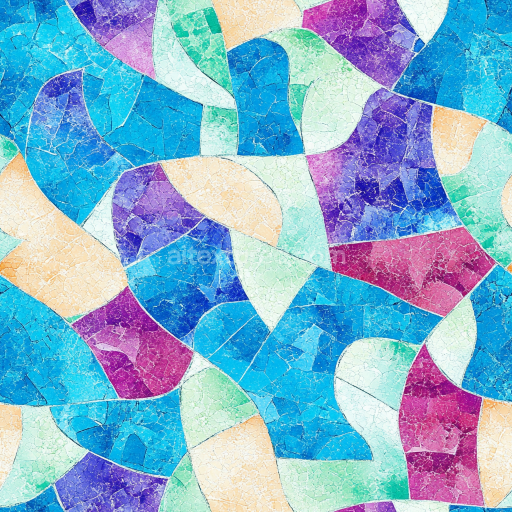
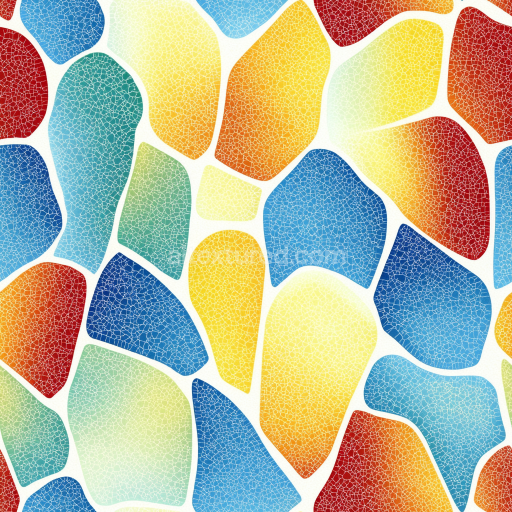
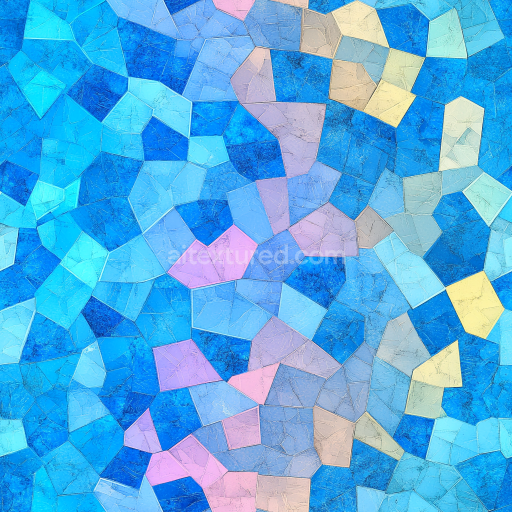
Irregular Stone Mosaic PBR Texture with Blue and Accent Colors
Seamless texture (tileable) · PNG, WEBP, PBR ZIP.
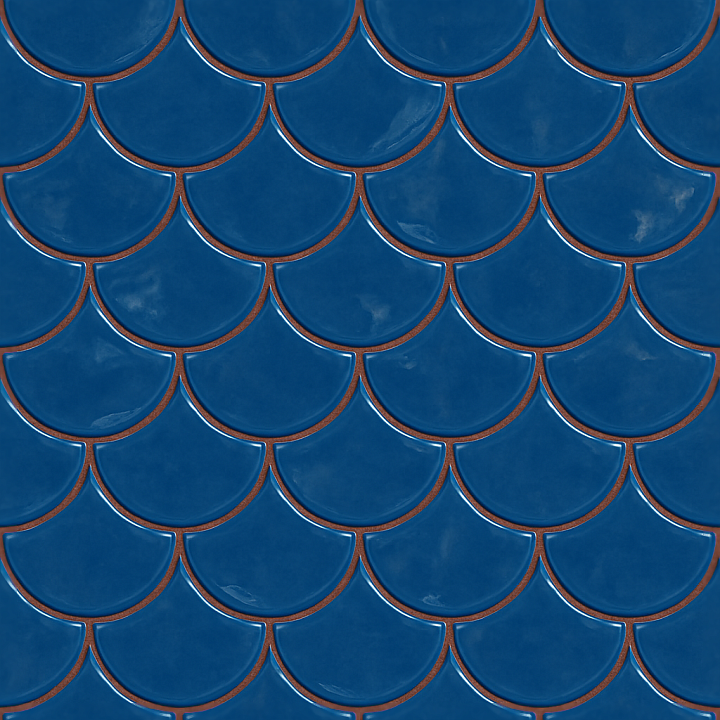
| ID | seamless-3d-texture-pbr-8k-fish-scale-tiles-mosaic-with-blue-tiles-and-glossy-finish |
|---|---|
| Category | Mosaic |
| Formats | PNG, WEBP, PBR ZIP |
| Size | 1k (1024x1024px), 2k (2048x2048px), 4k (4096x4096px), 8k (8192x8192px) |
| Tileable | Yes |
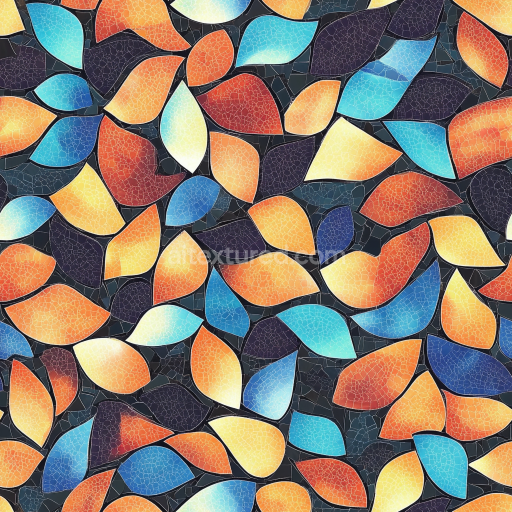
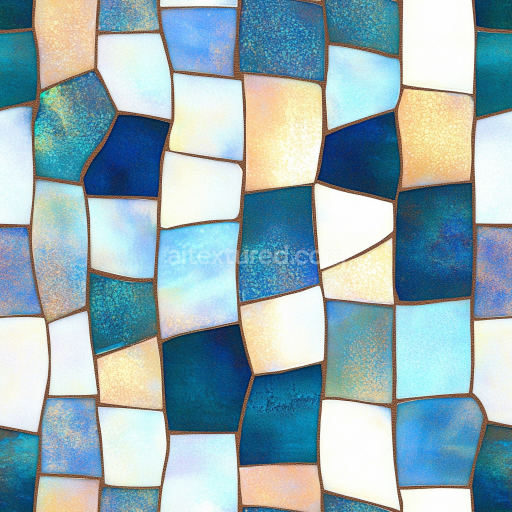
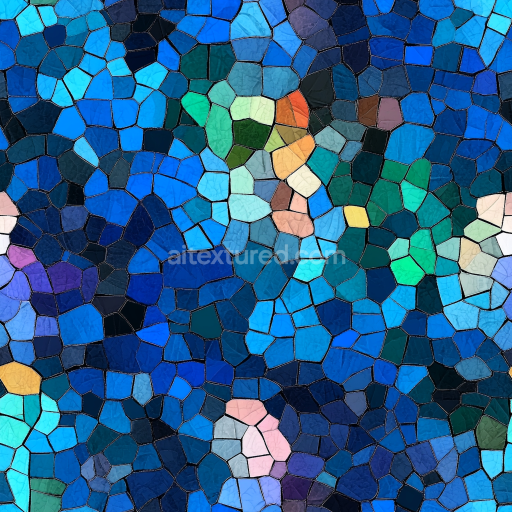
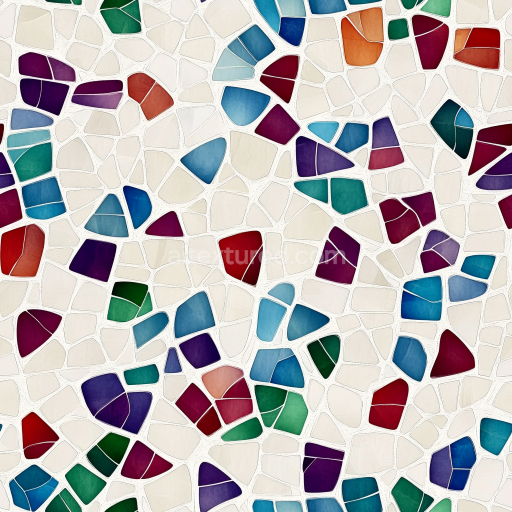
This seamless 3D texture showcases a meticulously crafted mosaic composed of fish scale-shaped ceramic tiles, arranged in a fluid, overlapping pattern reminiscent of natural scales. The tiles exhibit a rich array of blue hues, from deep navy to vibrant azure, achieved through high-quality inorganic pigments embedded within the ceramic body. Each tile has a glossy, polished finish that reflects light realistically, enhancing depth and curvature. The substrate mimics durable porcelain, known for its low porosity and resistance to moisture, making it suitable for both interior and exterior applications. The tiles are bonded with a colored grout, subtly textured to simulate slight surface irregularities and fine grain, which adds authenticity to the joints and complements the blue palette with a contrasting yet harmonious tone.
Physically Based Rendering (PBR) channels are thoughtfully integrated to replicate the complex material behavior. The BaseColor (Albedo) map defines the vivid blue tile shades and the grout’s muted earth tones, while the Normal map captures the fish scale relief, tile edges, and grout bevels, contributing to the tactile dimensionality. The Roughness map is fine-tuned to represent the glossy surface of the tiles, exhibiting low roughness values for sharp specular highlights, contrasted by the slightly higher roughness of the grout to avoid uniform reflectivity. Metallic values remain near zero, consistent with ceramic and grout materials, while Ambient Occlusion emphasizes subtle shadows in crevices and grout lines, enhancing depth perception. The Height/Displacement map enables realistic parallax effects, emphasizing the curvature and layering of the scales for close-up views.
Rendered at an ultra-high 8K resolution, this texture maintains extraordinary detail and clarity, ideal for use in advanced visualization software such as Blender, Unreal Engine, and Unity. The seamless tile pattern ensures perfect repetition without visible borders, making it versatile for large surfaces and architectural visualizations. The colored and textured grout prevents the monotonous appearance often found in tiled surfaces, contributing to lifelike realism in both static renders and real-time environments.
For optimal results, it is advisable to adjust the UV scale to balance tile size according to the scene requirements—smaller scales highlight the intricate fish scale pattern, while larger scales emphasize the glossy finish and grout texture. Additionally, fine-tuning the Roughness map can help simulate varying degrees of surface wear or moisture accumulation. When combining this texture with normal or parallax maps, blending them carefully ensures that the 3D depth effect remains natural without exaggeration, preserving the subtle elegance of the mosaic.
Import the texture maps into Blender with sRGB color space for albedo/base color and Non-Color for normal, roughness, metallic, AO, height, and ORM maps. Connect normal maps through a Normal Map node, then adjust UV scale with a Mapping node so the material repeats naturally on your model.
For the full step-by-step setup, see How to Use Seamless Textures in Blender. Browse related material examples in wood, concrete, and metal.
Yes. This texture is designed as a seamless tileable PBR material, so it can repeat across large surfaces without visible borders.
Use the download controls on this page: they expose the available PNG, WEBP or engine ZIP choices and supported resolutions for this asset.
Use the engine ZIP choices to package compatible source maps for Blender, Unreal Engine or Unity, then verify the imported material in the target application.
Commercial-use permission is not verified for this record. Confirm the original source and license before production use.
Generate maps from existing images, preview materials, convert channels, and package compatible inputs for Blender, Unity, and Unreal Engine.
Choose a verified workflow for generating maps, previewing tiling, converting channels, or starting from the texture catalog.
Derive Normal, Roughness, AO, Metallic, Height and optional ORM maps from one or more source images, then review the results.
Instant WebGL viewer: inspect materials on a sphere, plane, and cube. Check tiling and lighting in real time.
Re-packages maps per engine: Unreal (BaseColor + ORM), Unity (Mask/MetallicSmoothness), Blender (separate channels).
PNG ↔ JPG ↔ SVG: fast convert, SVG rasterize, embed/trace options, quality & background controls.