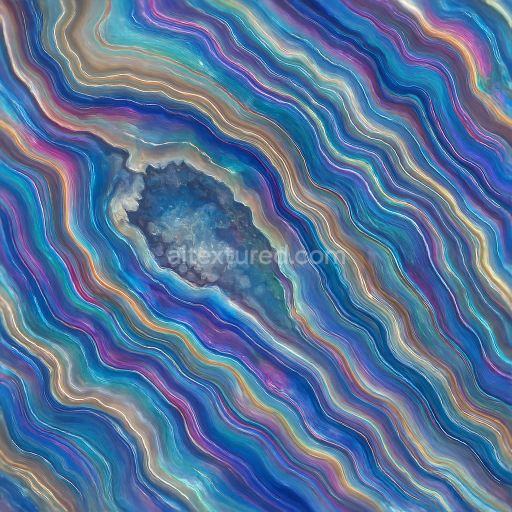
Agate Geode Interior With Veining And Iridescent Sheen Effects
Seamless texture (tileable) · PNG, WEBP, PBR ZIP.
| ID | seamless-3d-texture-pbr-8k-fluorite-color-zoning-translucent-crystal-natural-crystal |
|---|---|
| Category | Crystals |
| Formats | PNG, WEBP, PBR ZIP |
| Size | 1k (1024x1024px), 2k (2048x2048px), 4k (4096x4096px), 8k (8192x8192px) |
| Tileable | Yes |
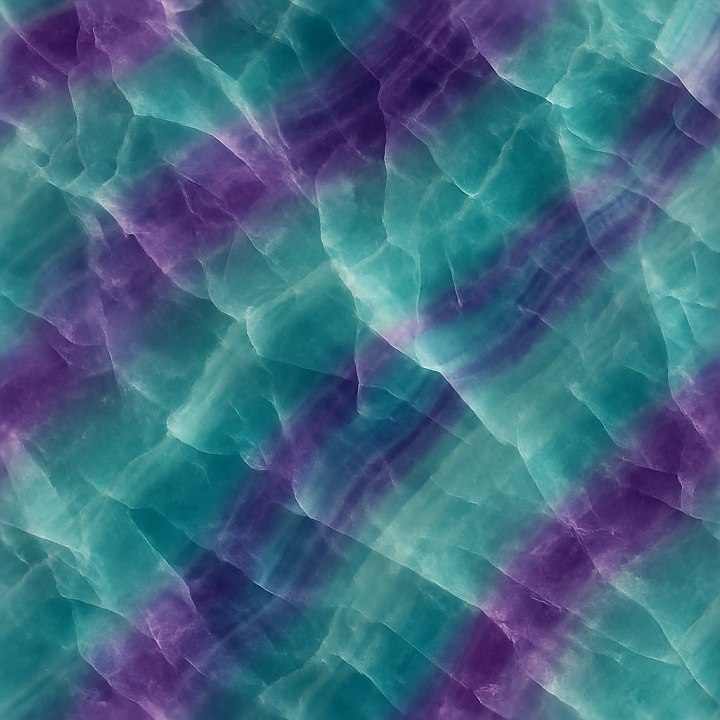
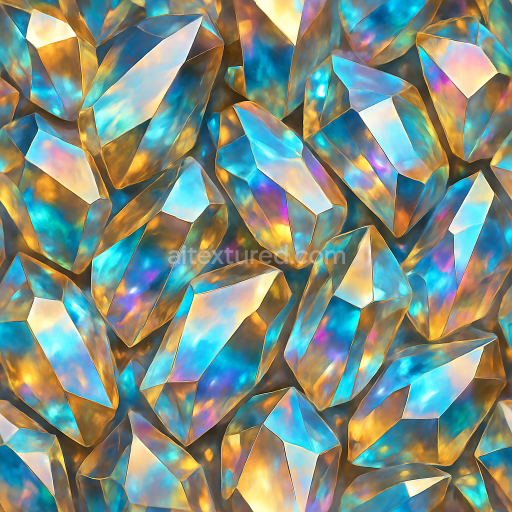
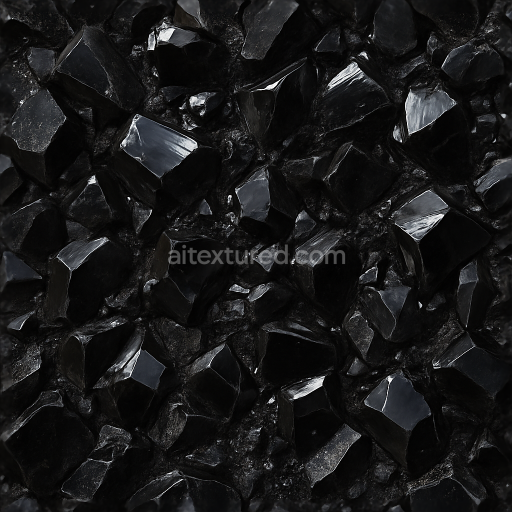
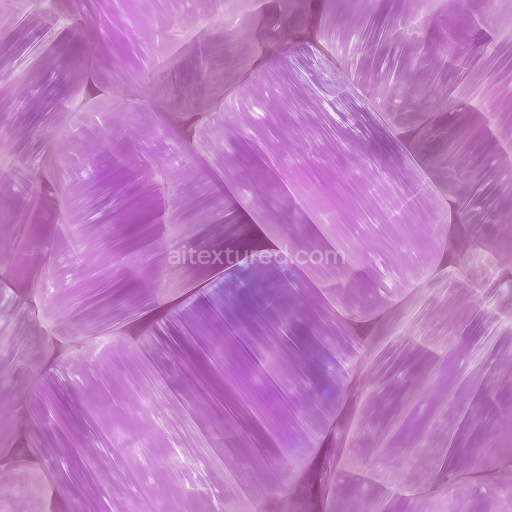
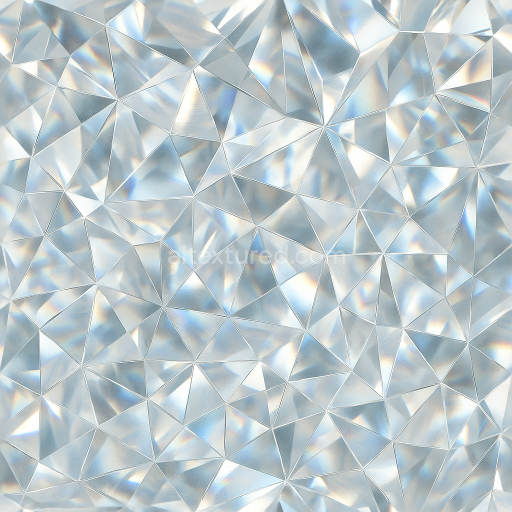
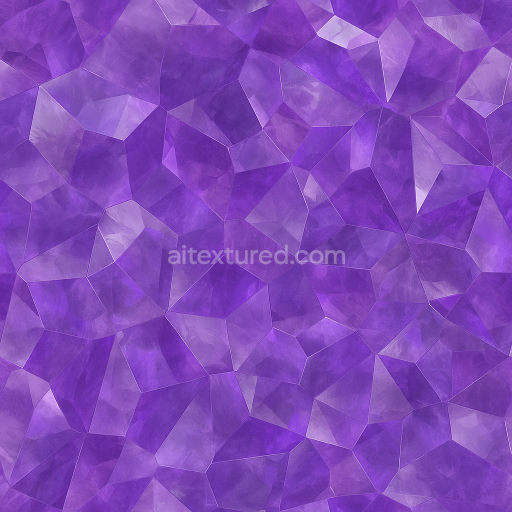
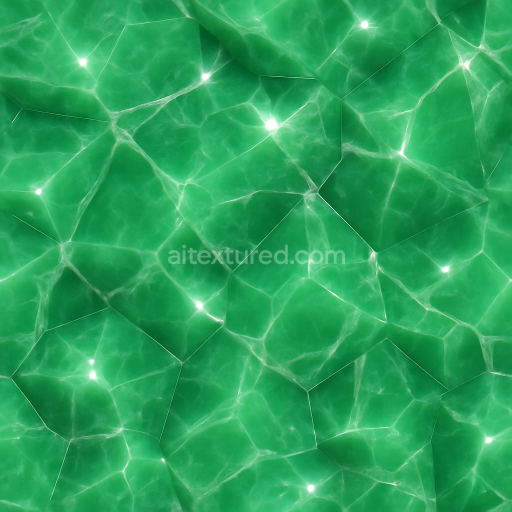
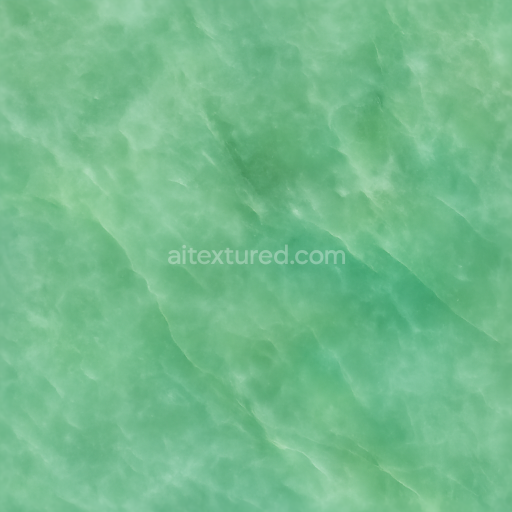
This seamless 3D texture presents a highly detailed, photorealistic depiction of natural fluorite crystals, renowned for their translucent quality and distinctive color zoning. The base material is a crystalline mineral substrate characterized by smooth, interlocking crystal formations with subtle geometric facets. The texture captures the inherent translucency and layered color bands typical of fluorite, ranging from soft purples and greens to clear, glass-like areas. The surface finish is polished to reflect light softly, showcasing slight iridescence and depth, while maintaining a natural, unweathered appearance that highlights the mineral’s clarity and internal striations.
The composition of this texture simulates a pure mineral matrix without binders or adhesives, focusing solely on naturally occurring aggregates and grain structures. Porosity is minimal, reflecting fluorite’s dense and compact crystal formation, but slight variations in transparency and internal layering create realistic depth and complexity. Color zoning is achieved through carefully mapped pigments in the BaseColor (Albedo) channel, with smooth gradients transitioning between hues. The Normal and Height/Displacement maps delineate the subtle crystal facets and internal layering, providing realistic surface relief and volumetric depth. Roughness is finely tuned to a low-to-medium range to replicate the polished yet slightly diffused reflection characteristic of natural fluorite, while the Metallic channel remains neutral, as fluorite is non-metallic. Ambient Occlusion enhances shadowed crevices between crystal formations, improving spatial definition.
Rendered at an impressive 8K resolution, this texture is optimized for use in Blender, Unreal Engine, and Unity, ensuring high fidelity and scalability across diverse 3D projects. Its seamless tiling capability allows for continuous patterns without visible repetition, ideal for large-scale surfaces or detailed close-ups. The texture’s PBR workflow ensures accurate interaction with dynamic lighting environments, emphasizing translucency and subtle iridescence that respond naturally to light angles.
For practical application, adjusting the UV scale can effectively control the perceived size of the crystal formations in a scene, while fine-tuning the Roughness map allows for varied surface reflectivity, from almost glassy finishes to softly matte appearances. Combining the Height/Displacement map with normal blending can enhance the illusion of depth on low-poly models, making the crystalline structure more pronounced without heavy geometry. This approach ensures a balance between visual complexity and rendering performance in real-time or offline workflows.
Import the texture maps into Blender with sRGB color space for albedo/base color and Non-Color for normal, roughness, metallic, AO, height, and ORM maps. Connect normal maps through a Normal Map node, then adjust UV scale with a Mapping node so the material repeats naturally on your model.
For the full step-by-step setup, see How to Use Seamless Textures in Blender. Browse related material examples in wood, concrete, and metal.
Yes. This texture is designed as a seamless tileable PBR material, so it can repeat across large surfaces without visible borders.
Use the download controls on this page: they expose the available PNG, WEBP or engine ZIP choices and supported resolutions for this asset.
Use the engine ZIP choices to package compatible source maps for Blender, Unreal Engine or Unity, then verify the imported material in the target application.
Commercial-use permission is not verified for this record. Confirm the original source and license before production use.
Generate maps from existing images, preview materials, convert channels, and package compatible inputs for Blender, Unity, and Unreal Engine.
Choose a verified workflow for generating maps, previewing tiling, converting channels, or starting from the texture catalog.
Derive Normal, Roughness, AO, Metallic, Height and optional ORM maps from one or more source images, then review the results.
Instant WebGL viewer: inspect materials on a sphere, plane, and cube. Check tiling and lighting in real time.
Re-packages maps per engine: Unreal (BaseColor + ORM), Unity (Mask/MetallicSmoothness), Blender (separate channels).
PNG ↔ JPG ↔ SVG: fast convert, SVG rasterize, embed/trace options, quality & background controls.