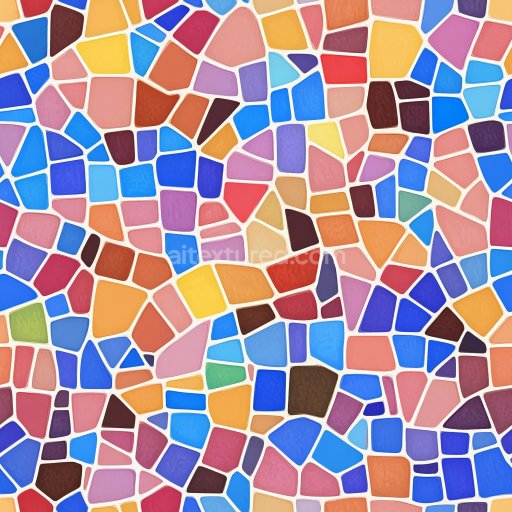
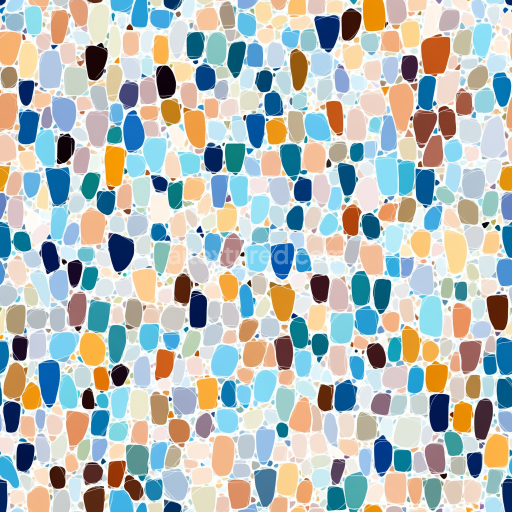
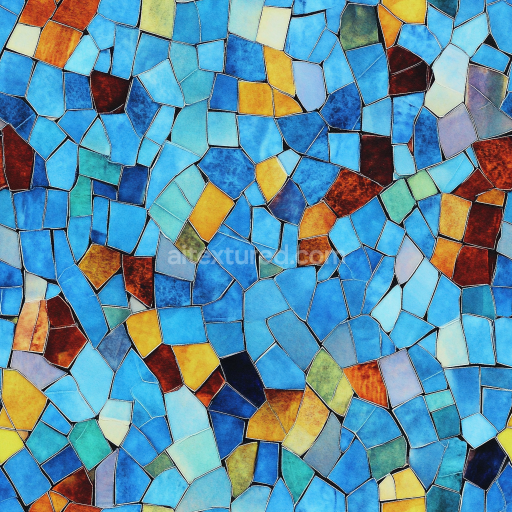
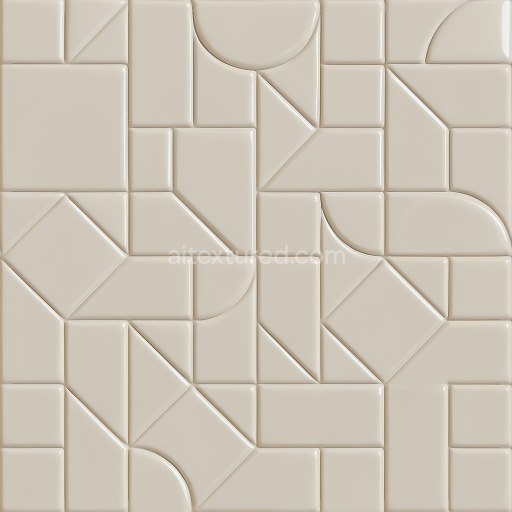
Mosaic PBR Texture with Bright Ceramic Tiles and Irregular Geometric Layout
Seamless texture (tileable) · PNG, WEBP, PBR ZIP.
| ID | seamless-3d-texture-pbr-8k-brick-tiles-mosaic-with-distressed-ceramic-look-and-bold-colors |
|---|---|
| Category | Mosaic |
| Formats | PNG, WEBP, PBR ZIP |
| Size | 1k (1024x1024px), 2k (2048x2048px), 4k (4096x4096px), 8k (8192x8192px) |
| Tileable | Yes |
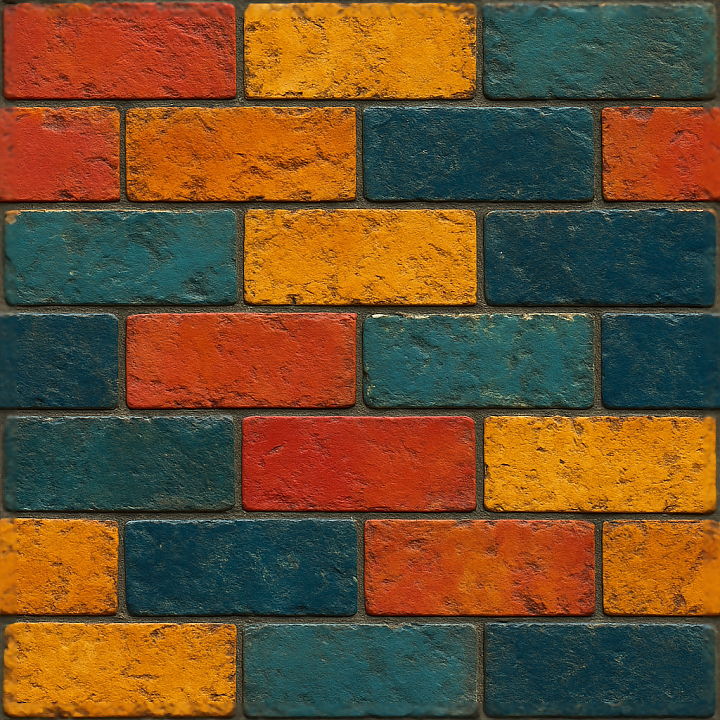
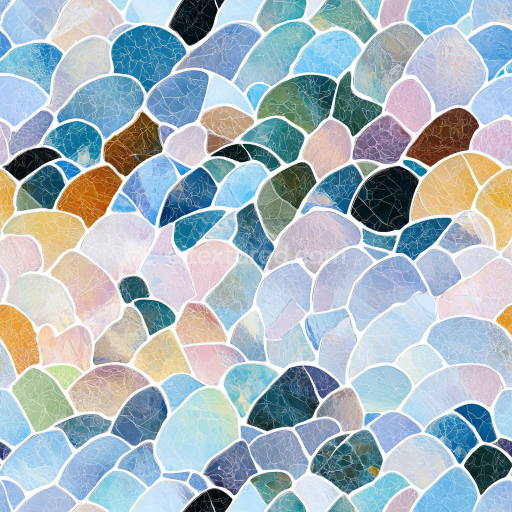
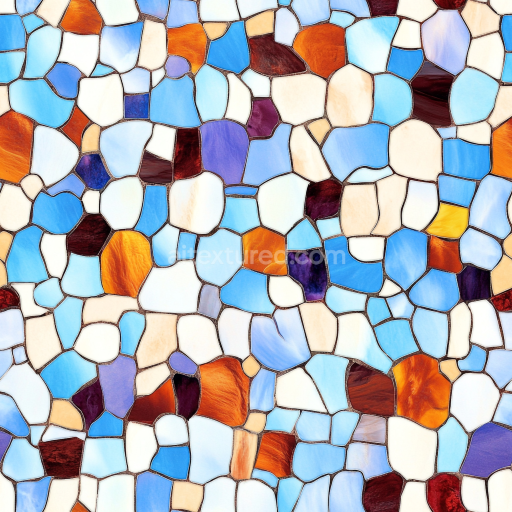
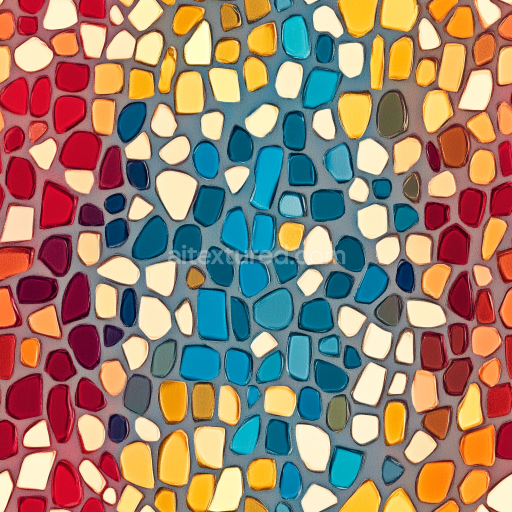
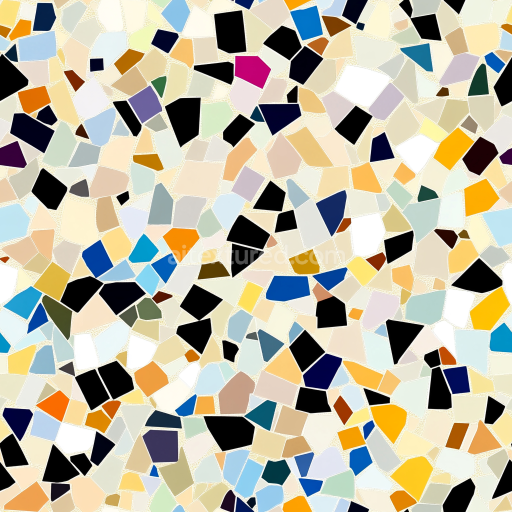
This seamless 3D texture represents a mosaic of brick tiles crafted from distressed ceramic material, designed to highlight the interplay of form and surface detail at an 8K resolution. The geometric pattern consists of rectangular brick-shaped tiles arranged in a tight, grid-like mosaic that emphasizes the individual tile boundaries and grout lines. Each tile’s surface exhibits subtle variations in thickness and edge wear, imparting a realistic sense of depth and age. The base material simulates ceramic, composed of a dense, fired clay substrate combined with mineral binders and fine aggregates that contribute to the tile’s structural integrity and porous characteristics. Weathering effects such as micro-cracks, chipped edges, and surface roughness emulate years of exposure, while the grout between tiles is modeled with slightly recessed geometry and a rougher, matte finish to contrast with the tiles’ smoother surfaces.
The distressed ceramic finish is achieved through a combination of surface treatments, including a slightly worn glaze that has dulled over time. This glaze contributes to subtle variations in reflectivity and roughness across the tile faces, accurately captured in the PBR Roughness map. The BaseColor channel showcases bold, saturated pigments embedded within the ceramic material, featuring rich reds, deep blues, and earthy tones that enhance visual interest without overwhelming the natural texture. These pigments simulate ceramic glazes mixed with metal oxide colorants, which resist fading while exhibiting irregular distribution patterns typical of hand-crafted tiles. The Normal and Height maps convey fine surface details such as cracks, chips, and embossed tile edges, enhancing the tactile quality and enabling realistic light interaction in 3D environments. Ambient Occlusion accentuates the recessed grout and tile crevices, adding depth and contrast especially in shaded areas. The Metallic channel remains minimal or zero, consistent with non-metallic ceramic materials.
Rendered at an ultra-high 8K resolution, this texture is optimized for use in Blender, Unreal Engine, and Unity, ensuring that even close-up views retain crisp, detailed surface information without pixelation. The seamless nature of the tile mosaic pattern allows for effortless tiling across extensive surfaces, ideal for architectural visualizations, interior design scenes, or artistic installations requiring a distressed yet vibrant ceramic look. The texture’s layered detail supports advanced shading workflows that incorporate height-based parallax or displacement mapping alongside normal maps to enhance the perception of depth and irregularity on flat geometry.
When applying this texture, it is advisable to carefully adjust the UV scale to maintain realistic tile proportions and avoid distortion. Fine-tuning the roughness map can help balance the worn glaze’s reflectivity to match different lighting conditions or stylistic demands. Additionally, blending height and normal maps can produce nuanced surface variations that improve realism, particularly in close-up renders where surface imperfections become more prominent. This approach ensures the mosaic retains its characteristic distressed ceramic appearance while adapting flexibly to diverse 3D projects and rendering pipelines.
Import the texture maps into Blender with sRGB color space for albedo/base color and Non-Color for normal, roughness, metallic, AO, height, and ORM maps. Connect normal maps through a Normal Map node, then adjust UV scale with a Mapping node so the material repeats naturally on your model.
For the full step-by-step setup, see How to Use Seamless Textures in Blender. Browse related material examples in wood, concrete, and metal.
Yes. This texture is designed as a seamless tileable PBR material, so it can repeat across large surfaces without visible borders.
Use the download controls on this page: they expose the available PNG, WEBP or engine ZIP choices and supported resolutions for this asset.
Use the engine ZIP choices to package compatible source maps for Blender, Unreal Engine or Unity, then verify the imported material in the target application.
Commercial-use permission is not verified for this record. Confirm the original source and license before production use.
Generate maps from existing images, preview materials, convert channels, and package compatible inputs for Blender, Unity, and Unreal Engine.
Choose a verified workflow for generating maps, previewing tiling, converting channels, or starting from the texture catalog.
Derive Normal, Roughness, AO, Metallic, Height and optional ORM maps from one or more source images, then review the results.
Instant WebGL viewer: inspect materials on a sphere, plane, and cube. Check tiling and lighting in real time.
Re-packages maps per engine: Unreal (BaseColor + ORM), Unity (Mask/MetallicSmoothness), Blender (separate channels).
PNG ↔ JPG ↔ SVG: fast convert, SVG rasterize, embed/trace options, quality & background controls.