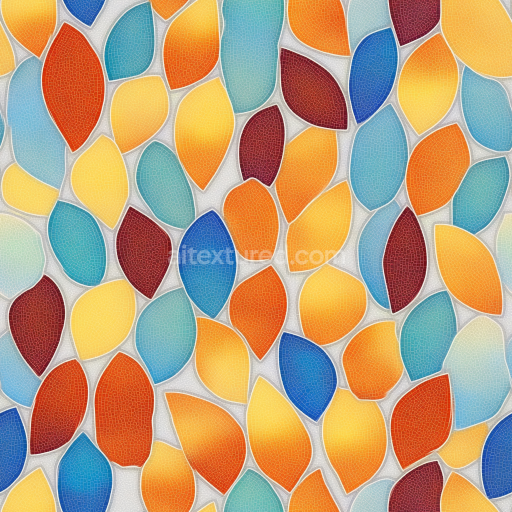
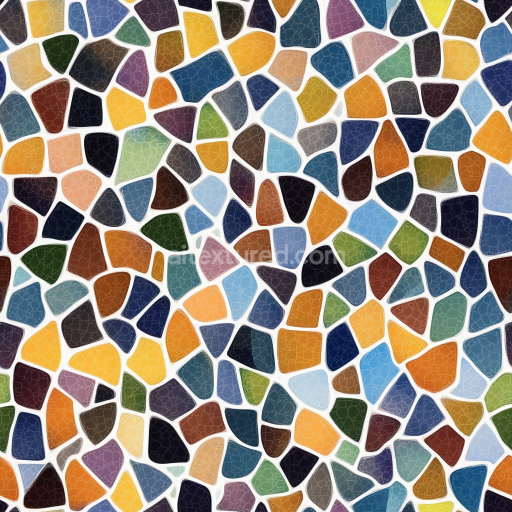
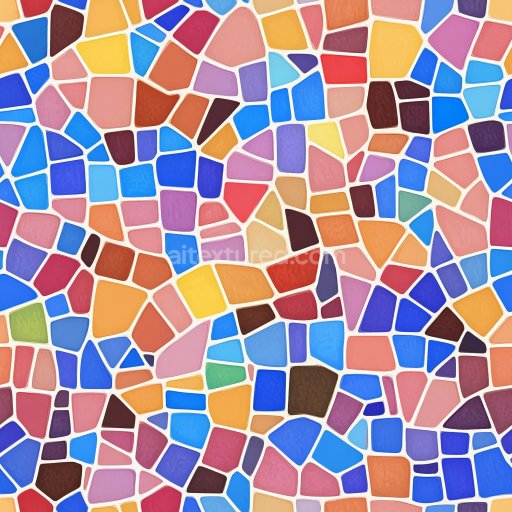
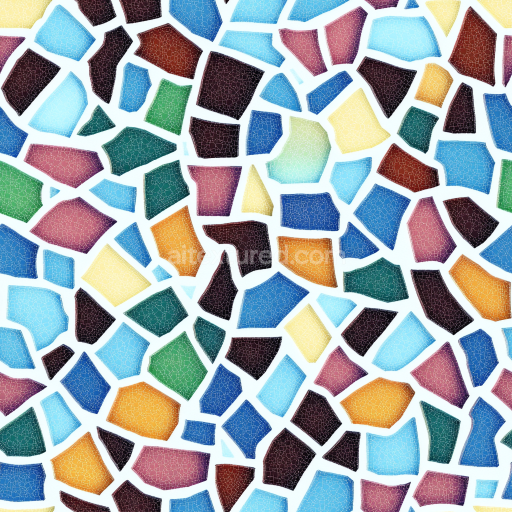
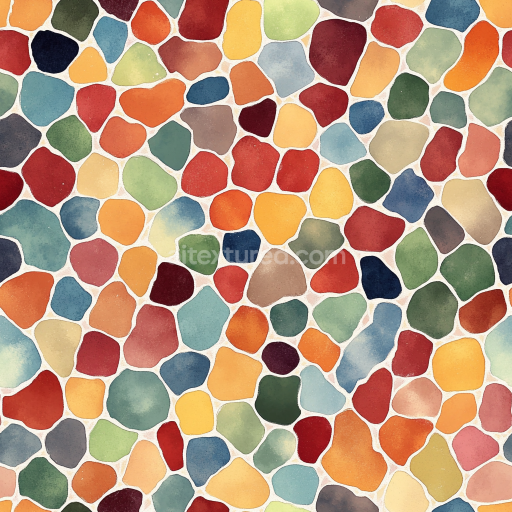
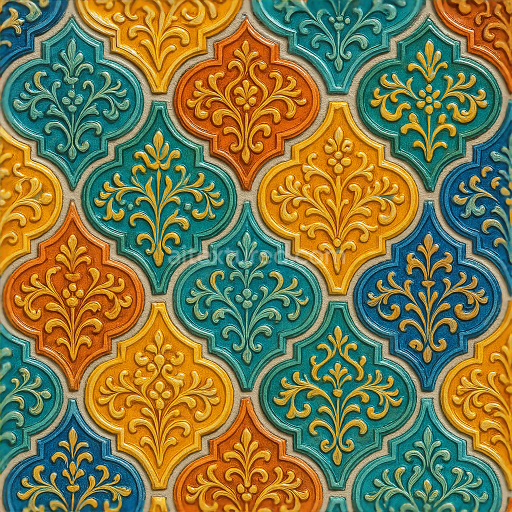
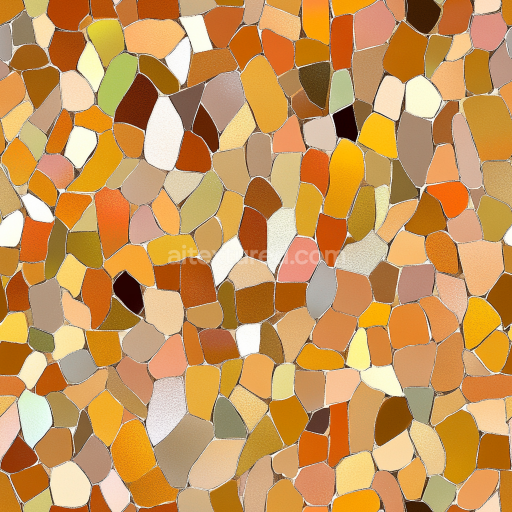
Colorful Leaf-Shaped Ceramic Mosaic Tiles Seamless Texture
Seamless texture (tileable) · PNG, WEBP, PBR ZIP.
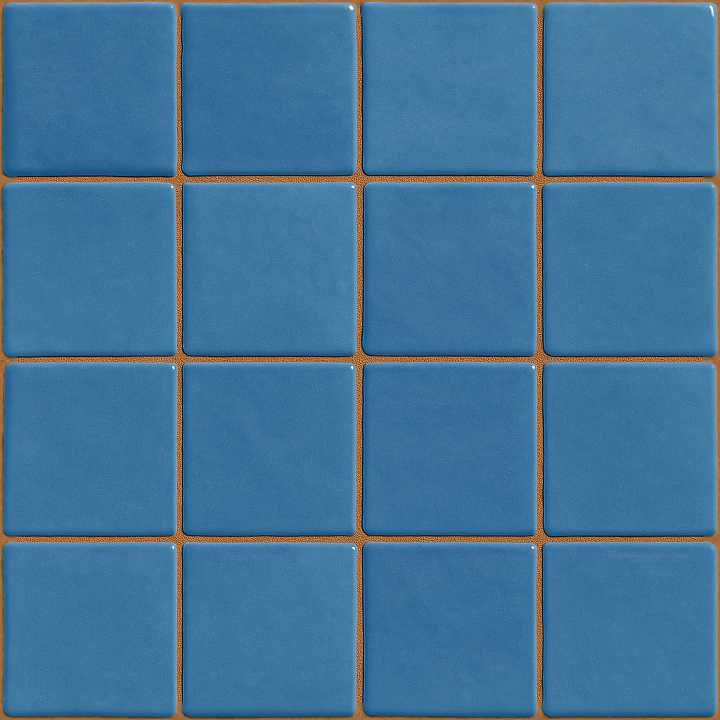
| ID | seamless-3d-texture-pbr-8k-glazed-tiles-mosaic-with-blue-tiles-and-smooth-finish |
|---|---|
| Category | Mosaic |
| Formats | PNG, WEBP, PBR ZIP |
| Size | 1k (1024x1024px), 2k (2048x2048px), 4k (4096x4096px), 8k (8192x8192px) |
| Tileable | Yes |
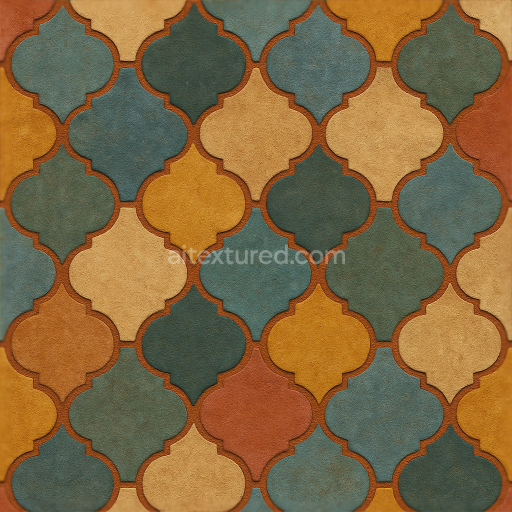
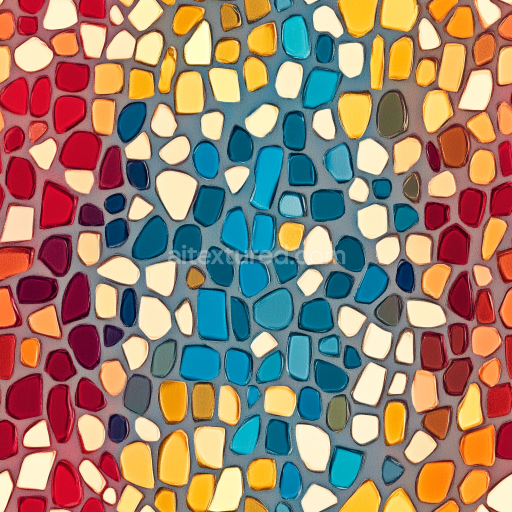
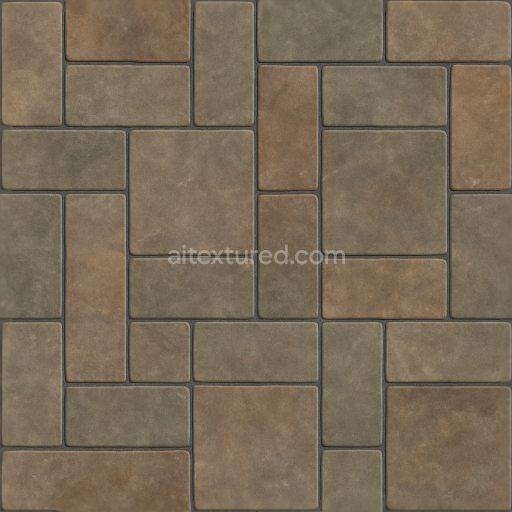
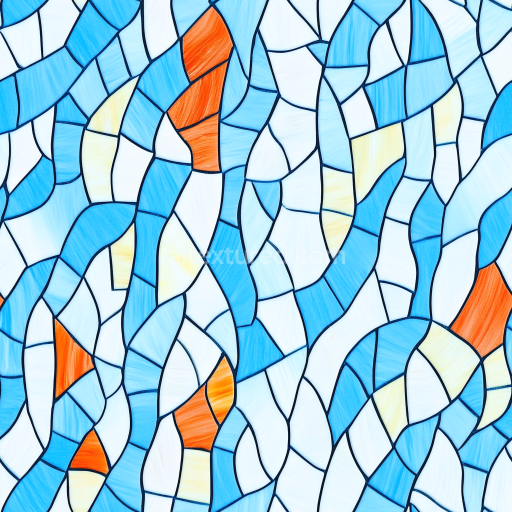
This seamless 3D texture presents a meticulously crafted mosaic pattern composed of glazed ceramic tiles in varying shades of blue. Each tile features a smooth, polished finish that reflects light subtly, enhancing the depth and realism of the surface. The tiles are arranged in a classic rectangular grid, creating a uniform yet visually engaging geometric form that is both timeless and versatile. Between the tiles, colored grout with a slightly textured surface adds contrast and definition to the mosaic, emphasizing the individual tile boundaries and contributing to the overall tactile complexity of the material.
The base material of the tiles is a high-quality ceramic substrate, known for its durability and low porosity. This substrate is impregnated with mineral-based pigments to achieve the rich blue hues, ranging from deep navy to lighter cyan tones. The glaze layer applied on top is a vitreous coating that not only provides the smooth, glossy finish but also seals the tile, protecting it from moisture and wear. The grout is composed of a cementitious binder mixed with fine aggregates and pigments to achieve its colored appearance and textured surface. This combination ensures a balanced rigidity and slight roughness, enhancing the mosaic’s structural integrity and visual interest.
In the PBR workflow, the BaseColor (Albedo) map captures the vivid blue shades of the tiles and the subtle color variations of the grout. The Normal map simulates the slight relief and bevels of each tile edge as well as the textured grout lines, contributing to the tactile realism under dynamic lighting. The Roughness map defines the smoothness of the glazed tile surfaces contrasted with the matte, slightly coarse grout areas, allowing accurate reflections and light scattering. The Metallic channel is typically set to zero, consistent with ceramic materials, while the Ambient Occlusion map enhances the depth perception by darkening crevices between tiles. The Height (Displacement) map provides subtle elevation differences between tiles and grout, useful for parallax effects and added dimensionality.
Rendered at an ultra-high 8K resolution, this texture is optimized for detailed close-ups in architectural visualization and game environments. It is fully compatible with major engines such as Blender, Unreal Engine, and Unity, ensuring seamless integration into various pipelines. For practical application, it is recommended to carefully adjust the UV scale to maintain the tile size proportional to the scene context. Additionally, fine-tuning the roughness levels can help balance the glossy tile finish with the more matte grout for enhanced realism. Blending the height map subtly with normal maps can further improve the perception of depth without compromising performance.
Import the texture maps into Blender with sRGB color space for albedo/base color and Non-Color for normal, roughness, metallic, AO, height, and ORM maps. Connect normal maps through a Normal Map node, then adjust UV scale with a Mapping node so the material repeats naturally on your model.
For the full step-by-step setup, see How to Use Seamless Textures in Blender. Browse related material examples in wood, concrete, and metal.
Yes. This texture is designed as a seamless tileable PBR material, so it can repeat across large surfaces without visible borders.
Use the download controls on this page: they expose the available PNG, WEBP or engine ZIP choices and supported resolutions for this asset.
Use the engine ZIP choices to package compatible source maps for Blender, Unreal Engine or Unity, then verify the imported material in the target application.
Commercial-use permission is not verified for this record. Confirm the original source and license before production use.
Generate maps from existing images, preview materials, convert channels, and package compatible inputs for Blender, Unity, and Unreal Engine.
Choose a verified workflow for generating maps, previewing tiling, converting channels, or starting from the texture catalog.
Derive Normal, Roughness, AO, Metallic, Height and optional ORM maps from one or more source images, then review the results.
Instant WebGL viewer: inspect materials on a sphere, plane, and cube. Check tiling and lighting in real time.
Re-packages maps per engine: Unreal (BaseColor + ORM), Unity (Mask/MetallicSmoothness), Blender (separate channels).
PNG ↔ JPG ↔ SVG: fast convert, SVG rasterize, embed/trace options, quality & background controls.