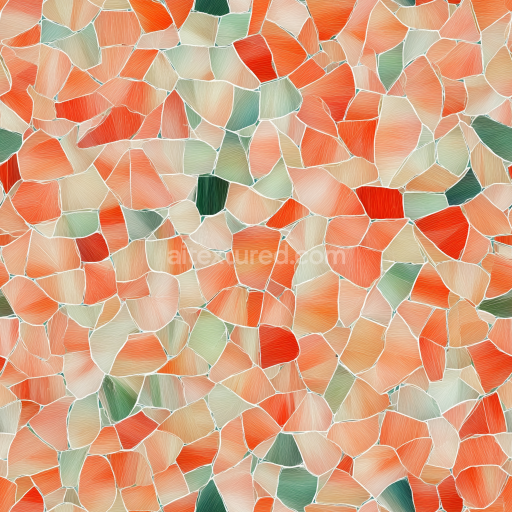
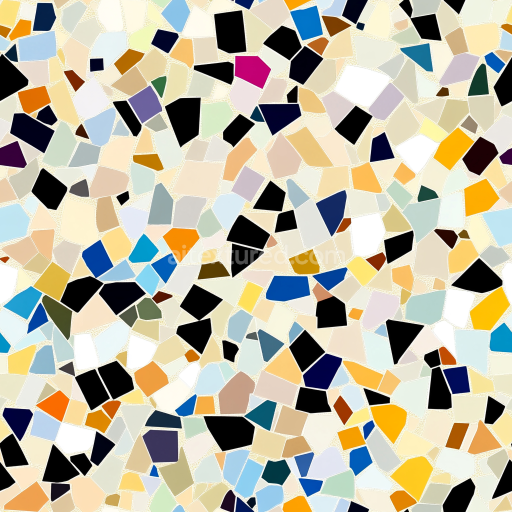
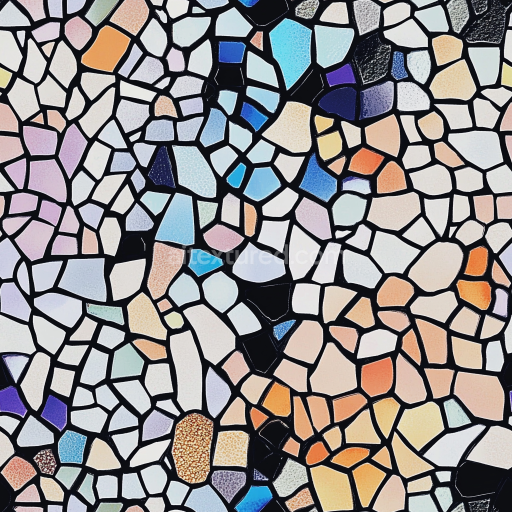
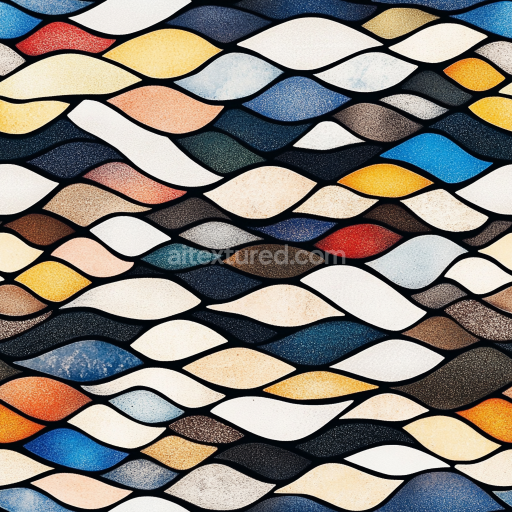
Mosaic PBR Texture with Pastel Terrazzo Chips and Soft Grout
Seamless texture (tileable) · PNG, WEBP, PBR ZIP.
| ID | seamless-3d-texture-pbr-8k-polished-stone-mosaic-with-vibrant-colors-and-intricate-pattern |
|---|---|
| Category | Mosaic |
| Formats | PNG, WEBP, PBR ZIP |
| Size | 1k (1024x1024px), 2k (2048x2048px), 4k (4096x4096px), 8k (8192x8192px) |
| Tileable | Yes |
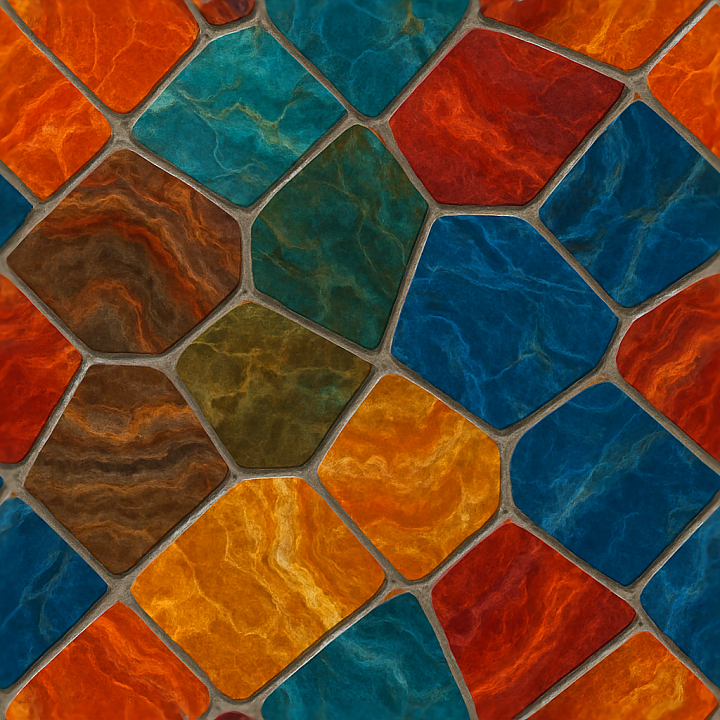
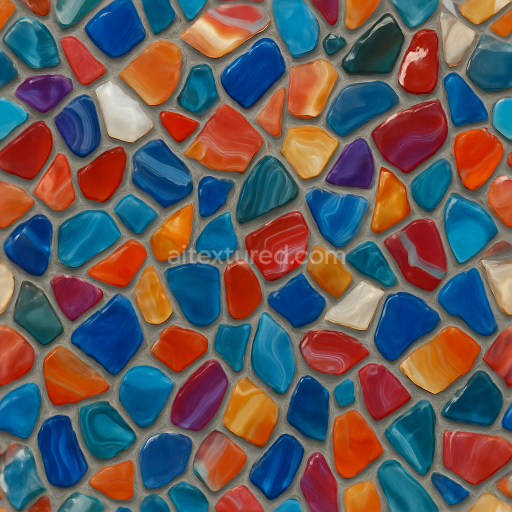
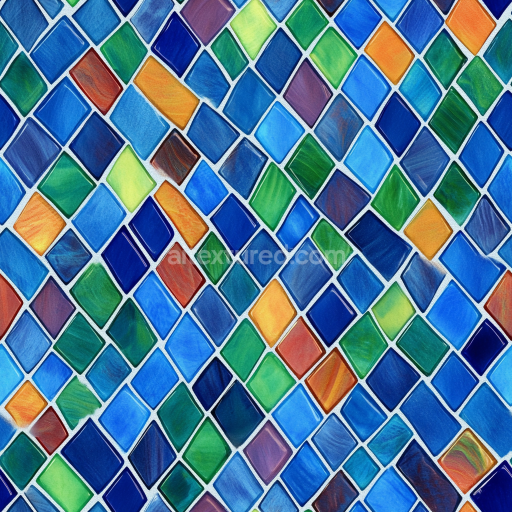
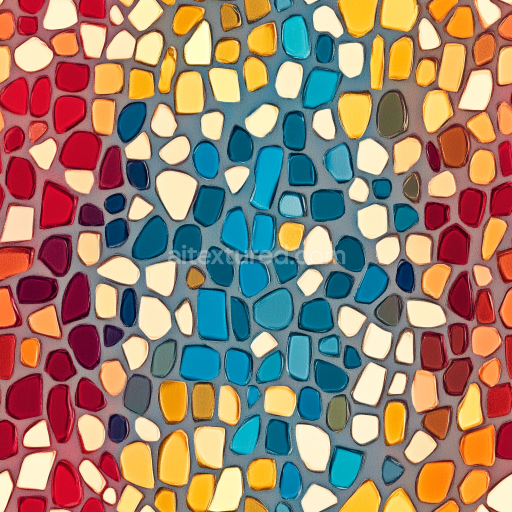
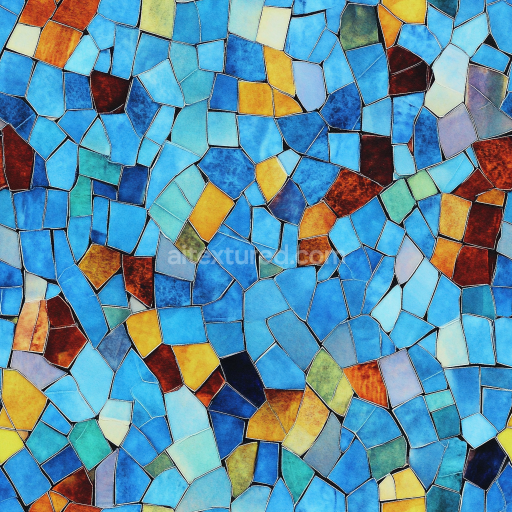
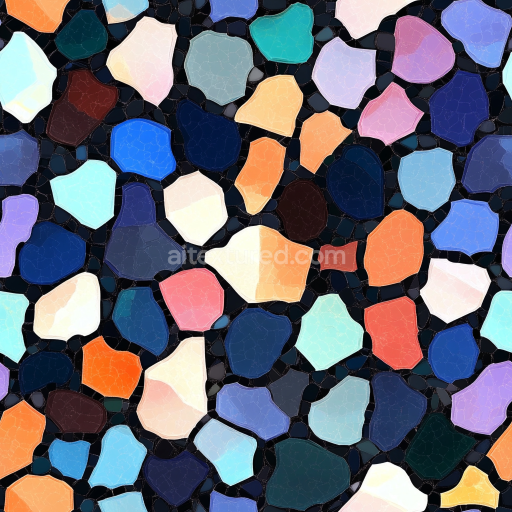
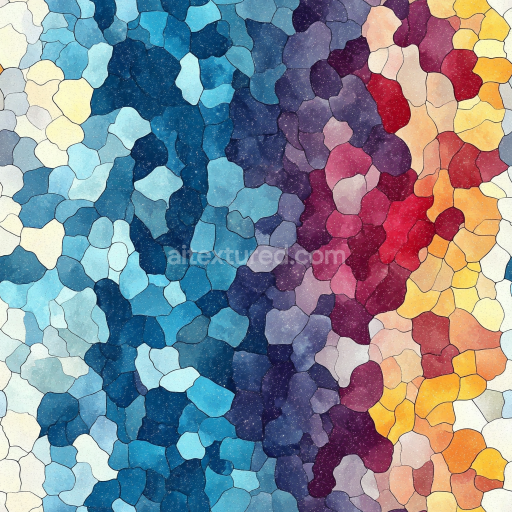
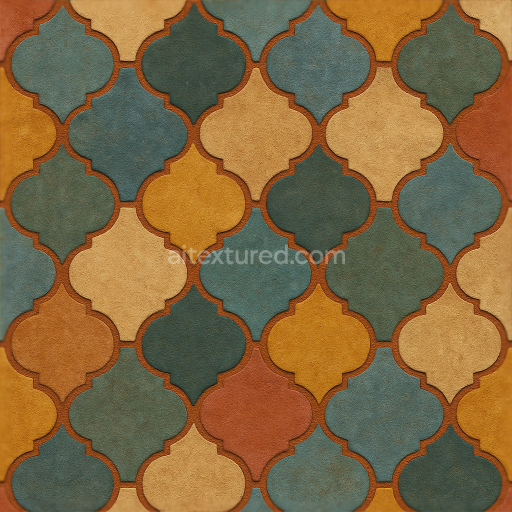
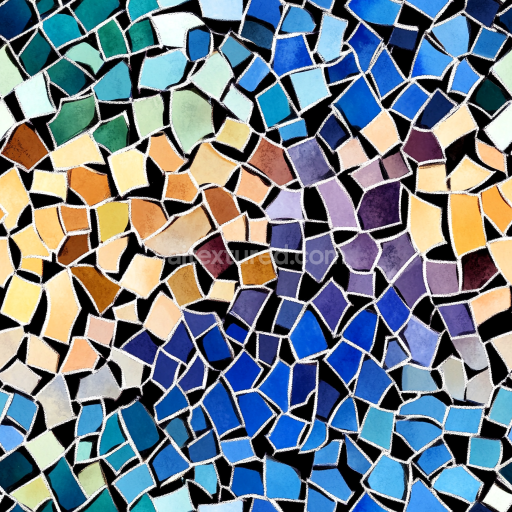
This seamless 3D texture presents a meticulously crafted mosaic pattern composed of polished natural stone tiles arranged in precise geometric shapes, predominantly hexagons and diamonds. The base material consists of finely cut stone pieces set within a subtle tile grout that simulates realistic adhesion typically achieved through cementitious binders. The stone surface exhibits a smooth, low-porosity structure with a high-gloss finish that accentuates the reflective properties of polished marble or granite, lending a vibrant, eye-catching palette of rich hues. The intricate patterning enhances spatial complexity, combining both angular and curved segments to create a visually engaging layout suitable for architectural visualization and detailed 3D rendering scenarios.
The texture’s physical attributes are accurately represented through Physically Based Rendering (PBR) channels to maximize realism. The BaseColor (Albedo) map captures the vivid coloration and natural variegations inherent in polished stone, while the Normal map delivers fine surface detail to emphasize the subtle relief of tile edges and grout lines. The Roughness map is calibrated to reflect the glossy finish, offering low roughness values that simulate smooth, reflective stone surfaces. The Metallic map remains neutral, as the natural stone lacks metallic properties. Ambient Occlusion enhances depth perception around grout recesses and tile intersections, while the Height/Displacement map introduces subtle elevation differences to emphasize the three-dimensionality of the mosaic tiles and grout texture.
Captured at an 8K resolution, this texture ensures exceptional detail when applied to large-scale models or close-up camera angles, making it highly suitable for rendering engines such as Blender’s Cycles and Eevee, Unreal Engine, and Unity. The seamless design facilitates effortless tiling without visible repetition or edge artifacts, accommodating a wide range of UV mapping layouts. Its polished stone surfaces perform well under various lighting conditions, preserving accurate color fidelity and reflection characteristics in neutral lighting setups.
For optimal use, it is advisable to adjust the UV scale to balance tile size with scene context, preventing overly large or small pattern repetitions. Fine-tuning the Roughness channel can help achieve desired levels of glossiness, especially in environments with dynamic lighting. When incorporating height or parallax effects, blending the Height/Displacement map subtly with Normal maps can enhance surface depth without causing geometry distortion, maintaining a natural and tactile appearance across diverse rendering platforms.
Import the texture maps into Blender with sRGB color space for albedo/base color and Non-Color for normal, roughness, metallic, AO, height, and ORM maps. Connect normal maps through a Normal Map node, then adjust UV scale with a Mapping node so the material repeats naturally on your model.
For the full step-by-step setup, see How to Use Seamless Textures in Blender. Browse related material examples in wood, concrete, and metal.
Yes. This texture is designed as a seamless tileable PBR material, so it can repeat across large surfaces without visible borders.
Use the download controls on this page: they expose the available PNG, WEBP or engine ZIP choices and supported resolutions for this asset.
Use the engine ZIP choices to package compatible source maps for Blender, Unreal Engine or Unity, then verify the imported material in the target application.
Commercial-use permission is not verified for this record. Confirm the original source and license before production use.
Generate maps from existing images, preview materials, convert channels, and package compatible inputs for Blender, Unity, and Unreal Engine.
Choose a verified workflow for generating maps, previewing tiling, converting channels, or starting from the texture catalog.
Derive Normal, Roughness, AO, Metallic, Height and optional ORM maps from one or more source images, then review the results.
Instant WebGL viewer: inspect materials on a sphere, plane, and cube. Check tiling and lighting in real time.
Re-packages maps per engine: Unreal (BaseColor + ORM), Unity (Mask/MetallicSmoothness), Blender (separate channels).
PNG ↔ JPG ↔ SVG: fast convert, SVG rasterize, embed/trace options, quality & background controls.