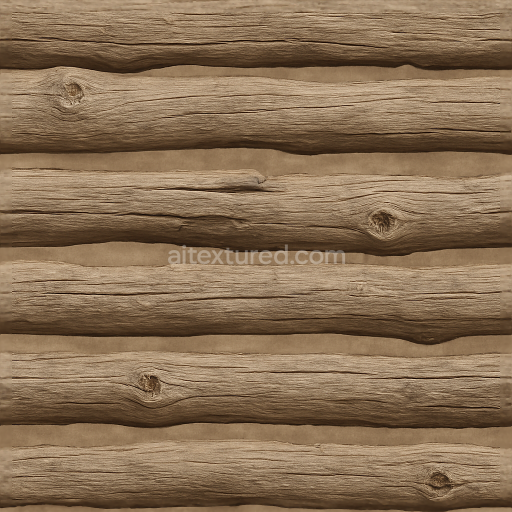
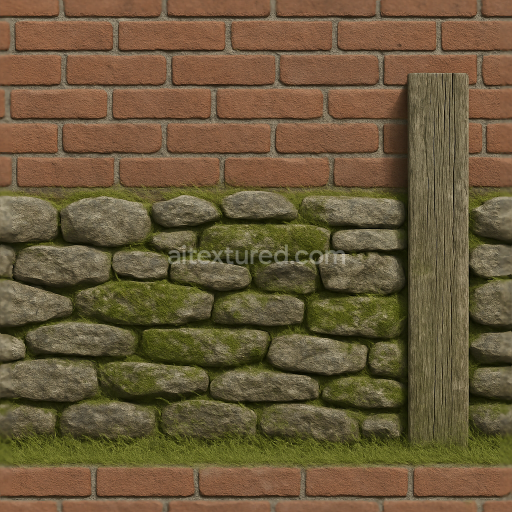
Split Rail Fence With Rough Wood Texture And Fence Knots
Seamless texture (tileable) · PNG, WEBP, PBR ZIP.
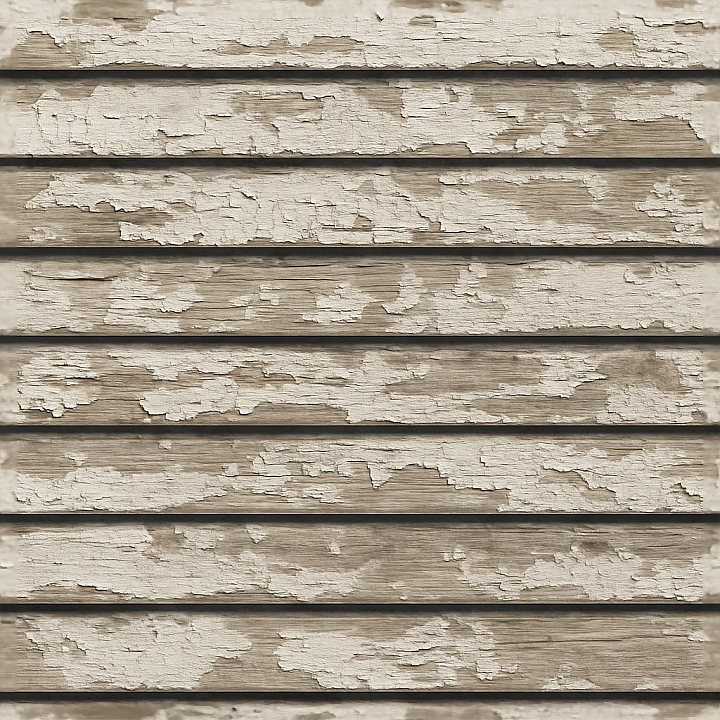
| ID | seamless-3d-texture-pbr-8k-horizontal-slats-wooden-fence-with-peeling-paint-and-fence-shadow |
|---|---|
| Category | Fences |
| Formats | PNG, WEBP, PBR ZIP |
| Size | 1k (1024x1024px), 2k (2048x2048px), 4k (4096x4096px), 8k (8192x8192px) |
| Tileable | Yes |
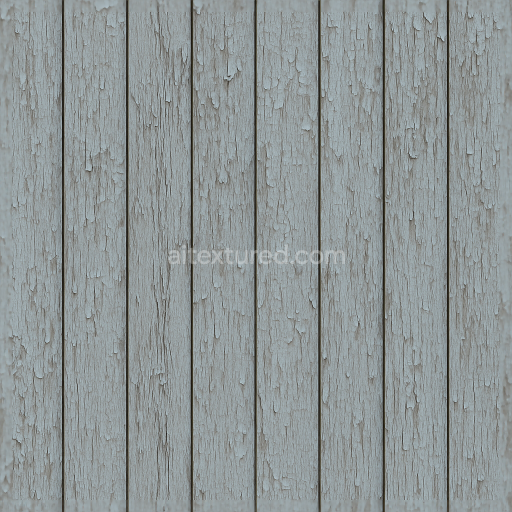
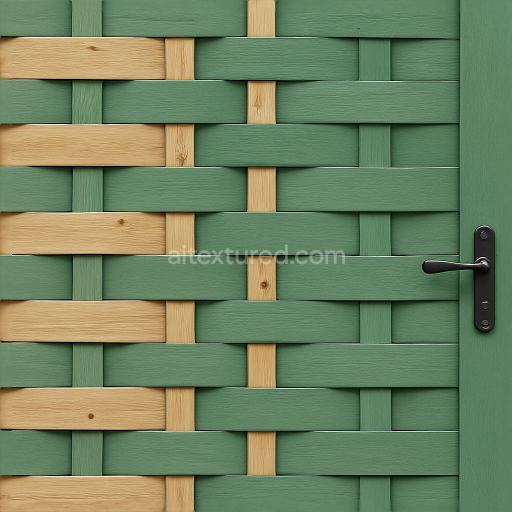
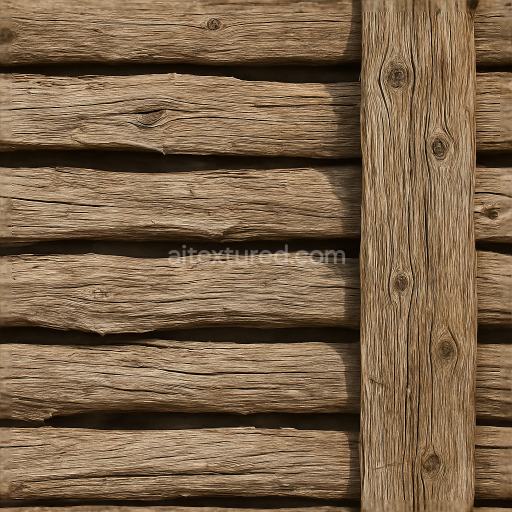
This seamless 3D texture presents a high-resolution 8K photorealistic depiction of a wooden fence composed of horizontal slats. The base material is natural wood, characterized by visible grain patterns and subtle surface irregularities that reflect its organic origin. The wood substrate exhibits signs of aging and weathering, with peeling paint layers that reveal the raw timber beneath. The paint, once a protective and decorative coating, now shows flaking and cracking due to prolonged exposure to environmental elements, contributing to a textured, tactile surface appearance. This worn finish creates a complex interplay of pigments and exposed wood fibers, enhancing the realism of the material.
The geometric form is defined by uniformly spaced horizontal wooden slats, each with slight dimensional depth and minor imperfections that break the monotony of the repetitive pattern. The texture captures fine details such as the raised edges of peeling paint, subtle wood grain relief, and soft shadows cast between the slats, which add depth and visual interest. The surface finish can be described as semi-matte, with a slightly rough texture due to weathered paint and natural wood porosity. The color palette ranges from faded off-white or pale cream paint to warm brown hues of the exposed wood, together creating a balanced contrast enhanced by ambient occlusion effects that emphasize crevices and overlaps.
In terms of physically based rendering (PBR) channels, the BaseColor (Albedo) map accurately represents the color distribution of peeling paint and natural wood tones without baked-in lighting, ensuring versatility under various lighting conditions. The Normal map simulates the micro and macro surface variations including the grain texture and paint flaking edges, contributing to realistic light interaction. Roughness values vary across the surface, with higher roughness where paint has chipped away revealing raw wood and lower roughness on remaining painted areas, creating nuanced reflections. The Metallic channel remains near zero, reflecting the non-metallic nature of wood and paint. Ambient Occlusion enhances the perception of depth within the gaps and cracks between slats, while the Height/Displacement map provides subtle elevation differences to reinforce the 3D effect of peeling paint and wood grain.
This texture is optimized for seamless tiling, allowing for extensive coverage on large outdoor fence models without visible repetition or edge artifacts. It is fully compatible with popular 3D software and game engines such as Blender, Unreal Engine, and Unity, providing flexibility for various projects requiring realistic outdoor wooden fences. For practical application, adjusting the UV scale is recommended to maintain proportionality of the wood grain and paint details relative to the fence geometry. Additionally, fine-tuning the roughness map can help achieve the desired balance between weathered matte surfaces and slightly glossy paint remnants. When combining height and normal maps, blending them carefully can enhance surface detail without causing excessive displacement artifacts, ensuring optimal visual fidelity and performance.
Import the texture maps into Blender with sRGB color space for albedo/base color and Non-Color for normal, roughness, metallic, AO, height, and ORM maps. Connect normal maps through a Normal Map node, then adjust UV scale with a Mapping node so the material repeats naturally on your model.
For the full step-by-step setup, see How to Use Seamless Textures in Blender. Browse related material examples in wood, concrete, and metal.
Yes. This texture is designed as a seamless tileable PBR material, so it can repeat across large surfaces without visible borders.
Use the download controls on this page: they expose the available PNG, WEBP or engine ZIP choices and supported resolutions for this asset.
Use the engine ZIP choices to package compatible source maps for Blender, Unreal Engine or Unity, then verify the imported material in the target application.
Commercial-use permission is not verified for this record. Confirm the original source and license before production use.
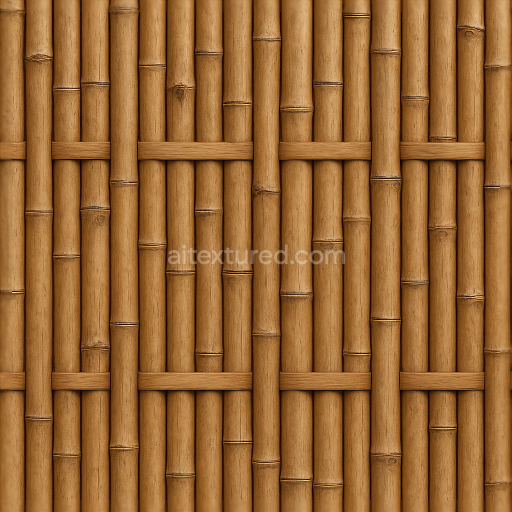
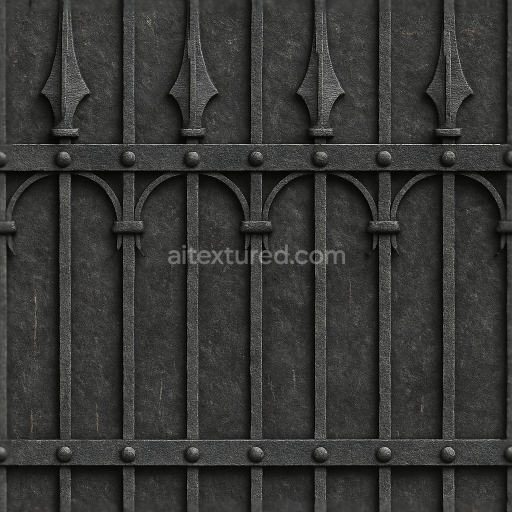
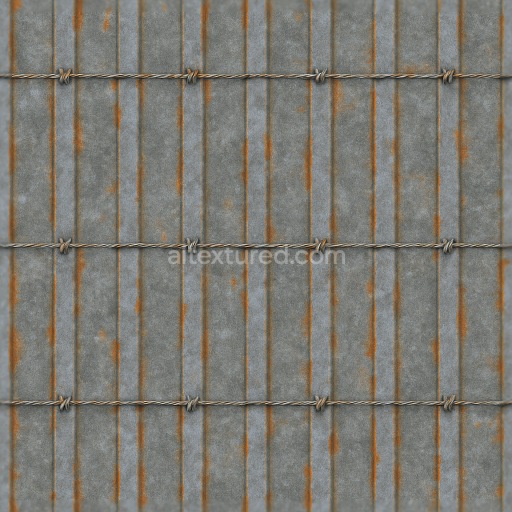
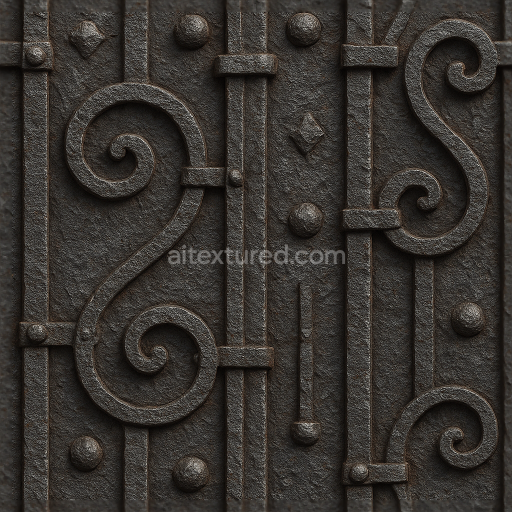
Generate maps from existing images, preview materials, convert channels, and package compatible inputs for Blender, Unity, and Unreal Engine.
Choose a verified workflow for generating maps, previewing tiling, converting channels, or starting from the texture catalog.
Derive Normal, Roughness, AO, Metallic, Height and optional ORM maps from one or more source images, then review the results.
Instant WebGL viewer: inspect materials on a sphere, plane, and cube. Check tiling and lighting in real time.
Re-packages maps per engine: Unreal (BaseColor + ORM), Unity (Mask/MetallicSmoothness), Blender (separate channels).
PNG ↔ JPG ↔ SVG: fast convert, SVG rasterize, embed/trace options, quality & background controls.