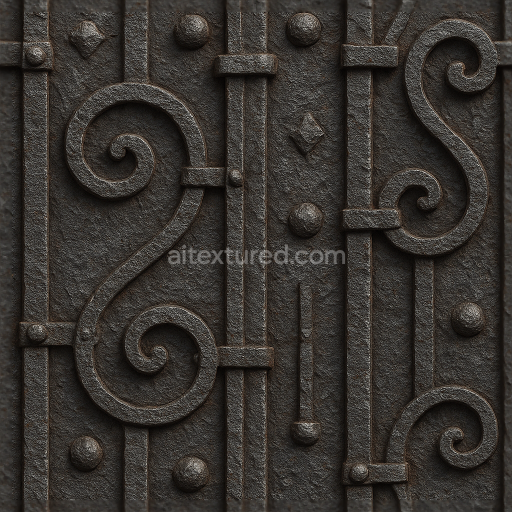
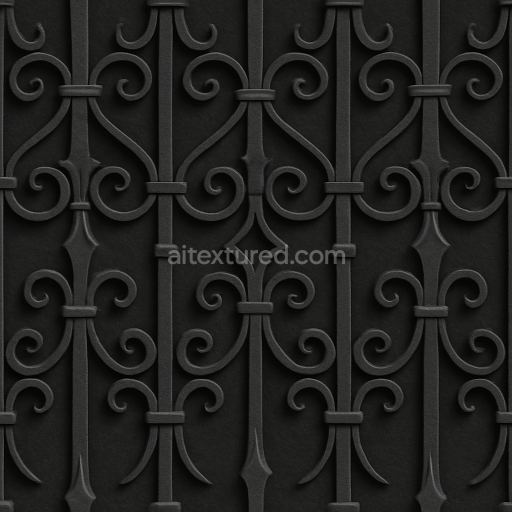
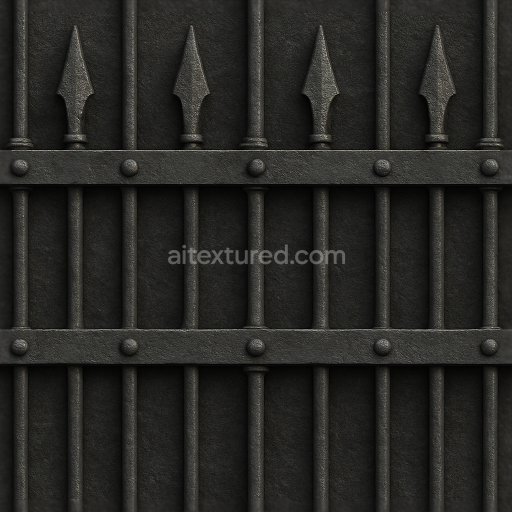
Seamless 8K 3D Texture PBR Wrought Iron Fence With Decorative Iron And Oxidized Metal Sur…
Seamless texture (tileable) · PNG, WEBP, PBR ZIP.
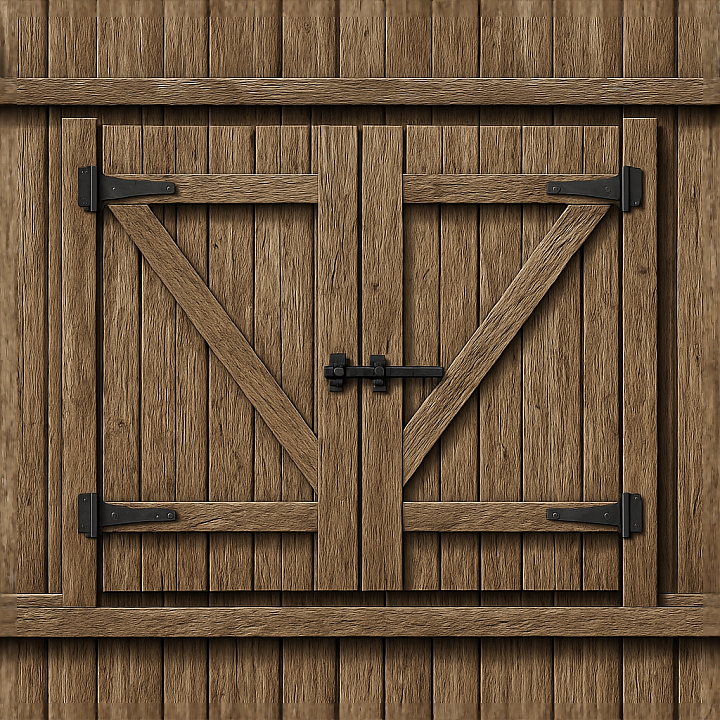
| ID | seamless-3d-texture-pbr-8k-wooden-gate-fence-with-splintered-wood-and-fence-shadow-effects |
|---|---|
| Category | Fences |
| Formats | PNG, WEBP, PBR ZIP |
| Size | 1k (1024x1024px), 2k (2048x2048px), 4k (4096x4096px), 8k (8192x8192px) |
| Tileable | Yes |
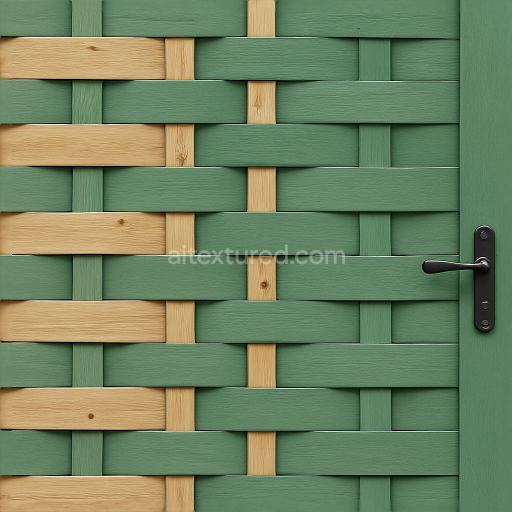
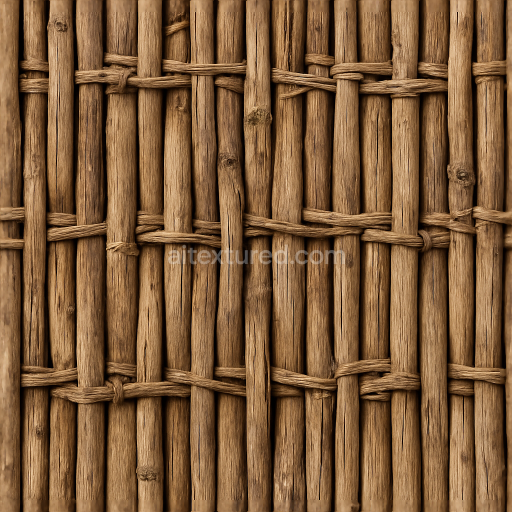
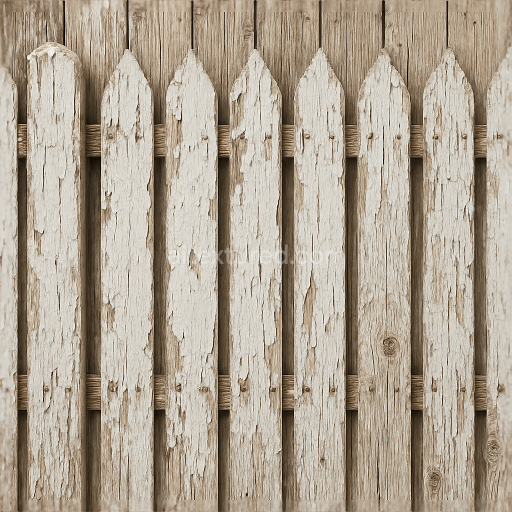
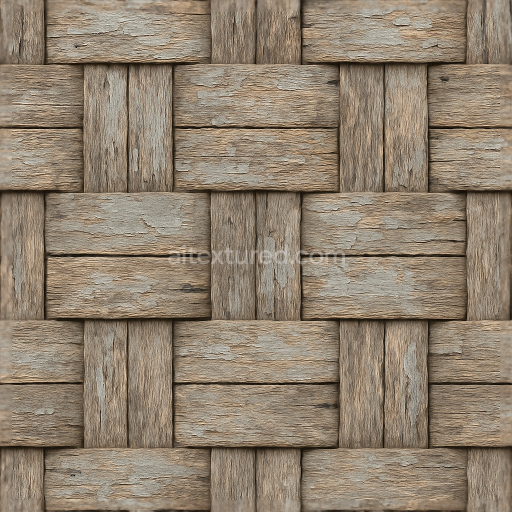
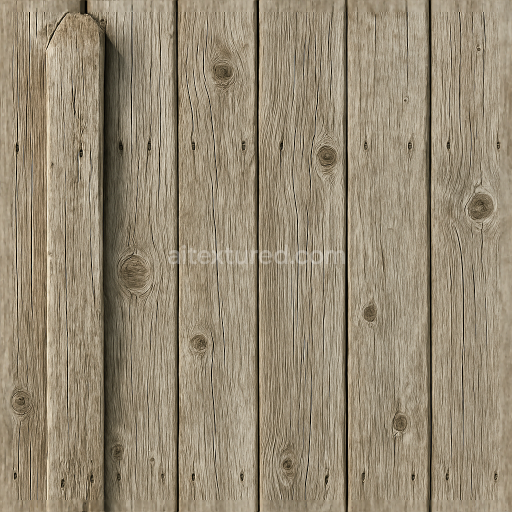
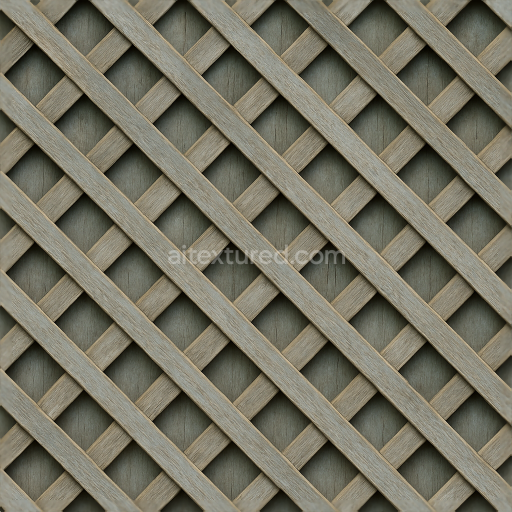
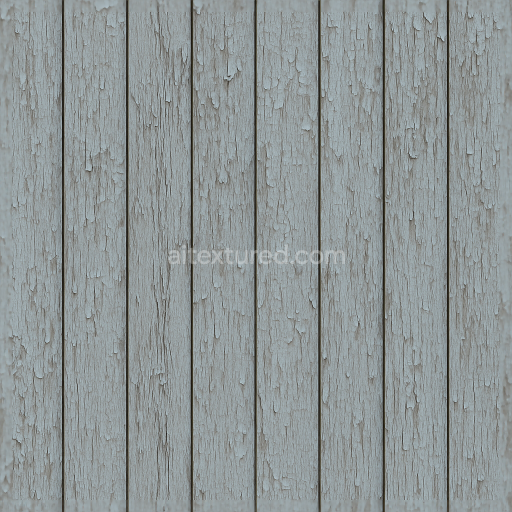
This seamless 3D texture depicts a wooden gate fence constructed from weathered planks of natural timber, showcasing a realistic pattern of vertically aligned wooden boards with irregular splintered edges and subtle surface imperfections. The base material is aged hardwood, characterized by its fibrous grain structure and varying degrees of porosity due to natural wear and exposure to outdoor elements. The composition includes the primary wood substrate with visible cellulose fibers and natural resins acting as binders within the fibrous matrix. Over time, environmental factors have caused minor fissures, splinters, and erosion on the plank surfaces, contributing to the texture’s authentic roughness and unevenness. Pigments arise from natural tannins and exposure-induced color shifts, ranging from warm honey browns to muted grays, which are faithfully reproduced in the BaseColor and Ambient Occlusion maps to enhance depth and tonal variation.
The surface finish retains a semi-matte, weather-beaten appearance with no artificial polish, highlighting the tactile feel of aged wood. The Normal map captures the intricate relief of raised wood grain, splintered fibers, and subtle cracks, delivering pronounced surface detail that reacts convincingly to dynamic lighting. The Roughness channel reflects the coarse texture of the wood, with increased roughness around splintered areas and softened values on flatter, worn sections, accurately simulating diffuse reflection characteristics. The Metallic map is uniformly minimal, as the material is non-metallic timber, ensuring physically plausible shading without unwanted reflections. Height and Displacement maps provide fine elevation data for enhanced parallax and microgeometry effects, emphasizing the depth of cracks and the layered structure of the gate’s wooden planks. Ambient Occlusion contributes to natural shadowing within crevices and behind overlapping boards, reinforcing the three-dimensionality of the fence.
This 8K resolution texture is optimized for use in high-end 3D software such as Blender, Unreal Engine, and Unity, ensuring exceptional clarity and fidelity in close-up renders and large-scale environments. Its seamless tiling capability allows for uniform repetition across extensive fence surfaces without visible seams or pattern breaks, supporting flexible UV mapping workflows. For practical use, it is advisable to carefully adjust the UV scale to maintain realistic wood grain proportions, avoiding distortion that could compromise material believability. Additionally, tuning the Roughness map can help achieve the desired balance between matte and slightly reflective surfaces depending on lighting scenarios, while blending Height and Normal maps can enhance depth perception without excessive displacement performance costs.
Import the texture maps into Blender with sRGB color space for albedo/base color and Non-Color for normal, roughness, metallic, AO, height, and ORM maps. Connect normal maps through a Normal Map node, then adjust UV scale with a Mapping node so the material repeats naturally on your model.
For the full step-by-step setup, see How to Use Seamless Textures in Blender. Browse related material examples in wood, concrete, and metal.
Yes. This texture is designed as a seamless tileable PBR material, so it can repeat across large surfaces without visible borders.
Use the download controls on this page: they expose the available PNG, WEBP or engine ZIP choices and supported resolutions for this asset.
Use the engine ZIP choices to package compatible source maps for Blender, Unreal Engine or Unity, then verify the imported material in the target application.
Commercial-use permission is not verified for this record. Confirm the original source and license before production use.
Generate maps from existing images, preview materials, convert channels, and package compatible inputs for Blender, Unity, and Unreal Engine.
Choose a verified workflow for generating maps, previewing tiling, converting channels, or starting from the texture catalog.
Derive Normal, Roughness, AO, Metallic, Height and optional ORM maps from one or more source images, then review the results.
Instant WebGL viewer: inspect materials on a sphere, plane, and cube. Check tiling and lighting in real time.
Re-packages maps per engine: Unreal (BaseColor + ORM), Unity (Mask/MetallicSmoothness), Blender (separate channels).
PNG ↔ JPG ↔ SVG: fast convert, SVG rasterize, embed/trace options, quality & background controls.