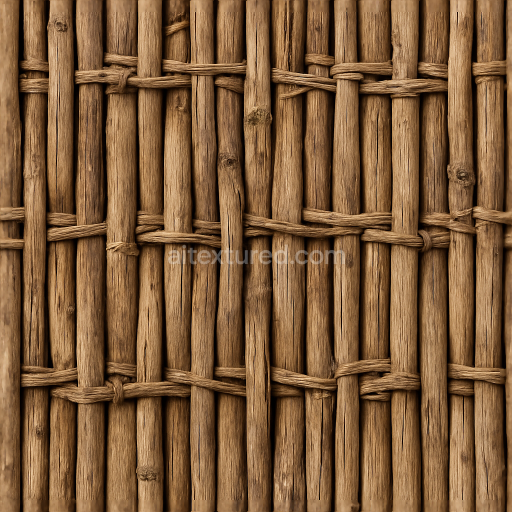
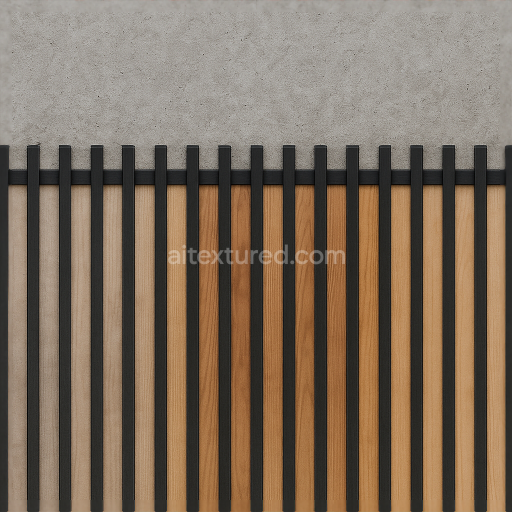
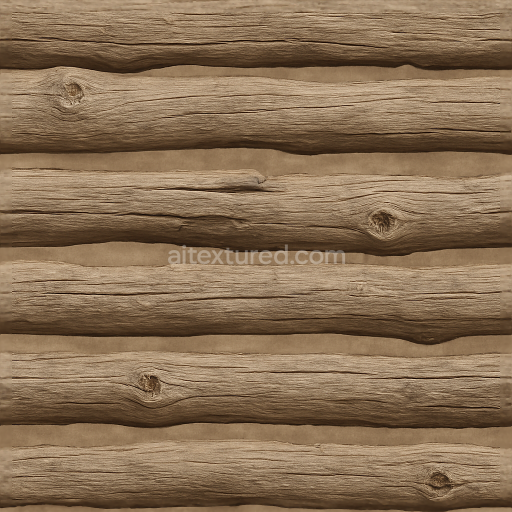
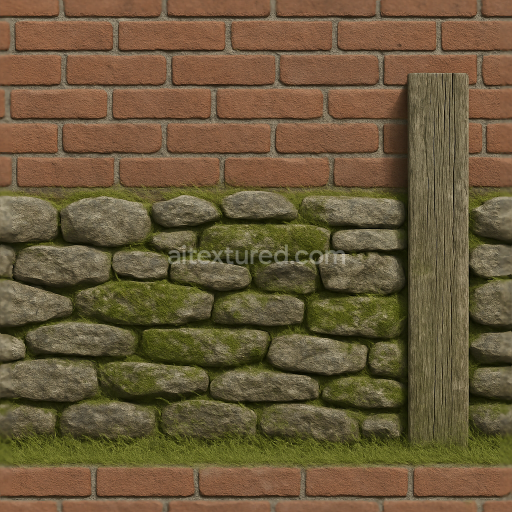
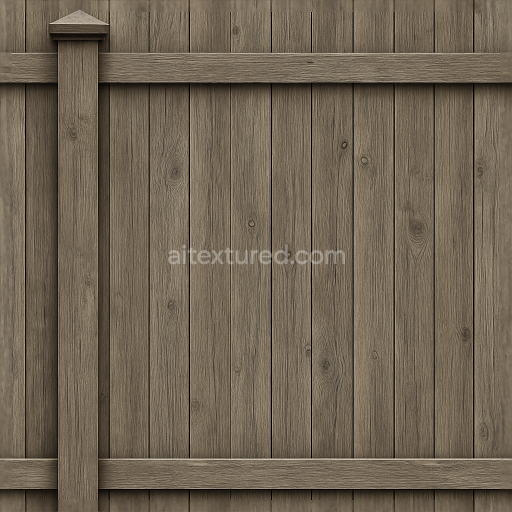
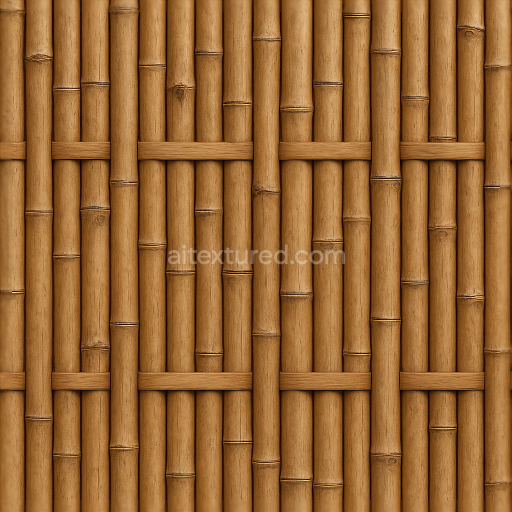
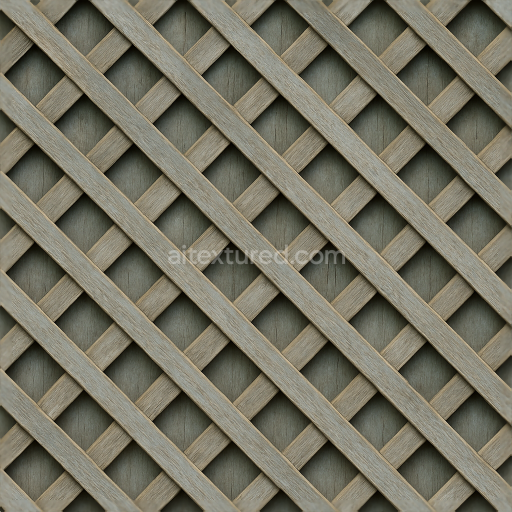
Seamless 8K 3D Texture PBR Bamboo Fence With Woven Wood Pattern And Natural Knots In Dry…
Seamless texture (tileable) · PNG, WEBP, PBR ZIP.
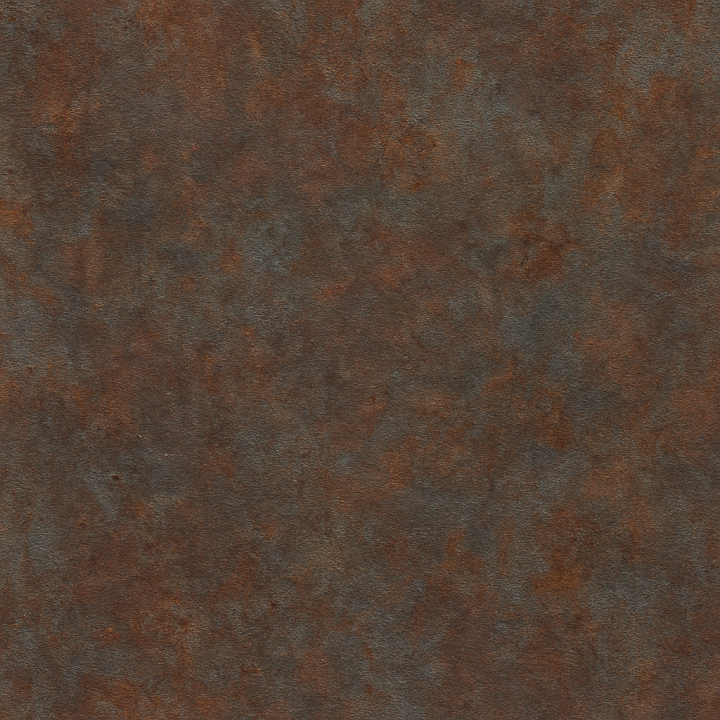
| ID | seamless-3d-texture-pbr-8k-metal-gate-fence-with-aged-metal-and-oxidized-metal-surface |
|---|---|
| Category | Fences |
| Formats | PNG, WEBP, PBR ZIP |
| Size | 1k (1024x1024px), 2k (2048x2048px), 4k (4096x4096px), 8k (8192x8192px) |
| Tileable | Yes |
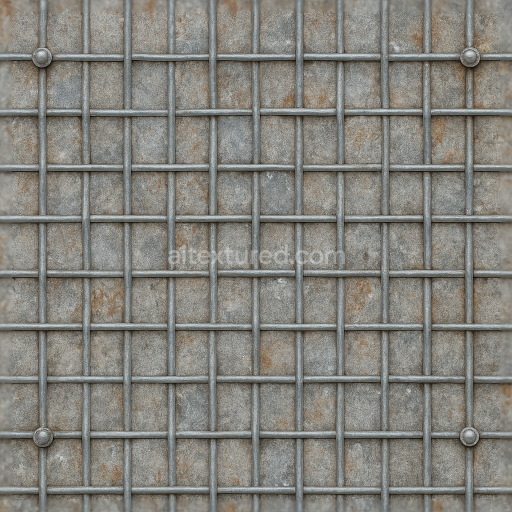
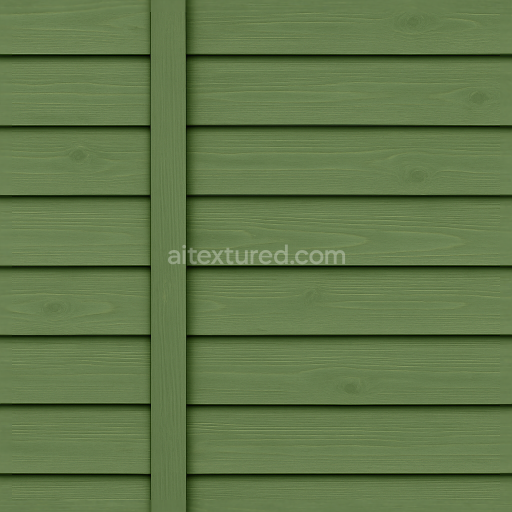
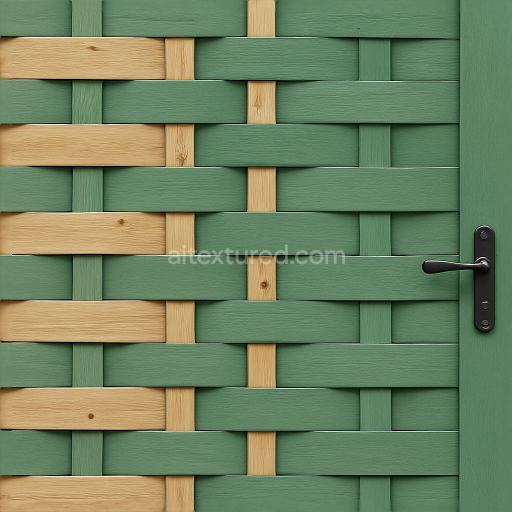
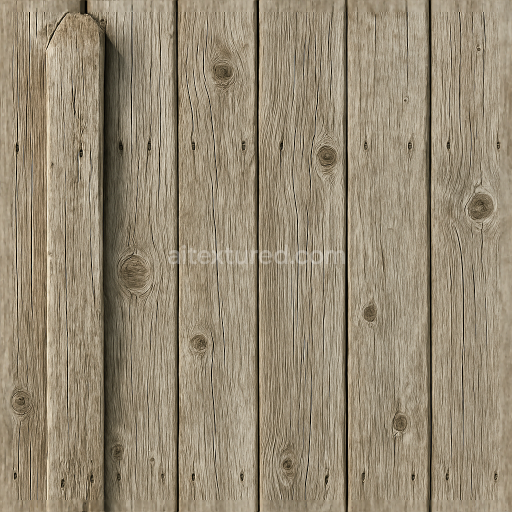
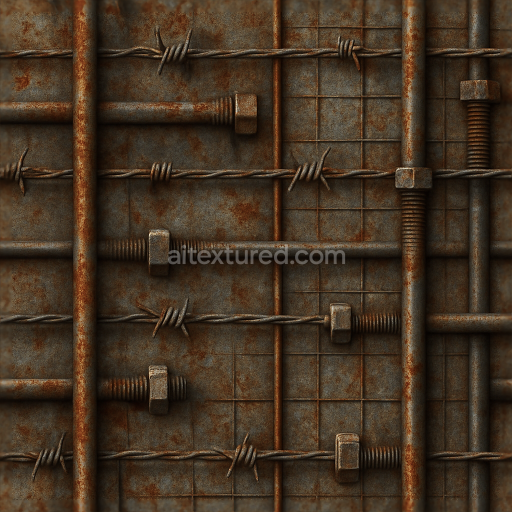
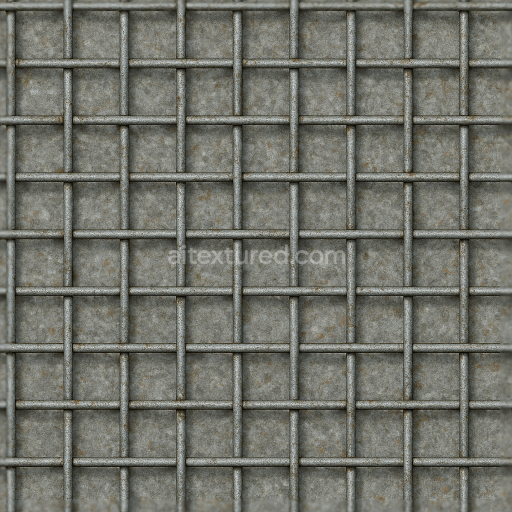
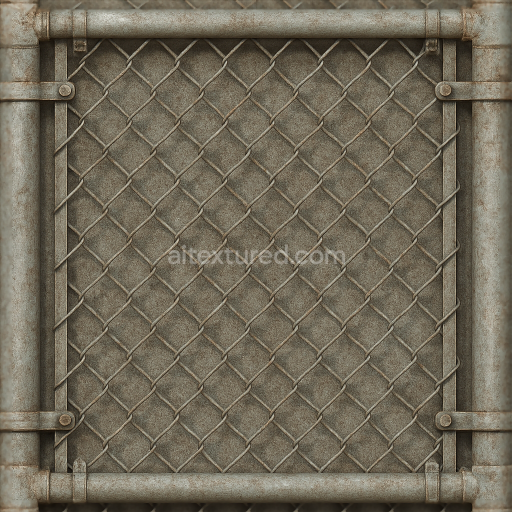
This seamless 3D texture presents a highly detailed 8K photorealistic representation of a metal gate fence, capturing the intricate interplay of aged and oxidized metal surfaces. The base material is primarily wrought iron or steel, characterized by a durable metallic substrate that has undergone extensive weathering. This weathering manifests as oxidation layers—primarily iron oxides—which form a complex patina with subtle color variations ranging from deep rust reds to muted dark grays and hints of greenish corrosion. The geometric form features interwoven vertical bars and horizontal supports typical of classic metal fences, arranged in a repetitive pattern that emphasizes both structural rigidity and ornamental simplicity. The seamless design ensures the texture tiles flawlessly without visible edges, making it ideal for extensive fence simulations in architectural visualizations or game environments.
The texture’s composition reveals a layered surface finish: the core metallic substrate provides the essential metallic reflectivity, captured in the PBR metallic channel, while the oxidized and aged surface contributes to varied roughness values. These range from smoother, worn-down patches where paint or protective coatings may have eroded, to rough, flaky regions of rust and corrosion. The BaseColor (Albedo) channel conveys these color shifts with high fidelity, showing nuanced pigment deposits from environmental exposure. The Normal and Height maps intricately represent the fine grain and irregular surface topography, including slight dents, rust flakes, and brush marks from previous maintenance or wear. Ambient Occlusion enhances depth perception around joints and intersections of the metal bars, adding realism by simulating shadowed crevices. The roughness map modulates light scattering across the surface, distinguishing between polished metal remnants and heavily oxidized areas with matte appearance.
Designed for compatibility with Blender, Unreal Engine, and Unity, this texture supports advanced rendering workflows and physically based shading models. Its 8K resolution ensures that even close-up views retain crisp detail without pixelation, accommodating high-quality visual effects in both real-time and offline rendering scenarios. When integrating this texture, it is advisable to carefully adjust the UV scale to match the intended fence dimensions, as improper scaling can distort the pattern and reduce realism. Additionally, fine-tuning the roughness channel can help balance reflectivity, achieving the desired contrast between shiny metal remnants and matte corrosion. For enhanced depth perception, blending the height map with normal maps can create convincing parallax effects, especially in close camera angles, adding tactile realism to the metal surface.
Import the texture maps into Blender with sRGB color space for albedo/base color and Non-Color for normal, roughness, metallic, AO, height, and ORM maps. Connect normal maps through a Normal Map node, then adjust UV scale with a Mapping node so the material repeats naturally on your model.
For the full step-by-step setup, see How to Use Seamless Textures in Blender. Browse related material examples in wood, concrete, and metal.
Yes. This texture is designed as a seamless tileable PBR material, so it can repeat across large surfaces without visible borders.
Use the download controls on this page: they expose the available PNG, WEBP or engine ZIP choices and supported resolutions for this asset.
Use the engine ZIP choices to package compatible source maps for Blender, Unreal Engine or Unity, then verify the imported material in the target application.
Commercial-use permission is not verified for this record. Confirm the original source and license before production use.
Generate maps from existing images, preview materials, convert channels, and package compatible inputs for Blender, Unity, and Unreal Engine.
Choose a verified workflow for generating maps, previewing tiling, converting channels, or starting from the texture catalog.
Derive Normal, Roughness, AO, Metallic, Height and optional ORM maps from one or more source images, then review the results.
Instant WebGL viewer: inspect materials on a sphere, plane, and cube. Check tiling and lighting in real time.
Re-packages maps per engine: Unreal (BaseColor + ORM), Unity (Mask/MetallicSmoothness), Blender (separate channels).
PNG ↔ JPG ↔ SVG: fast convert, SVG rasterize, embed/trace options, quality & background controls.