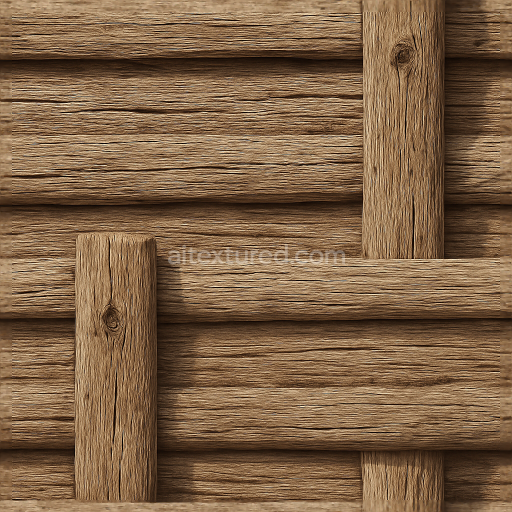
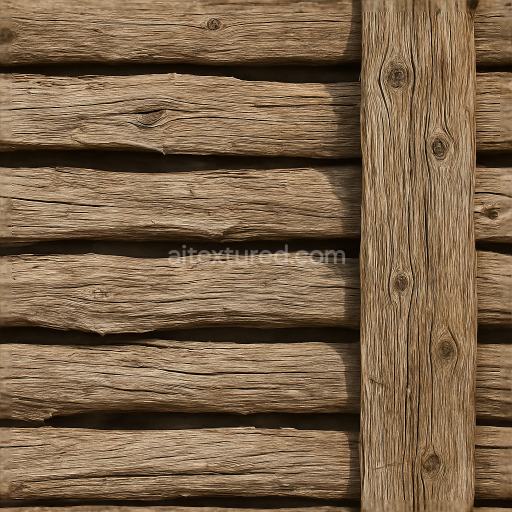
Seamless 8K 3D Texture PBR Split Rail Fence With Dry Wood And Sunlit Fence Post Natural A…
Seamless texture (tileable) · PNG, WEBP, PBR ZIP.
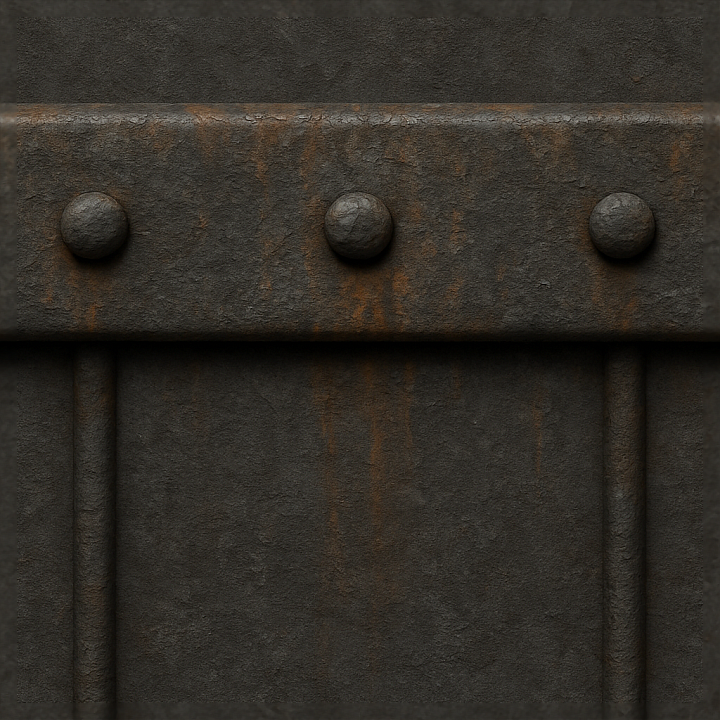
| ID | seamless-8k-3d-texture-pbr-rough-metal-fence-rail-with-oxidized-metal-and-metal-bolts-detail |
|---|---|
| Category | Fences |
| Formats | PNG, WEBP, PBR ZIP |
| Size | 1k (1024x1024px), 2k (2048x2048px), 4k (4096x4096px), 8k (8192x8192px) |
| Tileable | Yes |
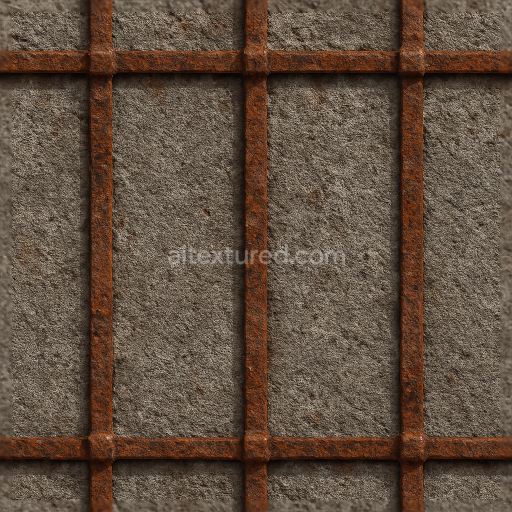
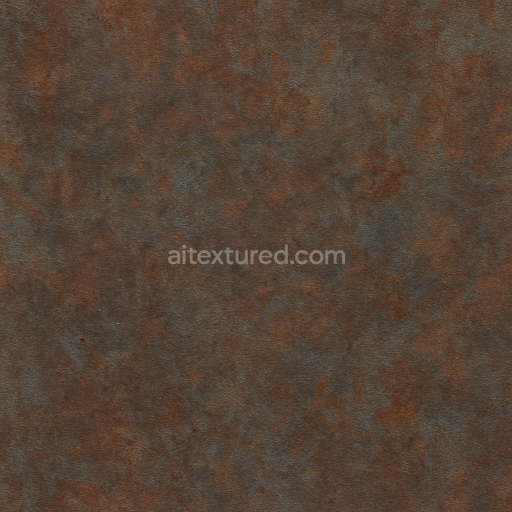
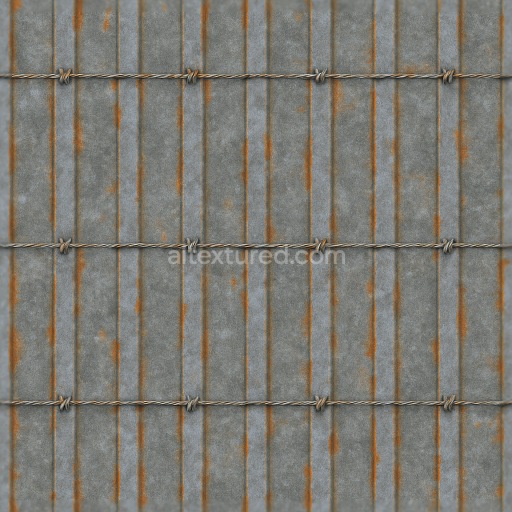
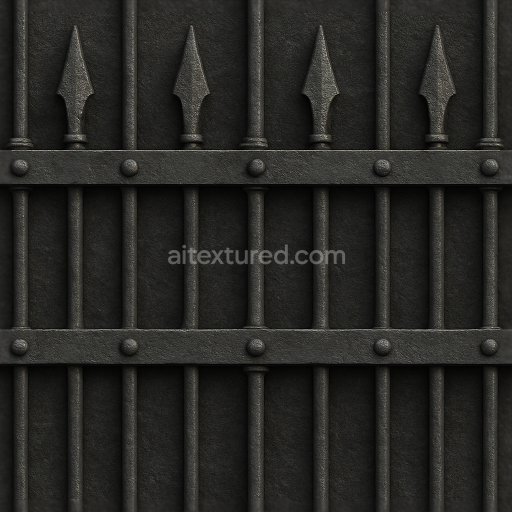
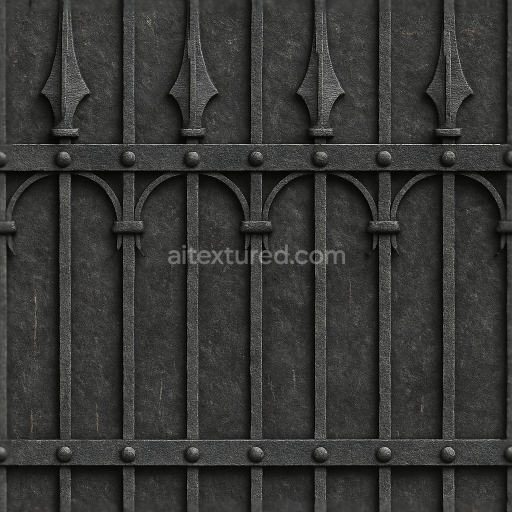
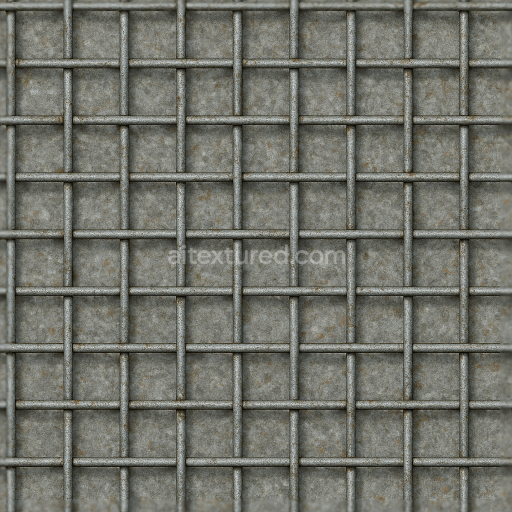
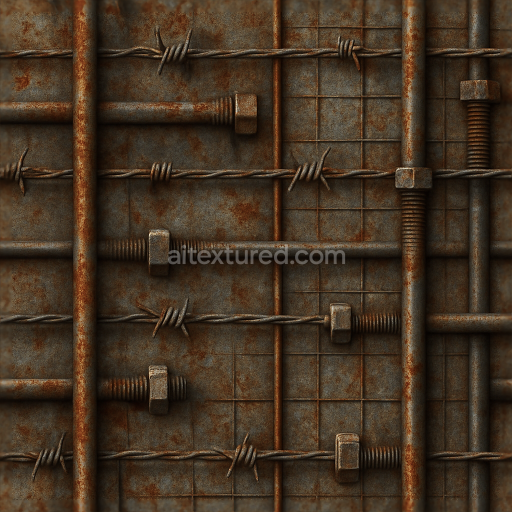
This seamless 8K PBR 3D texture depicts a rough metal fence rail characterized by a complex interplay of oxidized and corroded steel surfaces. The base material is primarily black iron steel rods, arranged in a linear, tubular geometric form typical of industrial fence rails. These rods are joined by metal bolts which add structural realism and subtle variations in surface detail. The metal substrate shows extensive weathering effects, with corrosion layers forming uneven, porous patches that reflect years of exposure to moisture and air, resulting in characteristic rust stains and patinas. The oxidized finish is matte to semi-rough, exhibiting a tactile grain that enhances the visual depth of the texture.
The composition of the texture reflects the natural aging process of ferrous metals. The steel rods serve as the core structural elements, while the corrosion and oxidation form a complex oxide layer acting like a natural binder on the surface. The rust adds granular aggregates and micro-pitting, increasing the surface roughness and introducing subtle height variations captured in the displacement and normal maps. The metal bolts are slightly less corroded, retaining more metallic reflectivity but still showing signs of oxidation, contributing to the overall weathered appearance. Pigmentation is dominated by varied hues of dark gray, brownish-red rust, and muted black iron tones, all blending seamlessly to simulate authentic material degradation.
In the PBR workflow, the BaseColor (Albedo) map captures the nuanced color shifts from bare metal to rusted patches, while the Normal map accurately represents the intricate surface imperfections including bolt heads and corroded grain. The Roughness map emphasizes the contrast between smoother oxidized metal and roughened rusted areas, providing realistic light scattering and reflections. The Metallic channel retains high values on metal bolts and steel rods but decreases where oxidation dominates, simulating the loss of metallic luster. Ambient Occlusion enhances depth perception around bolts and crevices, and the Height/Displacement map accentuates the subtle relief of rust buildup and metal erosion, adding convincing three-dimensional detail.
This texture is fully optimized for high-fidelity rendering in Blender, Unreal Engine, and Unity, supporting seamless tiling for expansive fence models without visible repetition. The 8K resolution ensures exceptional clarity even on close-up views, making it ideal for industrial, post-apocalyptic, or rustic outdoor scenes. For optimal results, it is recommended to carefully adjust the UV scale to maintain realistic grain size relative to the fence model dimensions. Additionally, fine-tuning the roughness map can help balance the reflectivity between polished bolts and heavily oxidized rails. Employing subtle height or parallax mapping enhances the perception of corrosion depth, improving realism in physically based rendering workflows.
Import the texture maps into Blender with sRGB color space for albedo/base color and Non-Color for normal, roughness, metallic, AO, height, and ORM maps. Connect normal maps through a Normal Map node, then adjust UV scale with a Mapping node so the material repeats naturally on your model.
For the full step-by-step setup, see How to Use Seamless Textures in Blender. Browse related material examples in wood, concrete, and metal.
Yes. This texture is designed as a seamless tileable PBR material, so it can repeat across large surfaces without visible borders.
Use the download controls on this page: they expose the available PNG, WEBP or engine ZIP choices and supported resolutions for this asset.
Use the engine ZIP choices to package compatible source maps for Blender, Unreal Engine or Unity, then verify the imported material in the target application.
Commercial-use permission is not verified for this record. Confirm the original source and license before production use.
Generate maps from existing images, preview materials, convert channels, and package compatible inputs for Blender, Unity, and Unreal Engine.
Choose a verified workflow for generating maps, previewing tiling, converting channels, or starting from the texture catalog.
Derive Normal, Roughness, AO, Metallic, Height and optional ORM maps from one or more source images, then review the results.
Instant WebGL viewer: inspect materials on a sphere, plane, and cube. Check tiling and lighting in real time.
Re-packages maps per engine: Unreal (BaseColor + ORM), Unity (Mask/MetallicSmoothness), Blender (separate channels).
PNG ↔ JPG ↔ SVG: fast convert, SVG rasterize, embed/trace options, quality & background controls.