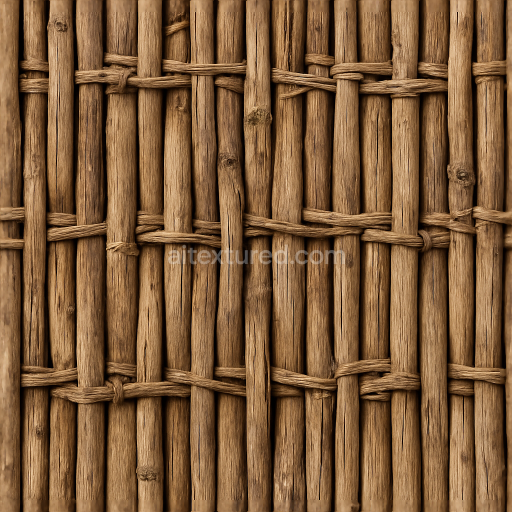
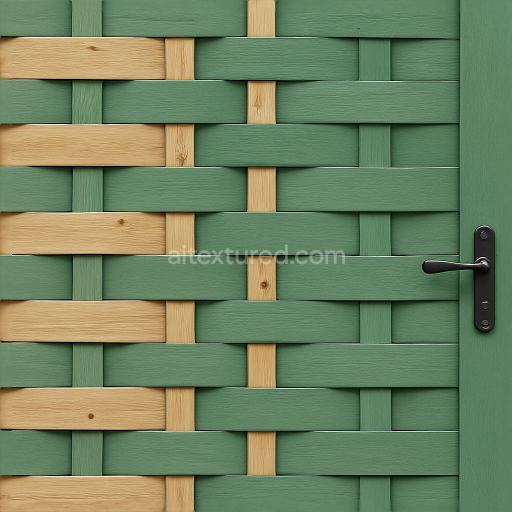
Seamless 8K 3D Texture PBR Bamboo Fence With Woven Wood Pattern And Natural Knots In Dry…
Seamless texture (tileable) · PNG, WEBP, PBR ZIP.
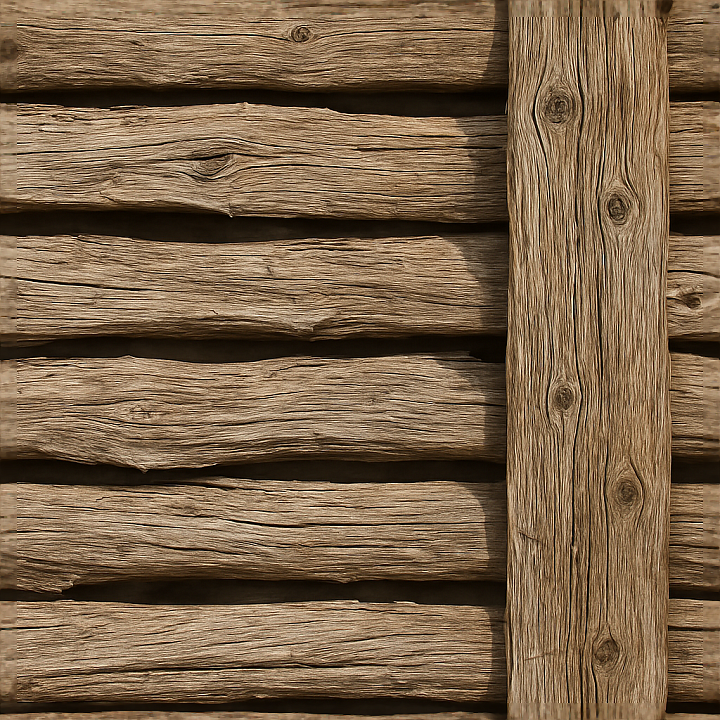
| ID | seamless-8k-3d-texture-pbr-split-rail-fence-with-rough-wood-and-fence-post-in-natural-dry-wood-finish |
|---|---|
| Category | Fences |
| Formats | PNG, WEBP, PBR ZIP |
| Size | 1k (1024x1024px), 2k (2048x2048px), 4k (4096x4096px), 8k (8192x8192px) |
| Tileable | Yes |
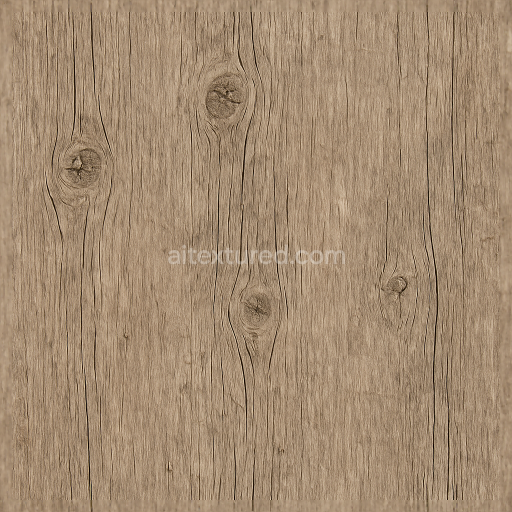
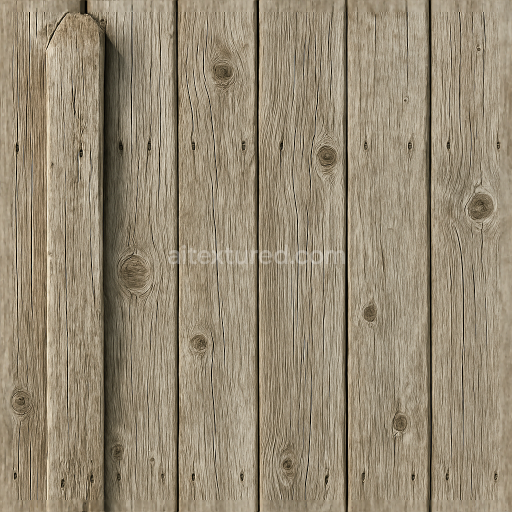
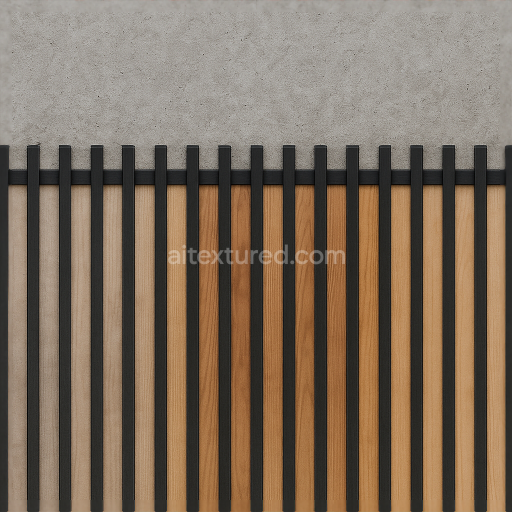
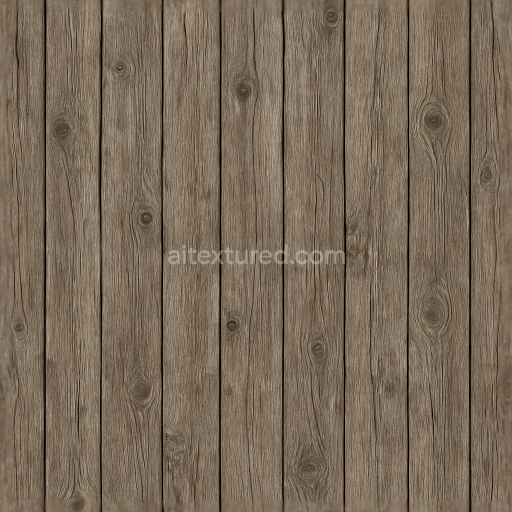
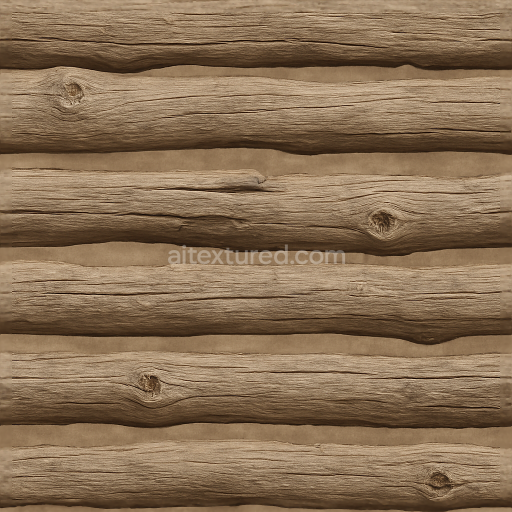
This seamless 8K PBR 3D texture captures the authentic appearance of a traditional split rail fence constructed from rough, natural dry wood. The material is primarily aged hardwood, characterized by a coarse grain structure interspersed with prominent knots and occasional splinters, reflecting years of exposure to outdoor elements. The wood substrate shows subtle porosity and natural fissures, while the surface finish is matte and weathered, with no artificial gloss or polish, emphasizing the rustic, sunlit quality of the fence. The fence posts exhibit additional textural complexity, featuring natural cracks and layered grain patterns typical of seasoned timber used in rural fencing.
Geometrically, the texture simulates the linear, horizontal form of split rails supported by vertical posts, creating a repetitive pattern that emphasizes the elongated, cylindrical shape of the rails combined with the more robust, squared-off posts. The texture’s seamless design allows for continuous tiling without visible borders, making it suitable for large-scale environments. Fine details such as wood knots and grain directionality are carefully preserved, enhancing realism when viewed up close or at a distance. The interplay of light and shadow on the rough wood surface is captured through high-resolution normal and height maps, adding depth and dimensionality to the material.
From a PBR workflow perspective, the BaseColor (Albedo) map faithfully reproduces the natural dry wood tones, ranging from soft honey browns to muted grays, with subtle variations introduced by sun bleaching and weathering. The Normal map encodes the uneven grain, knots, and splintered surfaces, contributing to realistic light interaction. Roughness values are high and varied, reflecting the unpolished, coarse texture of aged wood, while the Metallic channel remains near zero, as wood is non-metallic. Ambient Occlusion enhances the perception of depth around knots and cracks, and Height/Displacement maps provide realistic relief, allowing for effective parallax or tessellation shading in modern rendering engines.
This 8K texture is optimized for use in Blender, Unreal Engine, and Unity, ensuring compatibility and high fidelity across popular 3D platforms. For practical implementation, it is recommended to adjust the UV scale to maintain the natural grain size relative to scene elements, preventing exaggeration or loss of detail. Additionally, fine-tuning the roughness map can help balance the material’s response to varying lighting conditions, while blending height and normal maps can enhance surface complexity without excessive polygonal detail.
Import the texture maps into Blender with sRGB color space for albedo/base color and Non-Color for normal, roughness, metallic, AO, height, and ORM maps. Connect normal maps through a Normal Map node, then adjust UV scale with a Mapping node so the material repeats naturally on your model.
For the full step-by-step setup, see How to Use Seamless Textures in Blender. Browse related material examples in wood, concrete, and metal.
Yes. This texture is designed as a seamless tileable PBR material, so it can repeat across large surfaces without visible borders.
Use the download controls on this page: they expose the available PNG, WEBP or engine ZIP choices and supported resolutions for this asset.
Use the engine ZIP choices to package compatible source maps for Blender, Unreal Engine or Unity, then verify the imported material in the target application.
Commercial-use permission is not verified for this record. Confirm the original source and license before production use.
Generate maps from existing images, preview materials, convert channels, and package compatible inputs for Blender, Unity, and Unreal Engine.
Choose a verified workflow for generating maps, previewing tiling, converting channels, or starting from the texture catalog.
Derive Normal, Roughness, AO, Metallic, Height and optional ORM maps from one or more source images, then review the results.
Instant WebGL viewer: inspect materials on a sphere, plane, and cube. Check tiling and lighting in real time.
Re-packages maps per engine: Unreal (BaseColor + ORM), Unity (Mask/MetallicSmoothness), Blender (separate channels).
PNG ↔ JPG ↔ SVG: fast convert, SVG rasterize, embed/trace options, quality & background controls.