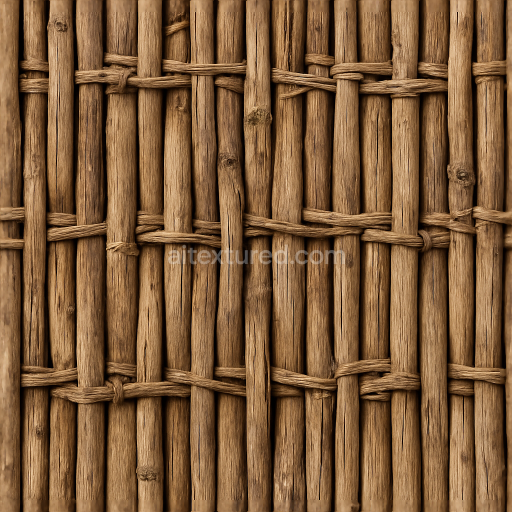
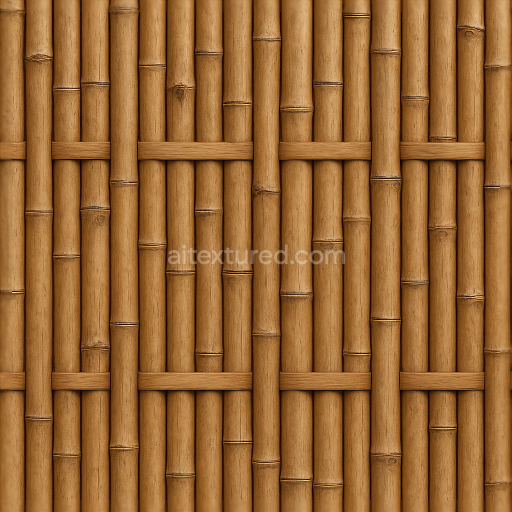
Seamless 8K 3D Texture PBR Bamboo Fence With Woven Wood Pattern And Natural Knots In Dry…
Seamless texture (tileable) · PNG, WEBP, PBR ZIP.
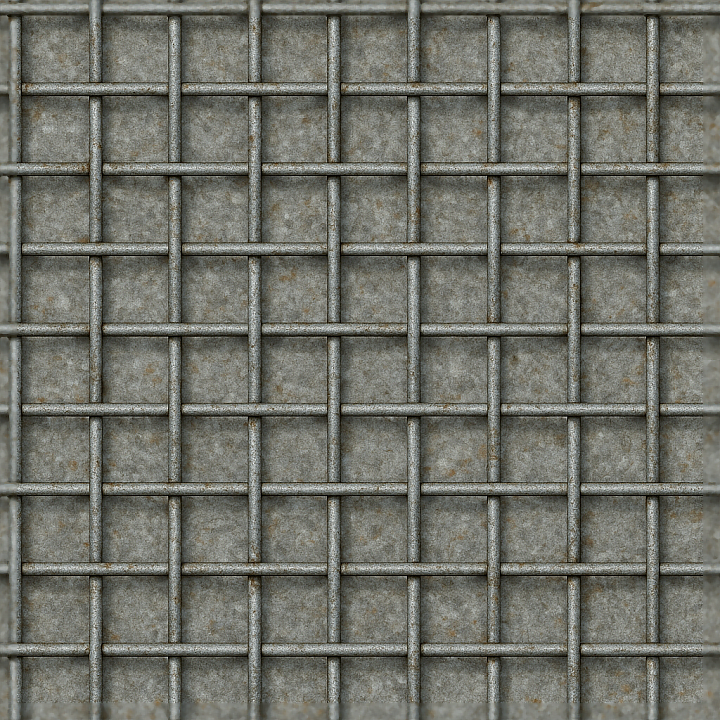
| ID | seamless-3d-texture-pbr-8k-wire-mesh-fence-with-galvanized-metal-and-metal-rust-details |
|---|---|
| Category | Fences |
| Formats | PNG, WEBP, PBR ZIP |
| Size | 1k (1024x1024px), 2k (2048x2048px), 4k (4096x4096px), 8k (8192x8192px) |
| Tileable | Yes |
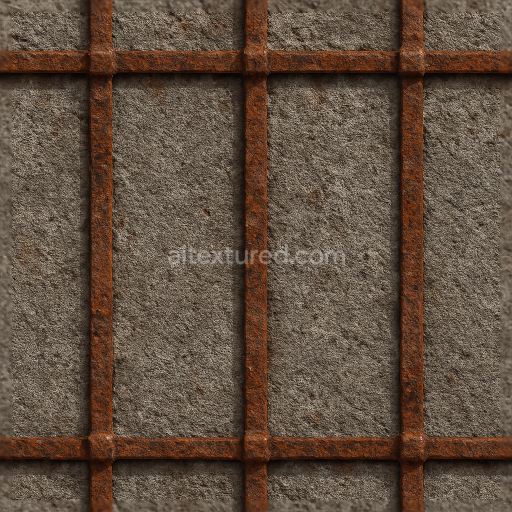
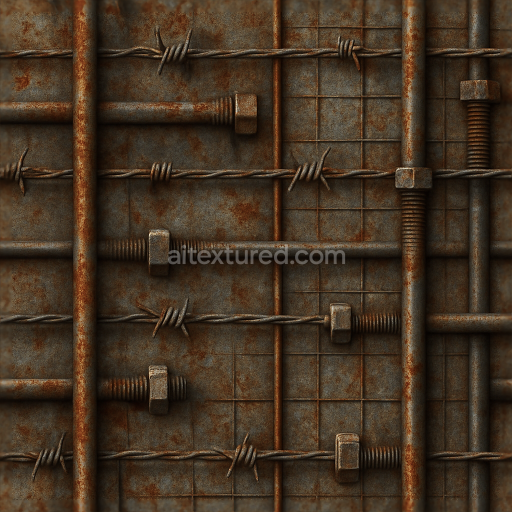
This seamless 3D texture presents a detailed wire mesh fence constructed primarily from galvanized steel, captured in an ultra-high 8K resolution for exceptional clarity and realism. The geometric form is defined by a repetitive grid pattern of interwoven metal wires, creating a fine mesh structure that showcases the characteristic hexagonal or square apertures typical of industrial fencing. Each wire strand exhibits subtle variations in thickness and curvature, reflecting the manufacturing irregularities and mechanical tension inherent in metal mesh production. The galvanized coating, applied as a protective zinc layer on the steel substrate, imparts a muted silver-gray tone with occasional patches of surface oxidation, contributing to the authentic aged appearance.
The base material consists of steel wire rods serving as the structural substrate, overlaid with zinc galvanization acting as a corrosion-resistant binder. Over time, environmental exposure promotes localized rust formation, visible as reddish-brown patches and streaks that break the uniformity of the metallic surface. These rust details introduce micro-roughness and color shifts ranging from warm orange to deep brown, enhancing the visual complexity. The surface finish combines the inherent roughness of galvanized metal with areas exhibiting mild oxidation and pitting, resulting in subtle variations in reflectivity and surface normal direction. This texture effectively translates these physical properties into PBR channels: the BaseColor map captures the nuanced interplay of zinc gray and rust hues; the Normal map encodes the mesh’s wire contours and small-scale corrosion relief; the Roughness map varies to simulate the contrast between smoother galvanized areas and rougher rusted patches; the Metallic channel remains high to reflect the steel’s conductive nature; Ambient Occlusion enhances depth in wire intersections; and the Height map subtly defines wire elevation and rust-induced surface irregularities.
Designed for seamless tiling, this texture integrates flawlessly across large surfaces without visible borders or repetition artifacts, making it ideal for 3D environments requiring continuous fencing coverage. Its PBR setup is optimized for real-time engines such as Unreal Engine and Unity, as well as offline renderers like Blender’s Cycles and Eevee, ensuring consistent material behavior under diverse lighting conditions. The neutral lighting used during capture preserves the true color fidelity of galvanized metal and rust, allowing artists to adapt the texture freely to various scene illumination setups.
For best results, it is advisable to adjust the UV scale to balance the mesh pattern’s visibility according to scene context—smaller scales emphasize fine detail for close-up shots, while larger scales suit distant views. Additionally, tuning the roughness map can enhance or soften the perceived weathering effect, and blending height or parallax maps with normal maps can add convincing depth to the wire mesh edges and rust spots, improving realism in interactive applications. This texture offers a practical and physically accurate foundation for creating industrial or security fence materials with authentic aging and material complexity.
Import the texture maps into Blender with sRGB color space for albedo/base color and Non-Color for normal, roughness, metallic, AO, height, and ORM maps. Connect normal maps through a Normal Map node, then adjust UV scale with a Mapping node so the material repeats naturally on your model.
For the full step-by-step setup, see How to Use Seamless Textures in Blender. Browse related material examples in wood, concrete, and metal.
Yes. This texture is designed as a seamless tileable PBR material, so it can repeat across large surfaces without visible borders.
Use the download controls on this page: they expose the available PNG, WEBP or engine ZIP choices and supported resolutions for this asset.
Use the engine ZIP choices to package compatible source maps for Blender, Unreal Engine or Unity, then verify the imported material in the target application.
Commercial-use permission is not verified for this record. Confirm the original source and license before production use.
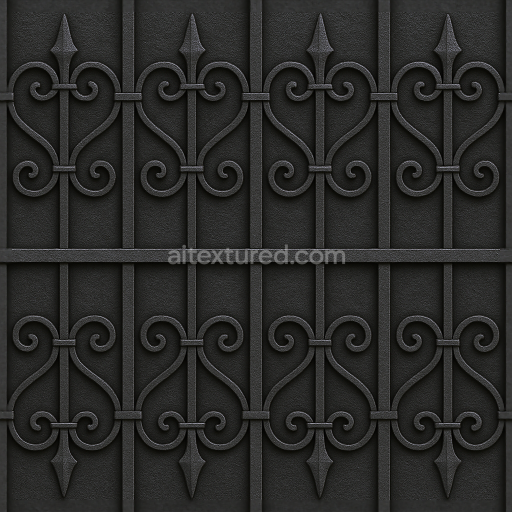
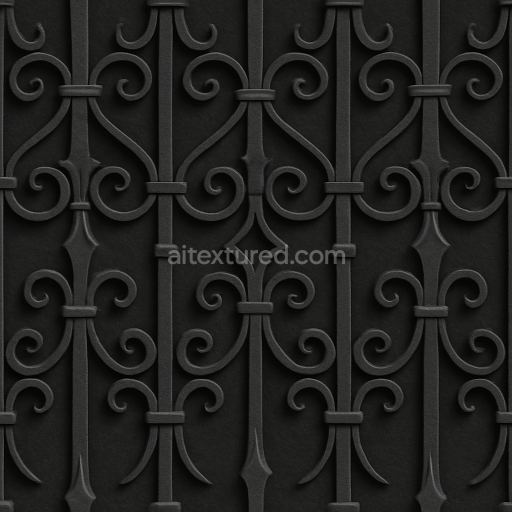
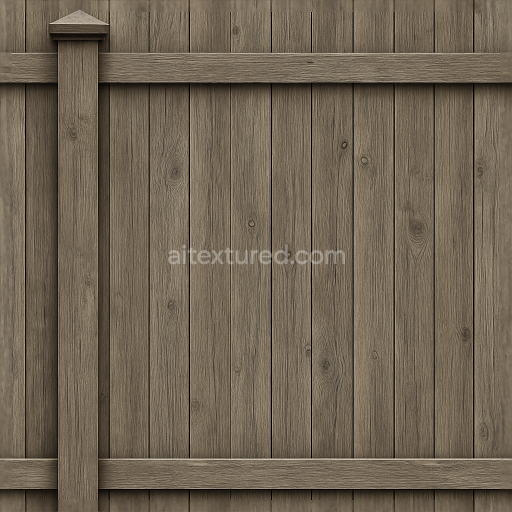
Generate maps from existing images, preview materials, convert channels, and package compatible inputs for Blender, Unity, and Unreal Engine.
Choose a verified workflow for generating maps, previewing tiling, converting channels, or starting from the texture catalog.
Derive Normal, Roughness, AO, Metallic, Height and optional ORM maps from one or more source images, then review the results.
Instant WebGL viewer: inspect materials on a sphere, plane, and cube. Check tiling and lighting in real time.
Re-packages maps per engine: Unreal (BaseColor + ORM), Unity (Mask/MetallicSmoothness), Blender (separate channels).
PNG ↔ JPG ↔ SVG: fast convert, SVG rasterize, embed/trace options, quality & background controls.