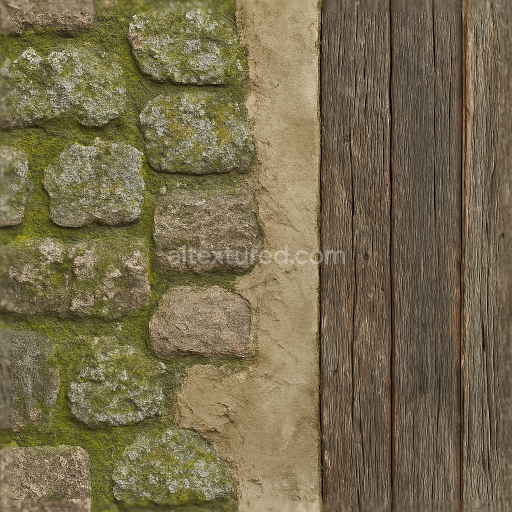
Seamless 8K 3D Texture PBR Stone Wall Fence With Moss Covered And Lichen Growth On Plaste…
Seamless texture (tileable) · PNG, WEBP, PBR ZIP.
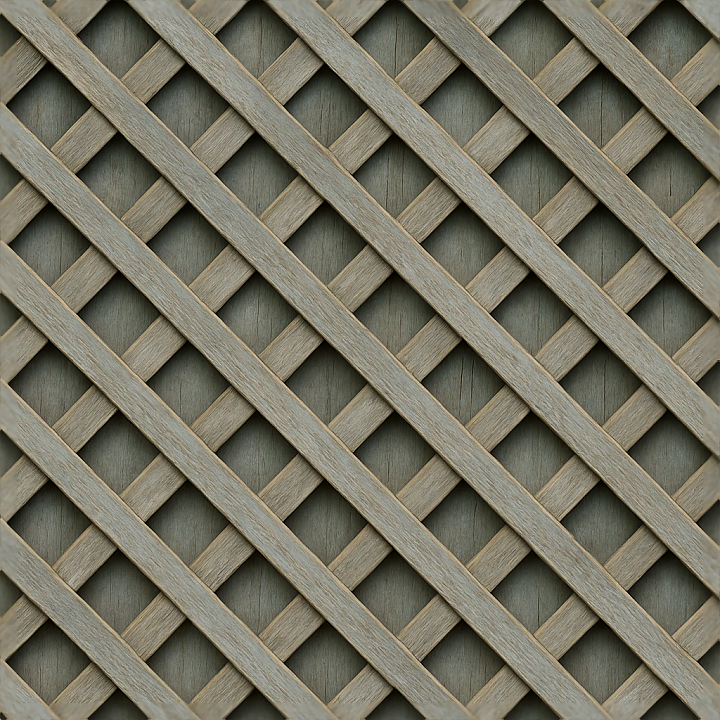
| ID | seamless-3d-texture-pbr-8k-lattice-fence-with-painted-wood-and-faded-paint-surface |
|---|---|
| Category | Fences |
| Formats | PNG, WEBP, PBR ZIP |
| Size | 1k (1024x1024px), 2k (2048x2048px), 4k (4096x4096px), 8k (8192x8192px) |
| Tileable | Yes |
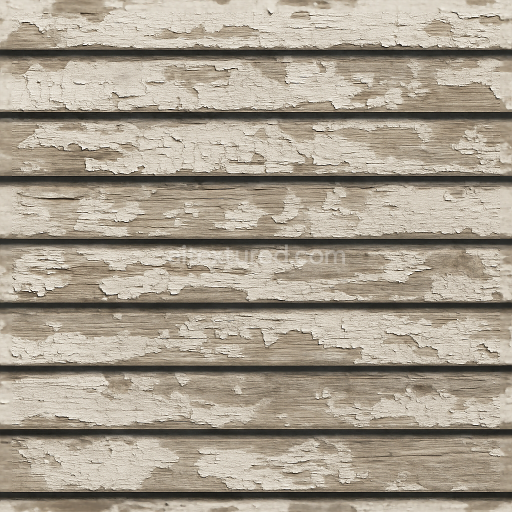
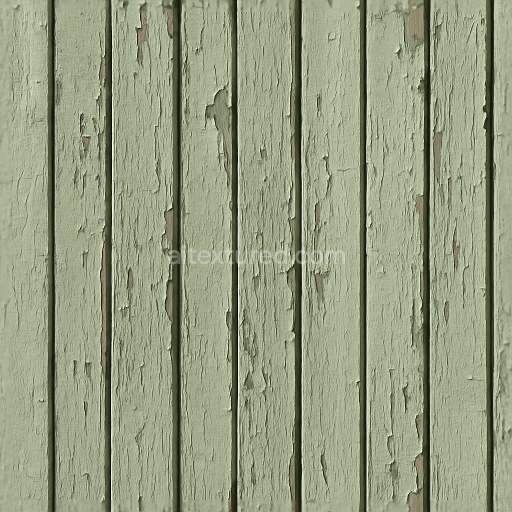
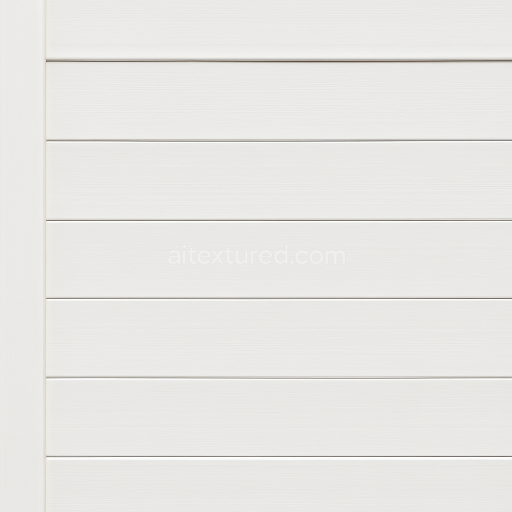
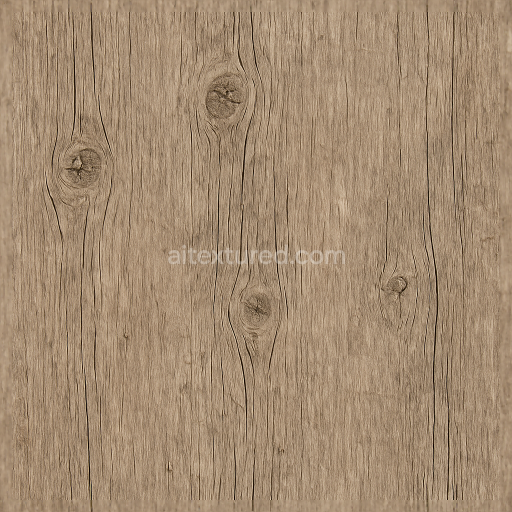
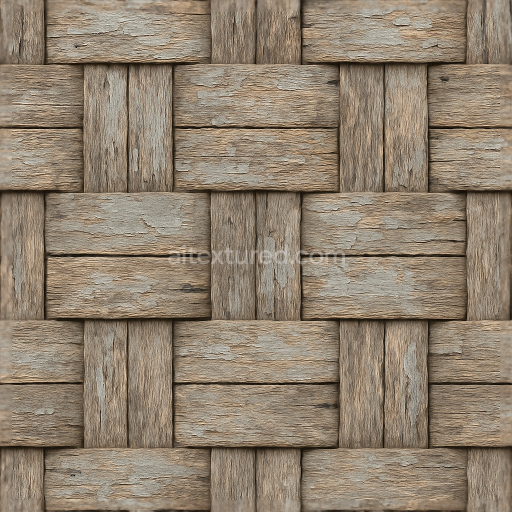
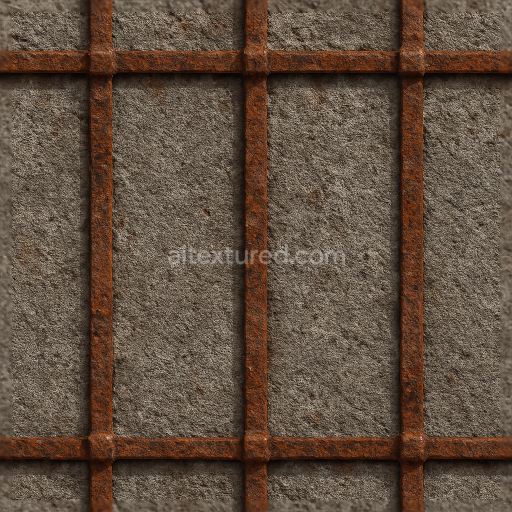
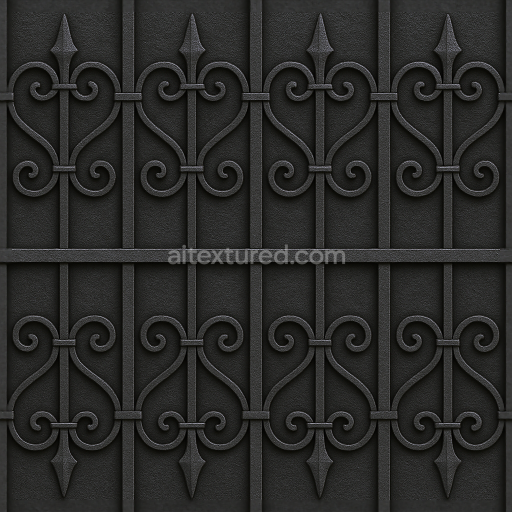
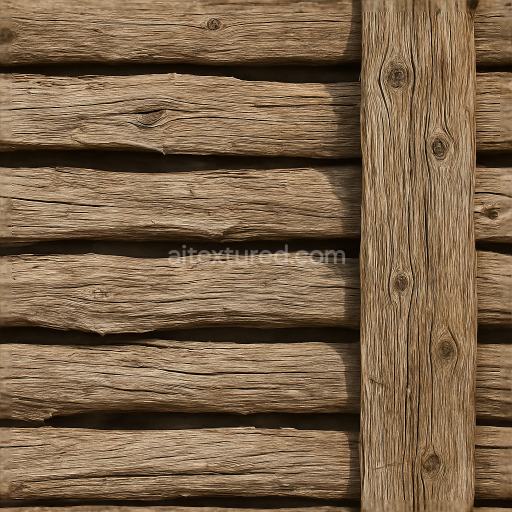
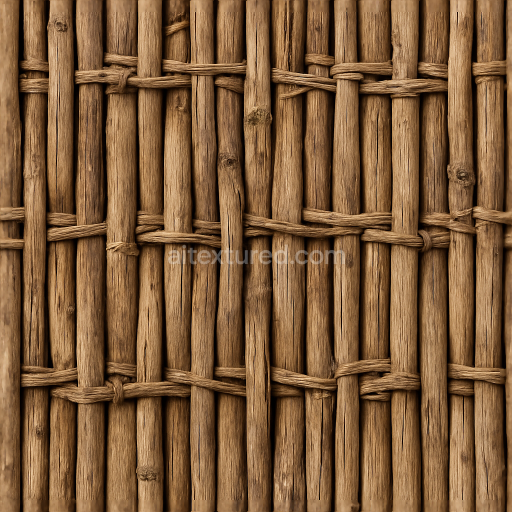
This seamless 8K PBR texture represents a finely detailed lattice fence crafted from painted wood, showcasing a classic crisscross pattern formed by slender, intersecting wooden slats. The base material is natural wood, characterized by its fibrous grain and slight surface irregularities, reflecting typical outdoor aging and weather exposure. The painted surface layer exhibits subtle fading and gentle peeling, revealing underlying wood tones beneath thin, worn paint. This combination of materials and form provides an authentic rustic appearance, capturing the tactile complexity of a garden lattice fence aged by sun, rain, and wind.
The wood substrate displays a moderately porous structure with visible grain patterns and occasional knots, contributing to the tactile roughness and natural variation. The paint layer acts as a semi-opaque binder, likely a weather-resistant acrylic or alkyd-based coating, which has partially worn away due to UV degradation and moisture exposure. Pigments in the paint manifest as muted pastel hues that have softened over time, with color variations mapped precisely in the BaseColor channel. The Normal map encodes the crisp lattice geometry, including fine wood grain and the subtle undulations of chipped paint. Roughness maps highlight the contrast between smoother painted surfaces and exposed, rougher wood, while the Ambient Occlusion channel enhances depth perception in the lattice intersections and recesses.
The texture’s Height (Displacement) map captures the low-relief surface topology of the intersecting slats and weathered paint layers, enabling realistic shadowing and micro-geometry effects when used with parallax or tessellation shaders. The Metallic channel is kept minimal or zero, consistent with non-metallic wood and paint materials. This detailed layering and accurate PBR channel setup ensure photorealistic renderings under various lighting conditions in 3D applications. The seamless tile design allows for large-scale surface coverage without visible repetition artifacts, making it suitable for both close-up views and distant fence modeling.
Optimized for use in Blender, Unreal Engine, and Unity, this high-resolution 8K texture supports detailed visual fidelity and efficient shader workflows. For practical application, adjusting UV scale can help maintain the lattice’s proportional appearance relative to the scene, while fine-tuning roughness values allows control over the surface glossiness to simulate varying paint wear. When integrating the texture, blending Height and Normal maps can enhance depth cues and surface realism, particularly in interactive or real-time environments.
Import the texture maps into Blender with sRGB color space for albedo/base color and Non-Color for normal, roughness, metallic, AO, height, and ORM maps. Connect normal maps through a Normal Map node, then adjust UV scale with a Mapping node so the material repeats naturally on your model.
For the full step-by-step setup, see How to Use Seamless Textures in Blender. Browse related material examples in wood, concrete, and metal.
Yes. This texture is designed as a seamless tileable PBR material, so it can repeat across large surfaces without visible borders.
Use the download controls on this page: they expose the available PNG, WEBP or engine ZIP choices and supported resolutions for this asset.
Use the engine ZIP choices to package compatible source maps for Blender, Unreal Engine or Unity, then verify the imported material in the target application.
Commercial-use permission is not verified for this record. Confirm the original source and license before production use.
Generate maps from existing images, preview materials, convert channels, and package compatible inputs for Blender, Unity, and Unreal Engine.
Choose a verified workflow for generating maps, previewing tiling, converting channels, or starting from the texture catalog.
Derive Normal, Roughness, AO, Metallic, Height and optional ORM maps from one or more source images, then review the results.
Instant WebGL viewer: inspect materials on a sphere, plane, and cube. Check tiling and lighting in real time.
Re-packages maps per engine: Unreal (BaseColor + ORM), Unity (Mask/MetallicSmoothness), Blender (separate channels).
PNG ↔ JPG ↔ SVG: fast convert, SVG rasterize, embed/trace options, quality & background controls.