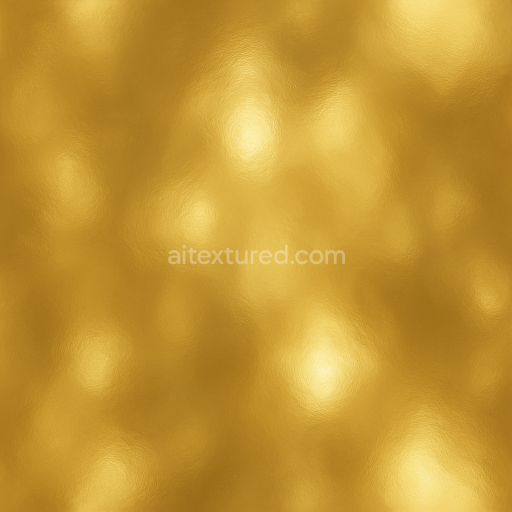
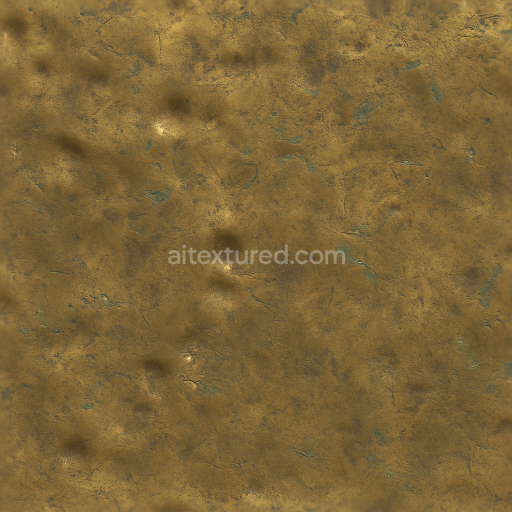
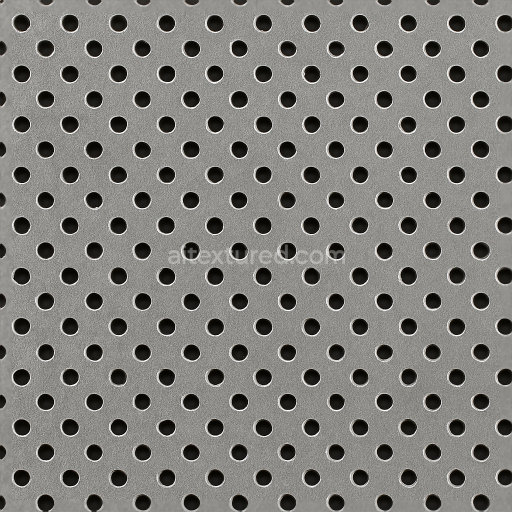
Seamless Shiny Metal 3D Texture PBR 8K Gold Plating With Metal Shine And Metal Reflections
Seamless texture (tileable) · PNG, WEBP, PBR ZIP.
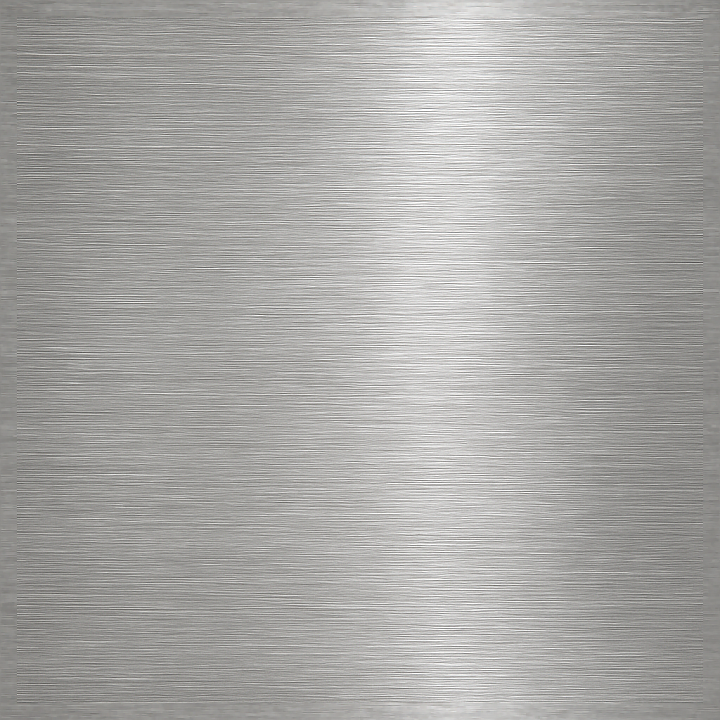
| ID | seamless-shiny-metal-3d-texture-pbr-8k-brushed-metal-surface-with-metal-grooves-and-metal-polishing-details |
|---|---|
| Category | Shiny metal |
| Formats | PNG, WEBP, PBR ZIP |
| Size | 1k (1024x1024px), 2k (2048x2048px), 4k (4096x4096px), 8k (8192x8192px) |
| Tileable | Yes |
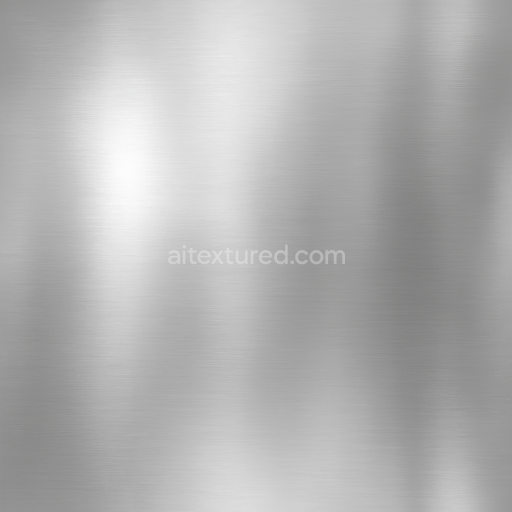
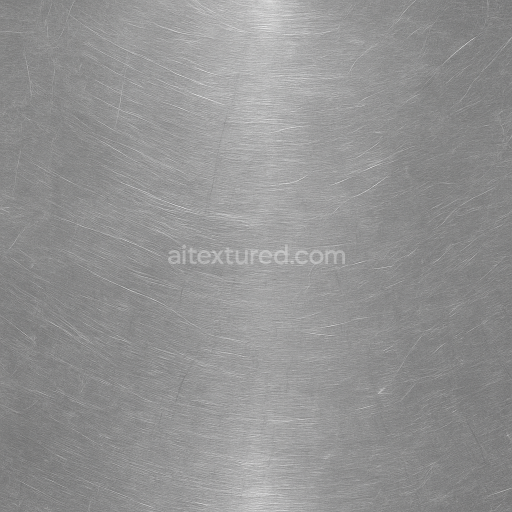
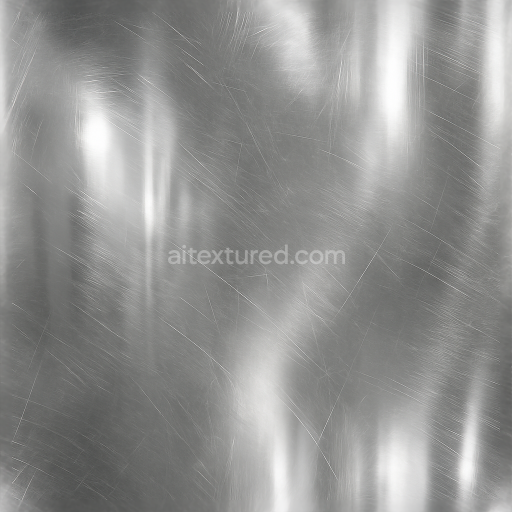
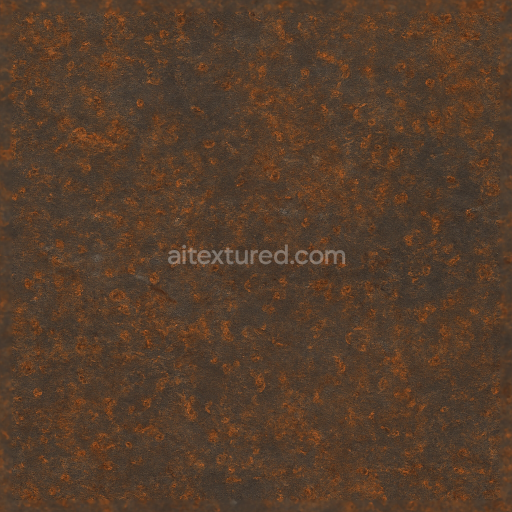
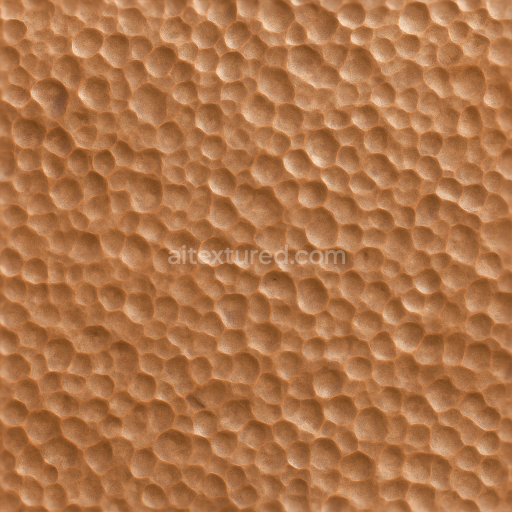
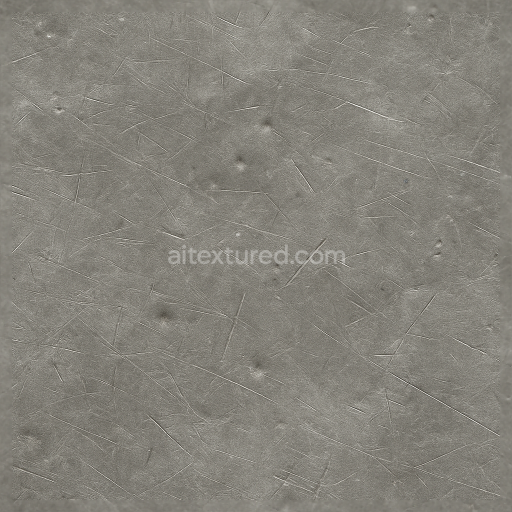
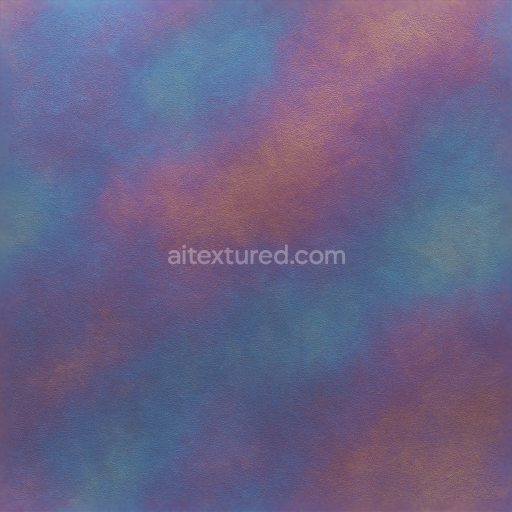
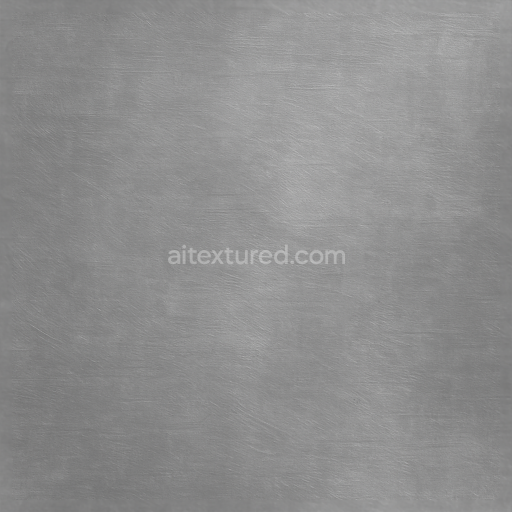
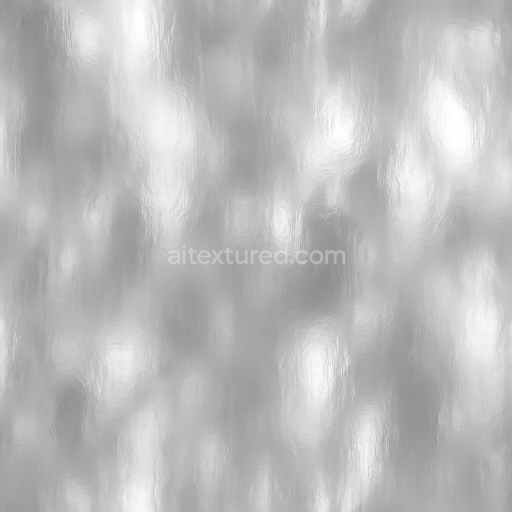
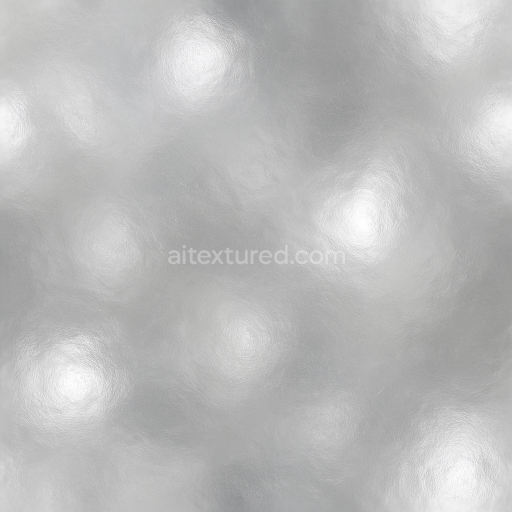
This seamless 8K texture features a finely brushed metal surface characterized by parallel metal grooves that create a subtle linear pattern across the material. The base substrate appears to be a high-grade stainless steel alloy, chosen for its durability and resistance to corrosion. This metal is composed primarily of iron with chromium and nickel additives, providing a neutral silver-gray coloration with cool undertones. The surface has undergone a mechanical brushing process that produces micro-abrasions and directional grain, which break up light reflections to reduce glare while emphasizing metal highlights and polished ridges along the grooves.
The texture’s composition reflects a layered structure where the polished metal base is overlaid with thin, controlled abrasions that simulate realistic wear and tear without compromising the integrity of the surface. These abrasions add micro-roughness variations that are critical for the roughness and normal maps in PBR workflows, giving the metal its characteristic tactile quality. The metal polishing details are visible as subtle specular highlights, enhancing the metallic shine and creating depth through light scattering on the uneven brushed surface. The texture’s ambient occlusion channel effectively accentuates the recessed grooves, adding shadows that increase the perception of dimensionality and realism.
In terms of PBR channels, the BaseColor (Albedo) map captures the cool, metallic silver tone without diffuse coloration, reflecting the inherent color of polished stainless steel. The Normal map encodes the fine grooves and abrasion patterns, translating the brushed finish into detailed surface relief that reacts accurately to lighting. The Roughness map varies from low values on polished ridges to higher values within the scratched grooves, balancing shine and matte areas. The Metallic channel fully expresses the metal’s conductive nature, maintaining a consistent value to reflect true metal behavior. Height or displacement maps provide subtle parallax effects on the grooves, enhancing the tactile quality without excessive geometry. The Ambient Occlusion map deepens shadowed areas in the grooves and polishing crevices, reinforcing contrast and depth.
This texture is optimized for seamless tiling, allowing it to cover large surfaces without visible repetition, and its ultra-high 8K resolution ensures crisp detail when viewed up close. It is fully compatible with major 3D rendering engines such as Blender, Unreal Engine, and Unity, supporting physically based rendering workflows with accurate material representation. For practical use, adjusting the UV scale to slightly enlarge the groove pattern can improve realism on smaller objects, while fine-tuning the roughness map intensity allows for control over the balance between shine and abrasion. Additionally, blending height and normal maps carefully can prevent harsh shadows and maintain a smooth transition across curved surfaces.
Import the texture maps into Blender with sRGB color space for albedo/base color and Non-Color for normal, roughness, metallic, AO, height, and ORM maps. Connect normal maps through a Normal Map node, then adjust UV scale with a Mapping node so the material repeats naturally on your model.
For the full step-by-step setup, see How to Use Seamless Textures in Blender. Browse related material examples in wood, concrete, and metal.
Yes. This texture is designed as a seamless tileable PBR material, so it can repeat across large surfaces without visible borders.
Use the download controls on this page: they expose the available PNG, WEBP or engine ZIP choices and supported resolutions for this asset.
Use the engine ZIP choices to package compatible source maps for Blender, Unreal Engine or Unity, then verify the imported material in the target application.
Commercial-use permission is not verified for this record. Confirm the original source and license before production use.
Generate maps from existing images, preview materials, convert channels, and package compatible inputs for Blender, Unity, and Unreal Engine.
Choose a verified workflow for generating maps, previewing tiling, converting channels, or starting from the texture catalog.
Derive Normal, Roughness, AO, Metallic, Height and optional ORM maps from one or more source images, then review the results.
Instant WebGL viewer: inspect materials on a sphere, plane, and cube. Check tiling and lighting in real time.
Re-packages maps per engine: Unreal (BaseColor + ORM), Unity (Mask/MetallicSmoothness), Blender (separate channels).
PNG ↔ JPG ↔ SVG: fast convert, SVG rasterize, embed/trace options, quality & background controls.