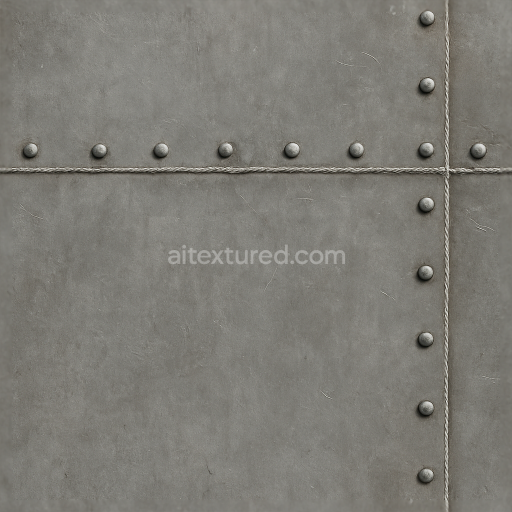
Seamless Shiny Metal 3D Texture PBR 8K Industrial Metal Surface With Metal Welds And Meta…
Seamless texture (tileable) · PNG, WEBP, PBR ZIP.
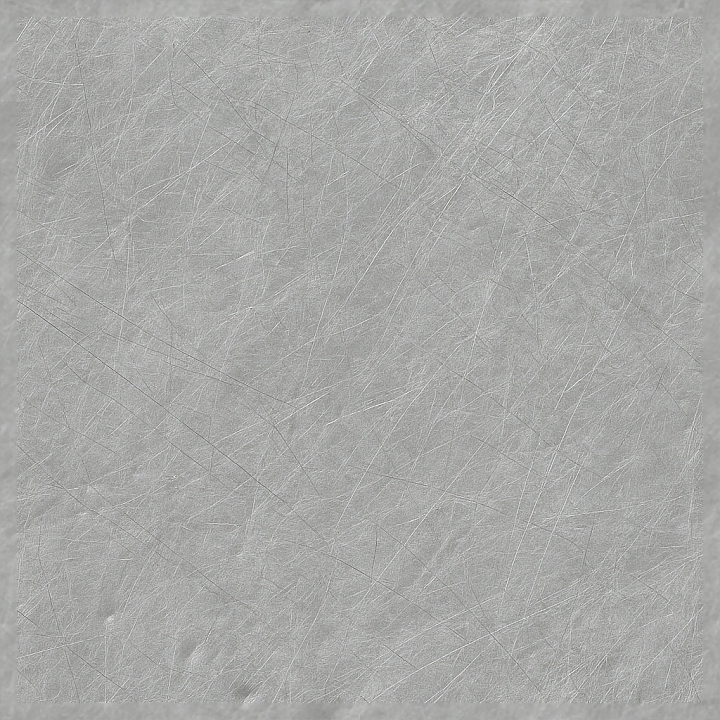
| ID | seamless-shiny-metal-3d-texture-pbr-8k-scratched-aluminum-surface-with-metal-scratches-and-metal-dents |
|---|---|
| Category | Shiny metal |
| Formats | PNG, WEBP, PBR ZIP |
| Size | 1k (1024x1024px), 2k (2048x2048px), 4k (4096x4096px), 8k (8192x8192px) |
| Tileable | Yes |
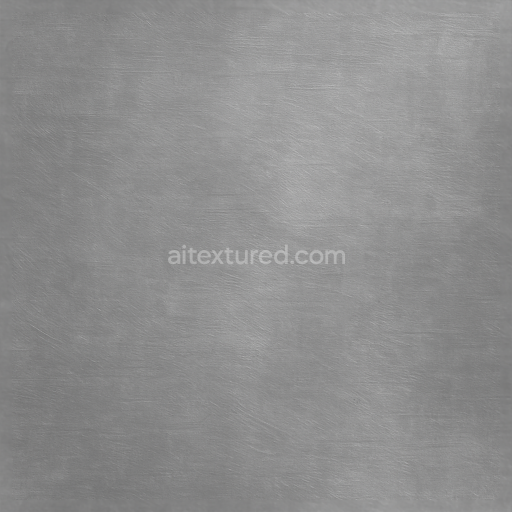
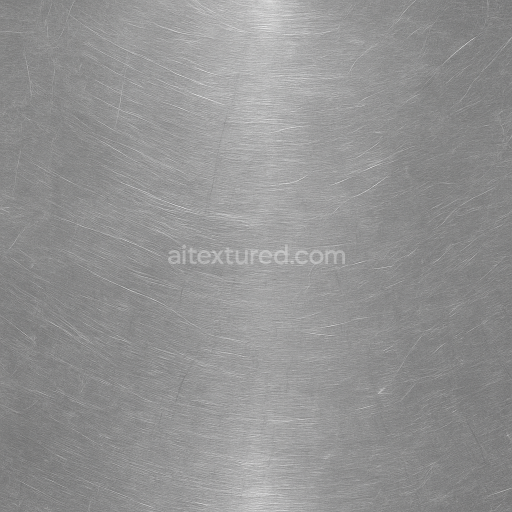
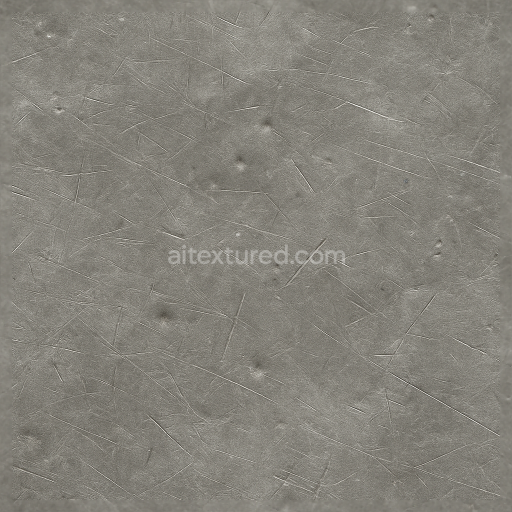
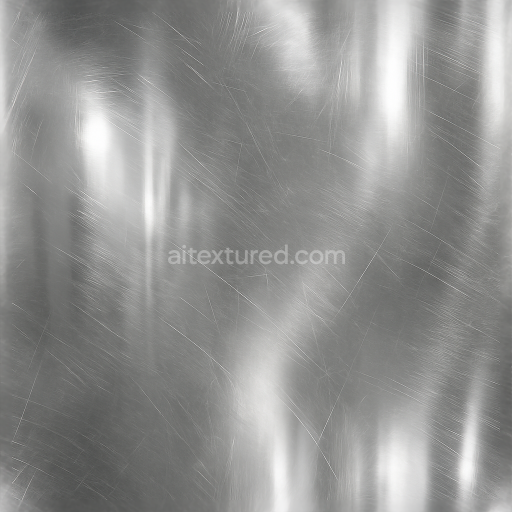
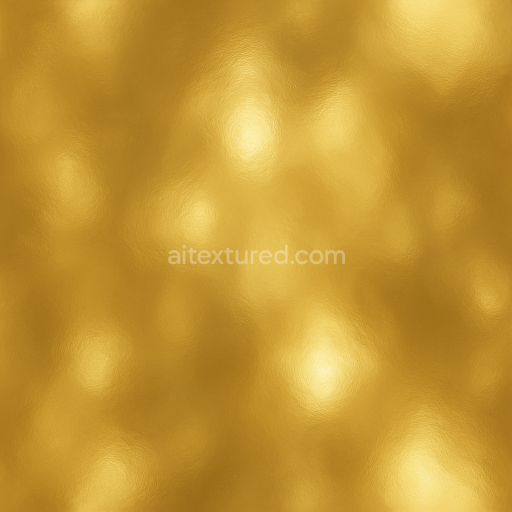
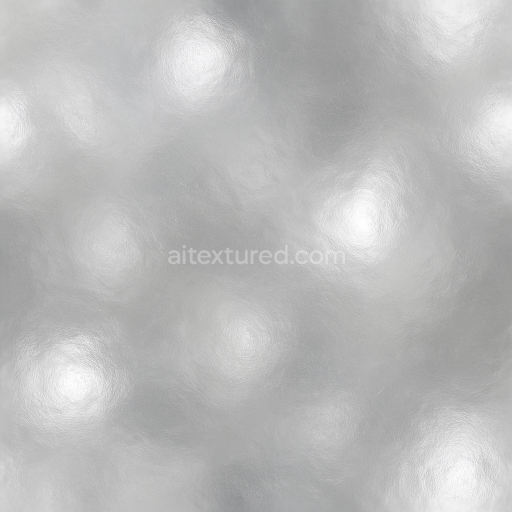
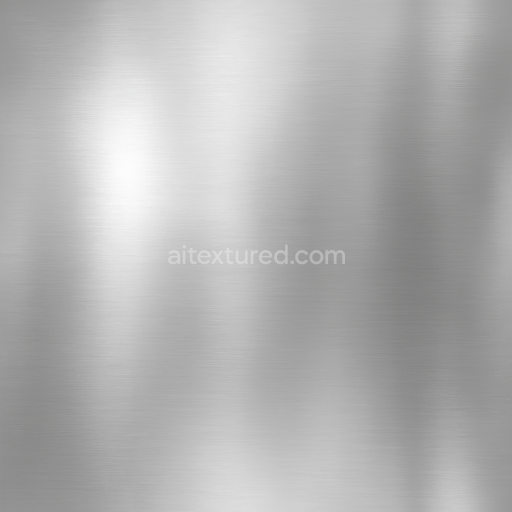
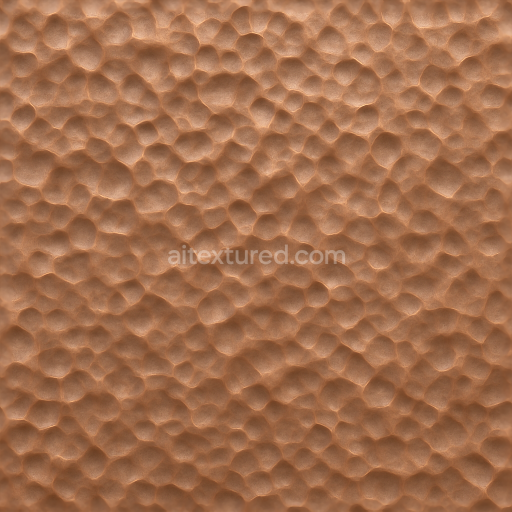
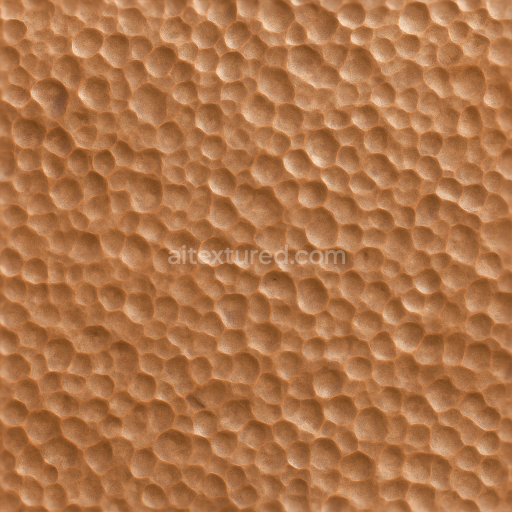
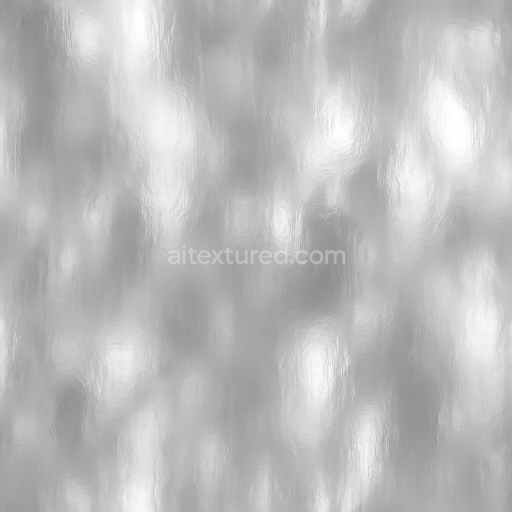
This seamless shiny metal texture presents a detailed representation of scratched aluminum, capturing the intricate interplay between the metal’s underlying structure and surface wear. The base material is aluminum, a lightweight yet durable metal alloy known for its silvery-gray hue and excellent corrosion resistance. The texture reveals a flat, continuous sheet form typical of industrial aluminum panels or machine casings. The surface exhibits numerous fine metal scratches and occasional dents, indicative of mechanical abrasion and impact damage over time. These imperfections break the uniformity of the metal, lending authenticity to the texture by simulating real-world usage and environmental exposure.
At a microscopic level, the aluminum substrate is depicted as a relatively dense metal with a smooth, reflective finish. The texture simulates a polished or lightly brushed surface where subtle directional grain patterns are still visible beneath the wear marks. The metal polishing effect is achieved through carefully balanced roughness and specular highlights, creating areas where light reflects sharply contrasted with rougher, matte regions caused by scratches and dents. The absence of significant porosity reflects aluminum’s non-porous nature, but the surface abrasion introduces localized variations in microgeometry, captured in the normal and height maps. The color palette remains faithful to natural aluminum, featuring shades of cool gray with slight metallic blue undertones, contributing to a realistic BaseColor (Albedo) channel.
Technically, this PBR 8K texture package includes the essential maps for physically based rendering workflows: a high-detail normal map records the fine scratches and dent depths; the roughness map varies to simulate polished versus abraded zones; the metallic map is consistently high, reflecting aluminum’s metal properties; ambient occlusion enhances the subtle shadows around dents and scratches; and height/displacement maps provide additional surface relief for parallax or tessellation effects. The texture’s extreme resolution ensures crisp detail even on close-up renders, making it highly suitable for use in Blender, Unreal Engine, and Unity projects requiring realistic metal surfaces.
For practical application, it is advisable to adjust the UV scale to balance the visible size of scratches and dents according to the model’s dimensions—too large can look unrealistic, too small may lose detail. Additionally, fine-tuning the roughness map can help achieve the desired balance between shininess and abrasion, while blending height and normal maps can enhance the perception of depth without excessive geometric complexity. This texture is ideal for industrial machinery, vehicle panels, metallic architectural elements, or any 3D asset requiring an authentic aluminum surface that conveys both strength and the passage of time through detailed wear patterns.
Import the texture maps into Blender with sRGB color space for albedo/base color and Non-Color for normal, roughness, metallic, AO, height, and ORM maps. Connect normal maps through a Normal Map node, then adjust UV scale with a Mapping node so the material repeats naturally on your model.
For the full step-by-step setup, see How to Use Seamless Textures in Blender. Browse related material examples in wood, concrete, and metal.
Yes. This texture is designed as a seamless tileable PBR material, so it can repeat across large surfaces without visible borders.
Use the download controls on this page: they expose the available PNG, WEBP or engine ZIP choices and supported resolutions for this asset.
Use the engine ZIP choices to package compatible source maps for Blender, Unreal Engine or Unity, then verify the imported material in the target application.
Commercial-use permission is not verified for this record. Confirm the original source and license before production use.
Generate maps from existing images, preview materials, convert channels, and package compatible inputs for Blender, Unity, and Unreal Engine.
Choose a verified workflow for generating maps, previewing tiling, converting channels, or starting from the texture catalog.
Derive Normal, Roughness, AO, Metallic, Height and optional ORM maps from one or more source images, then review the results.
Instant WebGL viewer: inspect materials on a sphere, plane, and cube. Check tiling and lighting in real time.
Re-packages maps per engine: Unreal (BaseColor + ORM), Unity (Mask/MetallicSmoothness), Blender (separate channels).
PNG ↔ JPG ↔ SVG: fast convert, SVG rasterize, embed/trace options, quality & background controls.