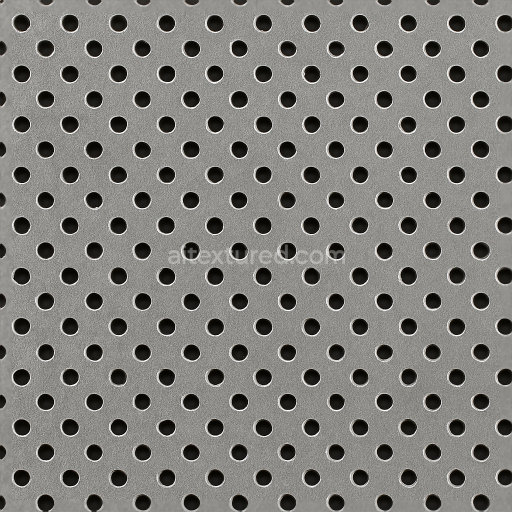
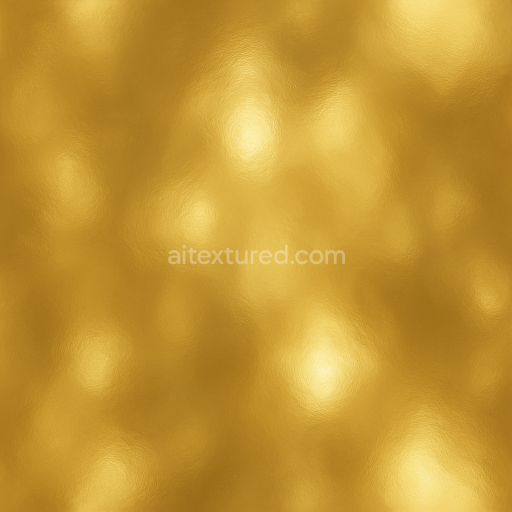
Seamless Shiny Metal 3D Texture PBR 8K Perforated Metal Surface With Metal Mesh And Metal…
Seamless texture (tileable) · PNG, WEBP, PBR ZIP.
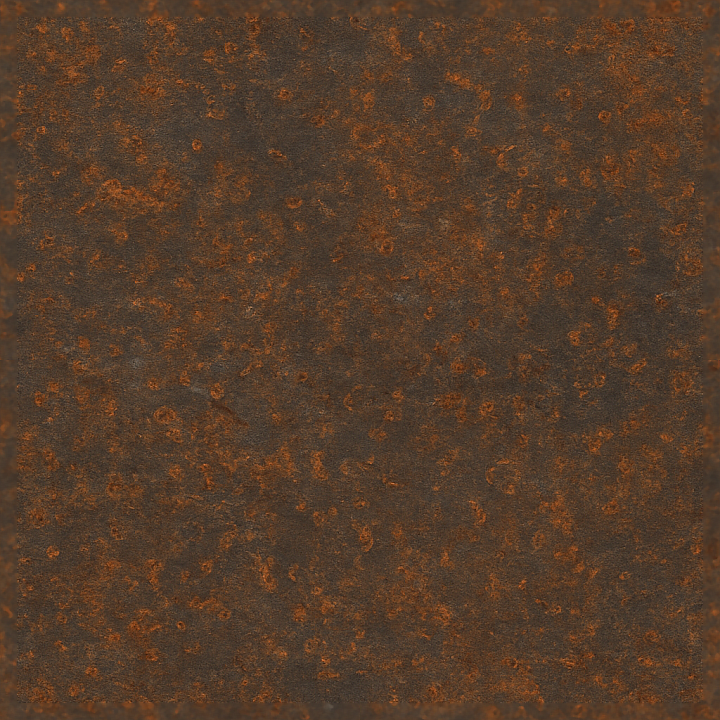
| ID | seamless-shiny-metal-3d-texture-pbr-8k-rusted-iron-surface-with-metal-rust-spots-and-metal-corrosion |
|---|---|
| Category | Shiny metal |
| Formats | PNG, WEBP, PBR ZIP |
| Size | 1k (1024x1024px), 2k (2048x2048px), 4k (4096x4096px), 8k (8192x8192px) |
| Tileable | Yes |
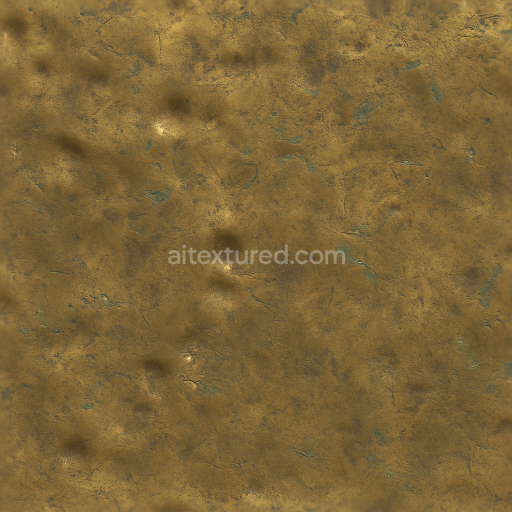
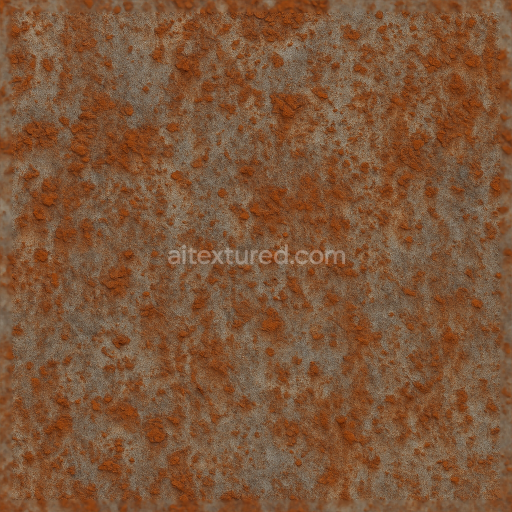
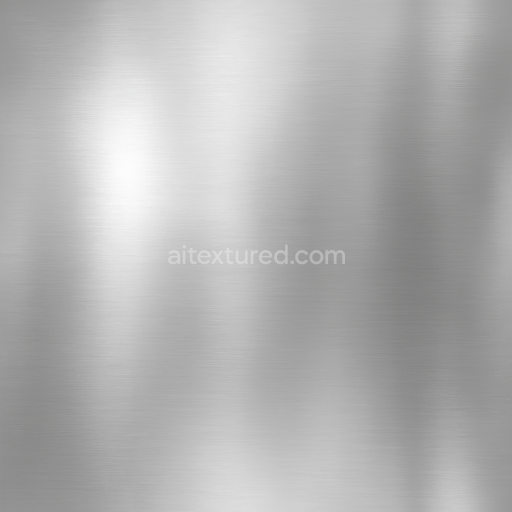
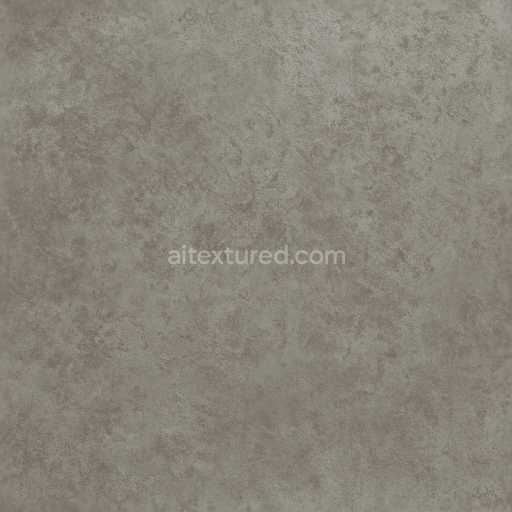
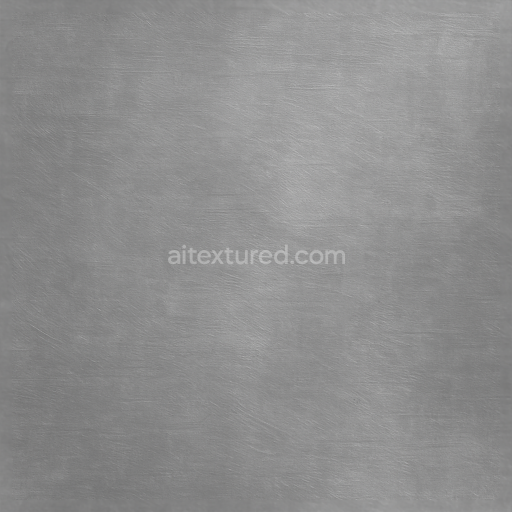
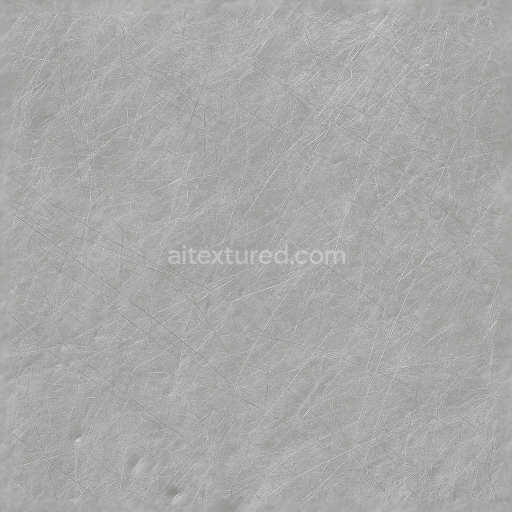
This seamless 8K PBR texture captures the intricate surface of rusted iron, characterized by a naturally corroded metal substrate that has undergone extensive oxidation and metal abrasion processes. The base material is solid iron, exhibiting a dense, coarse-grained crystalline structure typical of cast or forged iron alloys. Over time, exposure to moisture and oxygen initiates metal oxidation, resulting in a complex pattern of rust spots and corrosion patches that disrupt the otherwise smooth metal surface. These rust formations appear as porous, flaky oxides with varying thickness, creating realistic surface depth and tactile irregularities.
The geometric form of the texture is essentially flat with subtle undulations and pitting caused by metal degradation. The surface finish transitions from areas of polished, semi-reflective iron to heavily oxidized, matte rusted zones. This variation is visible through the PBR channels: the BaseColor (Albedo) map features a rich palette of reddish-browns and dark grays representing the oxidized iron and underlying metal, while the Normal and Height maps simulate the micro-roughness, pits, and raised corrosion deposits. The Roughness channel highlights the contrast between smooth metal and rough rust patches, guiding light scattering realistically. The Metallic map accurately defines the iron’s metallic properties, diminishing in corroded areas where rust behaves more like a non-metallic oxide, and the Ambient Occlusion enhances shadowing within crevices and corrosion pockets, adding depth and realism.
The texture’s composition includes iron as the primary substrate with corrosion products such as iron oxides and hydroxides forming the rust spots. The surface exhibits variable porosity due to weathering, with localized flaking and abrasion from environmental exposure. No binders or adhesives are involved, as the texture represents a natural metal finish altered by atmospheric conditions rather than a painted or treated surface. Colorants arise naturally from the iron oxidation states, producing warm orange and brown tones intermixed with cooler, darker areas of exposed metal and corrosion residues.
Optimized for use in Blender, Unreal Engine, and Unity, this high-resolution texture ensures detailed visualization of metal surfaces in both close-up and large-scale 3D models. When applying this texture, it is recommended to carefully adjust the UV scale to maintain the realistic grain and corrosion detail without repetition artifacts. Additionally, fine-tuning the Roughness map can help balance the reflective properties of the metal and rust areas, while blending height or parallax maps with normal maps enhances the perception of surface depth, especially on worn edges and rust flakes.
Import the texture maps into Blender with sRGB color space for albedo/base color and Non-Color for normal, roughness, metallic, AO, height, and ORM maps. Connect normal maps through a Normal Map node, then adjust UV scale with a Mapping node so the material repeats naturally on your model.
For the full step-by-step setup, see How to Use Seamless Textures in Blender. Browse related material examples in wood, concrete, and metal.
Yes. This texture is designed as a seamless tileable PBR material, so it can repeat across large surfaces without visible borders.
Use the download controls on this page: they expose the available PNG, WEBP or engine ZIP choices and supported resolutions for this asset.
Use the engine ZIP choices to package compatible source maps for Blender, Unreal Engine or Unity, then verify the imported material in the target application.
Commercial-use permission is not verified for this record. Confirm the original source and license before production use.
Generate maps from existing images, preview materials, convert channels, and package compatible inputs for Blender, Unity, and Unreal Engine.
Choose a verified workflow for generating maps, previewing tiling, converting channels, or starting from the texture catalog.
Derive Normal, Roughness, AO, Metallic, Height and optional ORM maps from one or more source images, then review the results.
Instant WebGL viewer: inspect materials on a sphere, plane, and cube. Check tiling and lighting in real time.
Re-packages maps per engine: Unreal (BaseColor + ORM), Unity (Mask/MetallicSmoothness), Blender (separate channels).
PNG ↔ JPG ↔ SVG: fast convert, SVG rasterize, embed/trace options, quality & background controls.