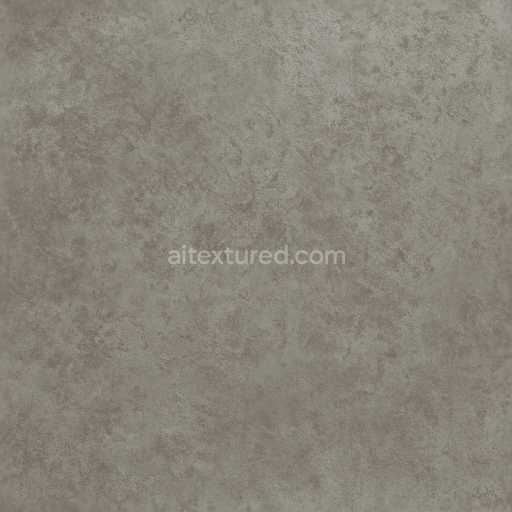
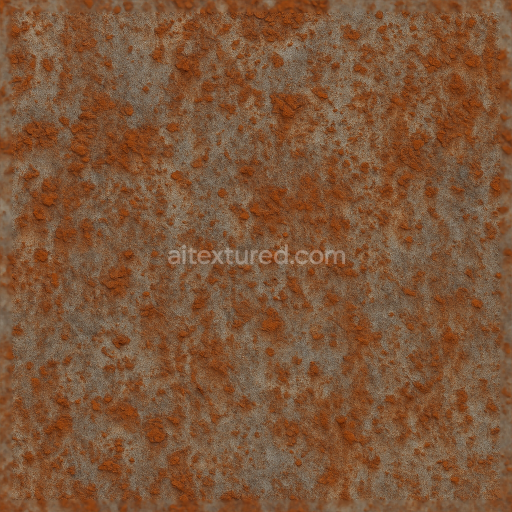
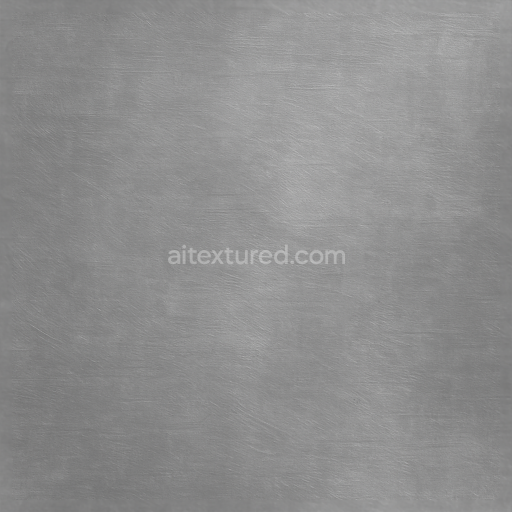
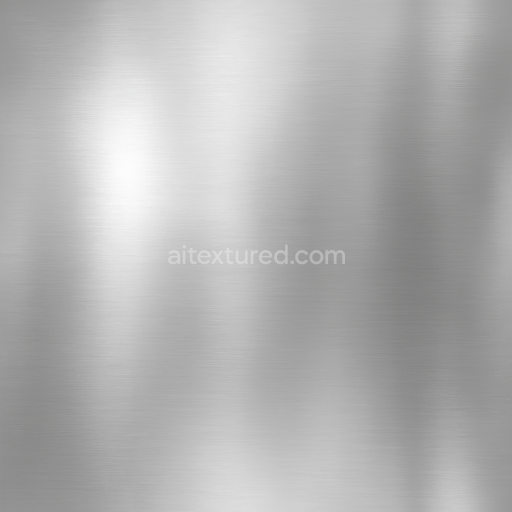
Seamless Shiny Metal 3D Texture PBR 8K Dull Nickel Surface With Metal Oxidation And Metal…
Seamless texture (tileable) · PNG, WEBP, PBR ZIP.
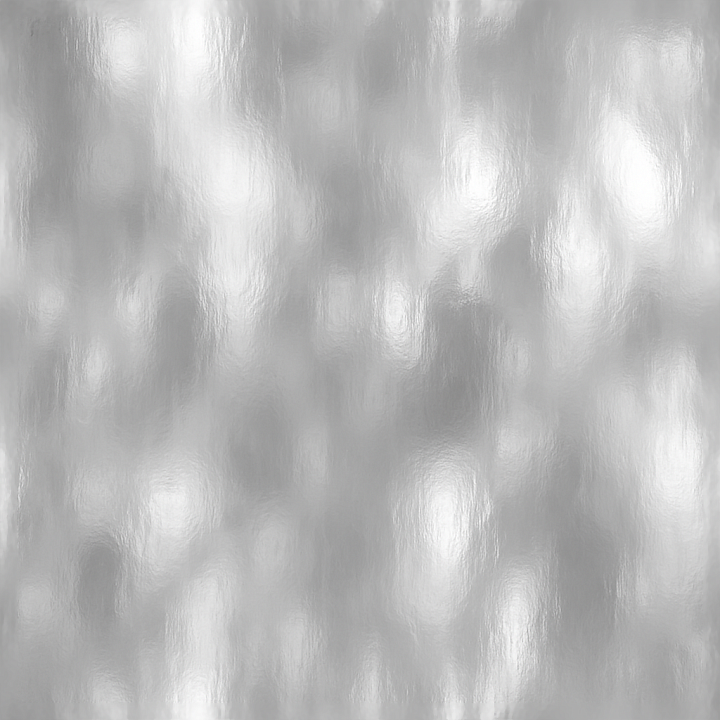
| ID | seamless-shiny-metal-3d-texture-pbr-8k-chrome-plating-with-metal-shine-and-metal-reflections |
|---|---|
| Category | Shiny metal |
| Formats | PNG, WEBP, PBR ZIP |
| Size | 1k (1024x1024px), 2k (2048x2048px), 4k (4096x4096px), 8k (8192x8192px) |
| Tileable | Yes |
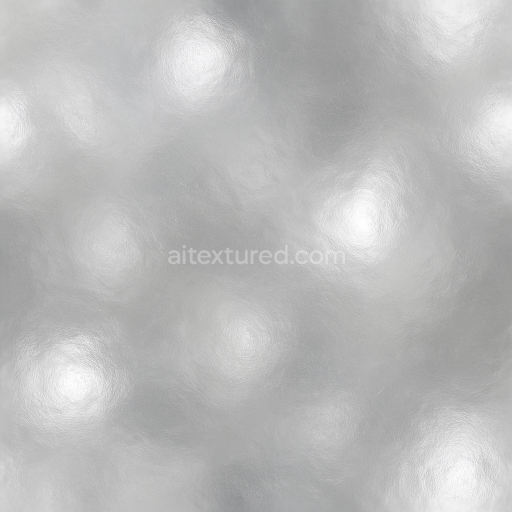
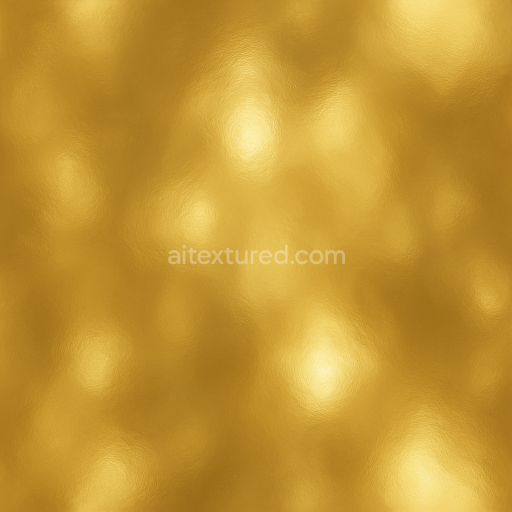
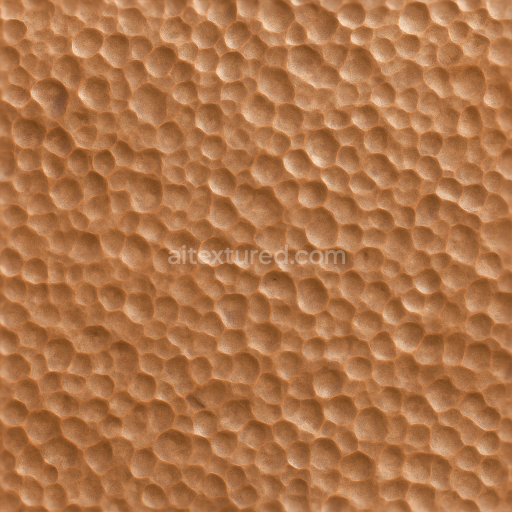
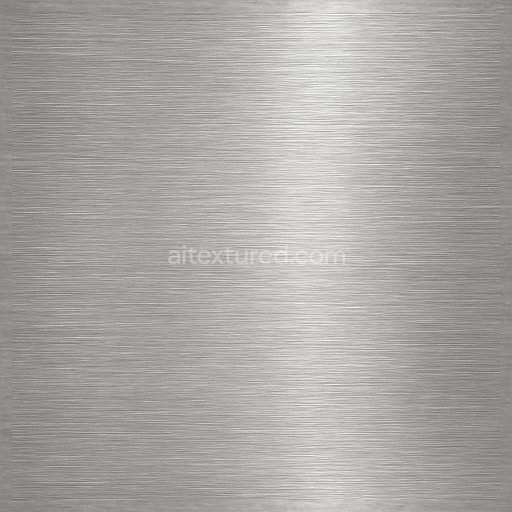
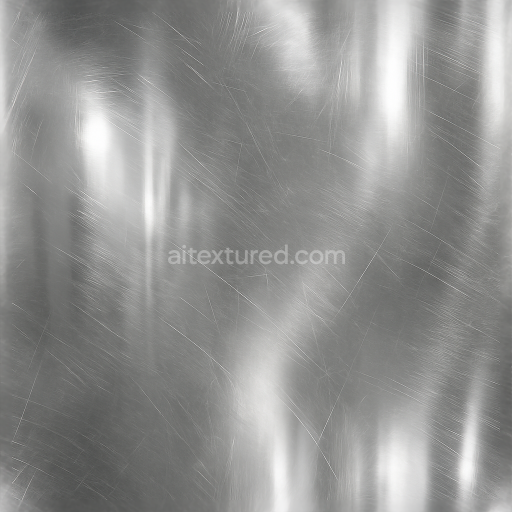
This seamless shiny metal 3D texture showcases a highly polished chrome plating surface, characterized by its flawless smoothness and intense metal shine. The base material is a dense metal substrate, typically steel or aluminum, which is electroplated with a thin layer of chromium to achieve its distinctive reflective qualities. This plating process results in a mirror-like finish with minimal surface imperfections, producing crisp and sharp metal reflections that respond dynamically to lighting. The texture captures this perfect surface integrity, replicating the continuous, unblemished geometric form of flat metal sheets commonly used in automotive trim, industrial fixtures, and high-end consumer products.
The composition of this chrome plating texture involves multiple layers: a solid metallic base providing structural strength, a finely controlled adhesive layer ensuring strong bonding of the chromium coating, and the ultra-smooth chrome layer itself, which acts both as a protective coating and the main reflective surface. The absence of aggregates or grain highlights the uniformity and homogeneity of the material, while the surface finish is impeccably polished rather than brushed or oxidized, resulting in a highly specular and glossy appearance. The colorants in this texture are minimal, relying on the natural silvery-white sheen of chrome enhanced by subtle metal highlights and reflections that capture environmental lighting and ambient occlusion effects realistically.
Within the Physically Based Rendering (PBR) workflow, this texture is carefully mapped across several channels to ensure photorealism and usability. The BaseColor (Albedo) channel contains the subtle silvery tones without diffuse color contamination, preserving the metallic look. The Normal map accentuates micro-surface detail, emphasizing the flawless smoothness while adding subtle depth for lighting interaction. Roughness is kept very low to simulate the polished chrome’s high gloss and sharp reflections, whereas the Metallic channel is set to maximum values to represent the pure metal nature. Ambient Occlusion maps add realistic shadowing in crevices and along edges, and the Height/Displacement maps provide subtle surface variations to prevent flatness in close-up renders.
Rendered at an 8K resolution, this texture offers exceptional detail and seamless tiling, suitable for large-scale applications without loss of fidelity. It is fully compatible and optimized for major 3D platforms such as Blender, Unreal Engine, and Unity, enabling artists and designers to integrate it effortlessly into automotive visualizations, architectural renders, or product designs requiring ultra-realistic chrome metal surfaces. For practical use, it is recommended to adjust the UV scale carefully to maintain the seamless effect without distortion and to fine-tune the roughness channel slightly depending on the lighting environment—reducing gloss for more diffuse reflections or increasing it for mirror-like surfaces. Additionally, blending height or normal maps in layered materials can enhance detail when combined with other metal coatings or weathering effects.
Import the texture maps into Blender with sRGB color space for albedo/base color and Non-Color for normal, roughness, metallic, AO, height, and ORM maps. Connect normal maps through a Normal Map node, then adjust UV scale with a Mapping node so the material repeats naturally on your model.
For the full step-by-step setup, see How to Use Seamless Textures in Blender. Browse related material examples in wood, concrete, and metal.
Yes. This texture is designed as a seamless tileable PBR material, so it can repeat across large surfaces without visible borders.
Use the download controls on this page: they expose the available PNG, WEBP or engine ZIP choices and supported resolutions for this asset.
Use the engine ZIP choices to package compatible source maps for Blender, Unreal Engine or Unity, then verify the imported material in the target application.
Commercial-use permission is not verified for this record. Confirm the original source and license before production use.
Generate maps from existing images, preview materials, convert channels, and package compatible inputs for Blender, Unity, and Unreal Engine.
Choose a verified workflow for generating maps, previewing tiling, converting channels, or starting from the texture catalog.
Derive Normal, Roughness, AO, Metallic, Height and optional ORM maps from one or more source images, then review the results.
Instant WebGL viewer: inspect materials on a sphere, plane, and cube. Check tiling and lighting in real time.
Re-packages maps per engine: Unreal (BaseColor + ORM), Unity (Mask/MetallicSmoothness), Blender (separate channels).
PNG ↔ JPG ↔ SVG: fast convert, SVG rasterize, embed/trace options, quality & background controls.