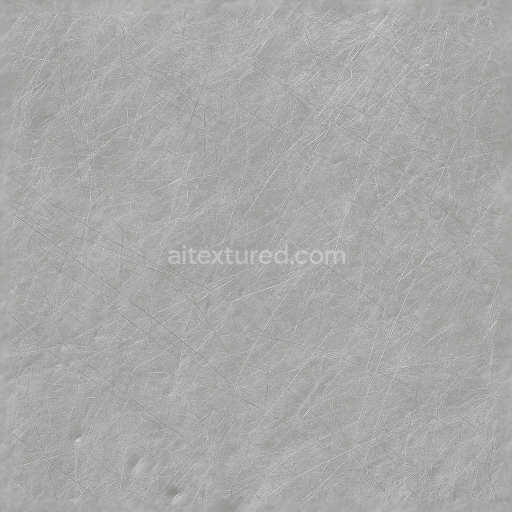
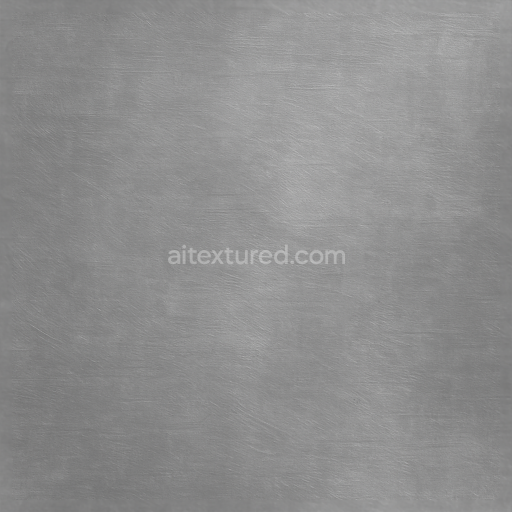
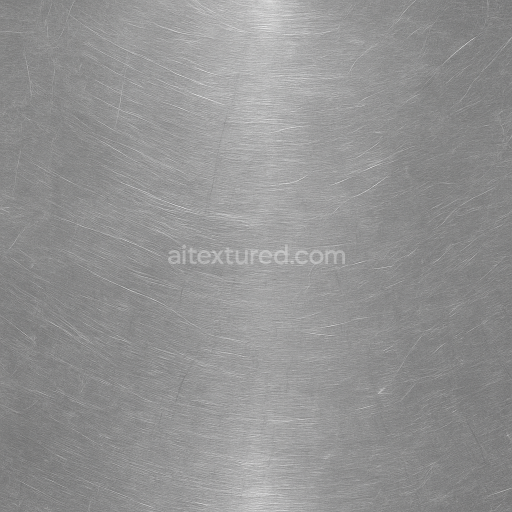
Seamless Shiny Metal 3D Texture PBR 8K Scratched Aluminum Surface With Metal Scratches An…
Seamless texture (tileable) · PNG, WEBP, PBR ZIP.
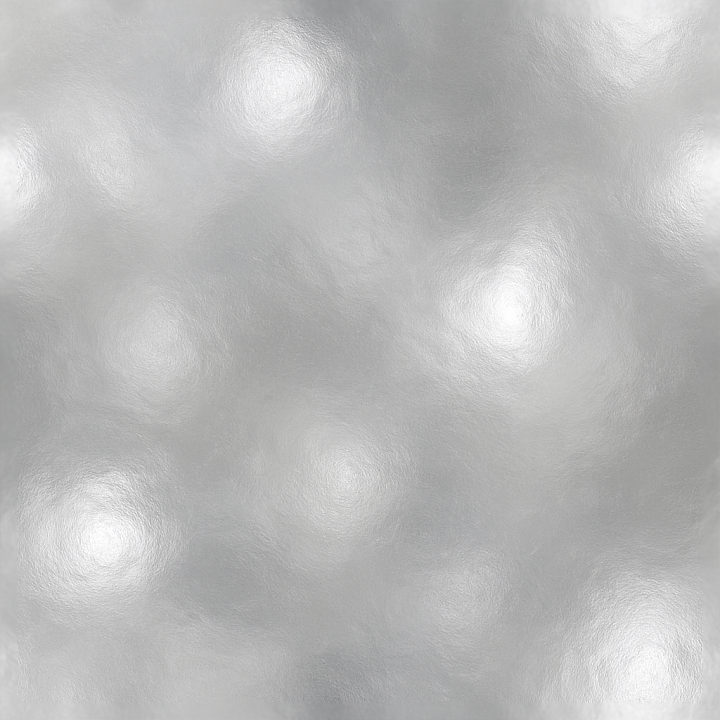
| ID | seamless-shiny-metal-3d-texture-pbr-8k-silver-plating-surface-with-metal-shine-and-metal-highlights |
|---|---|
| Category | Shiny metal |
| Formats | PNG, WEBP, PBR ZIP |
| Size | 1k (1024x1024px), 2k (2048x2048px), 4k (4096x4096px), 8k (8192x8192px) |
| Tileable | Yes |
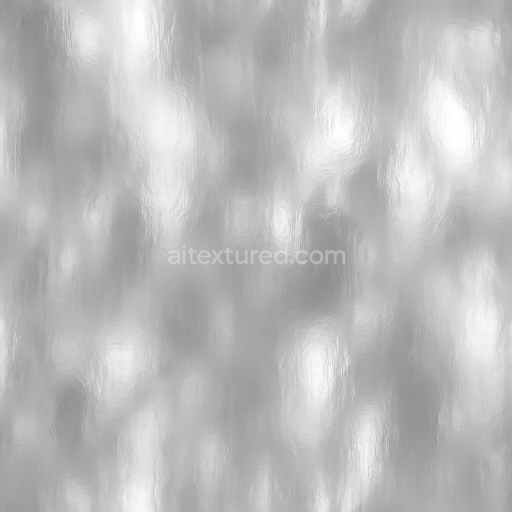
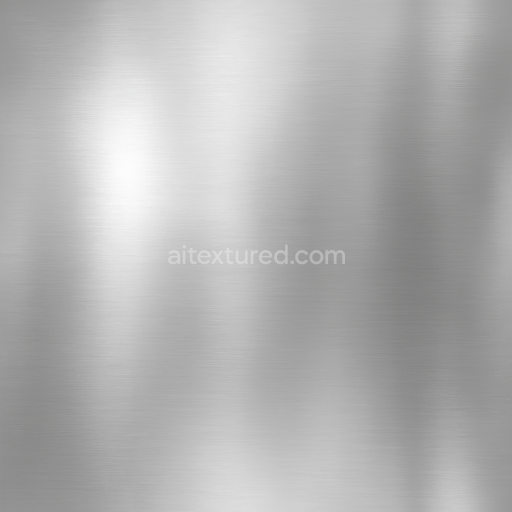
This seamless 8K texture simulates a highly refined silver plating surface characterized by its smooth, polished metal finish. The base material is a dense metal substrate, typically composed of a copper or nickel alloy, onto which a thin layer of pure silver is electroplated to achieve the characteristic silver coloration and enhanced reflectivity. The surface exhibits minimal porosity, resulting in a continuous, flawless appearance with a subtle interplay of light and shadow created by fine metal highlights and natural metal shine. The geometric form is uniformly planar with no distinct pattern, emphasizing the continuous, mirror-like quality of the silver plating without visible seams or surface irregularities.
The texture’s material composition reflects its PBR-ready design through multiple channels. The BaseColor (Albedo) channel captures the cool, neutral silver tone with slight variations to mimic microscopic surface imperfections. The Normal map encodes delicate surface undulations and subtle metallic grain, enhancing the perception of metal reflections and depth. Roughness values are low and consistent, ensuring a predominantly glossy finish that accurately reproduces light scattering on polished silver metal. The Metallic channel is set to maximum values, denoting a purely metallic surface, while the Ambient Occlusion map adds nuanced shadowing in crevices or minor surface features for increased realism. Height or Displacement maps are finely detailed to simulate the micro-texture of the plating, providing subtle parallax effects without compromising the seamless tileability of the texture.
Designed specifically for advanced rendering workflows, this texture integrates seamlessly with Blender, Unreal Engine, and Unity, maintaining fidelity at extreme close-ups due to its 8K resolution. Its high level of detail supports photorealistic visualization of luxury and decorative 3D models, such as jewelry, high-end electronics, or automotive trim. The texture’s seamless tiling capability allows it to cover large surfaces uniformly without visible borders or distortions, making it versatile for both small accent pieces and expansive metal panels.
For optimal results, it is advisable to carefully adjust the UV scale to match the real-world size of the silver plating surface, preventing unnatural repetition or stretching. Additionally, slight tuning of the roughness map can simulate varying degrees of surface wear or polishing, allowing for more customized appearances. When combining height or normal maps, blending should be subtle to avoid exaggerated surface artifacts, preserving the smooth, reflective quality inherent to polished silver metal surfaces.
Import the texture maps into Blender with sRGB color space for albedo/base color and Non-Color for normal, roughness, metallic, AO, height, and ORM maps. Connect normal maps through a Normal Map node, then adjust UV scale with a Mapping node so the material repeats naturally on your model.
For the full step-by-step setup, see How to Use Seamless Textures in Blender. Browse related material examples in wood, concrete, and metal.
Yes. This texture is designed as a seamless tileable PBR material, so it can repeat across large surfaces without visible borders.
Use the download controls on this page: they expose the available PNG, WEBP or engine ZIP choices and supported resolutions for this asset.
Use the engine ZIP choices to package compatible source maps for Blender, Unreal Engine or Unity, then verify the imported material in the target application.
Commercial-use permission is not verified for this record. Confirm the original source and license before production use.
Generate maps from existing images, preview materials, convert channels, and package compatible inputs for Blender, Unity, and Unreal Engine.
Choose a verified workflow for generating maps, previewing tiling, converting channels, or starting from the texture catalog.
Derive Normal, Roughness, AO, Metallic, Height and optional ORM maps from one or more source images, then review the results.
Instant WebGL viewer: inspect materials on a sphere, plane, and cube. Check tiling and lighting in real time.
Re-packages maps per engine: Unreal (BaseColor + ORM), Unity (Mask/MetallicSmoothness), Blender (separate channels).
PNG ↔ JPG ↔ SVG: fast convert, SVG rasterize, embed/trace options, quality & background controls.