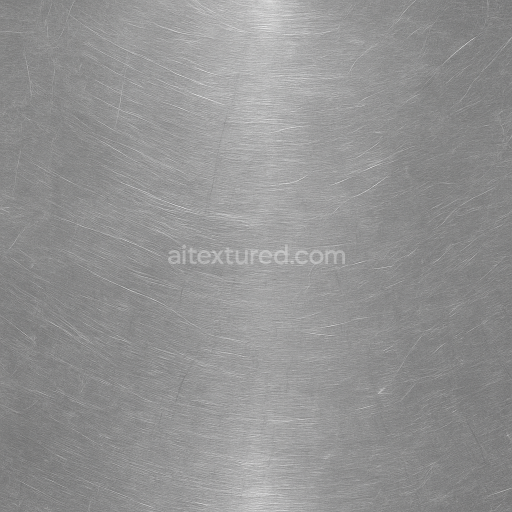
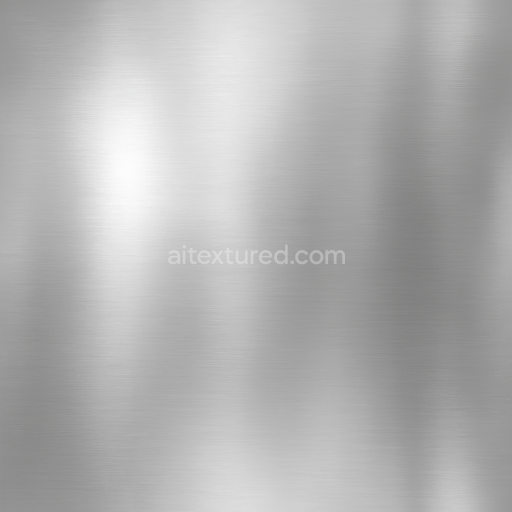
Seamless Shiny Metal 3D Texture PBR 8K Stainless Steel Surface With Metal Polish And Meta…
Seamless texture (tileable) · PNG, WEBP, PBR ZIP.
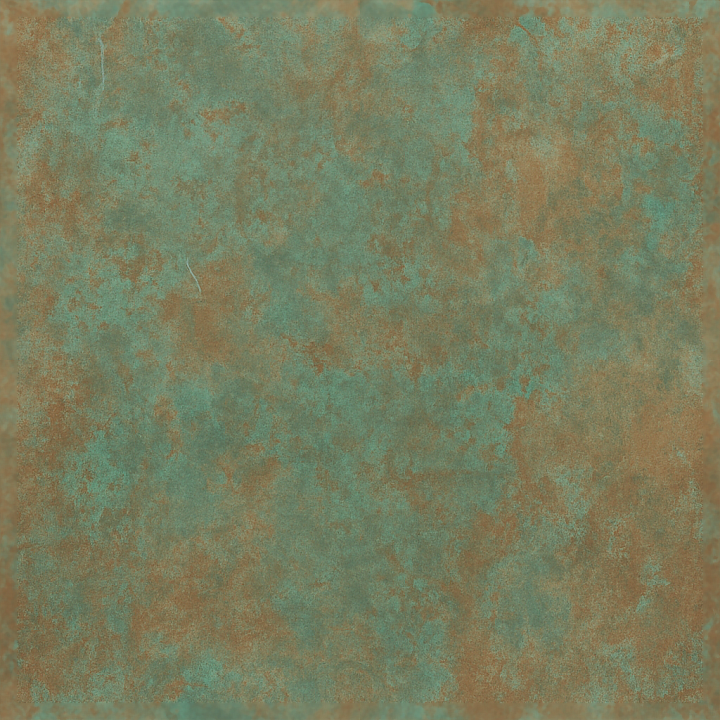
| ID | seamless-shiny-metal-3d-texture-pbr-8k-copper-patina-surface-with-metal-oxidation-and-metal-discoloration |
|---|---|
| Category | Shiny metal |
| Formats | PNG, WEBP, PBR ZIP |
| Size | 1k (1024x1024px), 2k (2048x2048px), 4k (4096x4096px), 8k (8192x8192px) |
| Tileable | Yes |
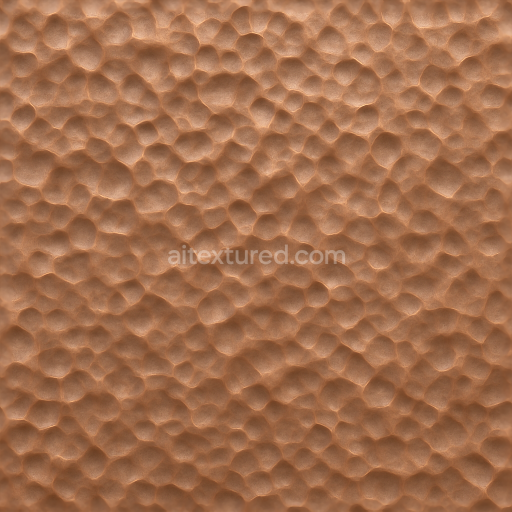
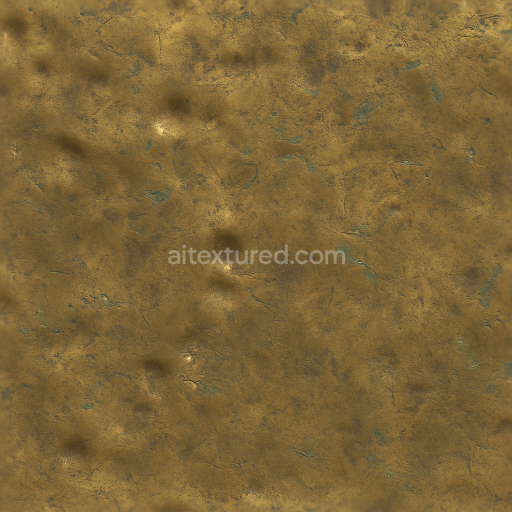
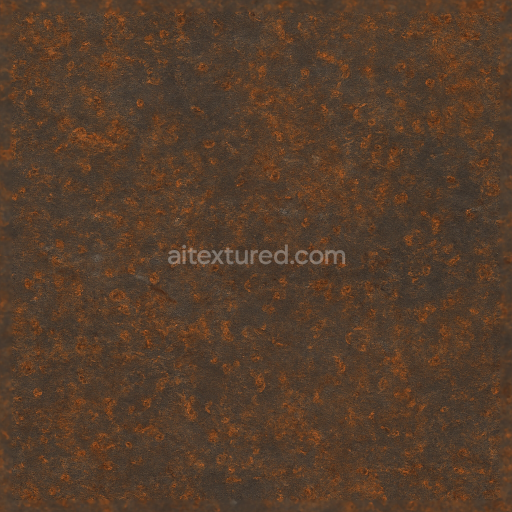
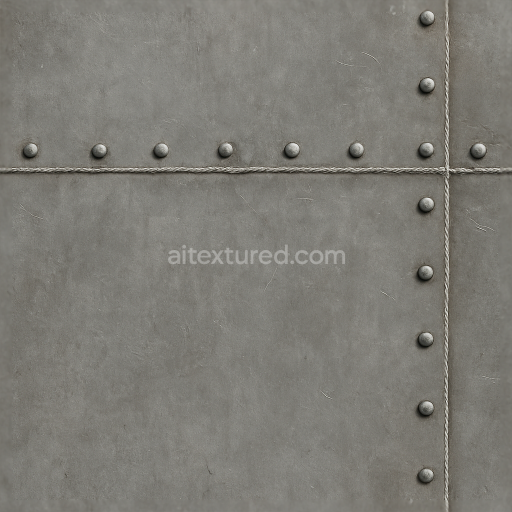
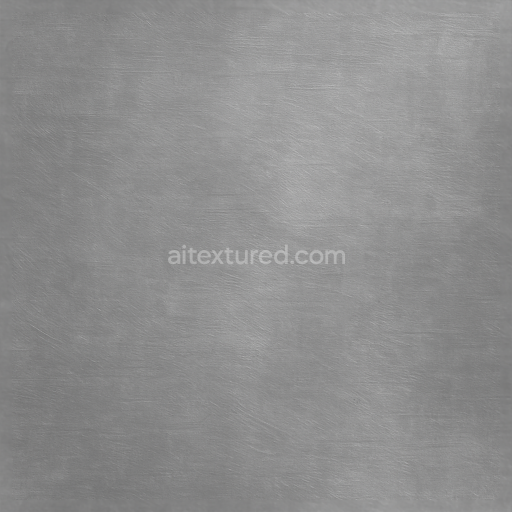
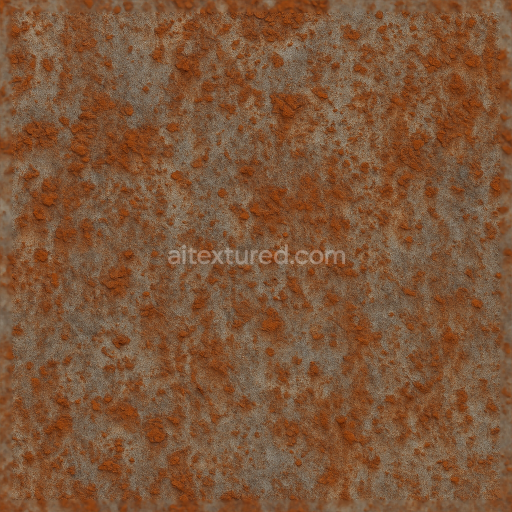
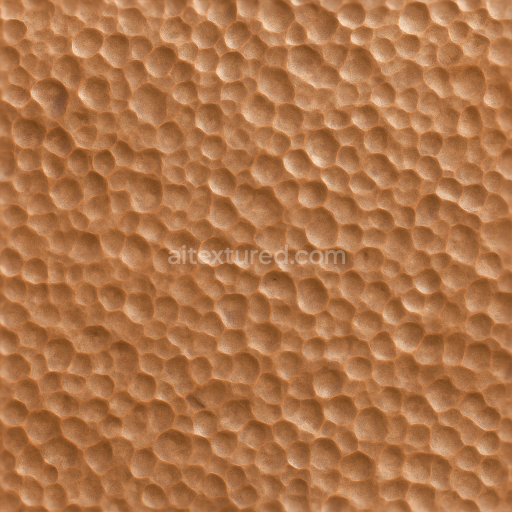
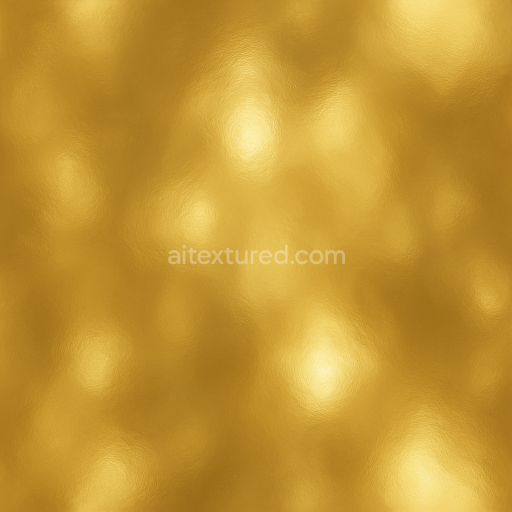
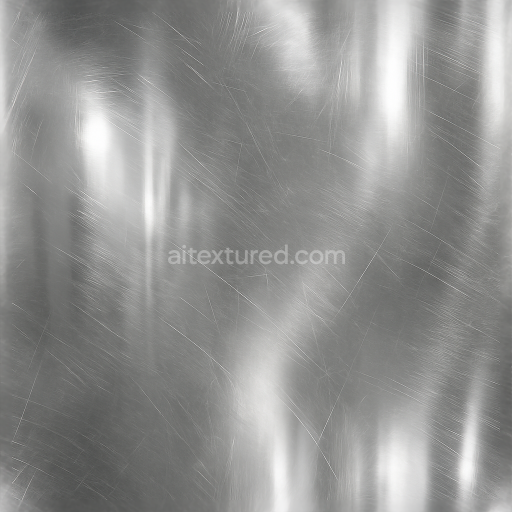
This seamless 8K texture captures the intricate surface of aged copper exhibiting a rich copper patina, formed through natural metal oxidation and discoloration processes. The base material is a solid copper substrate, characterized by a dense, metallic lattice that underlies the surface. Over time, exposure to atmospheric elements leads to chemical reactions that produce a complex layer of corrosion, primarily copper oxides and carbonates, resulting in the distinctive greenish-blue patina. This weathered surface displays subtle abrasions and pitting, indicative of prolonged metal corrosion and environmental wear, which adds depth and realism to the material’s form. The texture’s geometric pattern is essentially flat but irregular, with organic patches of oxidation creating a non-uniform, variegated finish rather than a repetitive or tiled layout.
The composition of this metal texture includes the copper base, covered by a semi-opaque patina layer that acts as a natural binder to the underlying metal. This layer contains micro-scale aggregates of corrosion products and mineral deposits, which contribute to the varied roughness and reflectivity across the surface. The porosity is low but uneven due to metal abrasion and corrosion, producing localized pits and crevices that enhance the tactile quality of the surface. Visually, the finish is predominantly oxidized and matte with sporadic areas retaining faint metallic sheen, creating a dynamic interplay between rough and smooth zones. The coloration is driven by natural pigments formed through oxidation, ranging from deep copper tones to turquoise and green hues, simulating realistic metal discoloration and corrosion patterns.
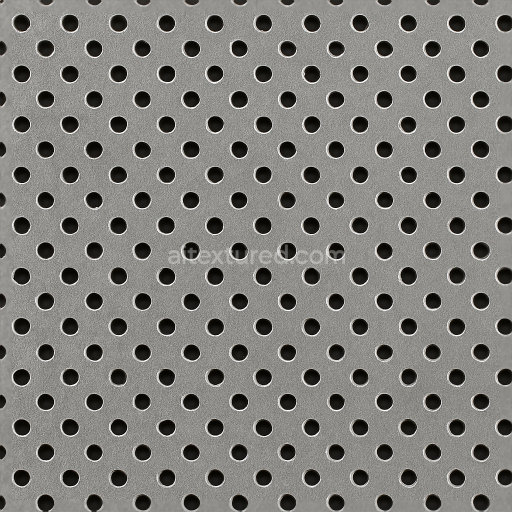
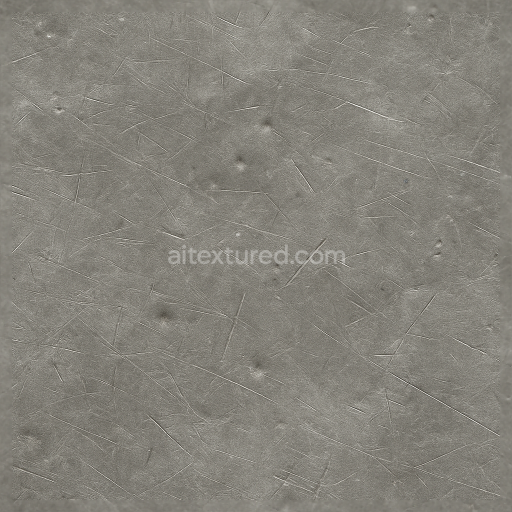
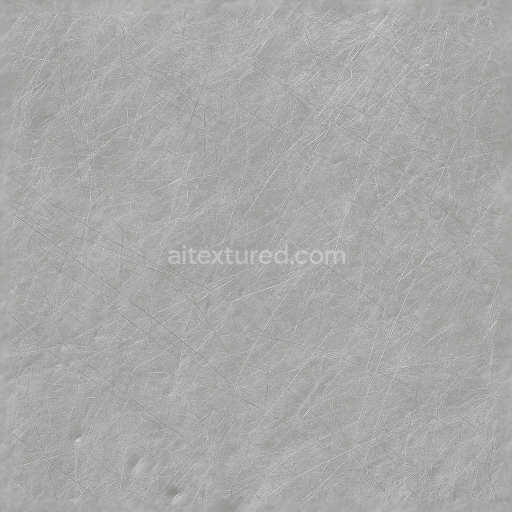
In terms of PBR channels, this texture excels in conveying physical realism: the BaseColor (Albedo) map accurately reproduces the complex patinated color variations, while the Normal map defines the subtle surface relief from corrosion and abrasion. The Roughness map varies from low to high values, reflecting polished copper patches alongside rough, oxidized regions. Metallic values are consistently high to represent the copper base, but nuanced to account for non-metallic corrosion layers. Ambient Occlusion enhances shadow details within crevices and pits, and the Height/Displacement map provides depth for parallax effects, emphasizing the texture’s weathered geometry. This comprehensive channel setup ensures excellent compatibility and realism in rendering engines such as Blender, Unreal Engine, and Unity, especially when using PBR workflows.
For practical application, it is recommended to carefully adjust the UV scale to avoid repetition artifacts in large surfaces and to fine-tune the roughness map to balance between glossy copper highlights and matte oxidized patches, depending on the desired visual emphasis. Additionally, blending the Height map with the Normal map can improve the perception of depth without excessive geometry displacement, optimizing performance while maintaining visual fidelity. This texture is ideal for architectural visualizations, historical reconstructions, or any digital asset requiring authentic aged copper metal surfaces with detailed oxidation and corrosion effects.
Import the texture maps into Blender with sRGB color space for albedo/base color and Non-Color for normal, roughness, metallic, AO, height, and ORM maps. Connect normal maps through a Normal Map node, then adjust UV scale with a Mapping node so the material repeats naturally on your model.
For the full step-by-step setup, see How to Use Seamless Textures in Blender. Browse related material examples in wood, concrete, and metal.
Yes. This texture is designed as a seamless tileable PBR material, so it can repeat across large surfaces without visible borders.
Use the download controls on this page: they expose the available PNG, WEBP or engine ZIP choices and supported resolutions for this asset.
Use the engine ZIP choices to package compatible source maps for Blender, Unreal Engine or Unity, then verify the imported material in the target application.
Commercial-use permission is not verified for this record. Confirm the original source and license before production use.
Generate maps from existing images, preview materials, convert channels, and package compatible inputs for Blender, Unity, and Unreal Engine.
Choose a verified workflow for generating maps, previewing tiling, converting channels, or starting from the texture catalog.
Derive Normal, Roughness, AO, Metallic, Height and optional ORM maps from one or more source images, then review the results.
Instant WebGL viewer: inspect materials on a sphere, plane, and cube. Check tiling and lighting in real time.
Re-packages maps per engine: Unreal (BaseColor + ORM), Unity (Mask/MetallicSmoothness), Blender (separate channels).
PNG ↔ JPG ↔ SVG: fast convert, SVG rasterize, embed/trace options, quality & background controls.