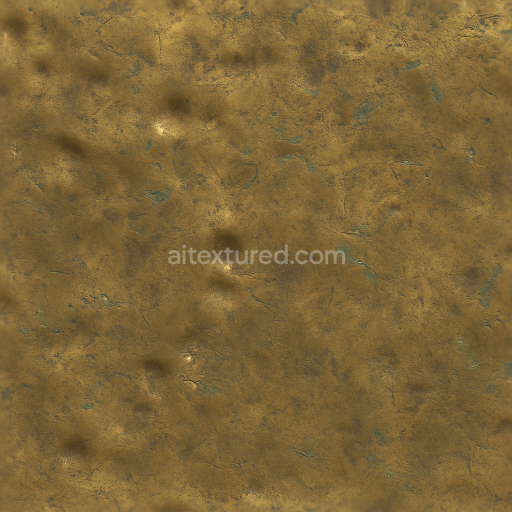
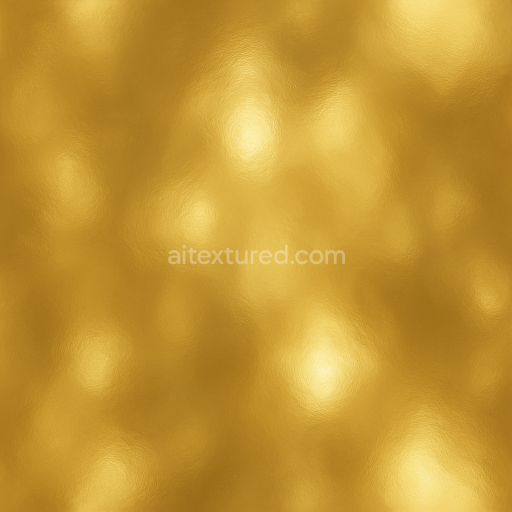
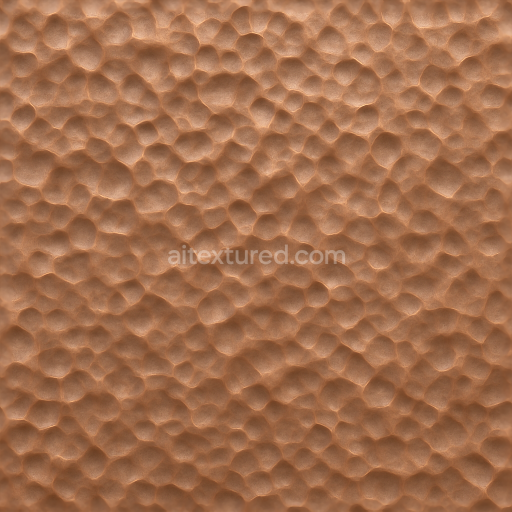
Seamless Shiny Metal 3D Texture PBR 8K Beaten Brass Surface With Metal Dents And Metal Ox…
Seamless texture (tileable) · PNG, WEBP, PBR ZIP.
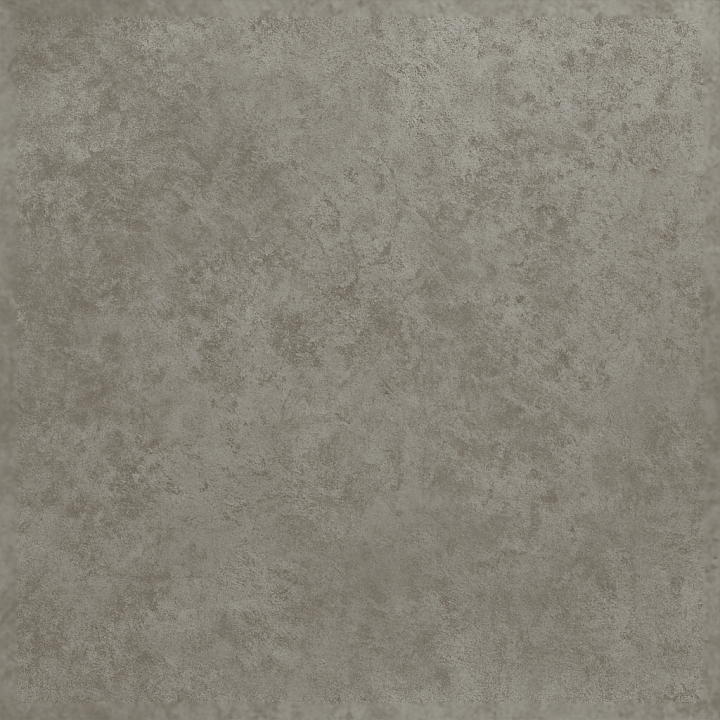
| ID | seamless-shiny-metal-3d-texture-pbr-8k-dull-nickel-surface-with-metal-oxidation-and-metal-tarnish |
|---|---|
| Category | Shiny metal |
| Formats | PNG, WEBP, PBR ZIP |
| Size | 1k (1024x1024px), 2k (2048x2048px), 4k (4096x4096px), 8k (8192x8192px) |
| Tileable | Yes |
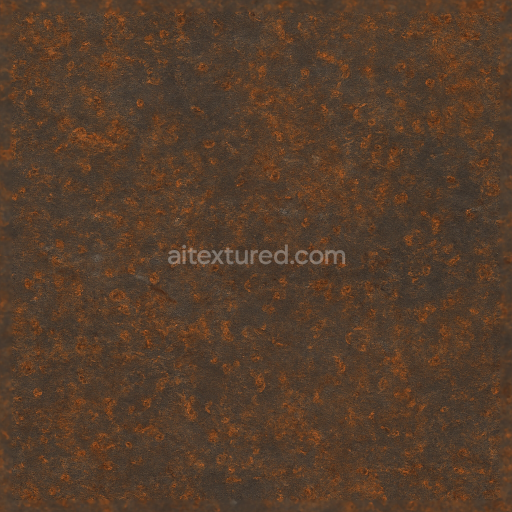
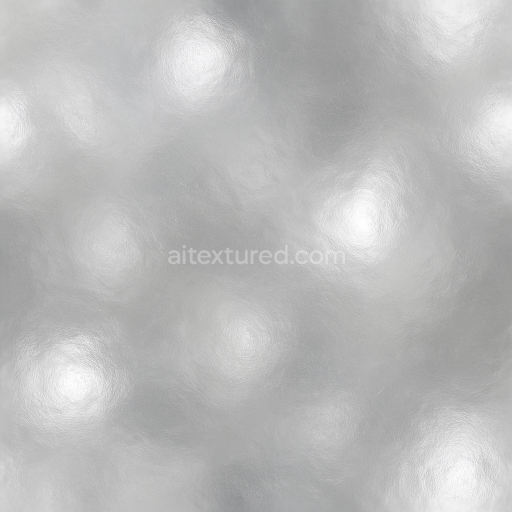
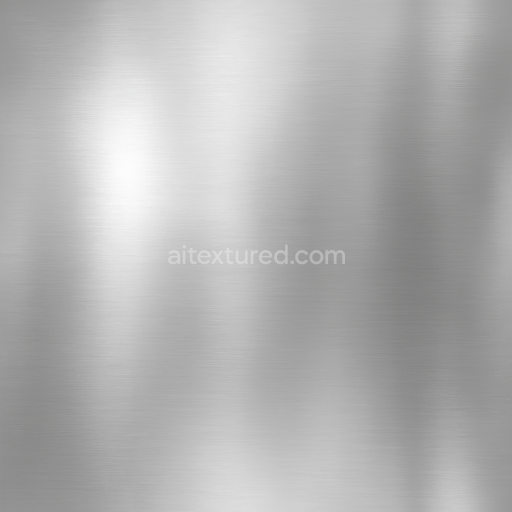
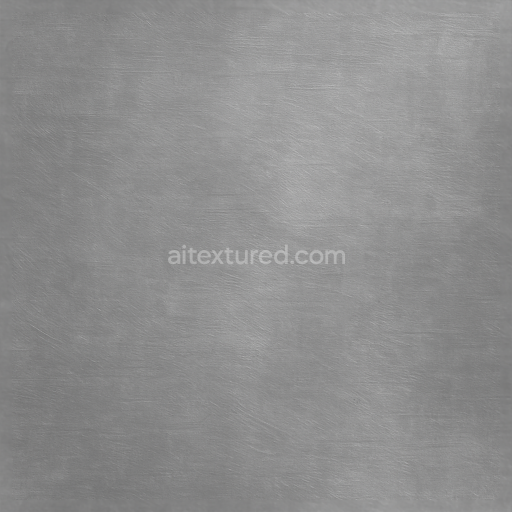
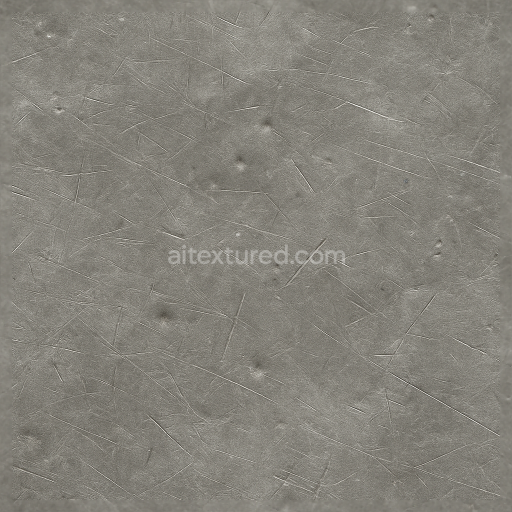
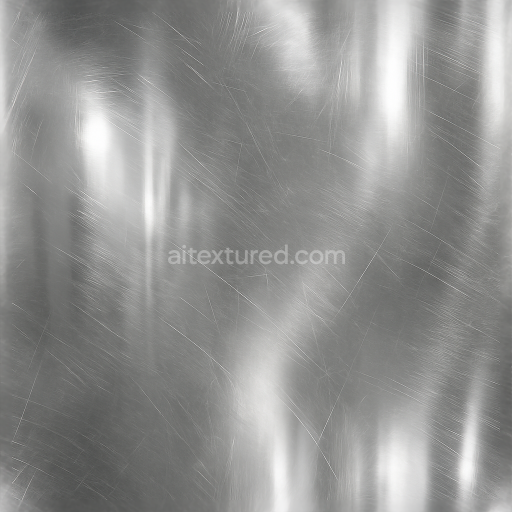
This seamless 8K PBR texture captures the intricate details of a dull nickel metal surface characterized by natural oxidation, tarnish, and subtle corrosion. The base material is primarily nickel, known for its silvery-gray appearance and moderate reflectivity, which here is weathered to reveal a matte, aged finish. The geometric form is a continuous, finely grained metal sheet with delicate surface abrasions and irregular oxidation patches that break the monotony of the flat plane, simulating the natural progression of metal degradation over time. The texture’s surface shows a balanced porous quality where metal oxidation and tarnish have formed thin oxide layers, altering both color and reflectivity without compromising the structural integrity of the substrate.
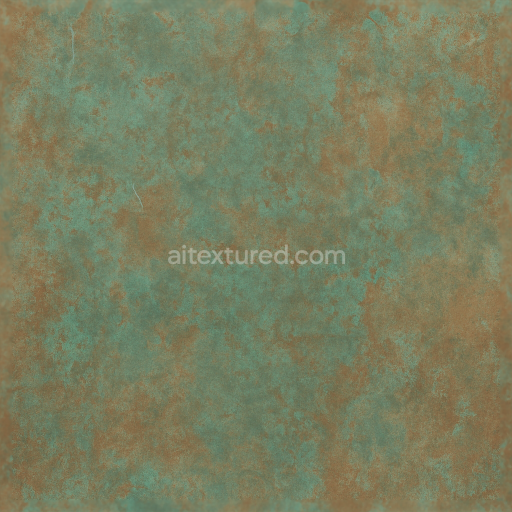
The composition reveals a layered metal surface with a nickel substrate beneath a patina of corrosion products and metal salts. These layers act similarly to binders, subtly diffusing light and affecting the overall roughness and metallic responses in rendering. The fine grain structure and micro-abrasions function as aggregates and fibers, creating microscopically uneven surfaces that catch highlights and shadows realistically. The surface finish is predominantly dull and oxidized, with sporadic patches of metal abrasion and faint corrosion spots that add visual complexity and depth. Coloration ranges from muted silvers and grays to faint blue-green hues where oxidation is most pronounced, offering a nuanced color map that enhances realism within the BaseColor (Albedo) channel.
In PBR workflows, this texture is optimized with precise channel mappings: the BaseColor channel conveys the muted nickel tones combined with oxidation discoloration; the Normal map encodes the micro-scratches and oxidation relief detail to simulate subtle surface irregularities; Roughness maps reflect the transition from smoother worn metal to rougher corroded areas, controlling specular highlights; the Metallic channel remains consistently high to represent the metal base, modulated slightly in tarnished sections to simulate reduced metal reflectivity; Ambient Occlusion enhances shadowing around corrosion crevices and abrasion marks; Height (Displacement) maps provide fine elevation changes for added realism in close-up renders. This comprehensive channel setup ensures compatibility and high-quality results across Blender, Unreal Engine, and Unity environments.
For practical use, it is recommended to adjust the UV scale carefully to avoid repetition artifacts, especially on large surfaces where the oxidation patterns could appear too uniform. Additionally, tuning the roughness map can help achieve the desired balance between the worn metallic shine and the matte oxidized areas. When working with height or parallax mapping, blending the normal and displacement data subtly can enhance the perception of depth without causing visual distortions during real-time rendering. This texture is particularly suited for industrial, vintage, or weathered metal asset creation, delivering a realistic representation of dull nickel surfaces aged through environmental exposure.
Import the texture maps into Blender with sRGB color space for albedo/base color and Non-Color for normal, roughness, metallic, AO, height, and ORM maps. Connect normal maps through a Normal Map node, then adjust UV scale with a Mapping node so the material repeats naturally on your model.
For the full step-by-step setup, see How to Use Seamless Textures in Blender. Browse related material examples in wood, concrete, and metal.
Yes. This texture is designed as a seamless tileable PBR material, so it can repeat across large surfaces without visible borders.
Use the download controls on this page: they expose the available PNG, WEBP or engine ZIP choices and supported resolutions for this asset.
Use the engine ZIP choices to package compatible source maps for Blender, Unreal Engine or Unity, then verify the imported material in the target application.
Commercial-use permission is not verified for this record. Confirm the original source and license before production use.
Generate maps from existing images, preview materials, convert channels, and package compatible inputs for Blender, Unity, and Unreal Engine.
Choose a verified workflow for generating maps, previewing tiling, converting channels, or starting from the texture catalog.
Derive Normal, Roughness, AO, Metallic, Height and optional ORM maps from one or more source images, then review the results.
Instant WebGL viewer: inspect materials on a sphere, plane, and cube. Check tiling and lighting in real time.
Re-packages maps per engine: Unreal (BaseColor + ORM), Unity (Mask/MetallicSmoothness), Blender (separate channels).
PNG ↔ JPG ↔ SVG: fast convert, SVG rasterize, embed/trace options, quality & background controls.