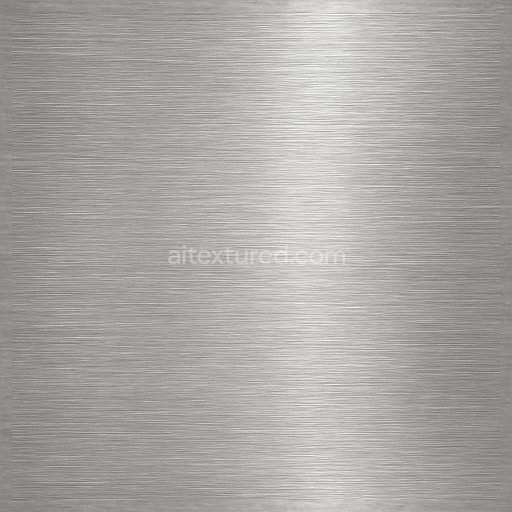
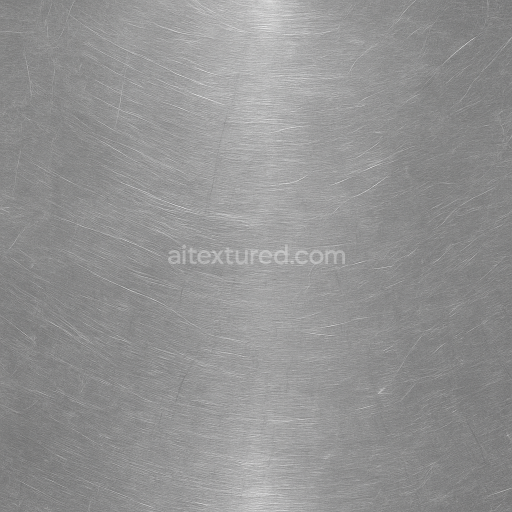
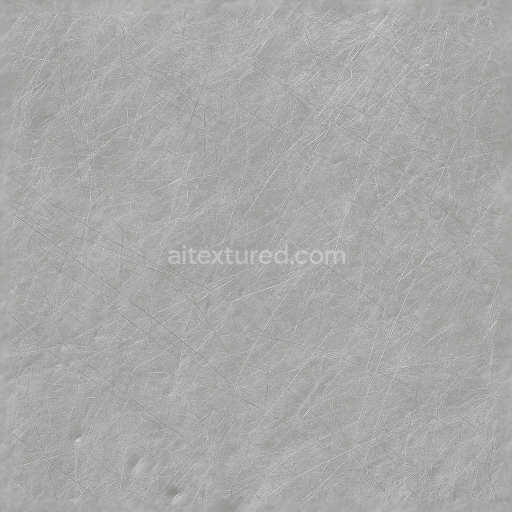
Seamless Shiny Metal 3D Texture PBR 8K Brushed Metal Surface With Metal Grooves And Metal…
Seamless texture (tileable) · PNG, WEBP, PBR ZIP.
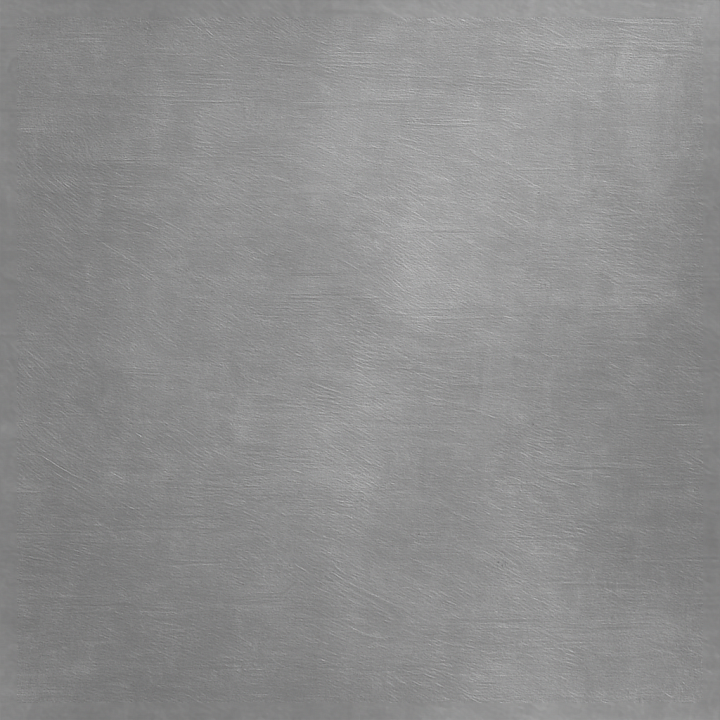
| ID | seamless-shiny-metal-3d-texture-pbr-8k-matte-steel-surface-with-metal-polish-and-metal-abrasion |
|---|---|
| Category | Shiny metal |
| Formats | PNG, WEBP, PBR ZIP |
| Size | 1k (1024x1024px), 2k (2048x2048px), 4k (4096x4096px), 8k (8192x8192px) |
| Tileable | Yes |
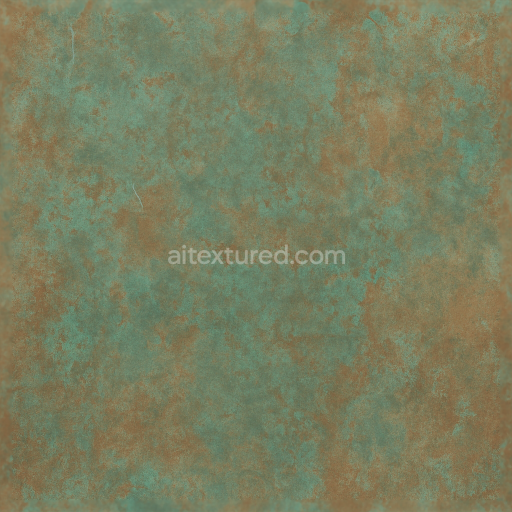
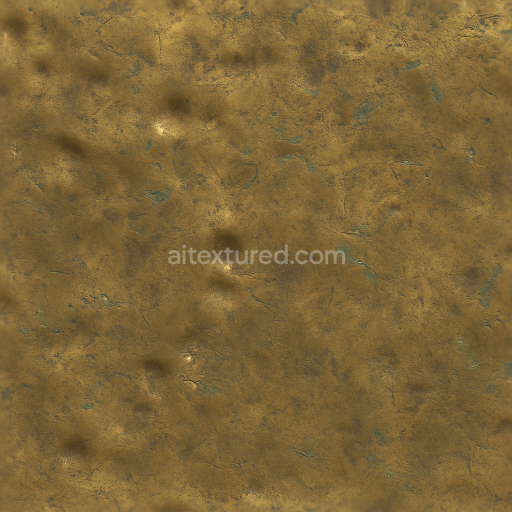
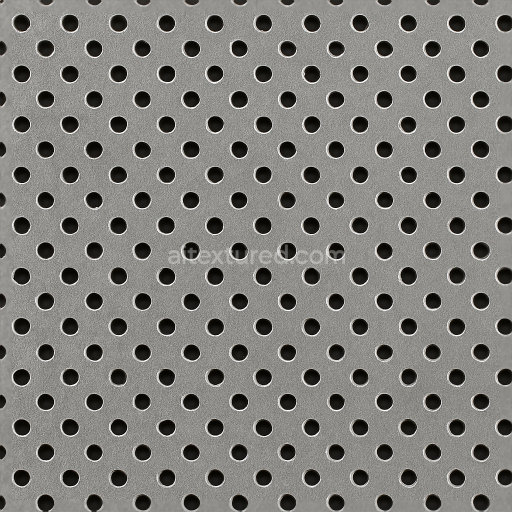
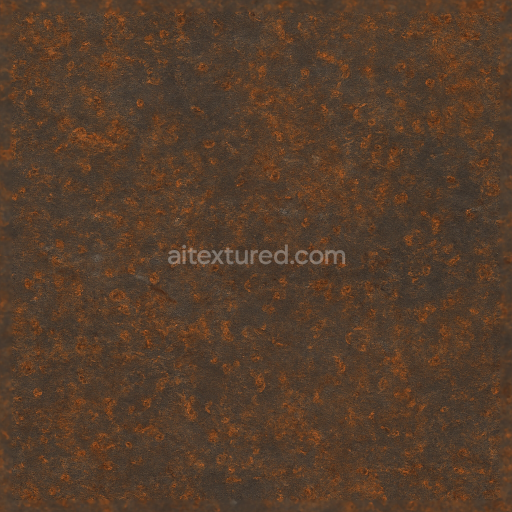
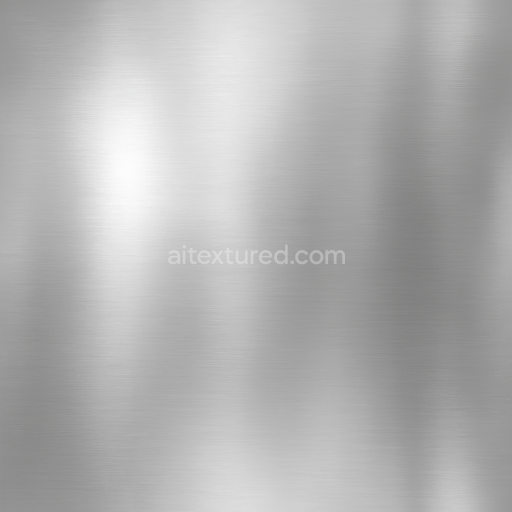
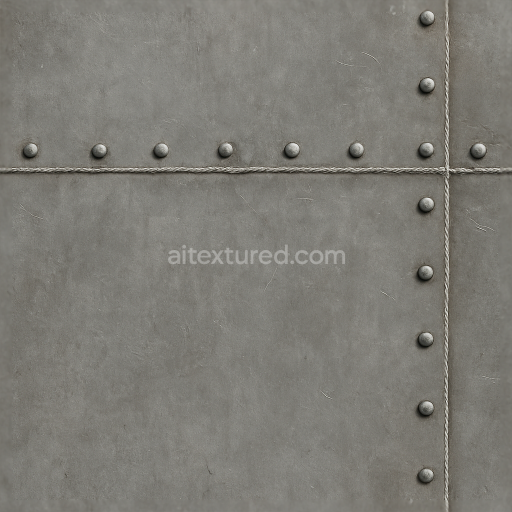
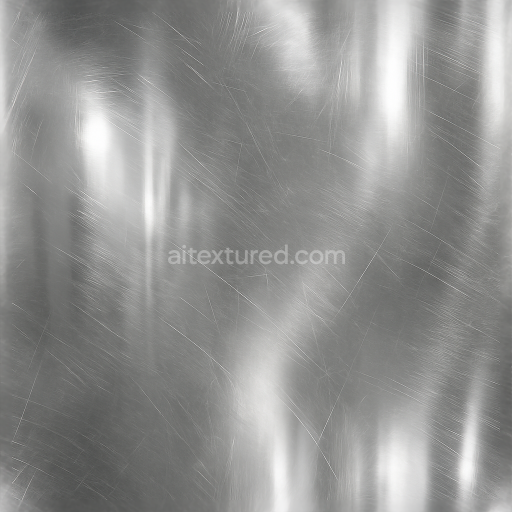
This seamless 8K texture presents a finely detailed matte steel surface characterized by subtle metal polishing and carefully rendered abrasion patterns. The base material is primarily a cold-rolled steel substrate, providing a solid metallic core with a slightly porous microstructure resulting from industrial forging and finishing processes. The surface exhibits a brushed finish enhanced with selective polishing, where microscopic scratches and faint wear marks simulate realistic metal abrasion. These abrasions contribute to the tactile roughness and introduce varied light diffusion across the surface, simulating everyday use and environmental exposure without compromising the overall integrity of the steel.
The geometric form of the texture is composed of a continuous, uniform planar sheet with no distinct repetitive patterns, making it ideal for broad, uninterrupted metal surfaces such as industrial panels, architectural cladding, or mechanical components. The metal highlights and shadows are carefully balanced to enhance depth perception, revealing subtle undulations and micro-geometry variations that reflect the interplay of light on a matte finish. This is achieved through precise Normal and Height map data, which simulate the micro-texture of the polished and abraded steel, while the Roughness map controls the degree of reflectivity, maintaining a low-gloss appearance typical of matte steel surfaces.
In terms of material composition, the steel surface integrates fine iron grains bound together with trace amounts of carbon and alloying elements, contributing to its mechanical strength and color tone. The BaseColor (Albedo) map captures a neutral gray steel hue with slight cool undertones, while the Metallic channel confirms the fully metallic nature of the surface. Ambient Occlusion is finely tuned to emphasize recesses created by abrasion marks, adding realism to crevices and edges. The Height and Normal maps work in tandem to replicate the subtle textural depth of polished versus worn areas, enhancing the tactile feel in 3D applications.
This texture is optimized for physically based rendering (PBR) workflows and is fully compatible with Blender, Unreal Engine, and Unity, supporting seamless tiling for expansive surfaces. The 8K resolution ensures exceptional detail even in close-up renders, allowing artists to capture intricate metal finishes without visible pixelation. For practical use, it is recommended to adjust the UV scale appropriately to avoid texture repetition on large meshes and to fine-tune the Roughness map to simulate different levels of surface wear or polish intensity. Additionally, blending the Height and Normal maps can enhance parallax effects for more convincing depth on flat geometry.
Import the texture maps into Blender with sRGB color space for albedo/base color and Non-Color for normal, roughness, metallic, AO, height, and ORM maps. Connect normal maps through a Normal Map node, then adjust UV scale with a Mapping node so the material repeats naturally on your model.
For the full step-by-step setup, see How to Use Seamless Textures in Blender. Browse related material examples in wood, concrete, and metal.
Yes. This texture is designed as a seamless tileable PBR material, so it can repeat across large surfaces without visible borders.
Use the download controls on this page: they expose the available PNG, WEBP or engine ZIP choices and supported resolutions for this asset.
Use the engine ZIP choices to package compatible source maps for Blender, Unreal Engine or Unity, then verify the imported material in the target application.
Commercial-use permission is not verified for this record. Confirm the original source and license before production use.
Generate maps from existing images, preview materials, convert channels, and package compatible inputs for Blender, Unity, and Unreal Engine.
Choose a verified workflow for generating maps, previewing tiling, converting channels, or starting from the texture catalog.
Derive Normal, Roughness, AO, Metallic, Height and optional ORM maps from one or more source images, then review the results.
Instant WebGL viewer: inspect materials on a sphere, plane, and cube. Check tiling and lighting in real time.
Re-packages maps per engine: Unreal (BaseColor + ORM), Unity (Mask/MetallicSmoothness), Blender (separate channels).
PNG ↔ JPG ↔ SVG: fast convert, SVG rasterize, embed/trace options, quality & background controls.