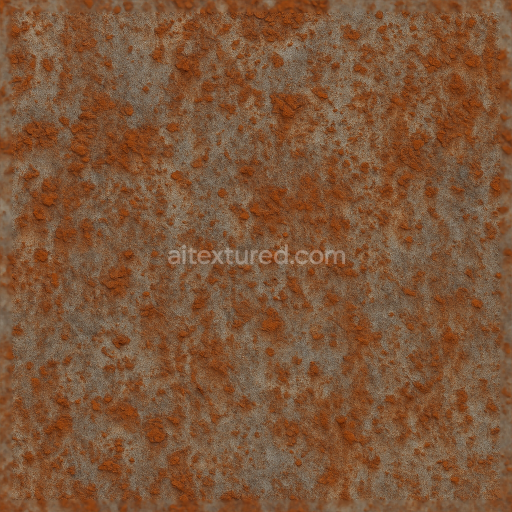
Seamless Shiny Metal 3D Texture PBR 8K Oxidized Steel Surface With Metal Oxidation And Me…
Seamless texture (tileable) · PNG, WEBP, PBR ZIP.
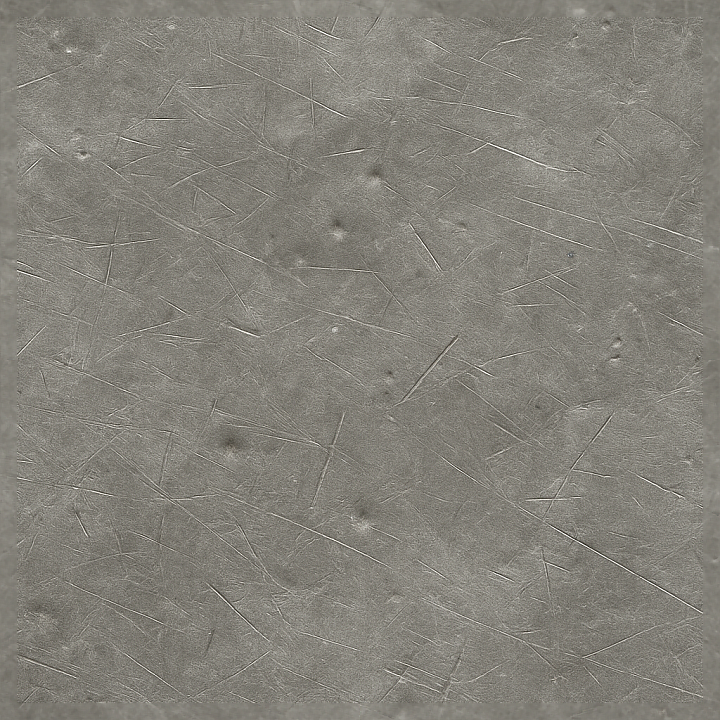
| ID | seamless-shiny-metal-3d-texture-pbr-8k-carbon-steel-surface-with-metal-scratches-and-metal-dents |
|---|---|
| Category | Shiny metal |
| Formats | PNG, WEBP, PBR ZIP |
| Size | 1k (1024x1024px), 2k (2048x2048px), 4k (4096x4096px), 8k (8192x8192px) |
| Tileable | Yes |
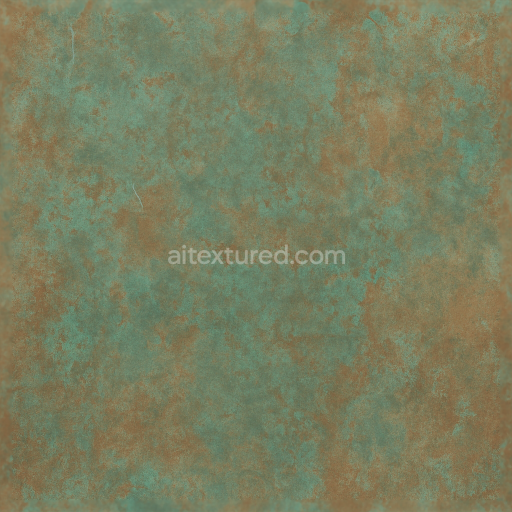
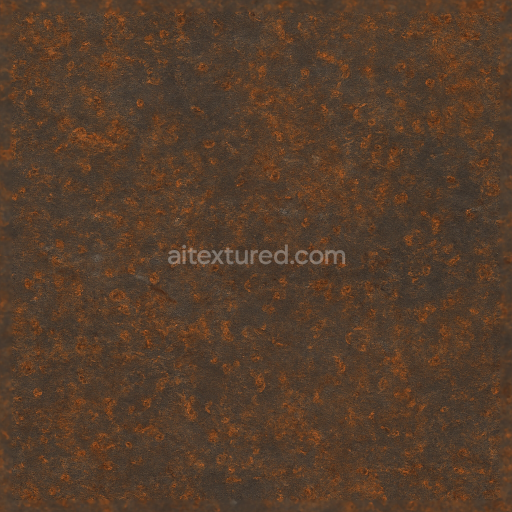
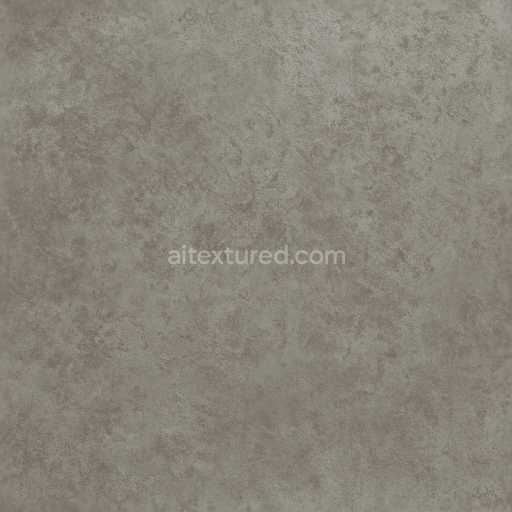
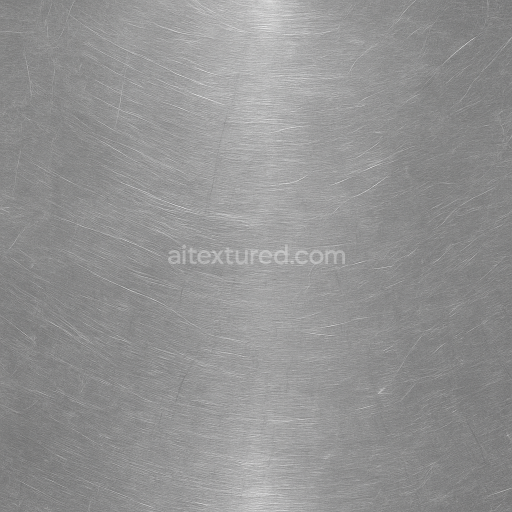
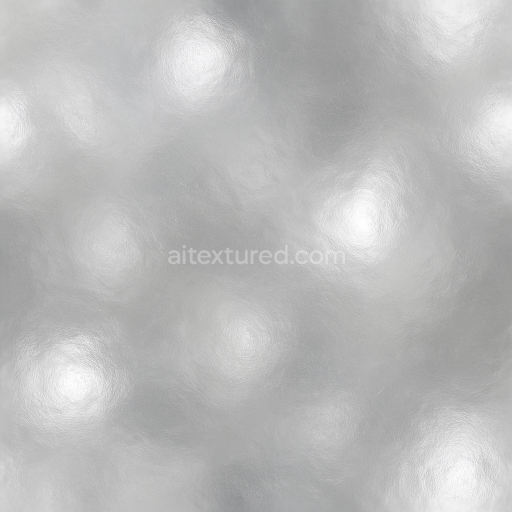
This seamless 8K PBR texture represents a carbon steel surface characterized by its rugged, industrial aesthetic. The base material is hardened carbon steel, known for its strength and durability, featuring a predominantly metallic substrate with a dark gray to blue-gray coloration influenced by the steel's alloy composition and thermal treatment. The surface exhibits a complex interplay of metal polishing and abrasion, where finely brushed areas blend with patches of oxidized and dulled metal. The subtle presence of metal scratches and dents introduces natural imperfections, reflecting typical wear patterns found on tools, machinery, and heavy structural components. These imperfections contribute to the texture’s realism by showcasing micro abrasions, small gouges, and slight surface deformations that alter the way light interacts with the material.
The geometric form of the texture is essentially flat but irregular, with no overt pattern such as tiles or grids, emphasizing a continuous sheet of steel that can be seamlessly tiled. The surface topology includes shallow dents and raised scratch marks, which are captured through high-fidelity normal and height maps, enhancing the three-dimensional feel of the metal. The PBR setup incorporates a BaseColor (Albedo) map that reflects the intrinsic color variations of carbon steel, interspersed with darker and lighter areas due to oxidation and polishing variance. The Metallic map is uniformly high, consistent with the steel base, while the Roughness map carefully balances polished, reflective regions against rougher, abraded zones where oxidation and surface wear increase diffuse reflection. Ambient Occlusion maps accentuate the depth in scratches and dents, lending greater contrast to surface details. The Height/Displacement map enables subtle parallax effects that improve the perception of depth without excessive geometric complexity.
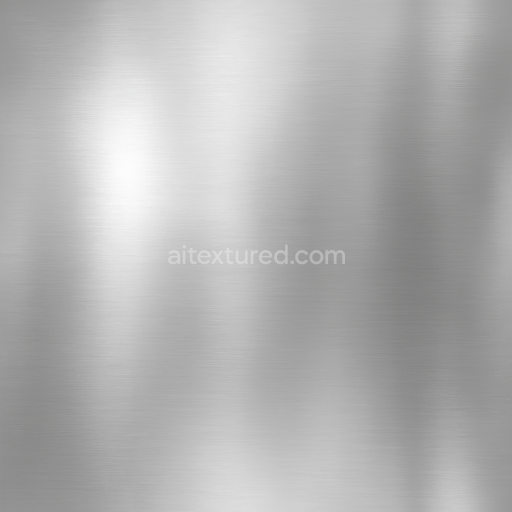
The texture’s surface finish suggests a combination of brushed and worn metal, where the polishing process has smoothed some areas while others retain corrosion and residue from environmental exposure. This creates a nuanced surface with metal highlights varying in intensity depending on the angle of incident light, capturing the interplay between specular glints and muted matte zones. The colorants are intrinsic to the steel itself, with no additional pigments, though the oxidation and surface treatment yield slight shifts in hue and saturation. Porosity is minimal, typical of dense steel, but microscopic surface irregularities from abrasion and micro-dents provide realistic tactile variation. This texture is optimized for use in Blender, Unreal Engine, and Unity, ensuring compatibility with modern PBR workflows and enabling photorealistic rendering across different platforms.
For practical application, it is recommended to carefully adjust the UV scaling to maintain the fine detail of metal scratches and dents without over-repetition on large surfaces. Additionally, tuning the roughness channel can help achieve the desired balance between shiny highlights and diffuse abrasion, allowing artists to simulate anything from freshly polished steel to heavily weathered metal. When integrating with displacement or parallax mapping, blending the height map with normal maps enhances depth perception while preserving performance, making this texture suitable for both close-up renders and extensive environmental detailing.
Import the texture maps into Blender with sRGB color space for albedo/base color and Non-Color for normal, roughness, metallic, AO, height, and ORM maps. Connect normal maps through a Normal Map node, then adjust UV scale with a Mapping node so the material repeats naturally on your model.
For the full step-by-step setup, see How to Use Seamless Textures in Blender. Browse related material examples in wood, concrete, and metal.
Yes. This texture is designed as a seamless tileable PBR material, so it can repeat across large surfaces without visible borders.
Use the download controls on this page: they expose the available PNG, WEBP or engine ZIP choices and supported resolutions for this asset.
Use the engine ZIP choices to package compatible source maps for Blender, Unreal Engine or Unity, then verify the imported material in the target application.
Commercial-use permission is not verified for this record. Confirm the original source and license before production use.
Generate maps from existing images, preview materials, convert channels, and package compatible inputs for Blender, Unity, and Unreal Engine.
Choose a verified workflow for generating maps, previewing tiling, converting channels, or starting from the texture catalog.
Derive Normal, Roughness, AO, Metallic, Height and optional ORM maps from one or more source images, then review the results.
Instant WebGL viewer: inspect materials on a sphere, plane, and cube. Check tiling and lighting in real time.
Re-packages maps per engine: Unreal (BaseColor + ORM), Unity (Mask/MetallicSmoothness), Blender (separate channels).
PNG ↔ JPG ↔ SVG: fast convert, SVG rasterize, embed/trace options, quality & background controls.