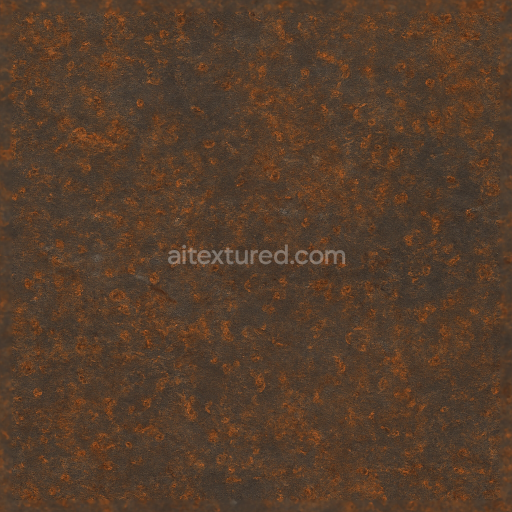
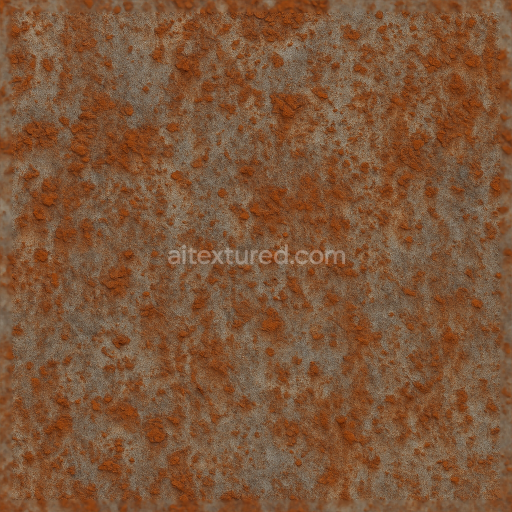
Seamless Shiny Metal 3D Texture PBR 8K Rusted Iron Surface With Metal Rust Spots And Meta…
Seamless texture (tileable) · PNG, WEBP, PBR ZIP.
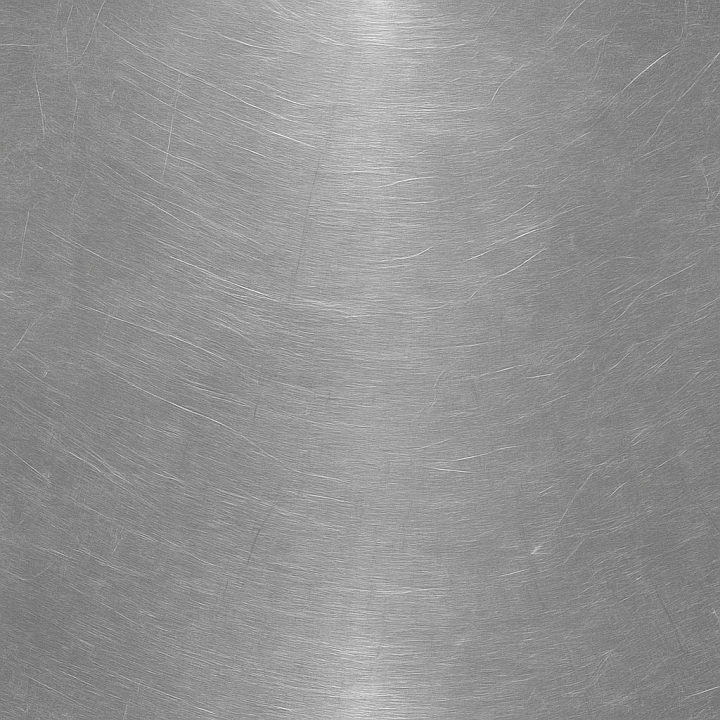
| ID | seamless-shiny-metal-3d-texture-pbr-8k-stainless-steel-surface-with-metal-polish-and-metal-scratches |
|---|---|
| Category | Shiny metal |
| Formats | PNG, WEBP, PBR ZIP |
| Size | 1k (1024x1024px), 2k (2048x2048px), 4k (4096x4096px), 8k (8192x8192px) |
| Tileable | Yes |
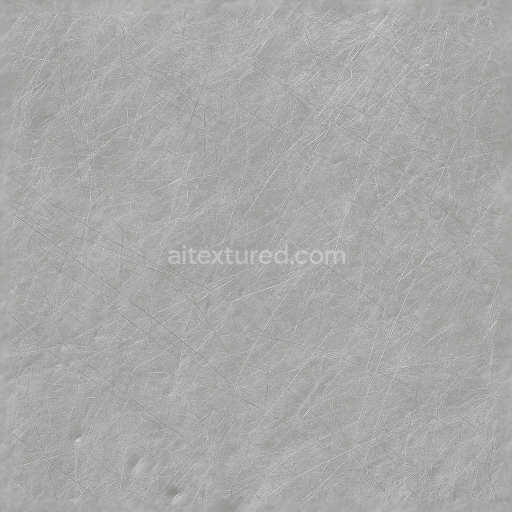
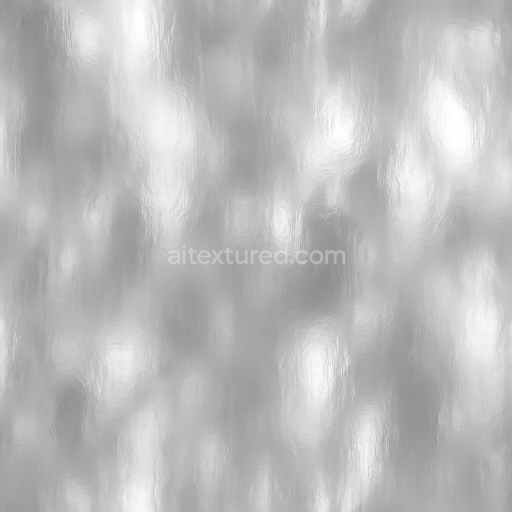
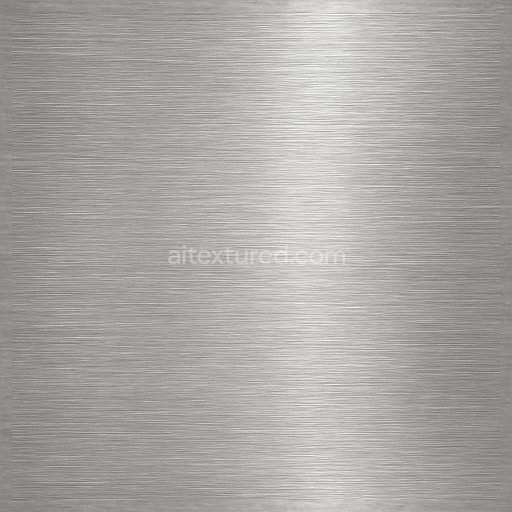
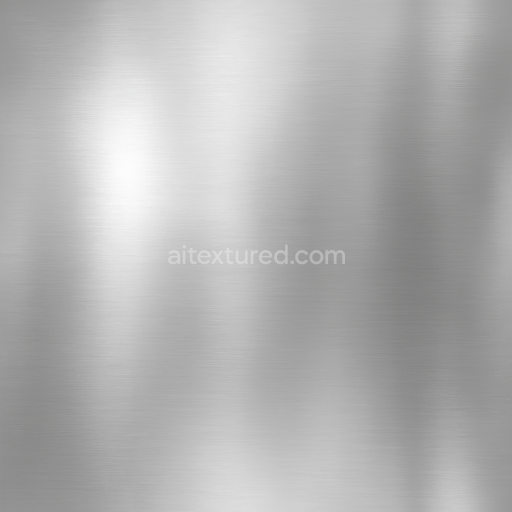
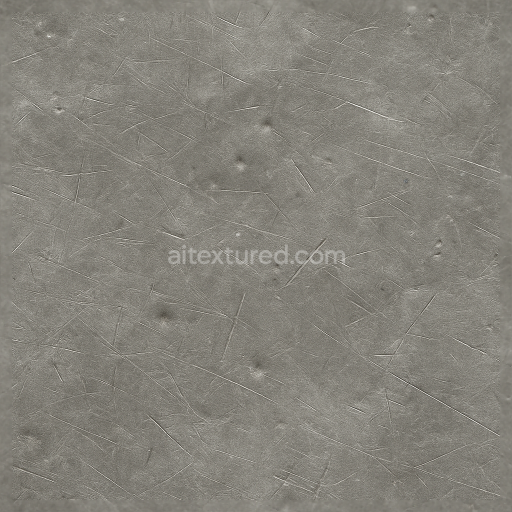
This seamless 8K PBR texture captures the nuanced surface of stainless steel characterized by a finely polished metal base interspersed with subtle abrasion marks and light scratches. The underlying material is a high-grade stainless steel substrate, known for its corrosion resistance and smooth metallic luster. The surface geometry presents a gently brushed pattern with a linear grain orientation, contributing to the texture's softly directional sheen. This brushing effect, combined with metal polishing, creates varied highlights and reflections that give the metal a realistic and tactile appearance. The metal scratches, while delicate, introduce surface imperfections that break uniformity, enhancing the authenticity of the metal finish.
The composition of this steel surface includes the primary metallic substrate, which exhibits a highly reflective base color defined in the BaseColor (Albedo) map. The metallic nature is emphasized through a dedicated Metallic map, ensuring correct light interaction in PBR workflows. Surface details such as the fine scratches and brushed lines are encoded in the Normal map, adding microgeometry for realistic light scattering and shadowing. The Roughness map varies subtly across the texture, reflecting areas of polished smoothness contrasted with lightly worn, more matte regions where abrasion softens the reflections. Ambient Occlusion is applied to simulate natural occlusion in the minor grooves of the brushed pattern, enhancing depth perception without affecting brightness. The Height or Displacement map supports slight elevation differences between the brushed ridges and scratched troughs, providing subtle relief when used with parallax or tessellation techniques.
Color-wise, the texture maintains the characteristic cool gray tones of stainless steel, with slight variations influenced by the metal polish and surface wear. There are no additional pigments or coatings, preserving the material’s natural metallic appearance. Porosity is minimal, as typical with stainless steel, but the weathering effect introduced by fine scratches simulates light mechanical abrasion from regular use. This balance of pristine polish and gentle wear makes the texture suitable for applications demanding realistic metal surfaces that appear functional yet maintained.
Designed for professional use, this texture is fully compatible with Blender, Unreal Engine, and Unity, supporting physically based rendering pipelines seamlessly. Its 8K resolution ensures exceptional detail for close-up renders and large-scale models alike, ideal for industrial design visualization, kitchen appliances, or machinery components requiring a clean yet realistically used metal finish. To optimize usage, it is advisable to adjust the UV scale to match the model’s dimensions precisely and to fine-tune the Roughness map to control the metal’s reflectivity based on environmental lighting. Additionally, blending Height or Normal maps can enhance surface depth without compromising performance in real-time engines.
Import the texture maps into Blender with sRGB color space for albedo/base color and Non-Color for normal, roughness, metallic, AO, height, and ORM maps. Connect normal maps through a Normal Map node, then adjust UV scale with a Mapping node so the material repeats naturally on your model.
For the full step-by-step setup, see How to Use Seamless Textures in Blender. Browse related material examples in wood, concrete, and metal.
Yes. This texture is designed as a seamless tileable PBR material, so it can repeat across large surfaces without visible borders.
Use the download controls on this page: they expose the available PNG, WEBP or engine ZIP choices and supported resolutions for this asset.
Use the engine ZIP choices to package compatible source maps for Blender, Unreal Engine or Unity, then verify the imported material in the target application.
Commercial-use permission is not verified for this record. Confirm the original source and license before production use.
Generate maps from existing images, preview materials, convert channels, and package compatible inputs for Blender, Unity, and Unreal Engine.
Choose a verified workflow for generating maps, previewing tiling, converting channels, or starting from the texture catalog.
Derive Normal, Roughness, AO, Metallic, Height and optional ORM maps from one or more source images, then review the results.
Instant WebGL viewer: inspect materials on a sphere, plane, and cube. Check tiling and lighting in real time.
Re-packages maps per engine: Unreal (BaseColor + ORM), Unity (Mask/MetallicSmoothness), Blender (separate channels).
PNG ↔ JPG ↔ SVG: fast convert, SVG rasterize, embed/trace options, quality & background controls.