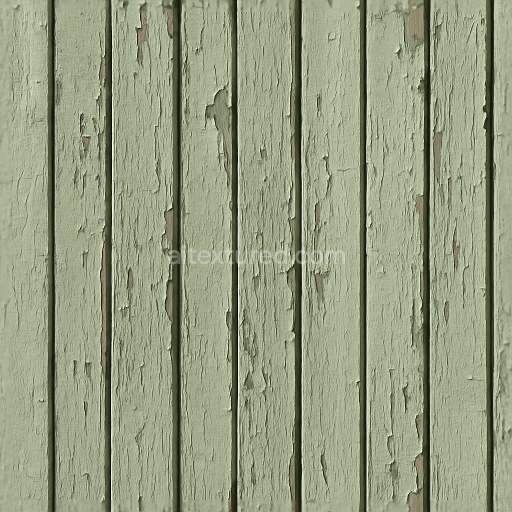
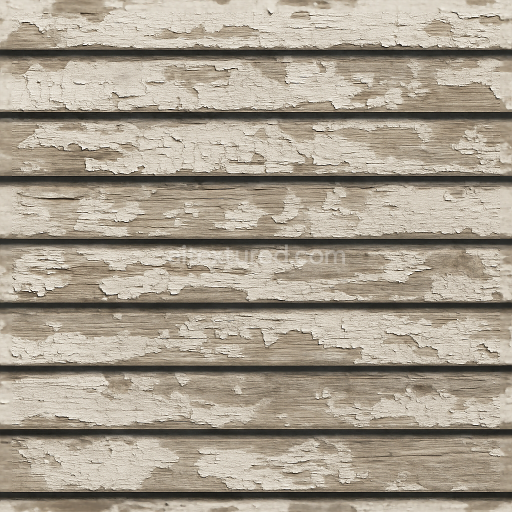
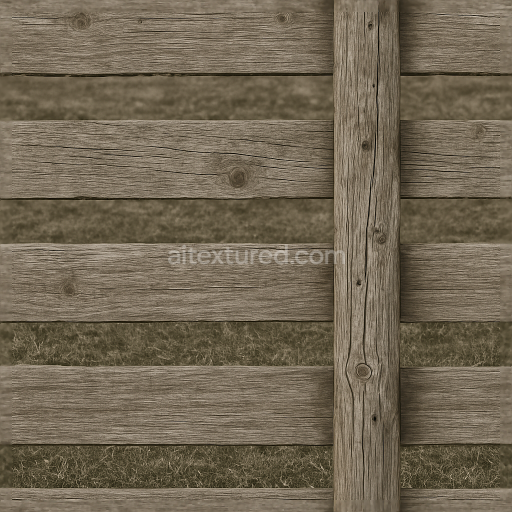
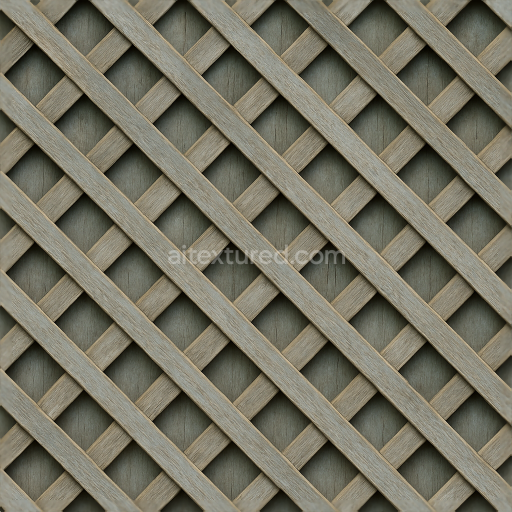
Painted Wood Garden Fence With Chipped Paint And Fence Shadow Effect
Seamless texture (tileable) · PNG, WEBP, PBR ZIP.
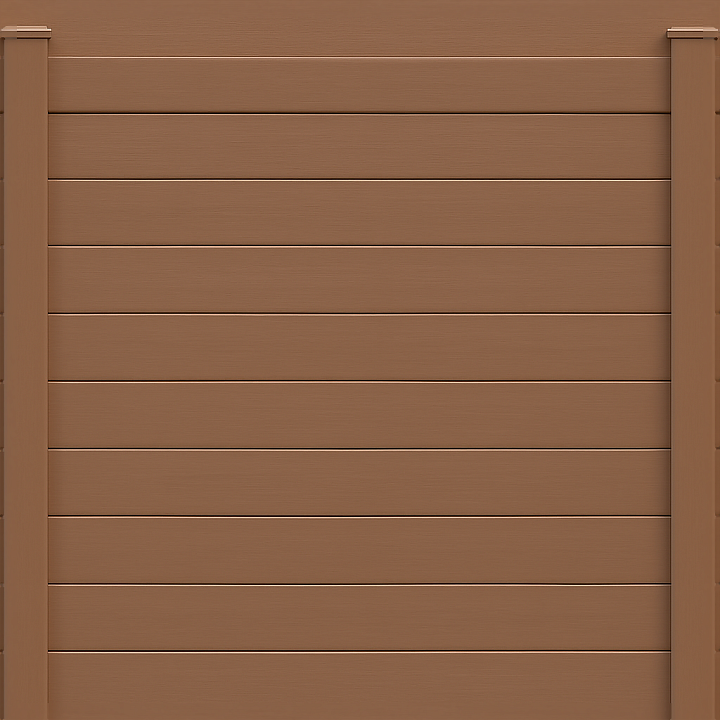
| ID | seamless-8k-3d-texture-pbr-vinyl-fence-with-brown-fence-paint-and-smooth-wood-grain-horizontal-slats |
|---|---|
| Category | Fences |
| Formats | PNG, WEBP, PBR ZIP |
| Size | 1k (1024x1024px), 2k (2048x2048px), 4k (4096x4096px), 8k (8192x8192px) |
| Tileable | Yes |
This seamless 8K PBR 3D texture represents a vinyl fence crafted to resemble traditional wooden fencing, featuring horizontal slats with a smooth wood grain pattern painted in a warm brown tone. The base material is high-quality vinyl, chosen for its durability and low maintenance, with a polymer substrate that provides structural integrity. A carefully engineered paint layer simulates the natural wood grain through a combination of fine surface fibers and subtle grooves, delivering an authentic look without actual wood’s porosity. The paint binder is a weather-resistant acrylic enamel, ensuring a consistent matte finish that resists fading and cracking under environmental exposure.
The fence’s geometric form consists of uniformly spaced horizontal slats, each with softly rounded edges and a slight bevel to enhance depth perception. Supporting fence rails and posts are integrated into the texture, creating a cohesive and realistic fence structure. The vinyl substrate’s smoothness is reflected in the polished yet non-reflective surface finish, achieved through a controlled roughness value that balances light diffusion and subtle glossiness. This finish is critical to the physical-based rendering (PBR) workflow, where the BaseColor channel captures the rich brown paint tones, and the Normal map encodes the fine wood grain and slat contours for convincing surface detail.
Additional PBR channels include Roughness, which defines the surface’s tactile quality by simulating the smooth, painted vinyl texture; Metallic, set to near zero to represent the non-metallic polymer base; and Ambient Occlusion, enhancing shadow depth around the slat edges and fence joints. The Height or Displacement map outlines the raised wood grain and subtle bevels, allowing for enhanced parallax effects and realistic light interaction in 3D environments. The texture is designed for seamless tiling, enabling large fence areas without visible repetition or seams, and optimized for use in Blender, Unreal Engine, and Unity to ensure compatibility across industry-standard platforms.
For practical implementation, it is recommended to adjust the UV scale to match the typical dimensions of vinyl fence slats, preserving the proportion of the wood grain and painted details. Fine-tuning the Roughness channel can help replicate varying weathering conditions, from freshly painted to slightly worn surfaces. Additionally, blending the Height map with Normal details can enhance parallax occlusion, providing a richer sense of depth and realism when viewed at oblique angles. This texture offers a versatile and high-fidelity solution for visualizing modern residential fences with a clean and uniform aesthetic.
Import the texture maps into Blender with sRGB color space for albedo/base color and Non-Color for normal, roughness, metallic, AO, height, and ORM maps. Connect normal maps through a Normal Map node, then adjust UV scale with a Mapping node so the material repeats naturally on your model.
For the full step-by-step setup, see How to Use Seamless Textures in Blender. Browse related material examples in wood, concrete, and metal.
Yes. This texture is designed as a seamless tileable PBR material, so it can repeat across large surfaces without visible borders.
Use the download controls on this page: they expose the available PNG, WEBP or engine ZIP choices and supported resolutions for this asset.
Use the engine ZIP choices to package compatible source maps for Blender, Unreal Engine or Unity, then verify the imported material in the target application.
Commercial-use permission is not verified for this record. Confirm the original source and license before production use.
Generate maps from existing images, preview materials, convert channels, and package compatible inputs for Blender, Unity, and Unreal Engine.
Choose a verified workflow for generating maps, previewing tiling, converting channels, or starting from the texture catalog.
Derive Normal, Roughness, AO, Metallic, Height and optional ORM maps from one or more source images, then review the results.
Instant WebGL viewer: inspect materials on a sphere, plane, and cube. Check tiling and lighting in real time.
Re-packages maps per engine: Unreal (BaseColor + ORM), Unity (Mask/MetallicSmoothness), Blender (separate channels).
PNG ↔ JPG ↔ SVG: fast convert, SVG rasterize, embed/trace options, quality & background controls.