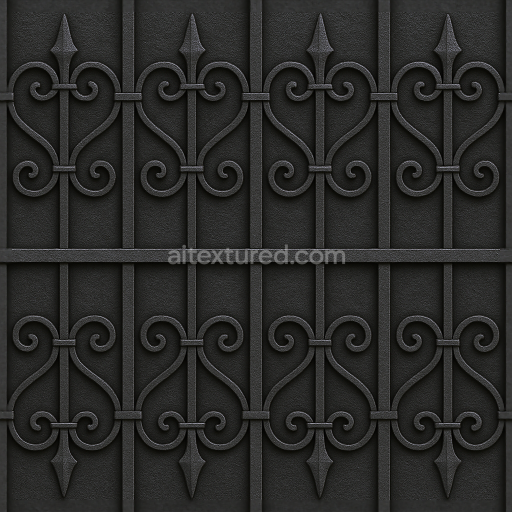
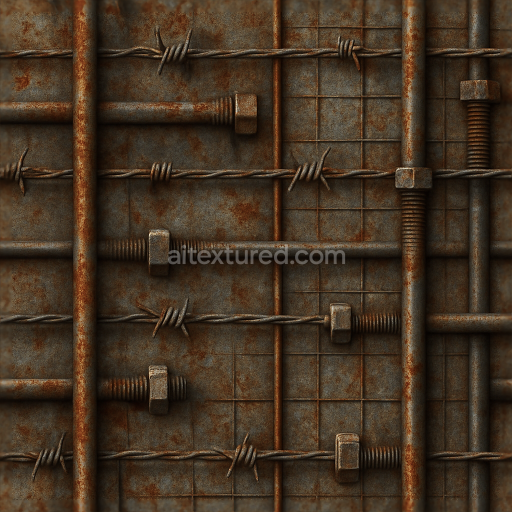
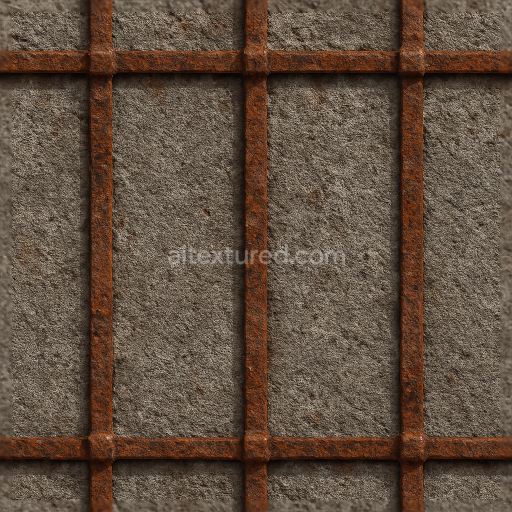
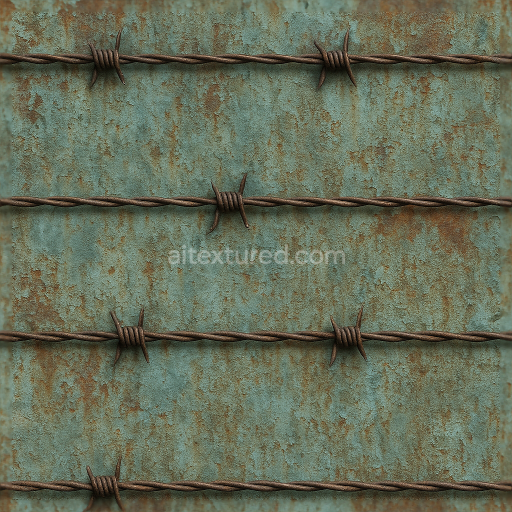
Wrought Iron Fence With Decorative Iron And Black Iron Finish
Seamless texture (tileable) · PNG, WEBP, PBR ZIP.
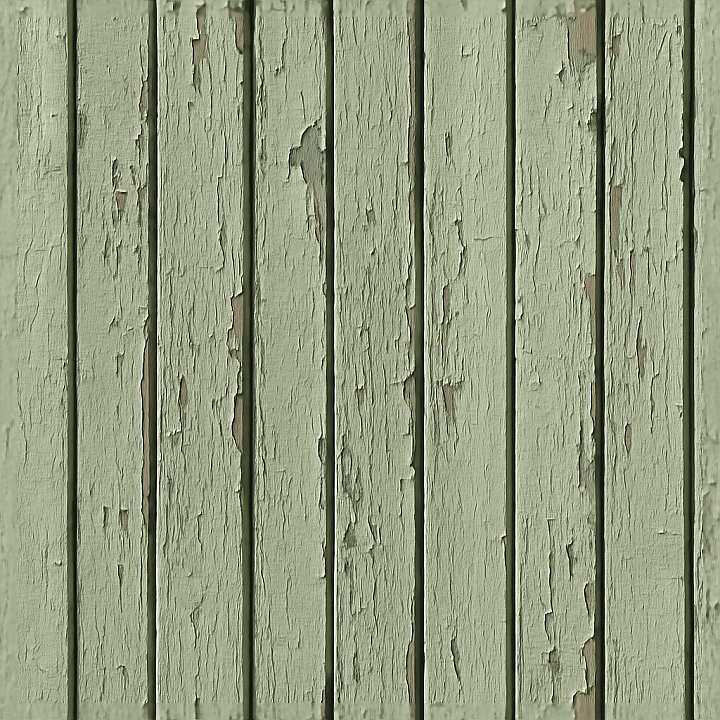
| ID | seamless-3d-texture-pbr-8k-painted-wood-garden-fence-with-chipped-paint-and-fence-shadow-effect |
|---|---|
| Category | Fences |
| Formats | PNG, WEBP, PBR ZIP |
| Size | 1k (1024x1024px), 2k (2048x2048px), 4k (4096x4096px), 8k (8192x8192px) |
| Tileable | Yes |
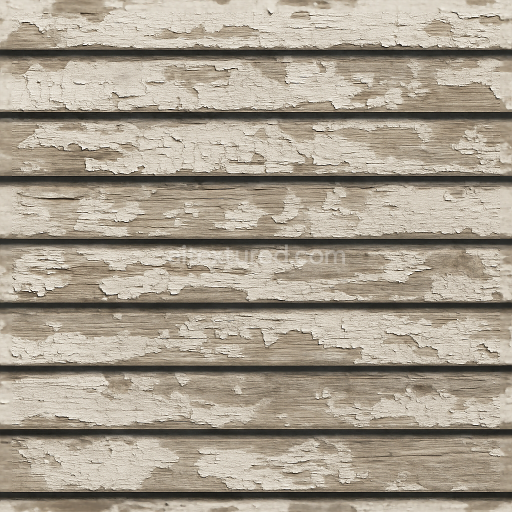
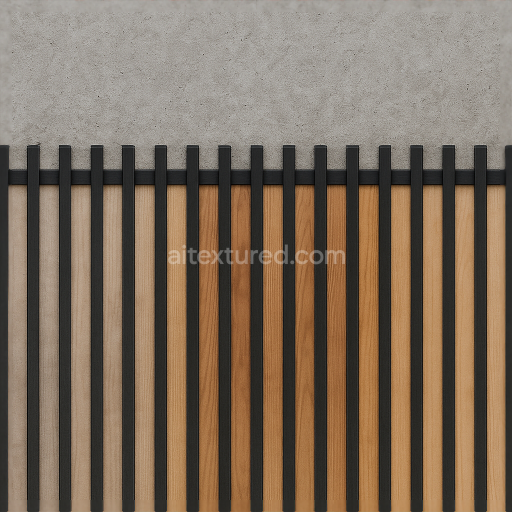
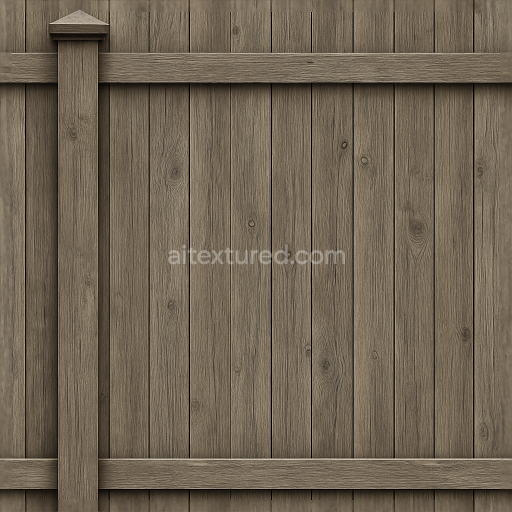
This seamless 3D texture presents a meticulously crafted painted wood garden fence, captured in ultra-high 8K resolution to ensure exceptional detail and realism. The base material is natural timber, characterized by vertical wooden planks with visible grain patterns and subtle imperfections. The wood substrate exhibits moderate porosity typical of outdoor fencing, allowing for slight absorption of paint and natural weathering effects. The paint layer is applied unevenly, featuring chipped and peeled areas where the underlying wood texture becomes visible, adding authentic signs of aging and exposure to the elements. The surface finish combines a matte to semi-gloss appearance, reflecting the varying wear of the painted coating over time.
From a structural perspective, the fence consists of elongated planks arranged in a parallel vertical pattern, each plank separated by narrow gaps that cast soft, natural shadows enhancing depth perception. The chipped paint reveals layers of pigment and binder materials that originally adhered tightly to the wood fibers but now show signs of degradation. The paint composition can be inferred as a traditional acrylic or oil-based exterior formula, with pigments providing faded pale hues. The roughness map captures the shifting reflectivity between the smooth painted areas and the more textured exposed wood, while the normal and height maps emphasize the subtle relief of wood grain, paint chips, and fine cracks.
In terms of physically based rendering (PBR) channels, the BaseColor (Albedo) texture provides the core color data, accurately representing the worn paint and underlying wood tones without baked-in lighting. The Normal map enhances the perception of depth from the grain and paint imperfections, while the Roughness map differentiates between glossy painted surfaces and the rougher, weathered wood. The Metallic channel remains minimal or near-zero, consistent with organic wood and non-metallic paint materials. Ambient Occlusion adds localized shadowing within crevices and chipped areas, and the Height (displacement) map supports subtle geometric displacement to reinforce the 3D relief of the texture.
This texture is optimized for seamless tiling, allowing it to cover large fence surfaces without visible repetition or seams, making it highly suitable for outdoor garden scenes. Its 8K resolution ensures crisp detail when used in high-fidelity applications within Blender, Unreal Engine, and Unity. For best results, it is recommended to carefully adjust the UV scale to match the intended fence dimensions, and to fine-tune the roughness values to simulate either freshly painted or heavily weathered finishes. Additionally, blending height and normal maps can improve the perception of depth around chipped areas, enhancing realism in close-up renders or interactive environments.
Import the texture maps into Blender with sRGB color space for albedo/base color and Non-Color for normal, roughness, metallic, AO, height, and ORM maps. Connect normal maps through a Normal Map node, then adjust UV scale with a Mapping node so the material repeats naturally on your model.
For the full step-by-step setup, see How to Use Seamless Textures in Blender. Browse related material examples in wood, concrete, and metal.
Yes. This texture is designed as a seamless tileable PBR material, so it can repeat across large surfaces without visible borders.
Use the download controls on this page: they expose the available PNG, WEBP or engine ZIP choices and supported resolutions for this asset.
Use the engine ZIP choices to package compatible source maps for Blender, Unreal Engine or Unity, then verify the imported material in the target application.
Commercial-use permission is not verified for this record. Confirm the original source and license before production use.
Generate maps from existing images, preview materials, convert channels, and package compatible inputs for Blender, Unity, and Unreal Engine.
Choose a verified workflow for generating maps, previewing tiling, converting channels, or starting from the texture catalog.
Derive Normal, Roughness, AO, Metallic, Height and optional ORM maps from one or more source images, then review the results.
Instant WebGL viewer: inspect materials on a sphere, plane, and cube. Check tiling and lighting in real time.
Re-packages maps per engine: Unreal (BaseColor + ORM), Unity (Mask/MetallicSmoothness), Blender (separate channels).
PNG ↔ JPG ↔ SVG: fast convert, SVG rasterize, embed/trace options, quality & background controls.