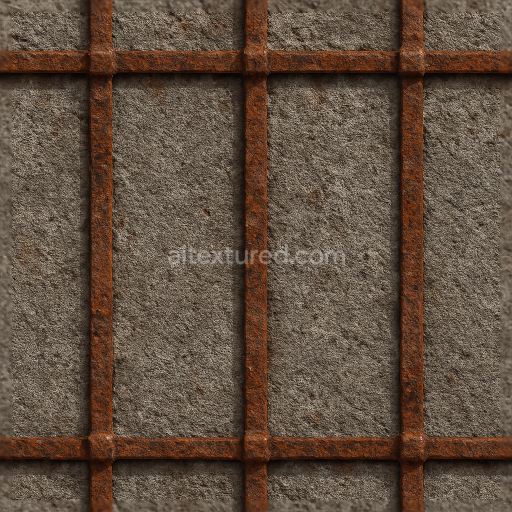
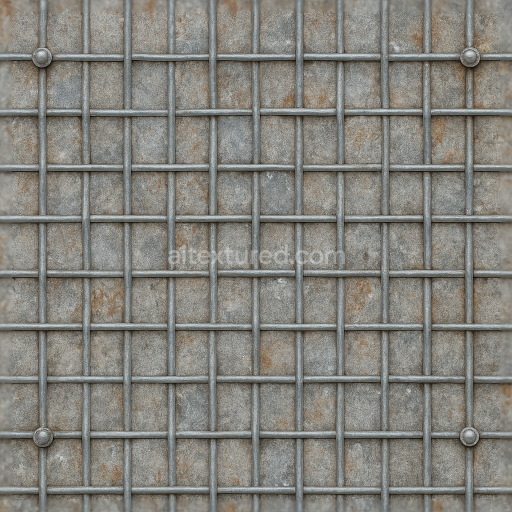
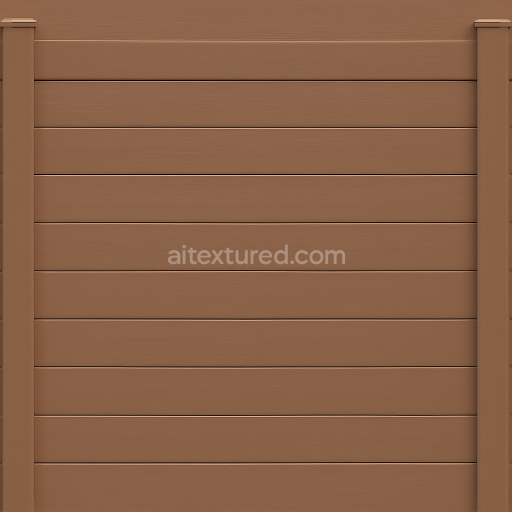
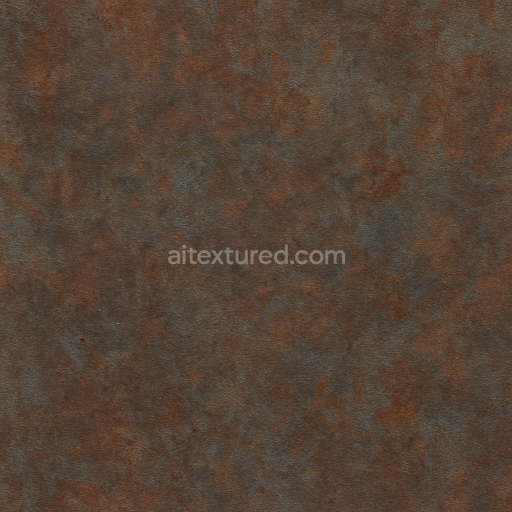
Rusty Metal Fence With Metal Rust And Rough Concrete Base
Seamless texture (tileable) · PNG, WEBP, PBR ZIP.
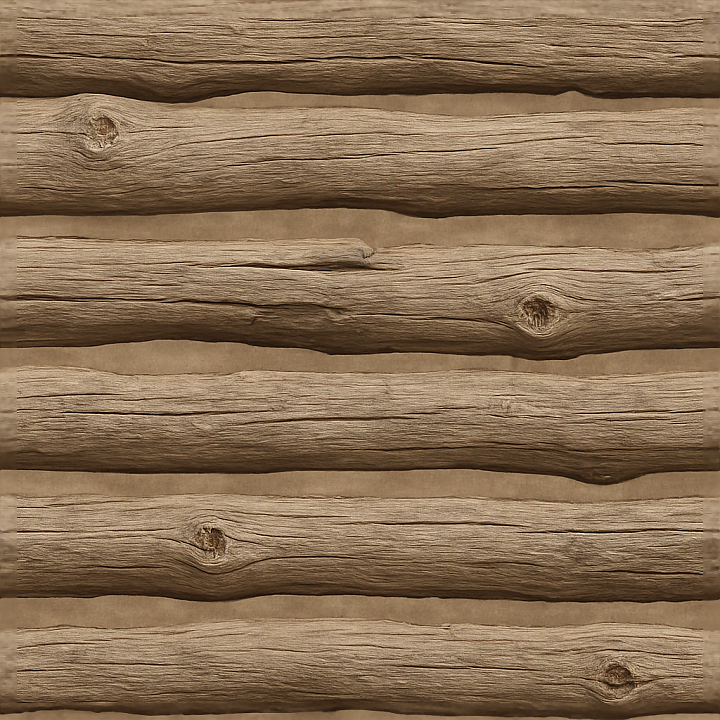
| ID | seamless-3d-texture-pbr-8k-split-rail-fence-with-rough-wood-texture-and-fence-knots |
|---|---|
| Category | Fences |
| Formats | PNG, WEBP, PBR ZIP |
| Size | 1k (1024x1024px), 2k (2048x2048px), 4k (4096x4096px), 8k (8192x8192px) |
| Tileable | Yes |
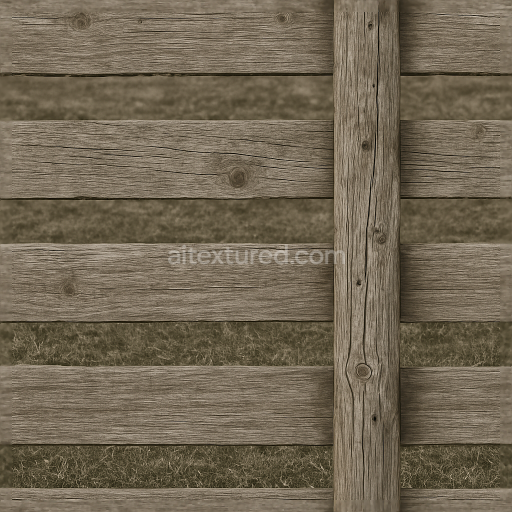
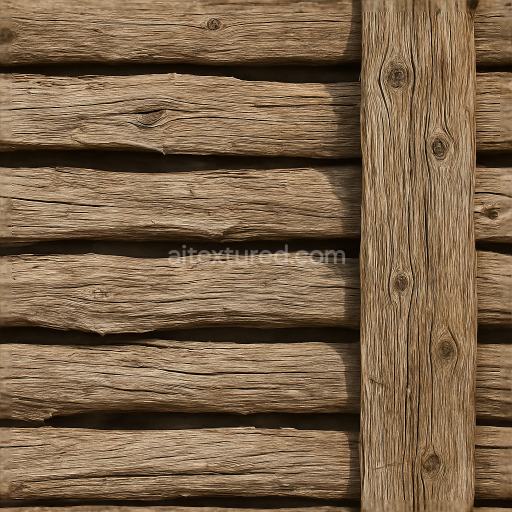
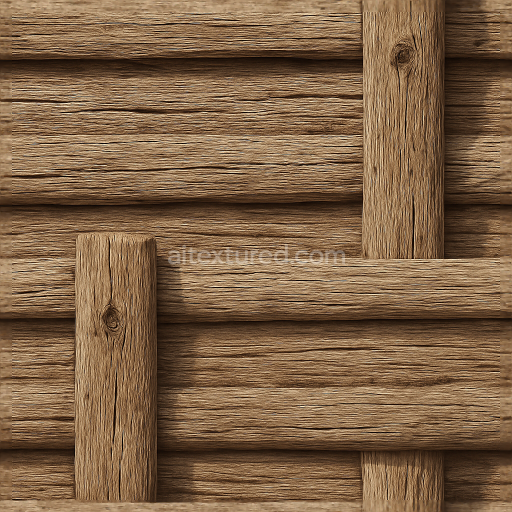
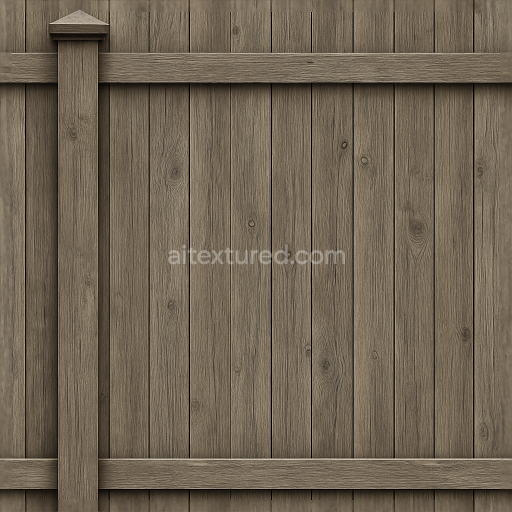
This seamless 3D texture features a highly detailed split rail fence crafted from rough, untreated wood, designed to replicate the natural characteristics of traditional wooden fencing. The material base consists of aged hardwood, exhibiting distinct grain patterns interspersed with prominent fence knots and surface irregularities such as splinters and minor cracks. The geometric form follows the linear, horizontal plank structure typical of split rail fences, with each rail rendered to emphasize its rugged, uneven surface and weathered edges. The texture’s porosity and slight surface erosion reflect prolonged outdoor exposure, capturing the tactile roughness and subtle color shifts found in natural wood, from warm amber browns to cooler grayish tones in weathered areas.
Compositionally, the wood substrate carries no artificial coatings, relying on natural resins and lignin as binders, which contribute to the organic, fibrous grain visible throughout the texture. Variations in fiber density and knot placement introduce localized surface deformations, which are accurately portrayed through the height and normal maps. The roughness map highlights the unpolished, matte finish of the wood, emphasizing areas where weathering has increased surface texture, while the metallic channel remains neutral, reflecting the non-metallic nature of the material. Ambient occlusion enhances the depth around knots and grooves, adding realism to the interplay of light and shadow across the rails.
Rendered in an ultra-high 8K resolution, this PBR texture ensures exceptional clarity and detail, suitable for close-up renders and large-scale outdoor scenes within Blender, Unreal Engine, and Unity environments. The seamless tiling capability allows for continuous application without visible repetition, making it ideal for expansive fence lines or rustic architectural elements. The base color map captures the nuanced wood pigments ranging from reddish undertones near fresh splits to desaturated grays in sun-exposed zones, providing a faithful reproduction of natural wood coloration under neutral lighting conditions.
For optimal integration, it is advisable to carefully adjust the UV scaling to maintain realistic plank proportions and avoid texture stretching. Fine-tuning the roughness map can help simulate varying degrees of weathering, while blending height and normal maps can enhance the perceived depth and tactile quality of knots and grain. This approach ensures that the texture adapts well to different lighting setups and rendering engines, preserving its photorealistic detail and material authenticity across diverse 3D projects featuring rustic wooden fences.
Import the texture maps into Blender with sRGB color space for albedo/base color and Non-Color for normal, roughness, metallic, AO, height, and ORM maps. Connect normal maps through a Normal Map node, then adjust UV scale with a Mapping node so the material repeats naturally on your model.
For the full step-by-step setup, see How to Use Seamless Textures in Blender. Browse related material examples in wood, concrete, and metal.
Yes. This texture is designed as a seamless tileable PBR material, so it can repeat across large surfaces without visible borders.
Use the download controls on this page: they expose the available PNG, WEBP or engine ZIP choices and supported resolutions for this asset.
Use the engine ZIP choices to package compatible source maps for Blender, Unreal Engine or Unity, then verify the imported material in the target application.
Commercial-use permission is not verified for this record. Confirm the original source and license before production use.
Generate maps from existing images, preview materials, convert channels, and package compatible inputs for Blender, Unity, and Unreal Engine.
Choose a verified workflow for generating maps, previewing tiling, converting channels, or starting from the texture catalog.
Derive Normal, Roughness, AO, Metallic, Height and optional ORM maps from one or more source images, then review the results.
Instant WebGL viewer: inspect materials on a sphere, plane, and cube. Check tiling and lighting in real time.
Re-packages maps per engine: Unreal (BaseColor + ORM), Unity (Mask/MetallicSmoothness), Blender (separate channels).
PNG ↔ JPG ↔ SVG: fast convert, SVG rasterize, embed/trace options, quality & background controls.