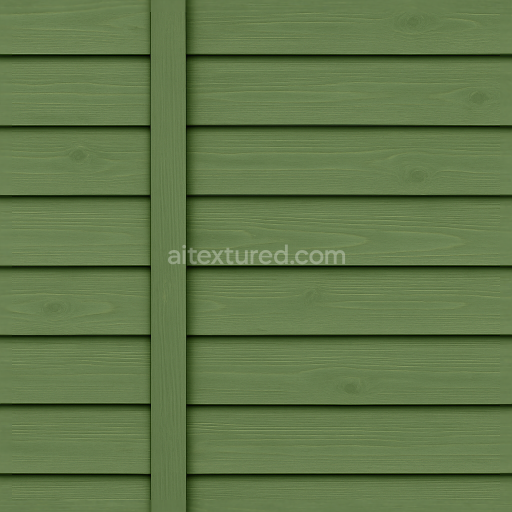
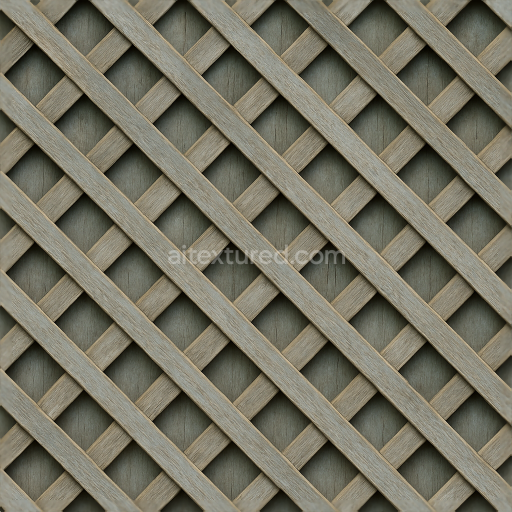
Seamless 8K 3D Texture PBR Garden Fence With Horizontal Slats And Painted Wood In Green F…
Seamless texture (tileable) · PNG, WEBP, PBR ZIP.
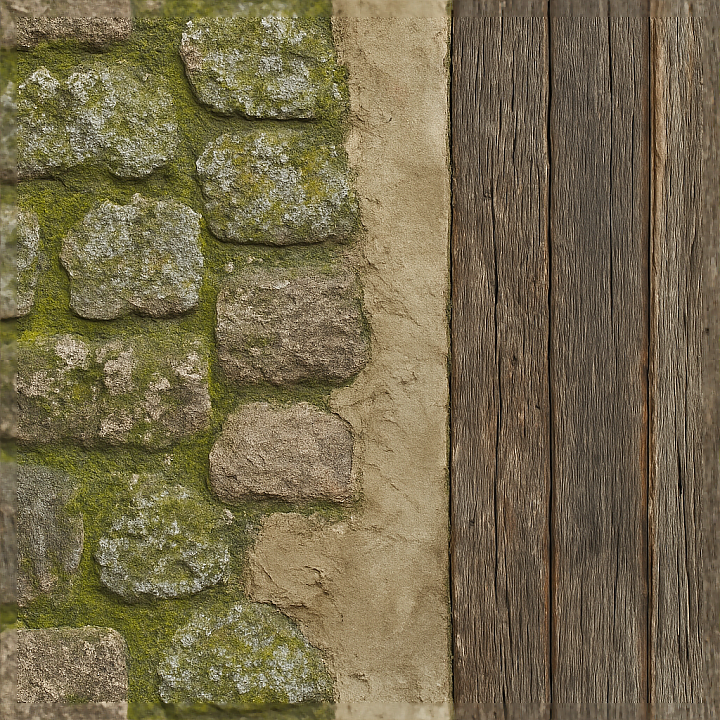
| ID | seamless-8k-3d-texture-pbr-stone-wall-fence-with-moss-covered-and-lichen-growth-on-plastered-wall-surface |
|---|---|
| Category | Fences |
| Formats | PNG, WEBP, PBR ZIP |
| Size | 1k (1024x1024px), 2k (2048x2048px), 4k (4096x4096px), 8k (8192x8192px) |
| Tileable | Yes |
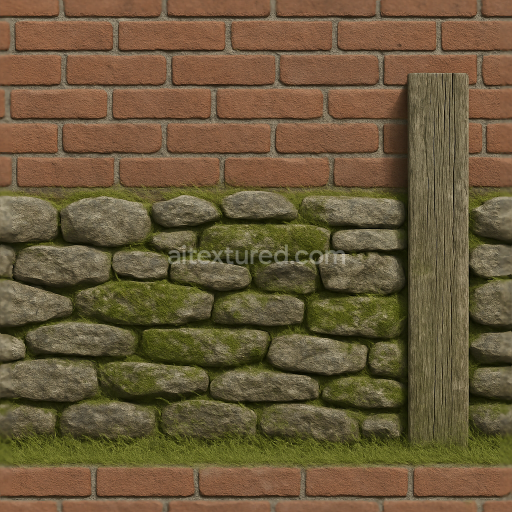
This seamless 8K PBR 3D texture presents a detailed stone wall fence characterized by a plastered surface intricately interspersed with moss and lichen growth. The base material is a rough stone substrate, composed of irregularly shaped natural stones bound together by a lime-based plaster, which acts as the adhesive layer filling gaps and providing structural cohesion. The plaster exhibits a slightly coarse texture due to fine sand aggregates mixed into the binder, contributing subtle graininess and enhancing porosity. Over time, exposure to outdoor elements has encouraged biological colonization, with lush moss patches and delicate lichen colonies spreading unevenly across the surface, adding organic complexity and natural color variations ranging from deep greens to muted grays and yellows.
The geometric form is defined by the random yet cohesive arrangement of stone blocks of various sizes, partially obscured by the plaster’s smooth but weathered finish. The surface presents a compelling interplay between the roughness of the exposed stone edges and the softer, cracked plaster areas where moss and lichen thrive. Additionally, hints of aged wood—likely part of fence posts or structural beams—are visible, showing textures from dry, cracked wood fibers to damp, darker regions indicative of moisture absorption. This variety enhances the overall realism and tactile quality of the texture, making it highly suitable for natural environment scenes.
From a PBR channel perspective, the BaseColor (Albedo) map captures the diverse palette of natural stone greys, plaster off-whites, vibrant moss greens, and subtle lichen yellows without any baked-in lighting, ensuring flexibility in different lighting environments. The Normal map defines the intricate surface relief, emphasizing the stone’s jagged edges, plaster cracks, and organic growth bumps, essential for realistic light interaction. Roughness values vary across the texture, with the plaster areas exhibiting higher roughness to simulate their matte, weathered finish, while the moss and lichen areas show softer, slightly more reflective properties due to moisture content. The Metallic map is effectively zero throughout, reflecting the non-metallic nature of stones, plaster, and organic materials. Ambient Occlusion enhances depth perception around crevices and undergrowth, while Height/Displacement maps provide fine surface detail for parallax effects or tessellation, accentuating the unevenness of stone edges and layered biological growth.
This texture is optimized for use in Blender, Unreal Engine, and Unity, supporting seamless tiling at 8K resolution, allowing for high-detail close-up renders without visible repetition. For best results, it is recommended to carefully adjust the UV scale to maintain natural proportions of stone blocks and biological growth, avoiding overly stretched or compressed details. Additionally, tuning the roughness map can help simulate varying wetness levels on the moss and wood patches, enhancing realism in different environmental conditions. When integrating height or parallax maps, blending them subtly with normal maps ensures smooth transitions in surface depth without harsh artifacts.
Import the texture maps into Blender with sRGB color space for albedo/base color and Non-Color for normal, roughness, metallic, AO, height, and ORM maps. Connect normal maps through a Normal Map node, then adjust UV scale with a Mapping node so the material repeats naturally on your model.
For the full step-by-step setup, see How to Use Seamless Textures in Blender. Browse related material examples in wood, concrete, and metal.
Yes. This texture is designed as a seamless tileable PBR material, so it can repeat across large surfaces without visible borders.
Use the download controls on this page: they expose the available PNG, WEBP or engine ZIP choices and supported resolutions for this asset.
Use the engine ZIP choices to package compatible source maps for Blender, Unreal Engine or Unity, then verify the imported material in the target application.
Commercial-use permission is not verified for this record. Confirm the original source and license before production use.
Generate maps from existing images, preview materials, convert channels, and package compatible inputs for Blender, Unity, and Unreal Engine.
Choose a verified workflow for generating maps, previewing tiling, converting channels, or starting from the texture catalog.
Derive Normal, Roughness, AO, Metallic, Height and optional ORM maps from one or more source images, then review the results.
Instant WebGL viewer: inspect materials on a sphere, plane, and cube. Check tiling and lighting in real time.
Re-packages maps per engine: Unreal (BaseColor + ORM), Unity (Mask/MetallicSmoothness), Blender (separate channels).
PNG ↔ JPG ↔ SVG: fast convert, SVG rasterize, embed/trace options, quality & background controls.