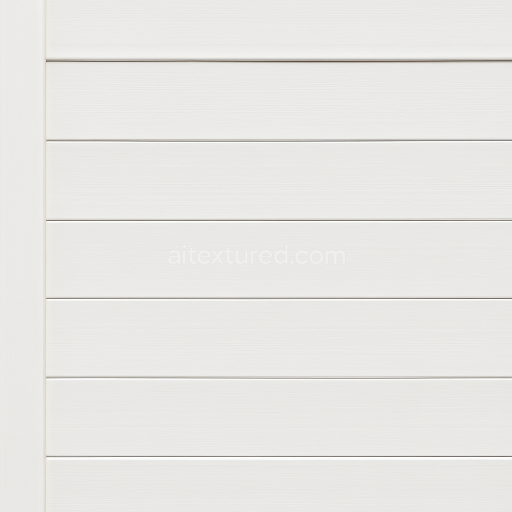
Seamless 8K 3D Texture PBR Vinyl Fence With Painted Vinyl White Fence Featuring Smooth Su…
Seamless texture (tileable) · PNG, WEBP, PBR ZIP.
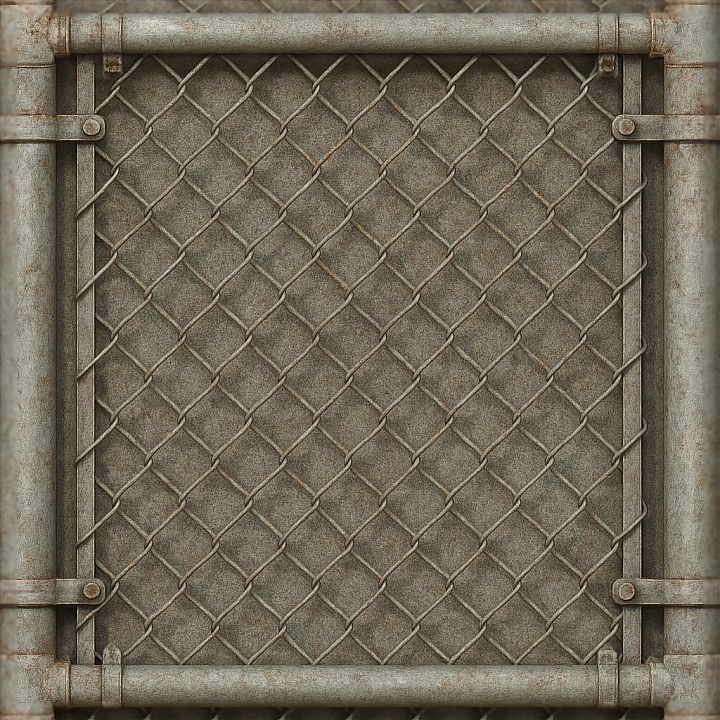
| ID | seamless-8k-3d-texture-pbr-chain-link-gate-with-galvanized-metal-and-wire-mesh-corroded-metal-detail |
|---|---|
| Category | Fences |
| Formats | PNG, WEBP, PBR ZIP |
| Size | 1k (1024x1024px), 2k (2048x2048px), 4k (4096x4096px), 8k (8192x8192px) |
| Tileable | Yes |
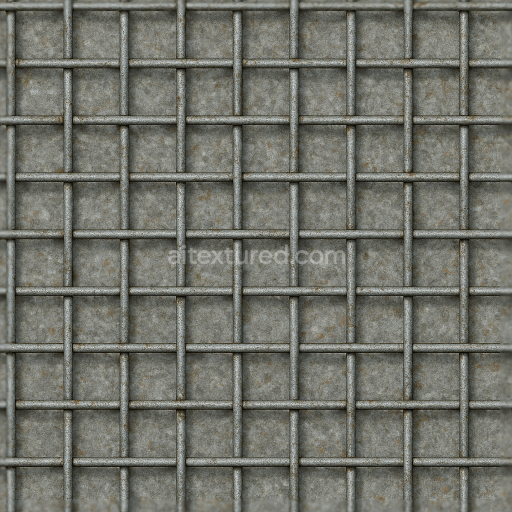
This seamless 8K PBR 3D texture represents a chain link gate primarily composed of galvanized steel wire mesh and metal framing. The base material is galvanized metal, characterized by a zinc coating that protects the underlying steel substrate from corrosion. Over time, this protective layer develops localized oxidation and corrosion marks, which are meticulously captured in the texture’s surface details. The wire mesh forms a woven geometric pattern of interlocking steel rods, creating a flexible yet sturdy lattice. The metal bolts and connectors, visible at intersections and frame joints, add mechanical fastening elements that enhance structural integrity. The overall form is defined by repetitive diamond-shaped openings formed by the wire mesh, with a slightly rough and uneven surface finish due to weathering and exposure to outdoor elements.
The texture’s composition reveals a complex interplay of materials and weathering effects. The galvanized steel substrate exhibits a muted gray base color with subtle variations caused by corrosion pigments, such as rust reds and dark oxidized spots. The zinc coating’s reflective qualities are modeled through the metallic and roughness channels: the metallic map highlights the steel and bolts’ metal nature, while the roughness map balances areas of worn, oxidized metal with smoother galvanized patches. Ambient occlusion enhances the depth in crevices where corrosion and dirt accumulate, particularly around the wire intersections and bolt heads. The height and normal maps provide fine surface relief, emphasizing the embossed wire mesh pattern, corrosion pits, and slight deformations in the metal rods, contributing to a tactile, rough metal appearance.
Surface finish details include a partially oxidized and corroded metal texture, showing a weathered patina that suggests prolonged exposure to the environment. The texture captures the complex microstructure of rough metal with visible grain and subtle scratches, while the galvanized zinc layer appears slightly matte but retains metallic reflectivity in less corroded zones. This nuanced finish is essential for photorealistic rendering in physically based workflows, accurately simulating the interplay of light on the mixed surfaces of smooth metal, rough corrosion, and painted or coated areas.
Designed for seamless tiling, this texture is optimized for use in Blender, Unreal Engine, and Unity, supporting high-fidelity visualizations in urban and industrial 3D environments. The 8K resolution ensures fine details remain crisp even on close camera angles, making it suitable for security fencing, construction sites, or any scenario requiring realistic chain link gate materials. For practical application, adjusting the UV scale to maintain the correct wire mesh size relative to the scene scale is recommended. Additionally, fine-tuning the roughness map can help achieve the desired balance between shiny galvanized areas and matte corroded patches, while blending height or parallax maps with normals enhances the perception of depth and surface irregularities on the gate’s metal rods and mesh intersections.
Import the texture maps into Blender with sRGB color space for albedo/base color and Non-Color for normal, roughness, metallic, AO, height, and ORM maps. Connect normal maps through a Normal Map node, then adjust UV scale with a Mapping node so the material repeats naturally on your model.
For the full step-by-step setup, see How to Use Seamless Textures in Blender. Browse related material examples in wood, concrete, and metal.
Yes. This texture is designed as a seamless tileable PBR material, so it can repeat across large surfaces without visible borders.
Use the download controls on this page: they expose the available PNG, WEBP or engine ZIP choices and supported resolutions for this asset.
Use the engine ZIP choices to package compatible source maps for Blender, Unreal Engine or Unity, then verify the imported material in the target application.
Commercial-use permission is not verified for this record. Confirm the original source and license before production use.
Generate maps from existing images, preview materials, convert channels, and package compatible inputs for Blender, Unity, and Unreal Engine.
Choose a verified workflow for generating maps, previewing tiling, converting channels, or starting from the texture catalog.
Derive Normal, Roughness, AO, Metallic, Height and optional ORM maps from one or more source images, then review the results.
Instant WebGL viewer: inspect materials on a sphere, plane, and cube. Check tiling and lighting in real time.
Re-packages maps per engine: Unreal (BaseColor + ORM), Unity (Mask/MetallicSmoothness), Blender (separate channels).
PNG ↔ JPG ↔ SVG: fast convert, SVG rasterize, embed/trace options, quality & background controls.